OptimaUserManual.pdf - 第13页
INTRO DUCT IO N Opti ma User M anual 7 Connecting the TOP s to Your Pr ogrammer Programm ers come w ith a variety of T OPs. If the T OP that came w ith y our pr ogra mmer is n ot alr ea dy ins ta lled , in st all it no w…
INTRODUCTION
Optima User Manual
6
4. Install the power supply:
x For Plus 48, Optima, Optima Light, and Dual programmers: Insert the small
DIN jack of the power supply into the power connector on the back of the
programmer. This jack is keyed and cannot be inserted incorrectly.
Note: Power supplies for Plus 48, Optima, Optima Light and Dual
are not interchangeable.
x
For Quad and Octal programmers: Connect the main power cord to the
power jack on the back of the programmer.
5. Insert the other end of the power cord into a 100-250 Volts, 50-60 Hz AC outlet.
Warning: Do not turn on the power
INTRODUCTION
Optima User Manual
7
Connecting the TOPs to Your Programmer
Programmers come with a variety of TOPs. If the TOP that came with your
programmer is not already installed, install it now following these steps:
1. Turn the TOP over and examine the pins to verify that they are straight.
2. Hold the TOP at a 45q angle to the programmer base, with the plastic tab of the
TOP hooked into the receiving indentation of the base.
3. Lower the TOP until it rests lightly on the base.
4. Rock the TOP gently until it seats into the base.
5. Press the TOP gently until you hear a click.
Warning: Do not press the TOP if you meet resistance. The pins
may not be properly lined up with the pin connector strip
on the base. If you meet resistance, remove TOP and
begin again at Step 1.
Note: You can arrange the TOPs in any order you want. It is
common to arrange similar TOPs close to each other.
6. Turn the power switch on the back of the programmer to the ON position.
7. Turn the power switch on your computer to the ON position.
INTRODUCTION
Optima User Manual
8
Installing the Optima Windows Software
Follow these steps to install Optima Windows on your computer:
1. Insert the Optima Release CD-ROM into the appropriate drive on your computer.
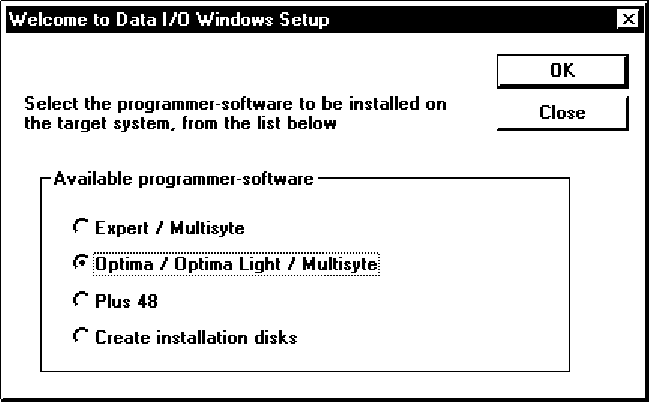
Windows starts the SetupWin.exe installation program and you will see the
Welcome to Data I/O Windows Setup dialog box:
2. Select one of the listed options, then click OK:
q Optima / Optima Light / Multisyte—most cases
q Plus 48—if connected to a programmer marked PLUS 48
q Create installation disks—if installing onto a PC that does not have a CD-
ROM drive
Note: Do not select the Expert/Multisyte option. It is for older
hardware configurations that are not supported.
3. Click NEXT as you proceed through the Welcome and ReadMe Information
dialog boxes.