OptimaUserManual.pdf - 第115页
OPT IMA PAL SO FTW ARE Opti ma User M anual 109 x Page ( upper butt on) —Moves the cursor up one pag e of data each time the button is pressed x Page (l ower button) —Moves the cursor dow n one page of data each time the…
OPTIMA PAL SOFTWARE
Optima User Manual
108
Memory>Edit
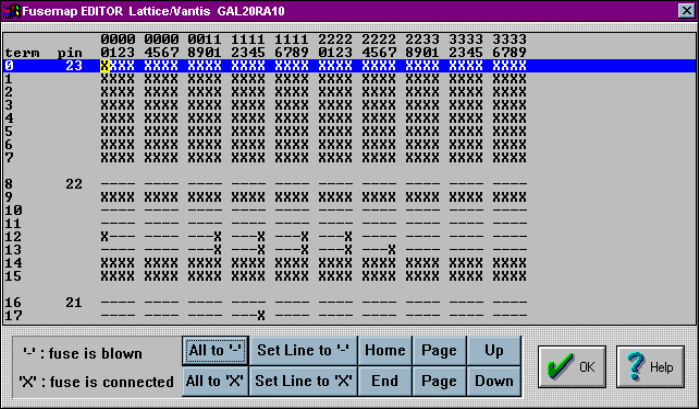
Selecting Memory>Edit from the Memory menu will produce the following screen:
The Edit menu
The editor screen allows you to view the fusemap of the logic device under test, and
also allows you to edit the fusemap manually if necessary. As can be seen in the
figure above, a portion of the addressable fuse locations is displayed. If there is a “–”
symbol in any location, that fuse has been blown, while the “X” symbol indicates that
the fuse is still intact. Some of the additional controls on the screen include:
x All to ‘–’—Blows all fuses in the device
x All to ‘X’—Connects all fuses in the device
x Set Line to ‘–’—Blows all fuses in the line that has been selected by the mouse
cursor; indicated by the highlighted line
x Set Line to ‘X’—Connects all fuses in the line that has been selected by the
mouse cursor; indicated by the highlighted line
x Home—Sends the cursor back to the beginning fuse location of the device
x End—Sends the cursor to the last fuse location of the device

OPTIMA PAL SOFTWARE
Optima User Manual
109
x Page (upper button)—Moves the cursor up one page of data each time the
button is pressed
x Page (lower button)—Moves the cursor down one page of data each time the
button is pressed
x Up—Moves the cursor up one line of data each time the button is pressed
x Down—Moves the cursor down one line of data each time the button is pressed
An additional function that can be used from the editor screen is a simple fuse
location indicator. To use this indicator, simply place the mouse cursor over the
location in question, right-click the location with the mouse, and a window will appear
with the fuse location:
Right-clicking the edit screen will provide the fuse location under the cursor
OPTIMA PAL SOFTWARE
Optima User Manual
110
The Device Menu
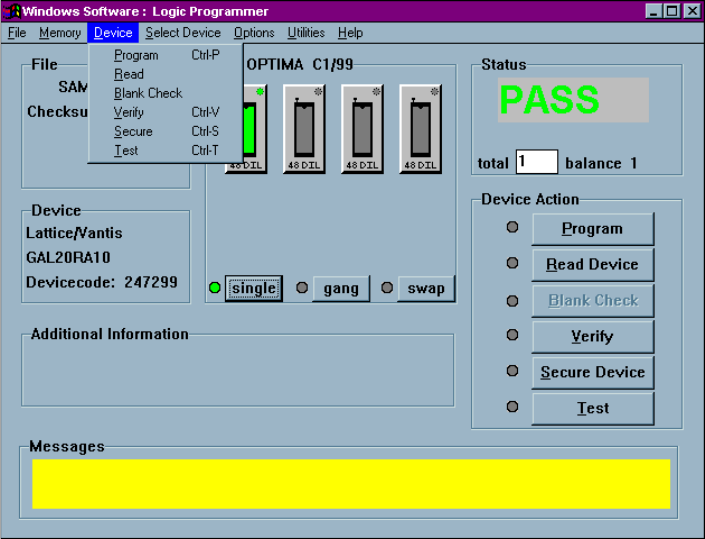
The third menu on the Main Programming screen is the Device menu. This menu is
used to select the programmer operation for the device inserted:
The Device menu
Device> Program
This selection initiates the programming operation using the data that is stored in the
memory buffer. The device type selected must match the physical device in the
socket.
The device will first be checked for blank state or electrically erased. If the device is
electrically erasable, then an erase cycle will be automatically executed. If it is not
erased—and is UV-erasable or is a one-time-programmable (OTP) device—the PAL