OptimaUserManual.pdf - 第69页
OPTIMA PROM SOF TW AR E Opti ma User M anual 63 Intel/M otorola Form at : This option is used to do an odd/even by t e swap as data is l oaded. By selecting Intel Li t tle Endian (defaul t val ue), the data is loaded dir…
OPTIMA PROM SOFTWARE
Optima User Manual
62
32-Bit Low and High Word
This option is used to split a 32-bit data file into two 16-bit data files.
To split a 32-bit data file into two 16-bit data files, follow this four step process:
1. Select the 32-bit data file to be split into two 16-bit files, select 32-Bit Low Word
and load the file.
All the low-order data words will be loaded into Optima Ram Buffer (shown in
bold).
2. Program the 16-bit memory device.
3. Repeat the file download operation, and select 32-Bit High.
All the high order data words will be loaded into the Ram Buffer (shown in
italics).
4. Program the second 16-bit device.
Example 7: 32-Bit Low and High Word
File Data Optima Ram Buffer Optima Ram Buffer
Low Word Selected High Word Selected
$A000, Address Data Data
00 01 02 03 04 05 06 07 0000 00 02
0001 01 03
$A008, 0002 04 06
08 09 0A 0B 0C 0D 0E 0F 0003 05 07
0004 08 0A
$A010, 0005 09 0B
00 11 22 33 44 55 66 77 0006 0C 0E
0007 0D 0F
$A018, 0008 00 22
88 99 AA BB CC DD EE FF 0009 11 33
000A 44 66
000B 55 77
000C 88 AA
000D 99 BB
000E CC EE
000F DD FF
OPTIMA PROM SOFTWARE
Optima User Manual
63
Intel/Motorola Format:
This option is used to do an odd/even byte swap as data is loaded. By selecting Intel
Little Endian (default value), the data is loaded directly into memory. By selecting
Motorola Big Endain, an odd/even byte swap is performed before the data is stored in
the Ram Buffer.
Note: Versions of Optima software after B/99 have a Byte Swap
feature located under the Memory menu. This feature can
also be used after a file download.
Example 8: Intel/Motorola Format
File Data Optima Ram Buffer Optima Ram Buffer
Intel Little Endian Motorola Big Endian
$A000, Address Data Data
00 01 02 03 04 05 06 07 0000 00 01
0001 01 00
$A008, 0002 02 03
08 09 0A 0B 0C 0D 0E 0F 0003 03 02
0004 04 05
$A010, 0005 05 04
00 11 22 33 44 55 66 77 0006 06 07
0007 07 06
$A018, 0008 08 09
88 99 AA BB CC DD EE FF 0009 09 08
000A 0A 0B
000B 0B 0A
000C 0C 0D
000D 0D 0C
000E 0E 0F
000F 0F 0E
OPTIMA PROM SOFTWARE
Optima User Manual
64
File>Save As
There is also an option for saving the data in RAM as a data file. This can be helpful
when you have a master device but no data file, and you would like to create one.
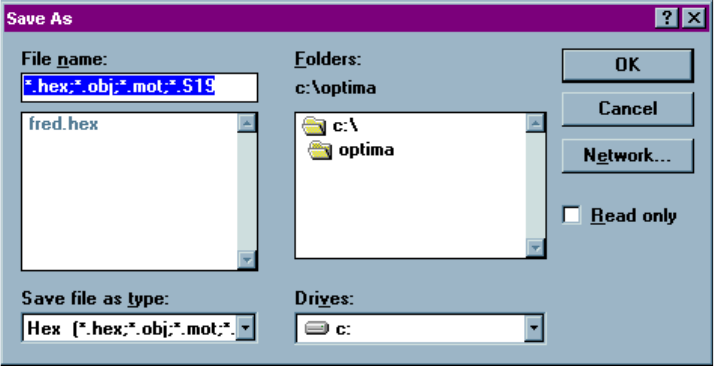
Selecting File> Save As will produce the following screen:
The Save-As dialogue
You may save data files in the following formats:
x Binary (*.com, *.bin)
x Intel MCS-86 Hex
x ASCII Hex Space (*.*)
After loading a data file or reading a master device, select Save As from the File
menu, select the appropriate file format, name the file, and save it to the desired
location.