OptimaUserManual.pdf - 第93页
OPTIMA PROM SOF TW AR E Opti ma User M anual 87 If you get an er ro r me ss age, th e f ollo wing scr een will ident if y the ad dr es s f ro m RAM and PROM and data information w her e errors occurr ed: Devic e verifica…
OPTIMA PROM SOFTWARE
Optima User Manual
86
Device>Verify
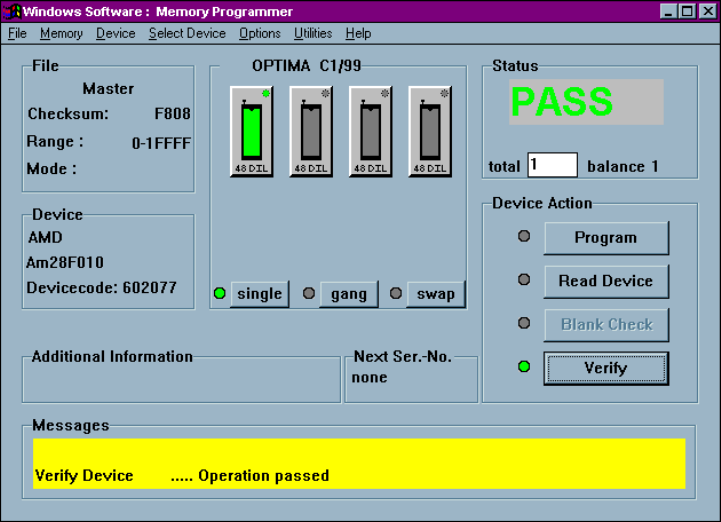
Devices may also be verified with known good data by selecting Device>Verify To
use this function, you must first read the device’s data into the programmer/software
RAM. The data can be read two different ways:
x Select Device>Read to read a master device into programmer/software RAM.
x Select File>Load to load a data file into programmer/software RAM.
Once the data to be verified has been successfully loaded into programmer/software
RAM, insert the device into the programmer socket. Select Device>Verify, or click
the <Verify> button in the Device Action section of the screen to initiate the Verify
action. During the Verify action, a byte-by-byte comparison is performed between the
data in RAM and the device in the socket. When the Verify action is complete,
PASS/FAIL results will be displayed in the Status section of the screen, as well as in
the Messages section
Device Verify Pass message
OPTIMA PROM SOFTWARE
Optima User Manual
87
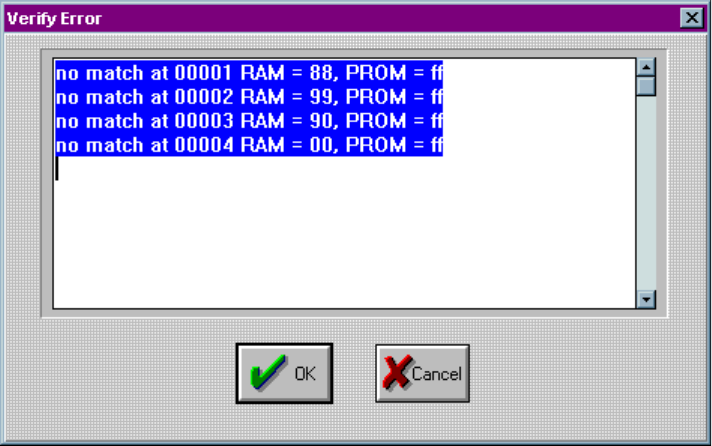
If you get an error message, the following screen will identify the address from RAM
and PROM and data information where errors occurred:
Device verification errors are displayed with location information
OPTIMA PROM SOFTWARE
Optima User Manual
88
The Select Device Menu
The fourth menu on the Main Programming screen is the Select Device menu.
The Select Device menu