OptimaUserManual.pdf - 第96页
OPTIMA PROM SOF TW AR E Opti ma User M anual 90 If yo u see TOP ! next to the vendor name, no dev ice manufactured by that vendor is supported by the TOP you have i nstalled. F or example, the TOP48 does not support any …
OPTIMA PROM SOFTWARE
Optima User Manual
89
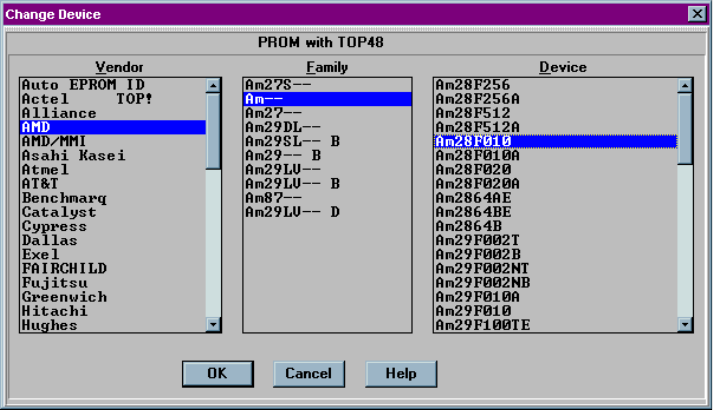
The Select Device menu allows you to select the type of device you wish to program.
When selected, the Change Device screen appears:
Selecting the device to be programmed
Select the vendor, family and device to be processed from the list and click <OK>.
The devices listed are those that are supported by the TOP that has been installed. If
you do not find the device on the list, follow these steps:
1. Turn off power to the programmer
2. Close the software
3. Remove the TOP
4. Install a TOP that supports the device you wish to program
OPTIMA PROM SOFTWARE
Optima User Manual
90
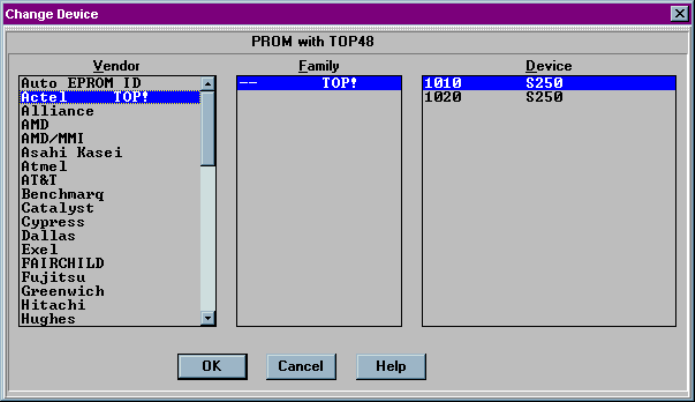
If you see TOP! next to the vendor name, no device manufactured by that vendor is
supported by the TOP you have installed. For example, the TOP48 does not support
any Actel devices, as shown here:
Vendor not supported by this TOP
OPTIMA PROM SOFTWARE
Optima User Manual
91
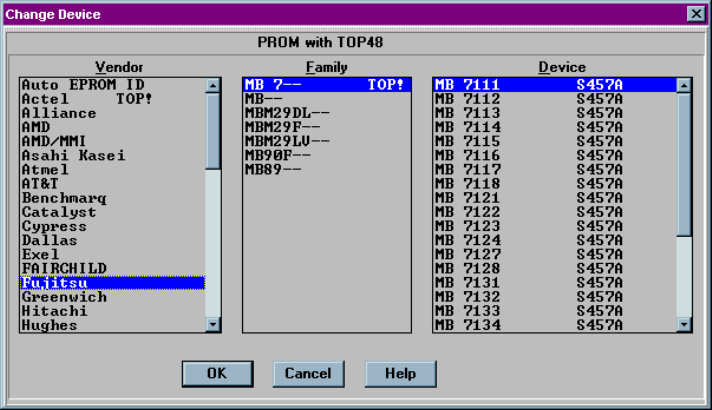
If you see TOP! beside the family name, devices in that family are not supported by
the TOP you have installed. For example, the TOP48 does not support the family of
MB 7 devices. By reading the Sxxx number beside the device listed, you can
determine which TOP does support the device you wish to program:
MB 7 device family not supported by this TOP