OptimaUserManual.pdf - 第80页
OPTIMA PROM SOF TW AR E Opti ma User M anual 74 M emory>Device Serialization Opt ions… The D evice Se rializ ation Op tions… allow s you to assig n unique electronic serial numbers to each dev ice being programm ed. W…
OPTIMA PROM SOFTWARE
Optima User Manual
73
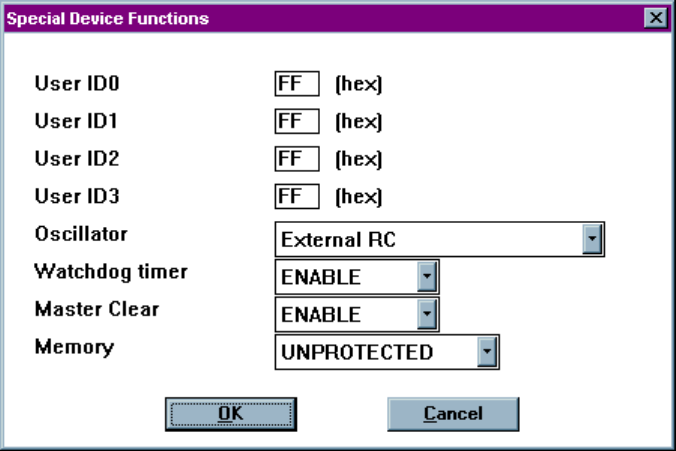
Memory>Special Device Functions…
The Special Device Functions…menu item is used to set features unique to the
devices under test. This feature is enabled only for devices with special features.
Additionally, these features vary from device to device.
Setting special device functions
OPTIMA PROM SOFTWARE
Optima User Manual
74
Memory>Device Serialization Options…
The Device Serialization Options…allows you to assign unique electronic serial
numbers to each device being programmed. When serializing devices, the serial
number is automatically incremented for the next device each time the Optima
software completes a programming operation. When serializing with Multisyte
programmers (Dual, Quad, and Octal) in gang mode, sequential serial numbers are
automatically generated for devices inserted into adjacent TOPs.
Note: Serialization is only supported with single-socket TOPs, such
as the TOP48, TOP84PLC, and other similar TOPs. It is not
supported on the TOP432
or Flash TOP.
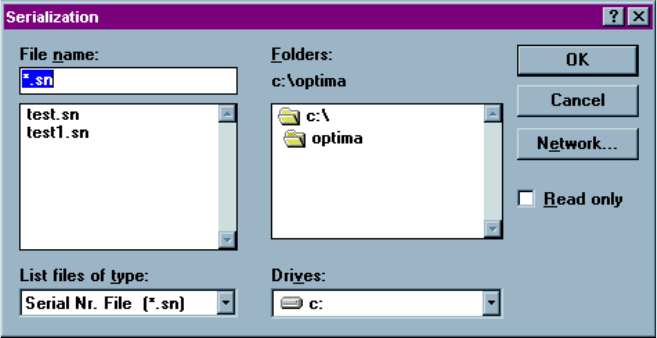
To set up this feature, refer to the figures below and perform the following process:
1. Select Memory > Device Serialization Options… The following screen will
appear:
Selecting the serial number file
2. Choose the path and serial number file you would like to use, or if creating a new
serial number file, type in the desired name of the file in the File name field. For
clarity, use DOS standard 8.3 file names. The default file extension for serial
number files is *.sn, but can be anything you like. To locate files with extensions
OPTIMA PROM SOFTWARE
Optima User Manual
75
other than *.sn, select All (*.*) from the List files of type pull-down menu in the
lower left of the window.
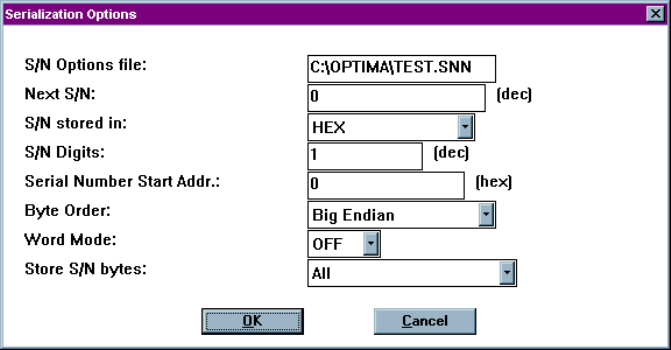
3. Select <OK>. A Serialization Options screen appears:
The Serialization Options screen
Editable fields include:
x S/N Options file—The name of the serial number file that was selected or
created from the previous screen.
x Next S/N—The starting serial number of the next device to be programmed; this
is a decimal number. Numbers entered here will automatically be converted to
the correct format when the device is programmed.