OptimaUserManual.pdf - 第103页
OPTIMA PROM SOF TW AR E Opti ma User M anual 97 The Utiliti es M enu Th e s ixt h me nu on t he Ma in P r ogra mming s cr ee n is t h e Utilities m enu. The U tilities Menu You can cr eat e a co mplete lis t of devices s…
OPTIMA PROM SOFTWARE
Optima User Manual
96
Note: If the device ID is different from that which the algorithm
expects, the programmer software may not allow you to
continue until the discrepancy is corrected.
If the device is determined to require no algorithm changes, electronic ID may be
turned OFF until such time that the algorithm may be updated to incorporate the
new electronic ID. Additionally, ID Check may be set to AUTO to automatically
detect the electronic ID of those devices supporting this option.
x Algorithm Options—Used to change specific programming parameters within
the algorithm.
OPTIMA PROM SOFTWARE
Optima User Manual
97
The Utilities Menu
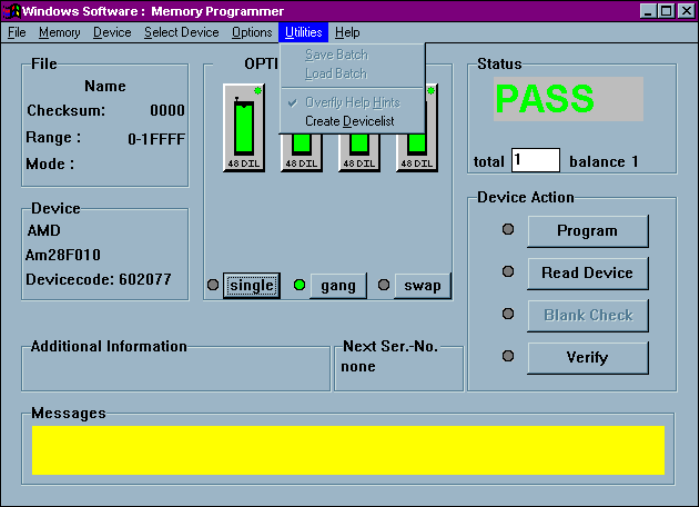
The sixth menu on the Main Programming screen is the Utilities menu.
The Utilities Menu
You can create a complete list of devices supported by the Optima family
programmers by using the Utilities menu.
OPTIMA PROM SOFTWARE
Optima User Manual
98
Utilities>Create Devicelist
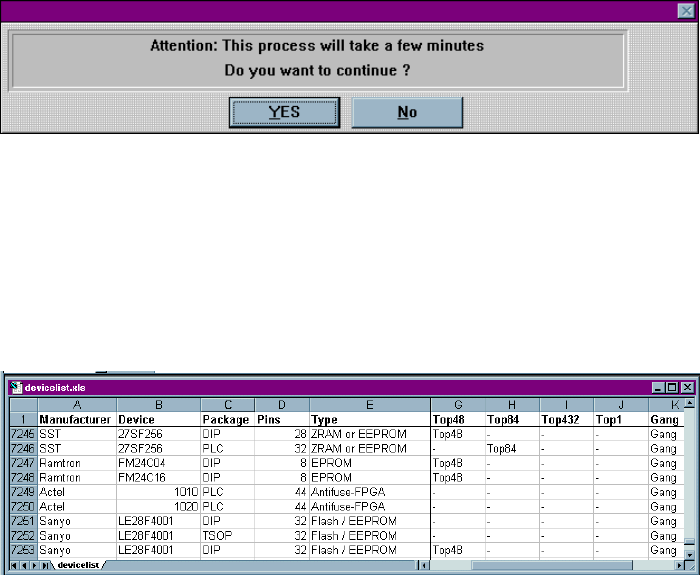
To create a device list, select Utilities>Create Devicelist. The following screen
appears:
Attention screen
Click <Yes> to continue.
A file titled “dev_prm.txt” is then created in your Optima directory. It lists all the
programmable memory and microcontroller devices supported for the installed
version of Optima software. The “dev_prm.txt” file is tab delimited and can be
imported into an Excel spreadsheet. Once imported, use Excel to filter the file to
create a device list that meets your specific needs:
Excel spreadsheet device list (portion)