ALFeeder_E.pdf - 第43页
2. Loading/Unloading component tape 2-13 Chapter 2 Handling component tape 2.2 Unloading component tape T he following describes the procedure for unloading the component tape from Auto loading feeder . T he unloading pr…
2. Loading/Unloading component tape
2-12
Chapter 2 Handling component tape
7
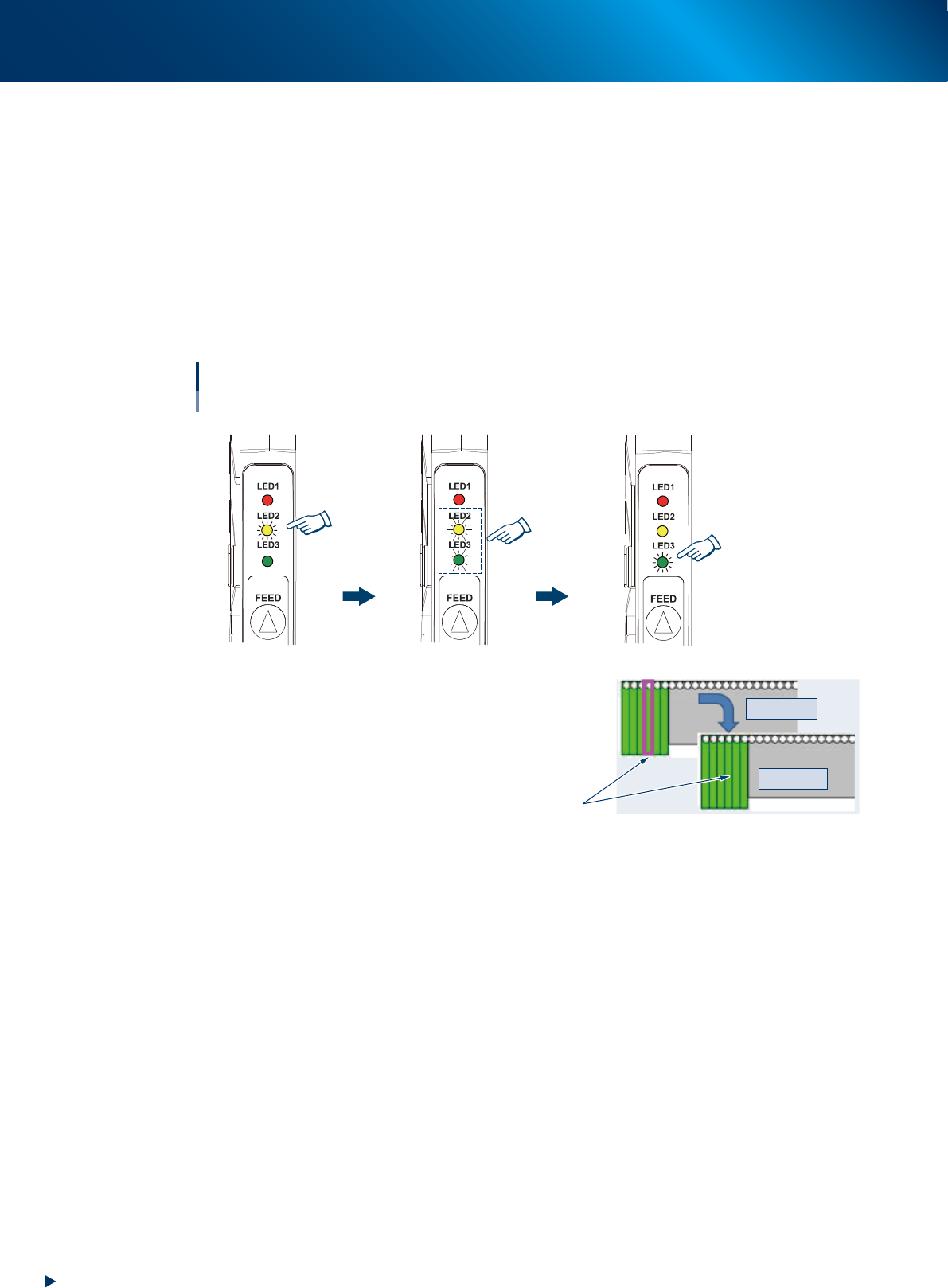
Check that the component tape is set correctly.
The component tape is set correctly if the followings are applied.
1. The yellow LED lights up for 1 second upon detecting tape insertion.
2. The yellow and green LED flash for 4 seconds simultaneously.
<To refill the component tape>
Check the "Monitor" - "Production" screen. The feeder set position is enclosed with a magenta
frame when "presettable".
3. The green LED turns into lighting upon completing tape setting.
<To refill the component tape>
The magenta frame disappears when the set for "presettable" is completed.
Yellow and green
LEDs flash simultaneously
for 4 seconds
Yellow LED
lights up for
1 second
Tape setting is completed
Completing component tape setting
With IT Option
Magenta frame disappears
[Monitor] - [Production] screen
Incompleted
Completed
Green LED lights up
63229-KLU-00
2. Loading/Unloading component tape
2-13
Chapter 2 Handling component tape
2.2 Unloading component tape
The following describes the procedure for unloading the component tape from Auto loading feeder.
The unloading procedure is common regardless to Optional software.
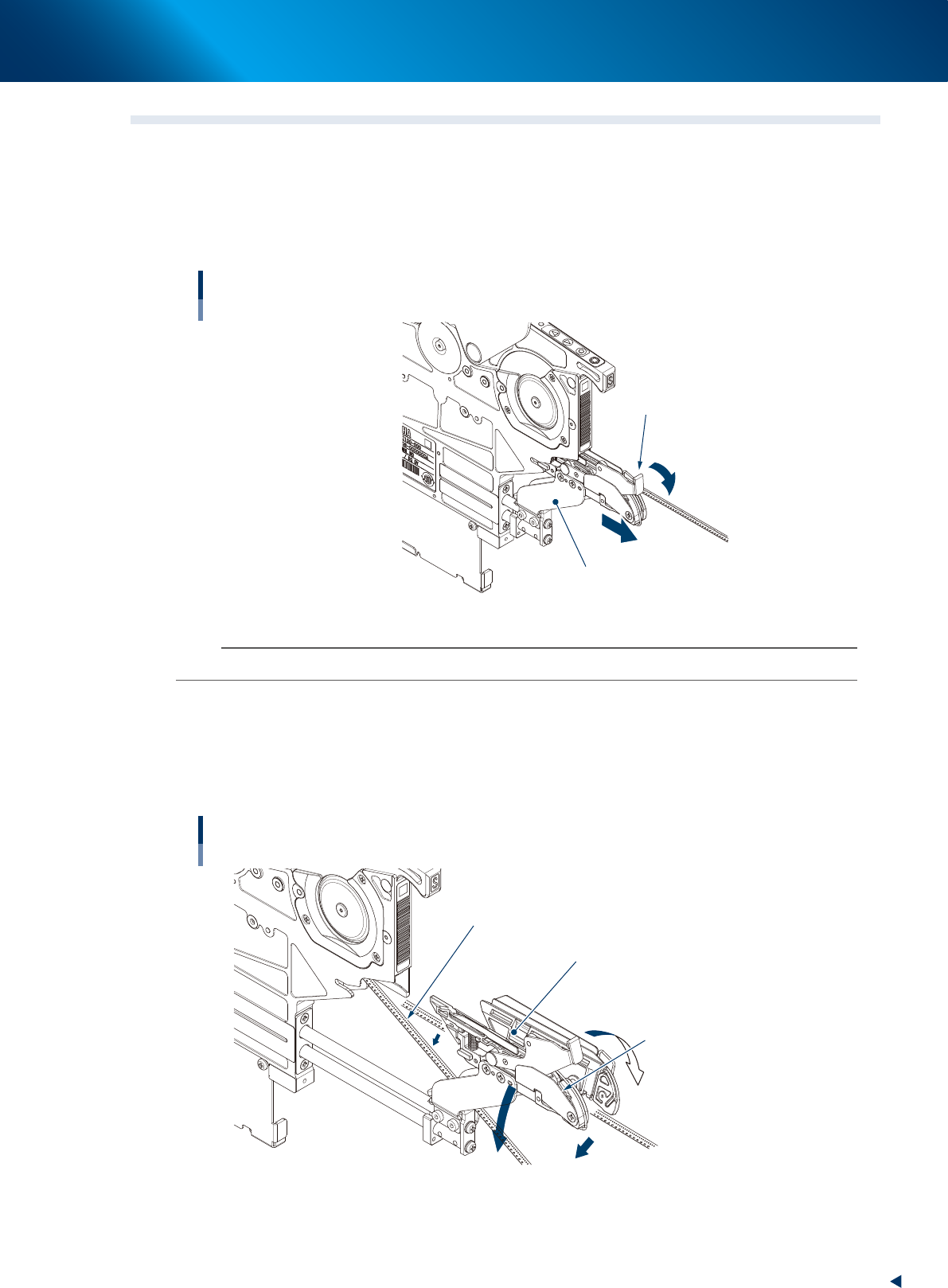
1
Pull the loading unit forward.
While pressing the tape clamp lever, pull the loading unit forward.
Pulling loading unit forward
Tape clamp lever
Loading unit
63225-KLU-40
n
NOTE
The loading unit does not open unless pulling it to the end completely.
2
Open the loading unit and move down the component tape.
1. The loading unit opens by releasing finger from the tape clamp lever.
2. Move down the component tape.
3. Keep pressing down the tape clamp lever and insert the loading unit into the feeder.
Moving down component tape to be unloaded
Loading unit
Component tape to be unloaded
The clamp unit opens to right and left
by releasing fingers from tape
clamp lever
Move down.
63226-KLU-40
2. Loading/Unloading component tape
2-14
Chapter 2 Handling component tape
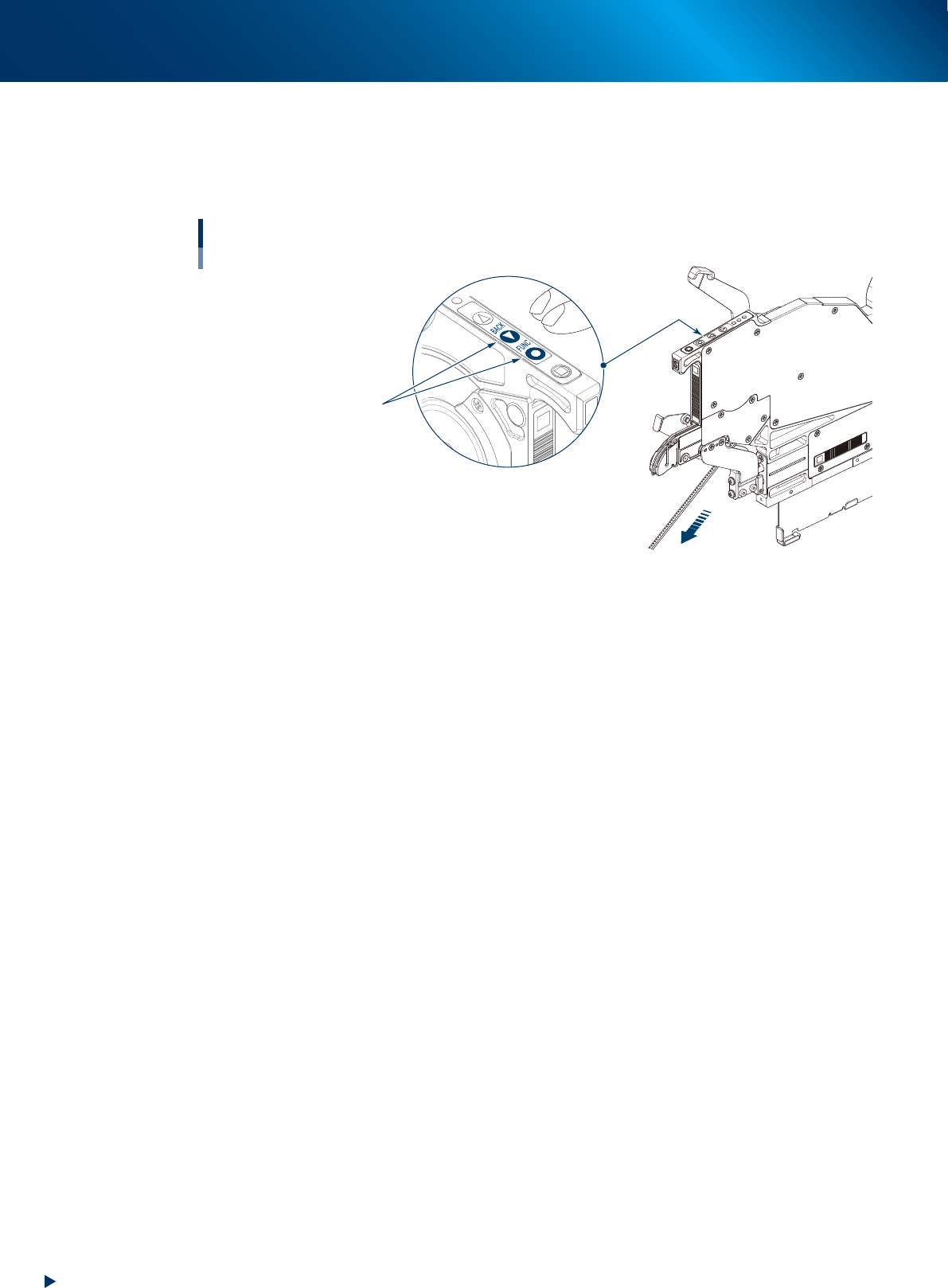
3
Unload the component tape by pressing the operation panel buttons.
1. The component tape is unloaded to the direction of arrows in the figure below by pressing
[BACK] and [FUNC] buttons simultaneously.
2. After unloading the component tape, pull it out manually.
Unloading component tape
Press [BACK] and [FUNC] buttons
simultaneously.
63227-KLU-40