ALFeeder_E.pdf - 第56页
1. Preparation before operation 3-10 Chapter 3 Setting up 1.4 Checking setup/Setup Assignment n NOTE The optional sof tware "P-T ool" or "YSUP-PM" is required t o use this funct ion. The option settin…
1. Preparation before operation
3-9
Chapter 3 Setting up
█
Placement Allowed/Not Allowed
Set "Placement Allowed/Not Allowed" per plate.
Placement Allowed/Not
Allowed
Description
Not Allowed Auto loading feeder cannot be placed on relevant plate. SS/ZS feeders only are placed.
Only Auto loading feeder only is placed on relevant plate.
Allowed Both Auto loading feeder and SS/ZS feeders are placed on relevant plate.
█
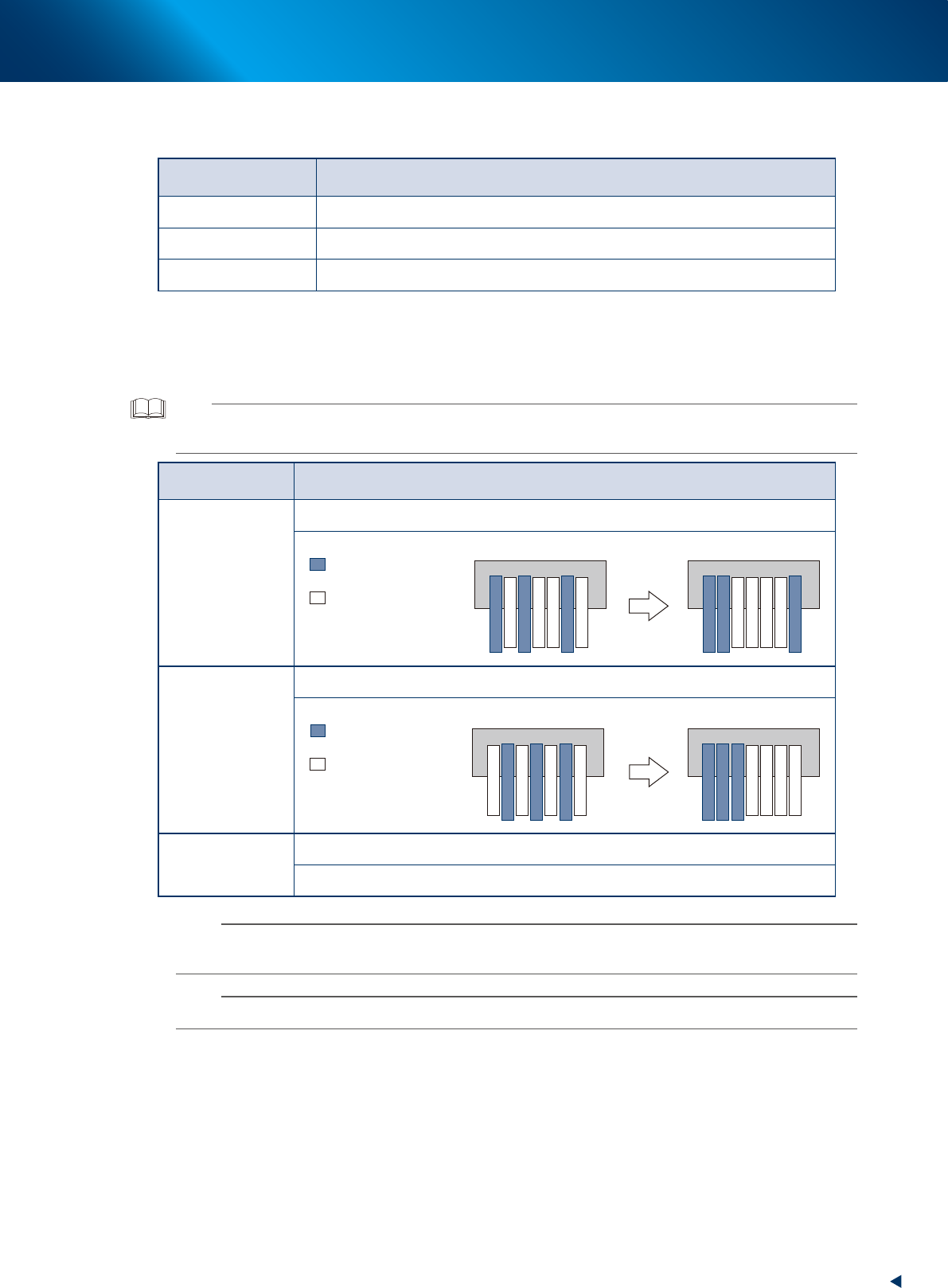
Placement decision method
Set the method to decide the placement of Auto loading feeders and SS/ZS feeders per machine. The
machine with plate selected "Allowed" from "Placement Allowed/Not Allowed" only can be edited.
TIP
The setup includes "Attaching/Detaching feeder", "Cutting component tape", and " Feeder ID bar code reading (Setup
verify)".
Placement decision
method
Description/Image
Accessibility
Placement is decided to be able to setup feeder.
: Auto loading feeder
Before the placement After the placement
: ZS/SS
Separation
Placement areas of Auto loading feeder and SS/ZS feeder are separated on the plate.
: Auto loading feeder
Before the placement After the placement
: ZS/SS
Free
Placement is decided regardless of feeder type (Auto loading feeder/SS/ZS).
Same as previous optimization.
n
NOTE
Although the feeder can be optimized usually from the mounter side, the optimization of auto loading feeder cannot be
performed as there is no optional settings.
n
NOTE
Although depending on data, the cycle time decreases by 0.6 to 1.9% if performing Auto loading feeder optimizer.
1. Preparation before operation
3-10
Chapter 3 Setting up
1.4 Checking setup/Setup Assignment
n
NOTE
The optional software "P-Tool" or "YSUP-PM" is required to use this function.
The option setting "Use Auto Loading Feeder Capability list" must be activated to check the setup and Auto loading feeder
information on Setup Assignment.
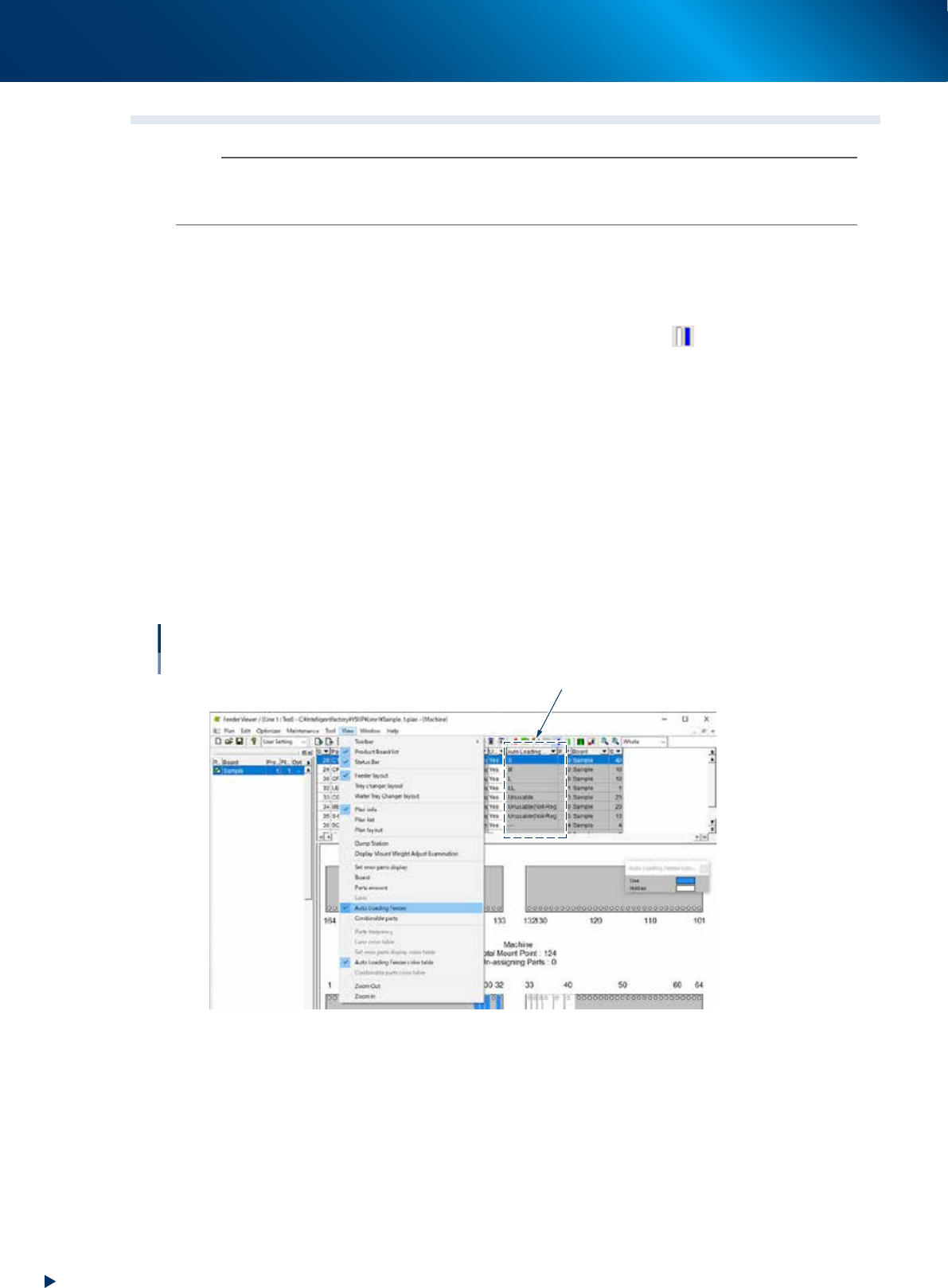
1.4.1 Checking Auto loading feeder information on feeder viewer
The feeder viewer shows which machine the components available for Auto loading feeder are placed to.
►
Auto Loading Feeder Combinable parts
• Select [View] - [Auto Loading Feeder Combinable parts] or click the icon
on menu bar. Based on
Auto loading feeder capability information, the feeder on screen is displayed in blue if the
component is available for Auto loading feeder and it is displayed in white if the component is
unavailable for Auto loading feeder.
• "Unusable" is displayed if a component is registered as "FALSE" on Auto Loading Feeder Capability
list.
• "Unusable (Not-Registered)" is displayed if a component is not registered on Auto Loading Feeder
Capability list and "FALSE" is set to feeder type.
►
Tape guide size
The tape guide types available for Auto loading feeder are displayed on "Auto Loading Feeder" column
of setup display.
►
Not supported
"---" is displayed if the feeder type is other than Auto loading feeder.
Feeder viewer
Checking Auto Loading Feeder information
Tape guide type
64316-KLU-40
1. Preparation before operation
3-11
Chapter 3 Setting up
1.4.2 Checking Auto loading feeder information on Setup Assignment
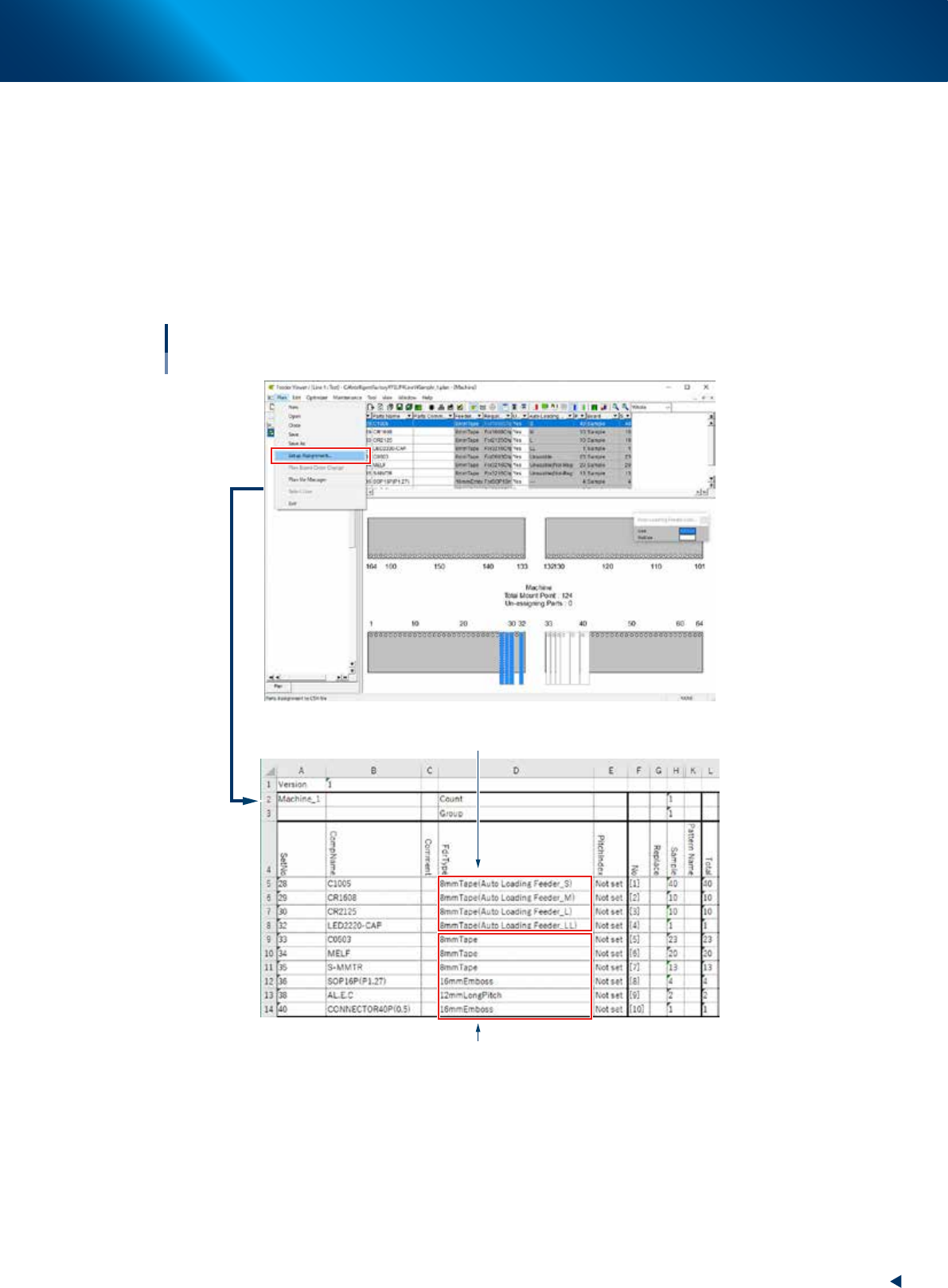
Auto loading feeder capability information of component can be checked on the Setup Assignment as well.
►
Auto Loading Feeder Capability information
• If a component is available for Auto loading feeder, Auto loading feeder type is indicated on the
"Feeder Type" column on the Setup Assignment.
• If a component is unavailable for Auto loading feeder, only the feeder type is indicated.
►
Setup Assignment
The setup list can be output by selecting [Menu] - [Setup Assignment] on feeder viewer.
Setup Assignment
Checking Auto loading feeder information
Components available for Auto loading feeder
Components unavailable for Auto loading feeder
64317-KLU-30