ALFeeder_E.pdf - 第57页
1. Preparation before operation 3-11 Chapter 3 Setting up 1.4.2 Checking Auto loading feeder information on Setup Assignment Auto loading feeder capability information of component can be c hecked on the Setup Assignment…
1. Preparation before operation
3-10
Chapter 3 Setting up
1.4 Checking setup/Setup Assignment
n
NOTE
The optional software "P-Tool" or "YSUP-PM" is required to use this function.
The option setting "Use Auto Loading Feeder Capability list" must be activated to check the setup and Auto loading feeder
information on Setup Assignment.
1.4.1 Checking Auto loading feeder information on feeder viewer
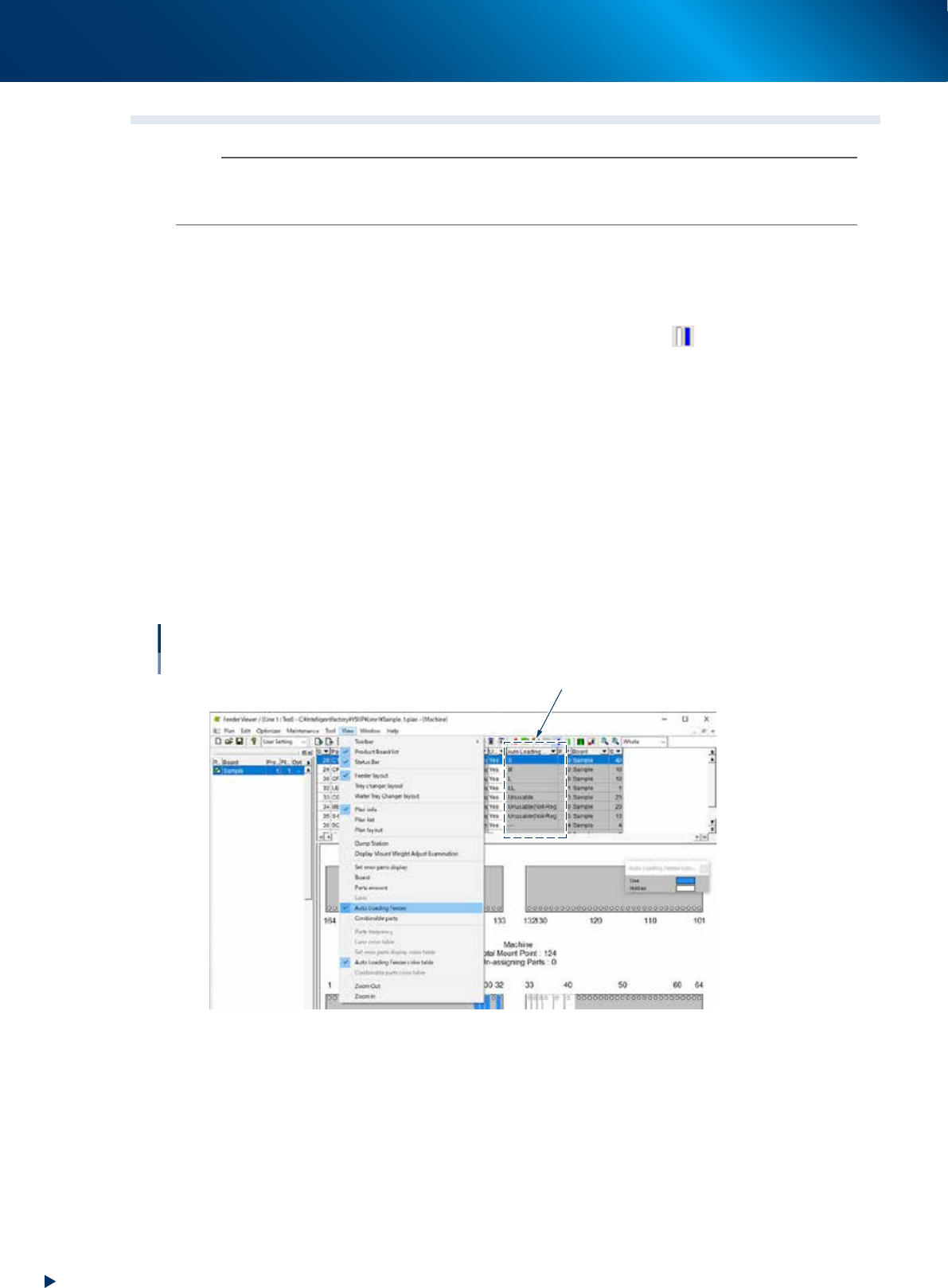
The feeder viewer shows which machine the components available for Auto loading feeder are placed to.
►
Auto Loading Feeder Combinable parts
• Select [View] - [Auto Loading Feeder Combinable parts] or click the icon
on menu bar. Based on
Auto loading feeder capability information, the feeder on screen is displayed in blue if the
component is available for Auto loading feeder and it is displayed in white if the component is
unavailable for Auto loading feeder.
• "Unusable" is displayed if a component is registered as "FALSE" on Auto Loading Feeder Capability
list.
• "Unusable (Not-Registered)" is displayed if a component is not registered on Auto Loading Feeder
Capability list and "FALSE" is set to feeder type.
►
Tape guide size
The tape guide types available for Auto loading feeder are displayed on "Auto Loading Feeder" column
of setup display.
►
Not supported
"---" is displayed if the feeder type is other than Auto loading feeder.
Feeder viewer
Checking Auto Loading Feeder information
Tape guide type
64316-KLU-40
1. Preparation before operation
3-11
Chapter 3 Setting up
1.4.2 Checking Auto loading feeder information on Setup Assignment
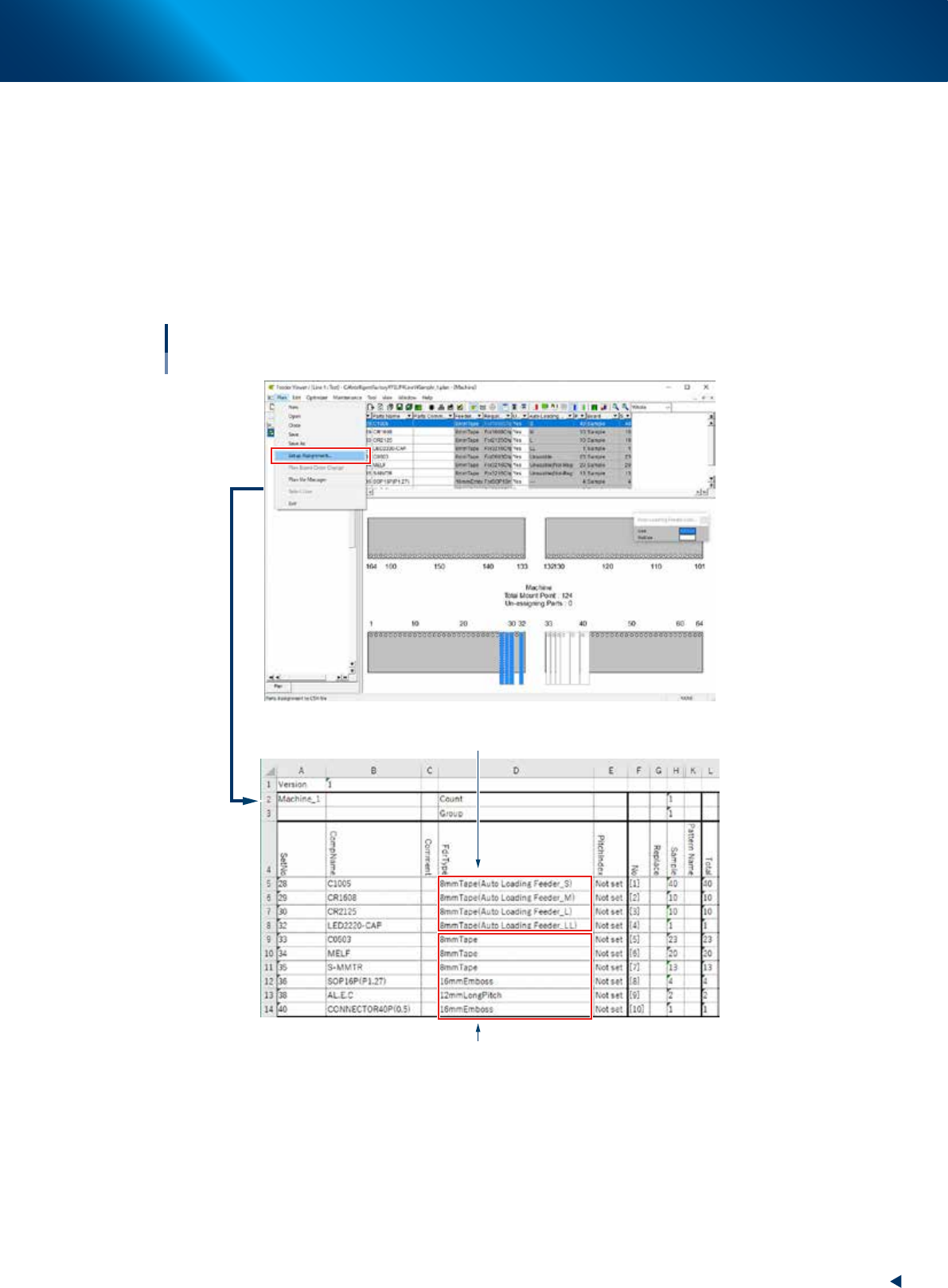
Auto loading feeder capability information of component can be checked on the Setup Assignment as well.
►
Auto Loading Feeder Capability information
• If a component is available for Auto loading feeder, Auto loading feeder type is indicated on the
"Feeder Type" column on the Setup Assignment.
• If a component is unavailable for Auto loading feeder, only the feeder type is indicated.
►
Setup Assignment
The setup list can be output by selecting [Menu] - [Setup Assignment] on feeder viewer.
Setup Assignment
Checking Auto loading feeder information
Components available for Auto loading feeder
Components unavailable for Auto loading feeder
64317-KLU-30
1. Preparation before operation
3-12
Chapter 3 Setting up
1.5 Activating Auto loading feeder per line
n
NOTE
The optional software "P-Tool" or "YSUP-PM" is required to use this function.
The functions related to Auto loading feeder can be activated/inactivated per line that the application is
started. The following capabilities of function are switched.
• Updating Auto loading feeder Capability List on editor
• Auto loading feeder Optimizer
• Checking setup and Setup Assignment
►
Setting conditions
• The option setting "Use Auto loading feeder Capability list" is activated.
If not, functions related to Auto loading feeder are unavailable for all lines.
• A machine compatible with Auto loading feeder is installed on a line.
If not, functions related to Auto loading feeder are unavailable for all lines.
►
Setting procedure
1
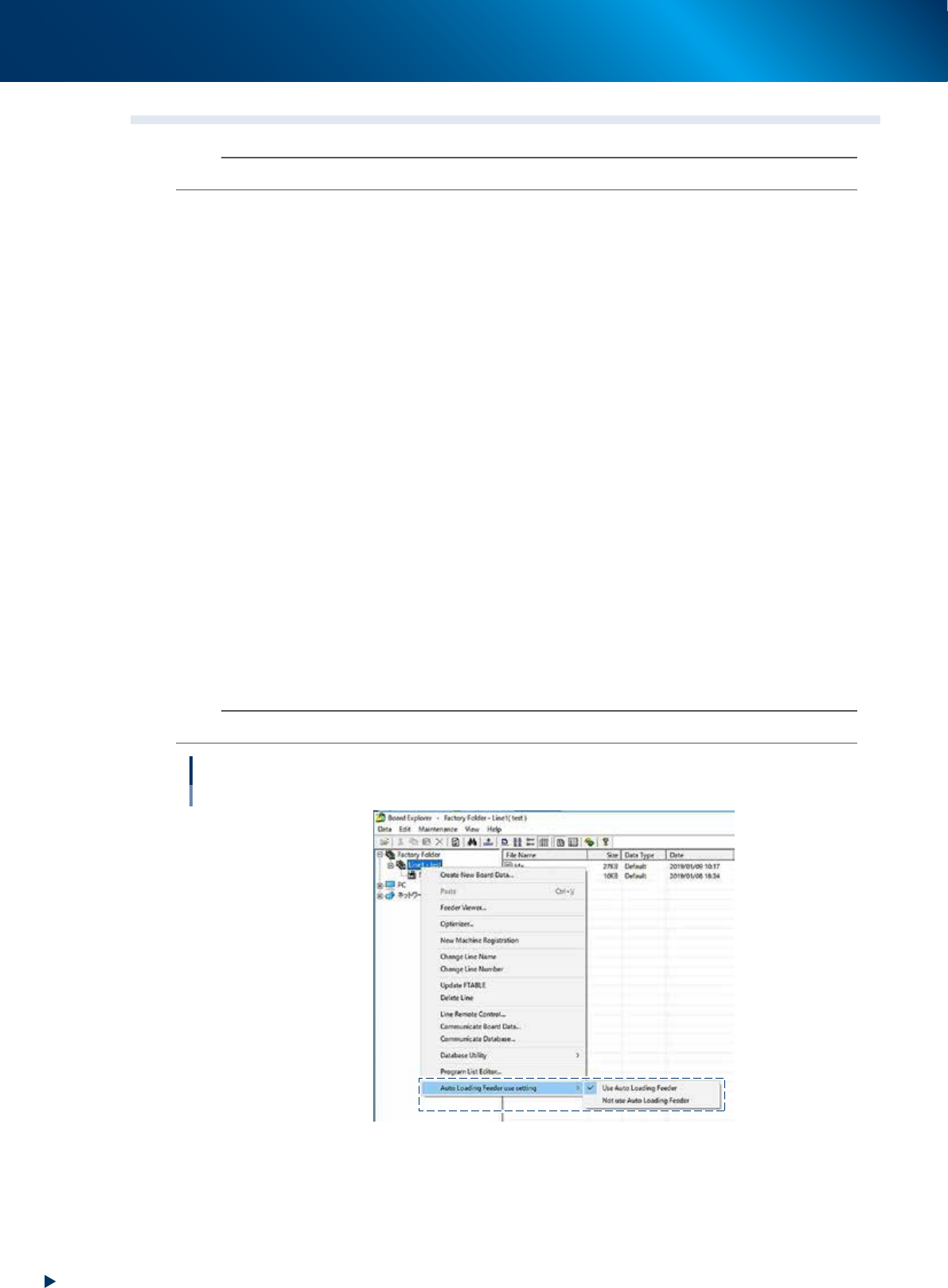
Open the "Board Explorer".
2
Select a line.
Select the folder of a line that the setting is changed and right-click it.
3
Select "Auto Loading Feeder use setting".
Select "Use Auto Loading Feeder" if the line uses Auto loading feeder. Select "Not use Auto Loading
Feeder" if the line does not use Auto loading feeder.
n
NOTE
"Use Auto Loading Feeder" is a default setting for "Auto Loading Feeder use setting".
Activating Auto loading feeder per line
64321-KLU-30