ALFeeder_E.pdf - 第53页
1. Preparation before operation 3-7 Chapter 3 Setting up █ Updating on component screen of parts database editor n NOTE The following se tting is available when editing customer dat a base only . T herefore, the sett ing…
1. Preparation before operation
3-6
Chapter 3 Setting up
1.2.2 Updating Auto Loading Feeder Capability list on board editor
Auto Loading Feeder Capability list can be updated with the board editor or parts database editor. Note that
following limitations apply to updating.
█
Limitations
• The guide size is not supported and it appears blank.
• The component name registered on Auto Loading Feeder Capability list cannot be deleted.
• The setting of feeder type (size) capability is not supported.
• The function to check the registered information on Auto Loading Feeder Capability list is not
provided.
• All information on Auto Loading Feeder Capability list cannot be checked.
n
NOTE
Auto loading feeder capability of components on opened board (or component database) can be checked.
█
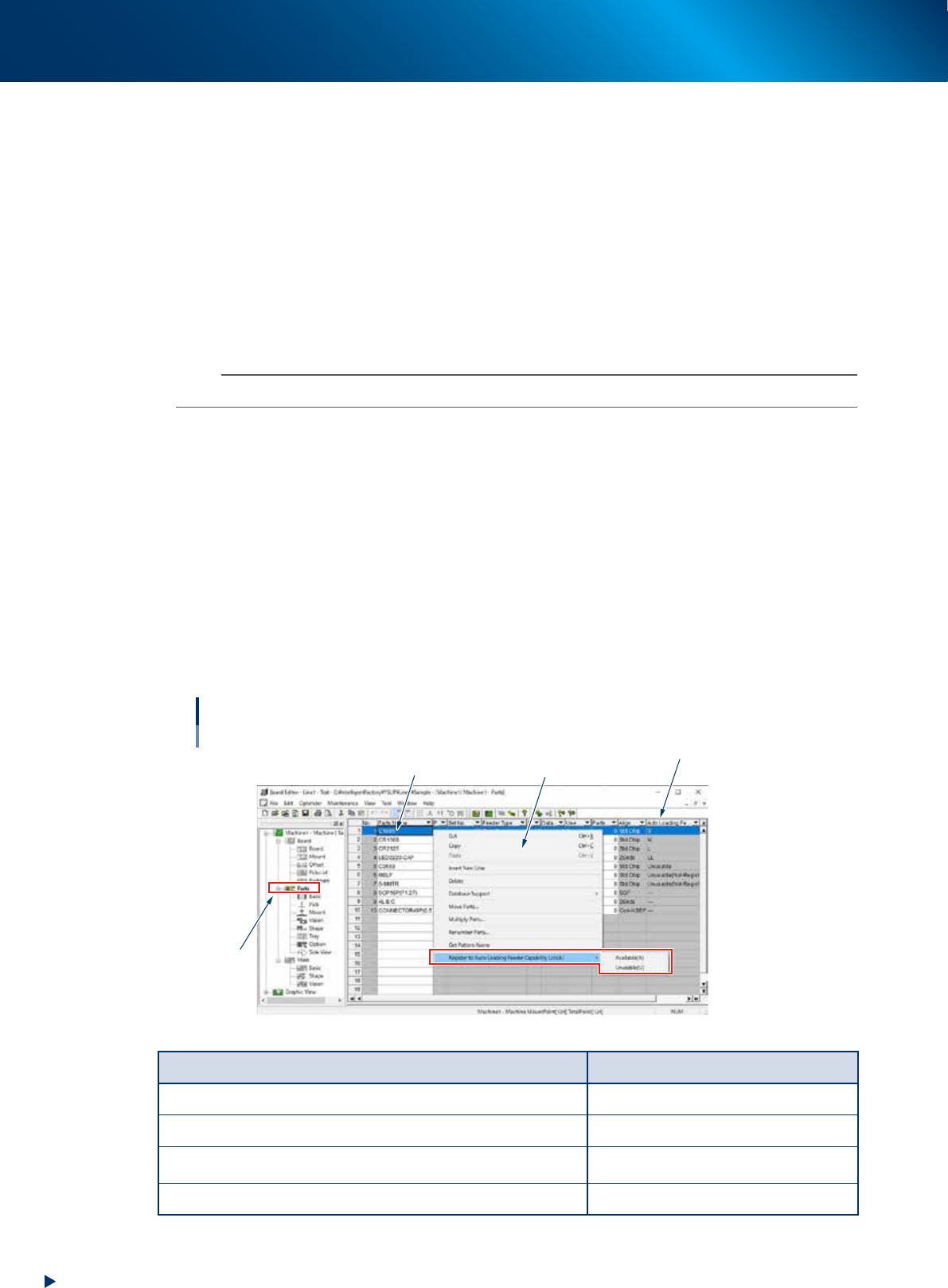
Updating on component screen of board editor
1
Display the component list.
Select "Parts" on the board editor.
2
Display the context menu.
1. Select the row(s) of component(s) to be set.
2. Right-click the mouse to display the context menu.
3
Set "Register to Auto Loading Feeder Capability List (A)".
Select "Available (A)" or "Unusable (U)" from the sub menu for "Register to Auto Loading Feeder
Capability List (A)".
Updating Auto loading feeder capability list
Board Editor
Context menu
Select component to be set
Auto Loading Feeder column
1
64318-KLU-30
Condition Display on Auto Loading Feeder
Available component for Auto Loading Feeder 2S, S, M, L, or LL
Feeder type other than Auto Loading Feeder ---
Component that "False" is displayed on Auto Loading Feeder column and
not registered
Unusable (Not-Registered)
Component registered as "FALSE" on Auto Loading Feeder column Unusable
1. Preparation before operation
3-7
Chapter 3 Setting up
█
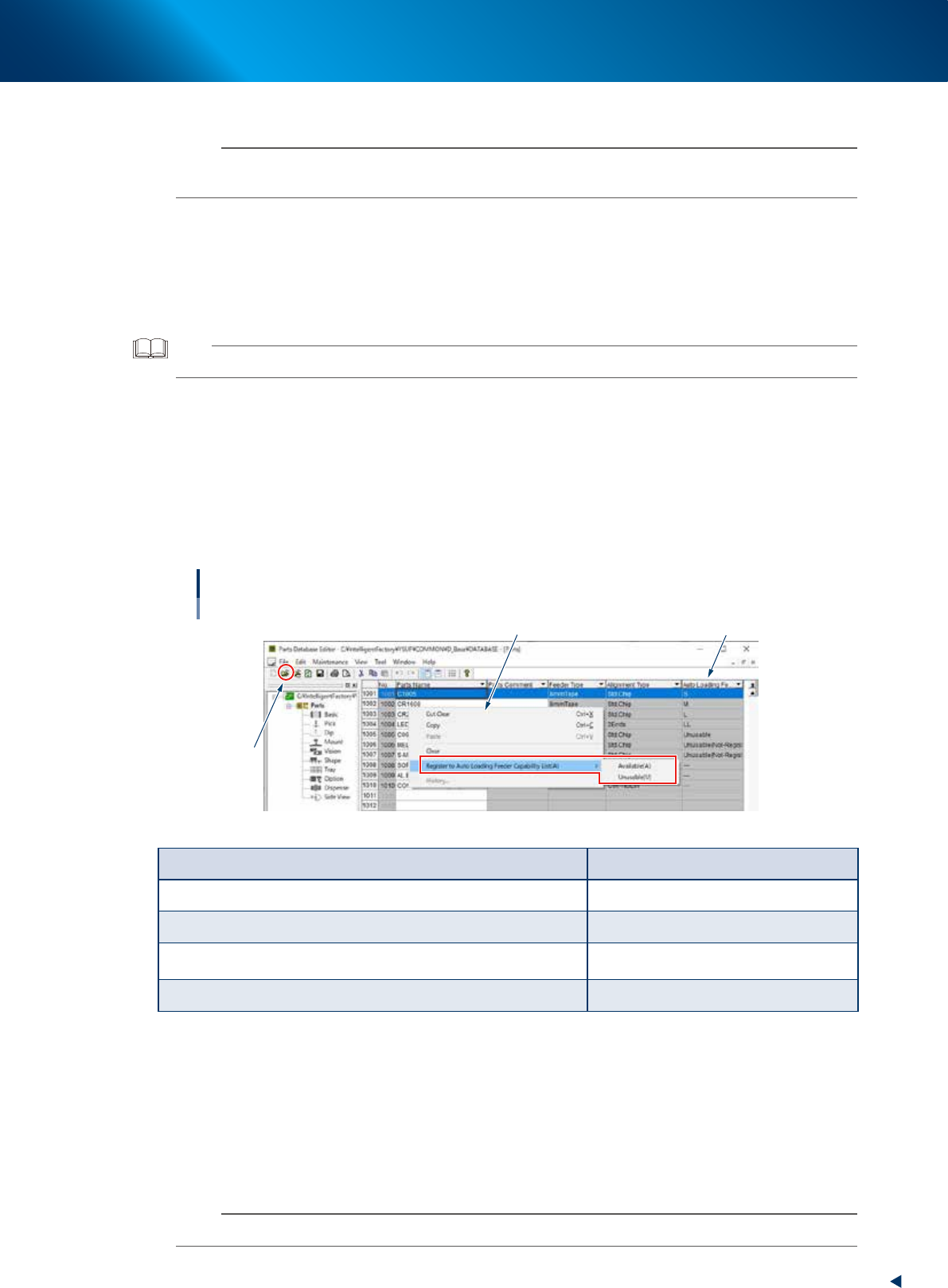
Updating on component screen of parts database editor
n
NOTE
The following setting is available when editing customer data base only. Therefore, the setting is not available when started
from YAMAHA database. The all components including No. 1001 or later apply to this condition.
1
Display the component list.
1. Open "Parts Database Editor" screen by selecting the [Parts Database Editor] - [Customer
Database] from the [File] menu on the [Board Editor] screen.
2. Click the "Open folder" icon on the tool bar and select [DATABASE] file, then press the [Select]
button. The component list of component database appears.
TIP
The [Parts Database Editor] screen can be opened from the [Data] menu on [Board Exproler] screen.
2
Display the context menu.
1. Select the row(s) of component(s) to be set.
2. Right-click the mouse to display the context menu.
3
Set "Register to Auto Loading Feeder Capability List (A)".
Select "Available (A)" or "Unusable (U)" from the sub menu of "Register to Auto Loading Feeder
Capability List (A)".
Updating Auto Loading Feeder Capability List
Parts database editor
Context menu Auto Loading Feeder column
1
64319-KLU-40
Condition Display on Auto Loading Feeder
Available component for Auto Loading Feeder 2S, S, M, L, or LL
Feeder type not compatible with Auto Loading Feeder ---
Component that "False" is displayed on Auto Loading Feeder column and
not registered
Unusable (Not-Registered)
Component registered as "FALSE" on Auto Loading Feeder column Unusable
█
Option setting
The followings are conditions to display "Register to Auto Loading Feeder Capability List (A)" on the
context menu previously described.
• The checkbox for "Use Auto Loading Feeder Capability List" on [Option Setting] - [Function] is
ticked.
• The board editor is edited offline.
• The customer database is edited when editing the parts database editor.
n
NOTE
When editing editor on mounter, the option setting is always hidden as the setting is not provided.
1. Preparation before operation
3-8
Chapter 3 Setting up
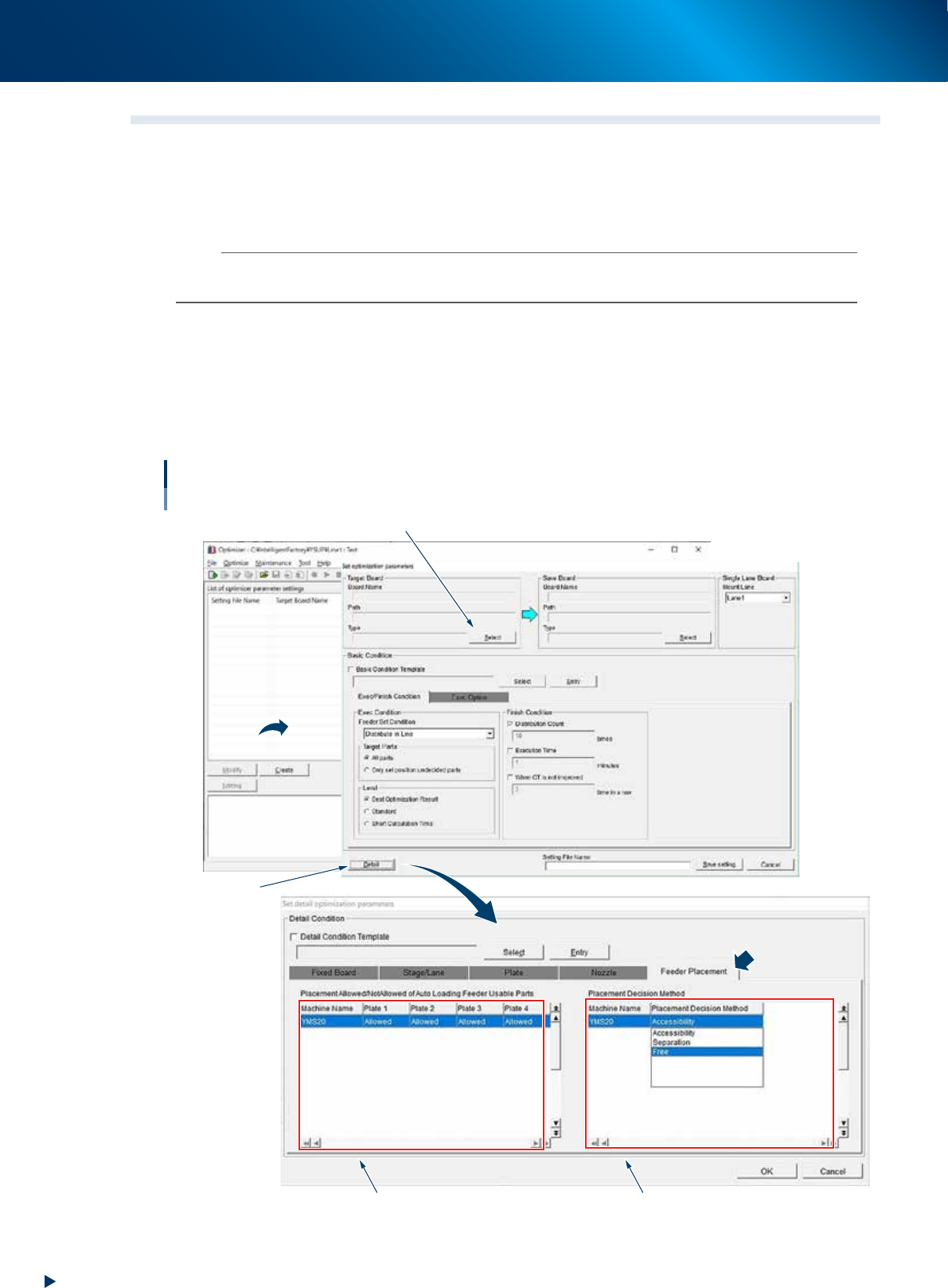
1.3 Auto loading feeder Optimizer
When using Auto loading feeder with SS/ZS feeders, the button operation of SS/ZS feeder may be disturbed
depending on the feeder shape.
Arrange the feeders to the position where they facilitate button operation by optimizing the component
placement using the "Auto loading feeder Optimizer" function of P-Tool (YFacT).
n
NOTE
The optional software "P-Tool" or "YSUP-PM" is required to use this function. Moreover, the option setting "Use Auto
Loading Feeder Capability list" must be activated.
►
Changing current settings
1. Select a board to change the setting from "List of optimizer parameter settings".
2. Select the [Optimization Details] - [Feeder Placement] tab by pressing the [Modify] - [Detail] button.
►
Create new settings
Select the [Optimization Details] - [Feeder Placement] tab by pressing the [Modify] - [Detail] button.
Auto loading feeder Optimizer
Create new settings
Select a board
[Detail] button
Placement Allowance/Not Allowed Placement Decision Method
64315-KLU-40