MR8740T_Quick guide_eng_20191016H.pdf - 第30页
24 Name and Function of Each Part Instrument status indicator The LEDs indicate the instrument status. Basic LED indicator LED name Color Lighting up / blinking When lights up How to turn off the LED POWER ST ANDBY Orang…
23
Name and Function of Each Part
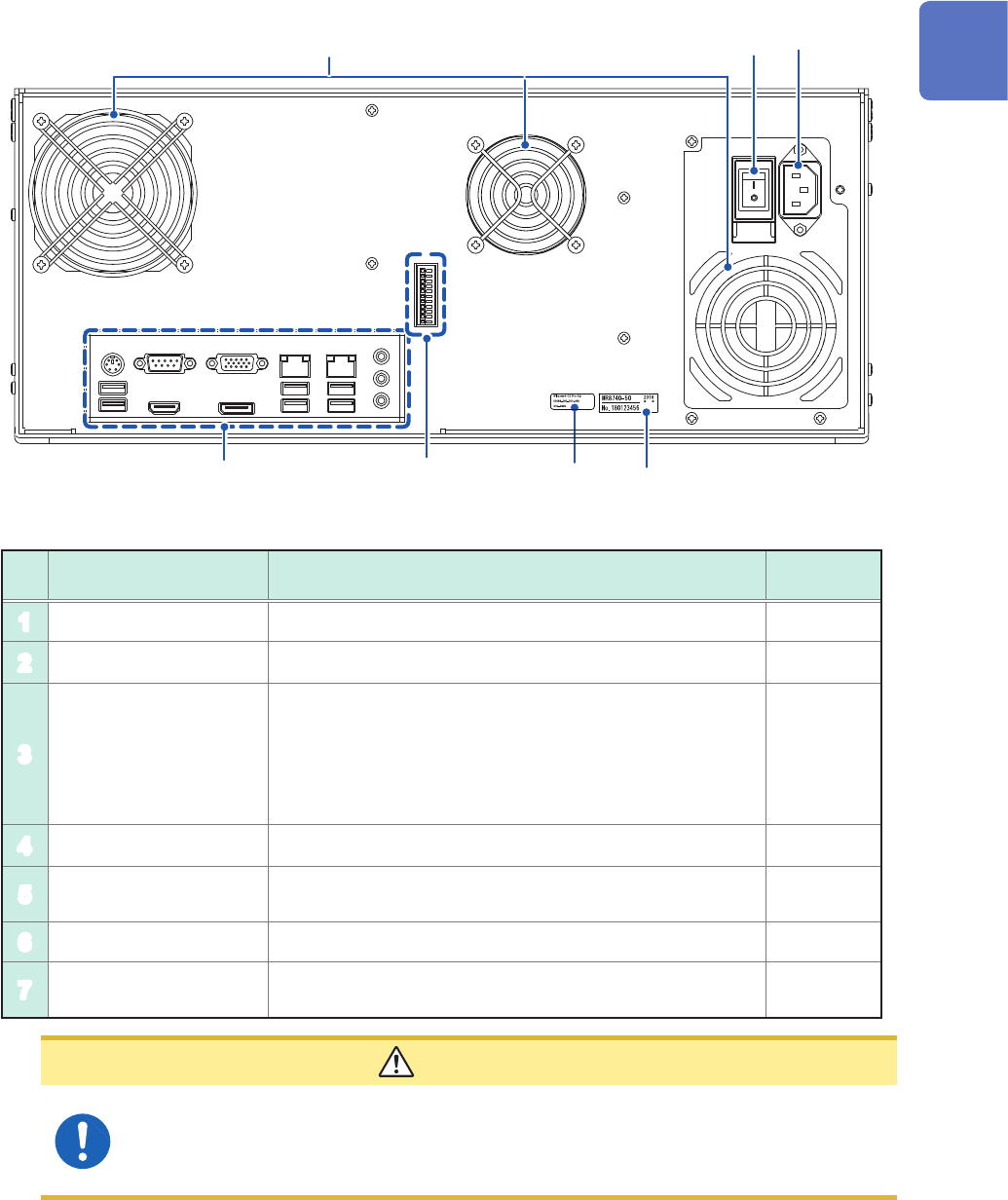
Rear side
1
3
4
2
5
6
7
No. Name Function
Reference
page
1
Vents (fan motors) Do not block the vents. –
2
Windows
®
license The Windows
®
license label is afxed. –
3
Serial number
Used to identify the instrument. The serial number consists
of nine digits. The rst two (from the left) indicate the year
of manufacture, and the next two indicate the month of
manufacture. Do not remove this label.
Inform your authorized Hioki distributor or reseller of this
number if required.
–
4
Main power switch Turns the instrument on and off. –
5
Power inlet Connects the power cord provided.
p. 18
p. 60
6
Interface terminals Connect an LCD, LAN cable, and USB cable. p. 25
7
External control
terminals
Connect an external device. p. 53
CAUTION
If you set the main power switch to off while the instrument is powered on, the power
from the built-in battery is lost, resulting in incorrect Windows
®
shutdown. Be sure to use
the front start button to set the instrument in the standby state, and then set the main
power switch to off.
1
Overview
24
Name and Function of Each Part
Instrument status indicator
The LEDs indicate the instrument status.
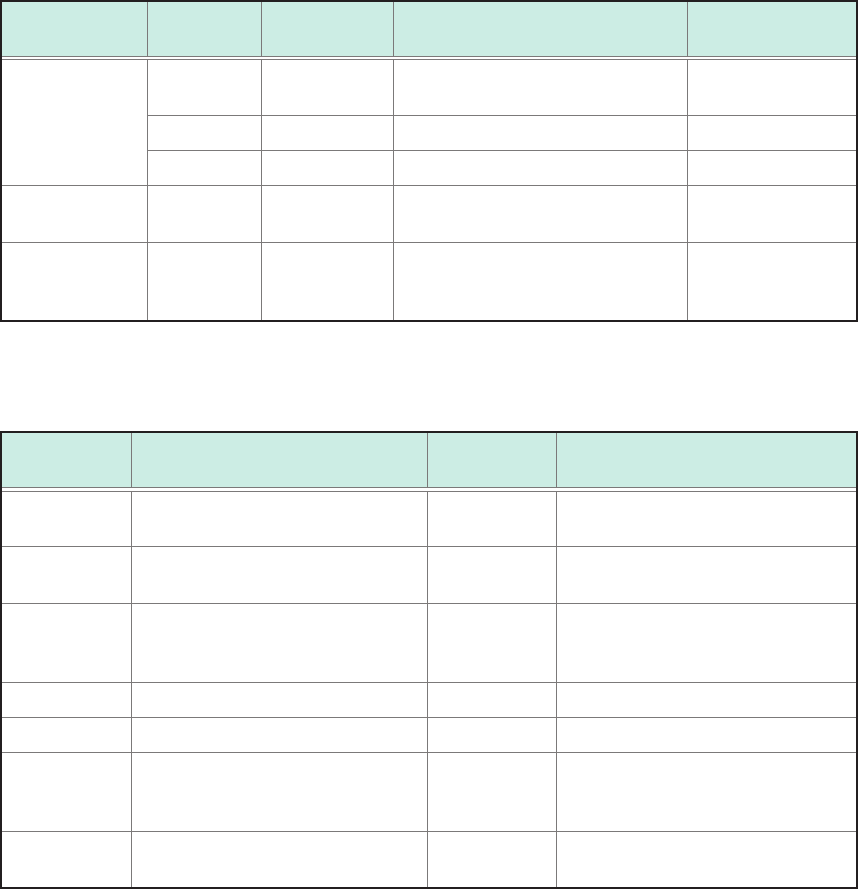
Basic LED indicator
LED name Color Lighting up /
blinking
When lights up How to turn off
the LED
POWER
STANDBY
Orange Lighting up Stand-by status Set the rear switch
to off.
Green Lighting up Power-on status Shut the power off.
Green Blinking Power-on status (warm-up) Shut the power off.
DIAG Refer to the
table below.
Refer to the
table below.
Refer to the table below.
–
CMD ERR Red Lighting up A command received contained a
syntax error.
Send the
*CLS
command to turn
off the LED.
Details of DIAG LED
DIAG LED mode table
Indicator
priority order
Status Color Note
1 The inside temperature is high
(ambient temperature > 35°C).
Red
–
2 The inside temperature is low
(ambient temperature < 10°C).
Purple
–
3 CPU load rate ≥ 80% Yellow Updated every 0.5 seconds, based
on average load rates calculated
over the period.
4 Waiting for a trigger. Blue –
4 The recording is in progress. Green –
4 The recording is complete. Pink Switches to the normal operation
indication when a new command is
received.
5 During normal operation (under
suspension)
White
–
25
Name and Function of Each Part
3
1
5
6
4
7 8
10
9
2
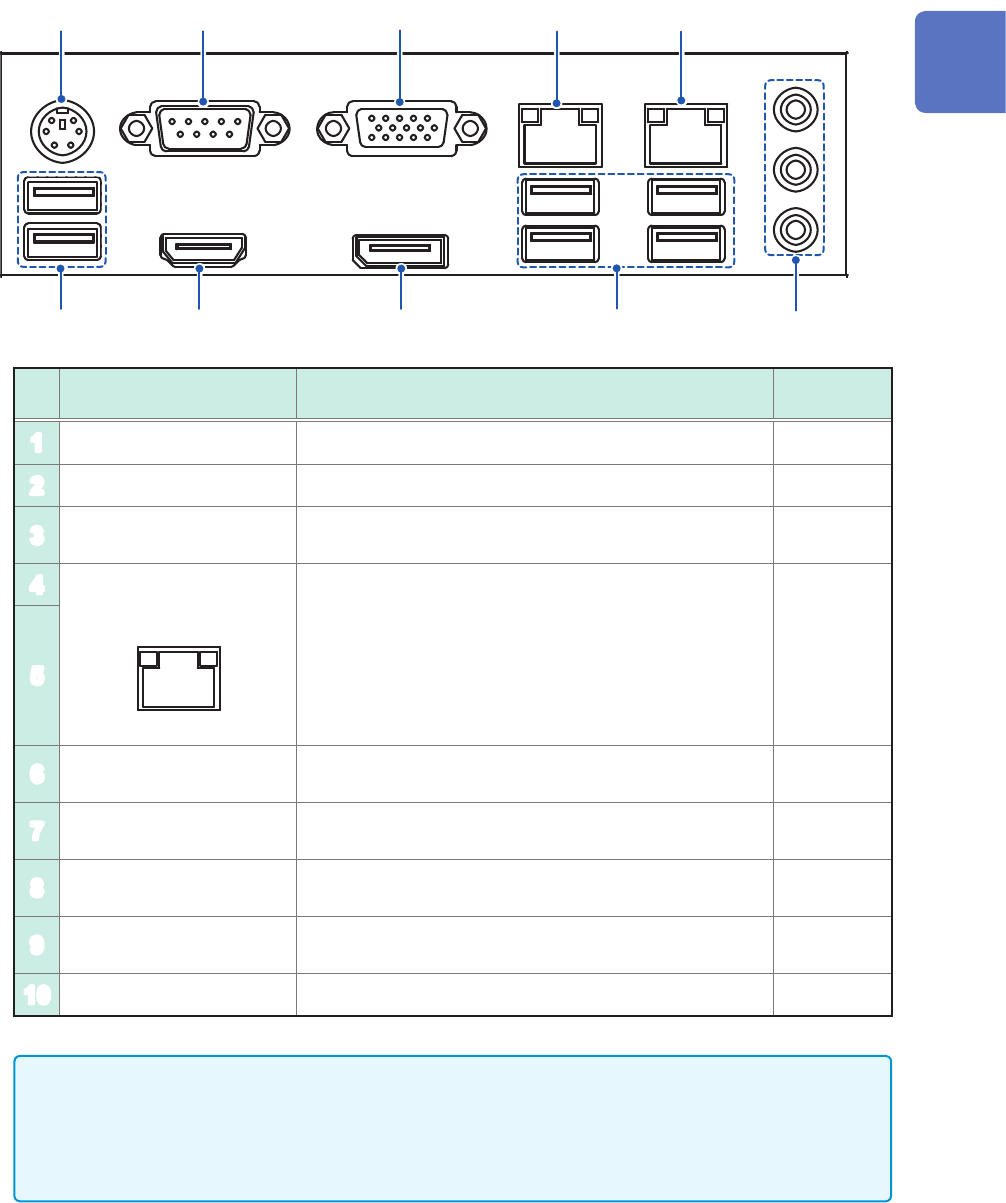
No. Name Function
Reference
page
1
PS2 connector Not available –
2
COM terminal Not available –
3
VGA terminal
Connect a display with an RGB cable.
Maximum resolution: 2560 × 1600
–
4
1000BASE-T connector
LINK ACT
Attach a LAN cable to connect the instrument to your
network.
ACT LED
Blinking: Communicating data
LINK LED
Yellow light: 1000BASE
Green light: 100BASE
Off: 10BASE
p. 55
5
6
USB2.0 connector
Connect a USB ash drive, USB mouse, or USB
keyboard.
p. 57
7
HDMI terminal
Connect a display with an HDMI cable.
Maximum resolution: 3840 × 2160
–
8
DisplayPort* terminal
Connect a display with a DisplayPort cable.
Maximum resolution: 4096 × 2160
–
9
USB3.0 connector
Connect a USB ash drive, USB mouse, or USB
keyboard.
p. 57
10
Audio terminal Not available –
• A resolution of 1920 × 1080 dots or more is recommended. Using a display with a lower
resolution can cause poor visibility of waveforms.
• Using a 4K-resolution monitor connected to the HDMI or DisplayPort terminal with the
maximum resolution set may require longer time for processing command communication and
displaying screens.
*: Trademark of another company
1
Overview