MR8740T_Quick guide_eng_20191016H.pdf - 第90页
84 Loading Data With Y our Computer (W ave Viewer) 4.3 Loading Data With Y our Computer (W ave V iewer) Y ou can load waveform data saved in CSV format into spreadsheets. This section explains how to install, uninstall, …
83
Handling Waveforms
4.2 Handling Waveforms
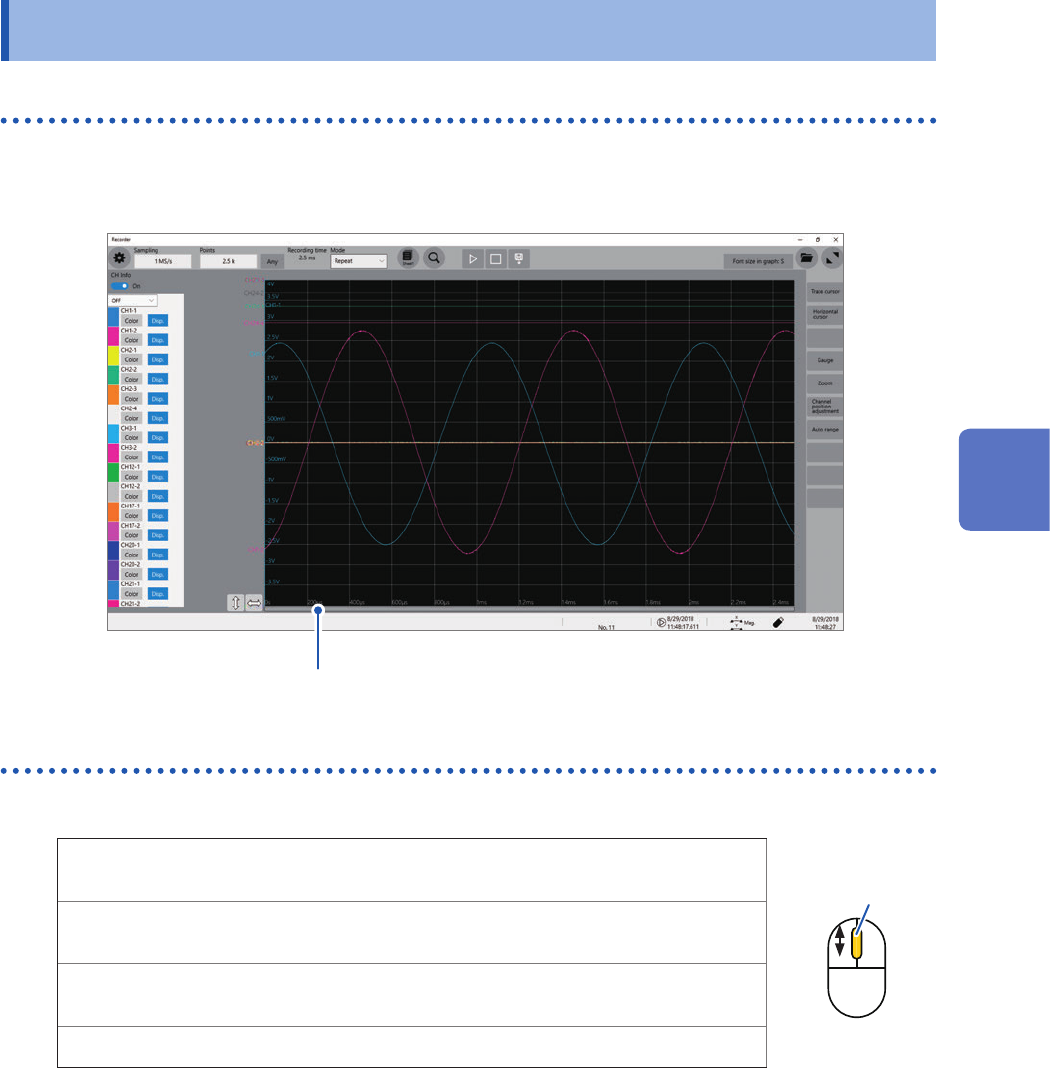
Scrolling through waveforms
You can use the scroll bar to check the position of waveforms presently displayed on the waveform.
Drag the scroll bar to scroll through the waveforms.
Scroll bar
Zooming in and out waveforms
Point to a specied point and rotate the wheel button to zoom in or out waveforms.
Vertical
axis
Point to a vertical scale (gauge) and rotate the wheel button.
Wheel button
Horizontal
axis
Point to a time axis value and rotate the wheel button.
Vertical
axis
Rotate the wheel button while holding down the Shift key.
Time axis Rotate the wheel button while holding down the Ctrl key.
4
Analysis Method

84
Loading Data With Your Computer (Wave Viewer)
4.3 Loading Data With Your Computer (Wave
Viewer)
You can load waveform data saved in CSV format into spreadsheets. This section explains how to
install, uninstall, start, and exit the Wave Viewer.
Supported computer: Computers running on Windows 7, or Windows 8, or Windows 10
Installing Wave viewer (for computers running on Windows 7)
1
Insert the accompanying application disc into the CD-ROM drive.
The top page appears automatically.
If the top page does not appear, open the “index.htm” le with your web browser.
2
Choose a display language (Click the [English] icon to display the installation program in
English).
3
Click the [Wave viewer (Wv)] icon.
The specications and revision history of Waveform viewer (Wv) appear.
4
Click the [Install] icon at the top right of the page.
The
[File Download]
dialog box appears.
5
Click [Open].
The conrmation dialog box appears to check whether to continue the installation.
6
Click [Next].
The window for selecting the installation folder opens.
Click
[Browse]
to change the installation folder.
7
Click [Next].
The installation starts.

85
Loading Data With Your Computer (Wave Viewer)
Starting Wave viewer
Before using Wave viewer, read the “READ ME.txt.”
Click the Start button of Windows
®
, select [Program] > [HIOKI] > [Wv].
Waveform Viewer starts.
Exiting Wave viewer
On the [File] menu of Wave viewer, click [Exit].
Alternatively, you can click the [Close] button at the top right of the screen to exit Wave viewer.
Uninstalling Wave viewer
1
Click the Start button to display the Windows
®
start menu, and then click [Control Panel] >
[Add or Remove Programs].
When you use Windows 10, click the Start button and select [Setting] > [System] > [Apps and Features].
2
Right-click [HIOKI Wave Viewer (Wv)] to display the shortcut menu, and then click [Uninstall].
Wave viewer is uninstalled.
When updating Wave viewer to the latest version, uninstall the earlier version before installing the latest
version.
4
Analysis Method