MR8740T_Quick guide_eng_20191016H.pdf - 第67页
61 Supplying Power to the Instrument T urning off the instrument IMPORT ANT When the instrument is turned off, data recorded in the internal memory is deleted. T o retain the recorded data, save the data to an external s…
60
Supplying Power to the Instrument
2.6 Supplying Power to the Instrument
Refer to “Before turning on the instrument” (p. 18).
Turning on the instrument
On
1
3
2
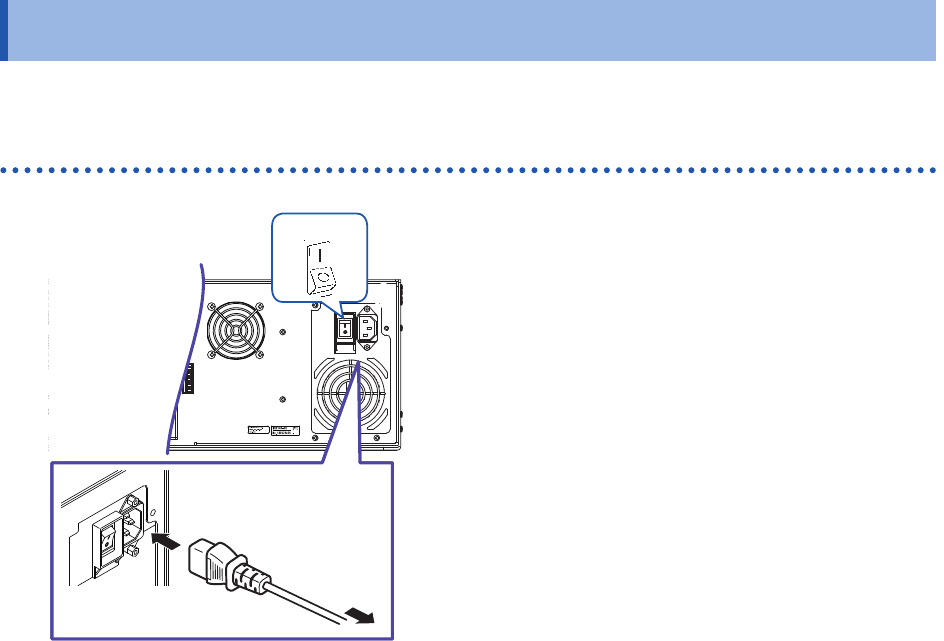
To grounded
type outlet
1
Rear side
1
Connect the power cord to the power inlet
on the instrument.
2
Connect the plug to a grounded type outlet.
3
Set the main power switch on the back side
of the instrument to on.
The POWER orange LED lights up.
4
Press the start button to turn on the
instrument.
The splash screen appears followed by the waveform
screen.
5
Warm up the instrument for about
30 minutes.
This warm-up stabilizes the temperature in the
modules, yielding accurate measurement.
6
Execute zero-adjustment.
Refer to “2 Regulating the Zero Position (Zero-
Adjustment)” (p. 63).
7
Start a measurement.
Refer to “3.5 Starting/Stopping Measurement”
(p. 75).

61
Supplying Power to the Instrument
Turning off the instrument
IMPORTANT
When the instrument is turned off, data recorded in the internal memory is deleted. To retain the
recorded data, save the data to an external storage device before turning off the instrument.
Refer to “3.6 Saving Data Consisting of Items Selected” (p. 76).
1
Save the acquired data if needed.
2
Press the start button.
Click [OK] to turn off the instrument according to the message.
Alternatively, pressing the start button again turns off the instrument. After the instrument has been turned on
again, the settings congured before the instrument was turned off are loaded.
Conrm that the instrument is turned off before setting the main power switch to off.
IMPORTANT
Do not set the main power switch on the rear to off while Windows
®
is running. Doing so may
cause the instrument to start properly.
2
Preparing for Measurement
62
Setting the Clock
2.7 Setting the Clock
Set the date, time, and time zone. The instrument has the automatic calendar with leap year
correction and 24-hour clock.
Measurement start times (trigger times) and times when les were stored are recorded using the
absolute time set in the instrument. Make sure that the clock shows correct day and time before
using the instrument.
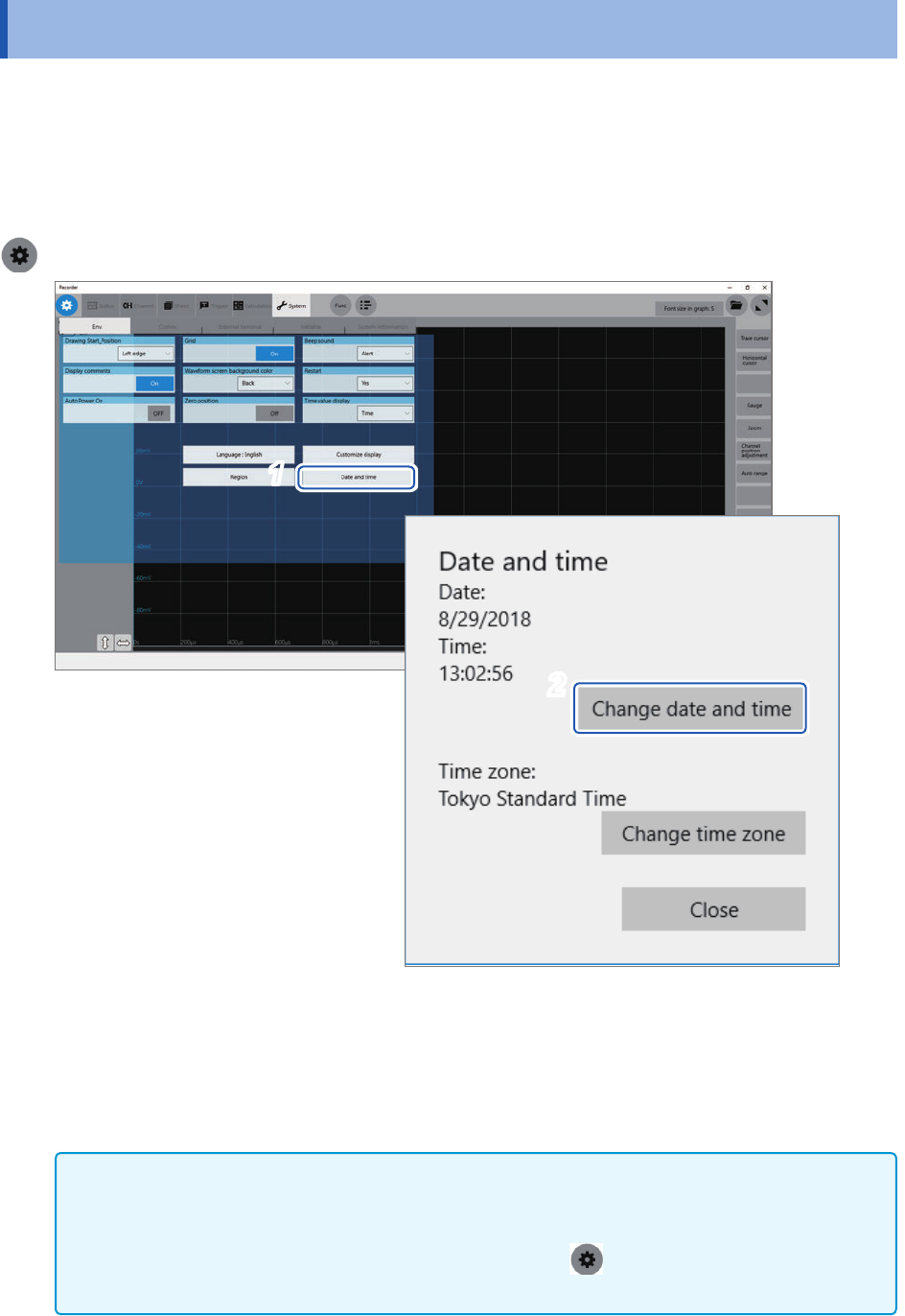
> [System] > [Env.]
1
2
2
1
Click [Date and time].
The [Date and time] dialog box will appear.
2
Click [Change date and time].
3
Set the date and time and then click [OK].
IMPORTANT
Do not change any Windows
®
setting unless otherwise indicated in this document.
Doing so may cause unstable behavior of the system.
The instrument regulates the clock internally. Always select
> [System] > [Env.], and then
click [Date and time] to set the clock. In any another way, the clock could not be set.