MR8740T_Quick guide_eng_20191016H.pdf - 第82页
76 Saving Data Consisting of Items Selected 3.6 Saving Data Consisting of Items Selected Clicking the save icon allows you to select any of the following items and save them: • W aveform data • Screenshot • Numerical cal…
75
Starting/Stopping Measurement
3.5 Starting/Stopping Measurement
Starting a measurement
When you click the start icon, the instrument starts a measurement.
Waveform data shown on the screen is cleared once the measurement starts.
Stopping the measurement
Clicking the stop icon causes the setting dialog box to open.
Leave the instrument performing the measurement. Once the instrument has acquired
the waveforms with the specied recording length, it stops the measurement.
Clicking [OK] stops the measurement immediately.
Initializing the instrument (Restoring the basic settings)
Select > [System] > [Initialize] to restore the instrument settings to the factory default. The
setting after the initialization is suitable for simple measurement. If any unexpected or complicated
behavior is observed, initialize the instrument.
Refer to “6.2 Initializing the Instrument” (p. 147).
To conguring measurement settings automatically
Clicking [Auto range] on the waveform screen automatically species the sampling rate,
measurement range, and zero position of the input waveform and start a measurement.
Refer to “3.7 Measuring Signals With the Auto-range Setting” (p. 78).
3
Measurement Method
76
Saving Data Consisting of Items Selected
3.6 Saving Data Consisting of Items Selected
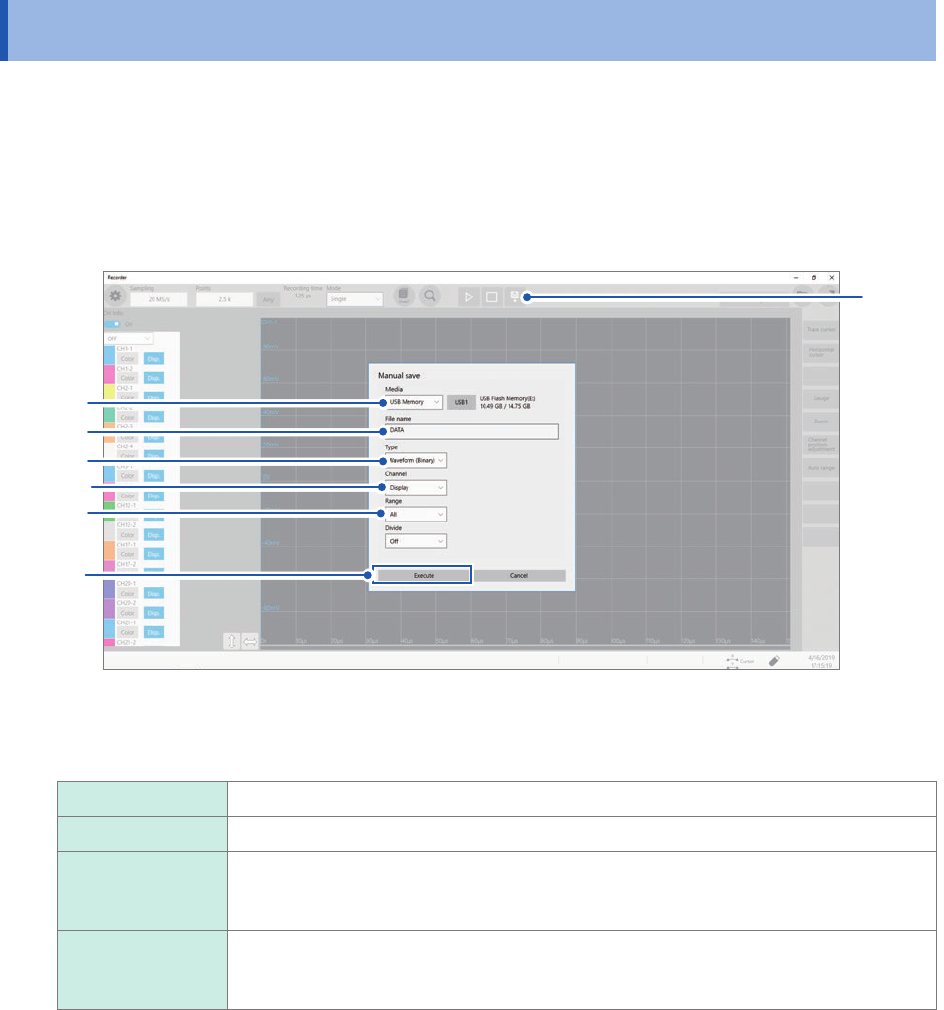
Clicking the save icon allows you to select any of the following items and save them:
• Waveform data
• Screenshot
• Numerical calculation result
• Setting
Refer to “4 Saving/Loading Data and Managing Files” of the Instruction Manual.
1
3
4
5
6
2
7
1
Click the save icon.
2
Click the [Media] box, and then choose a destination to save from the list.
SSD/HDD
Saves data on the built-in SSD.
USB Memory Saves data on the USB ash drive.
E-mail
transmission
Sends emails with waveform data attached to computers in the network or to a remote
computer.
Refer to “11.4 Sending E-mails” of the Instruction Manual.
FTP transfer Sends waveform data to a computer connected to a network.
Refer to “11.3 Sending Data to a Computer With the FTP Client Function” of the
Instruction Manual.
3
Enter the le name in the [File name] box.
Number of characters for a le name: Up to 100 characters
The maximum length of a le name that includes its path: Up to 255 characters
Some characters or symbols are not accepted due to the le system restrictions.
77
Saving Data Consisting of Items Selected
4
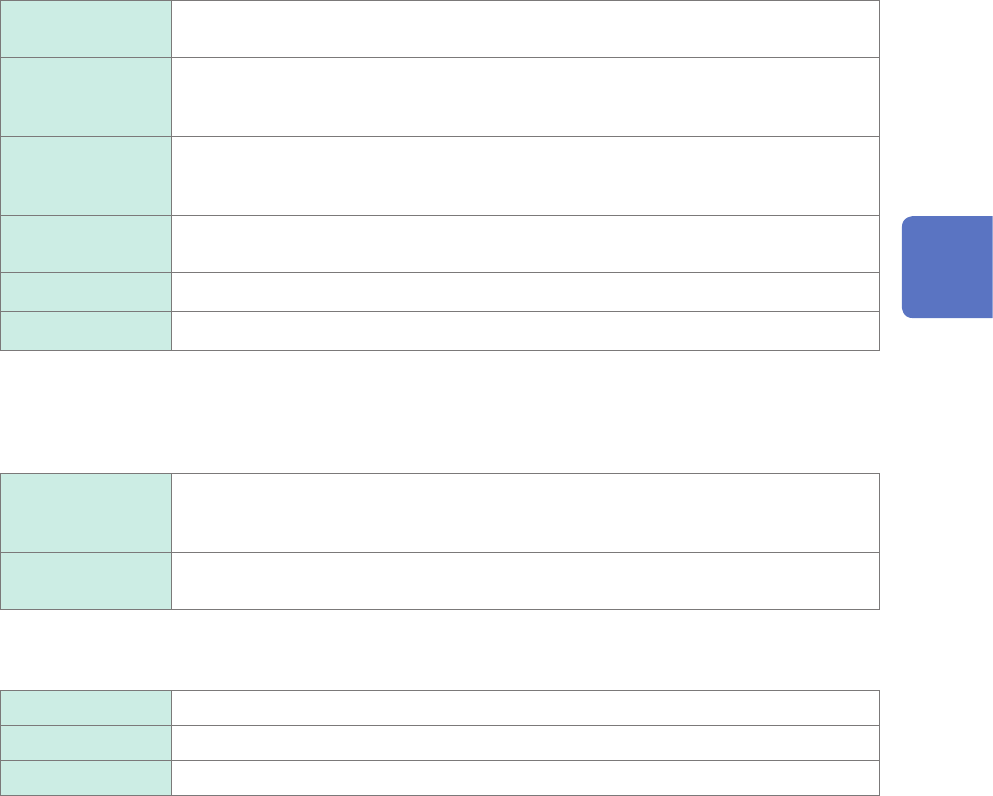
Click the [Type] box, and then choose a save format of waveform data or save target from
the list.
Waveform
(Binary)
Saves waveform data in binary format. Choose this option to reload the waveforms into
the instrument.
Waveform (Text) Saves waveform data in text format. Choose this option to load the waveform data into
a computer.
The instrument cannot read this type of les.
Waveform (Float) Saves waveform data in binary format (32-bit oating point).
Choose this option to load the waveform data into MATLAB. The instrument cannot
read this type of les.
Screen image Saves image data on the screen in BMP, PNG or JPEG format.
You can display the data saved on a computer with image viewing software.
Calc. Result Saves numerical calculation results.
Setting Saves the present measurement conditions.
When [Type] is set to [Waveform (Binary)] or [Waveform (Text)]
5
Tap the [Channel] box, and then choose an option for channels to be saved.
All Saves measured data of all channels.
The instrument also saves data acquired across channels with the waveform display
set to [Off].
Display
Saves the data acquired across the channels of all sheets with the waveform display
preferences set to [On].
6
Click the [Range] box, and then choose an option for save range from the list.
All
Saves all data written in the memory.
A_B Saves the data in the section between trace cursors [A] and [B].
C_D Saves the data in the section between trace cursors [C] and [D].
7
Click [Execute].
3
Measurement Method