MR8740T_Quick guide_eng_20191016H.pdf - 第34页
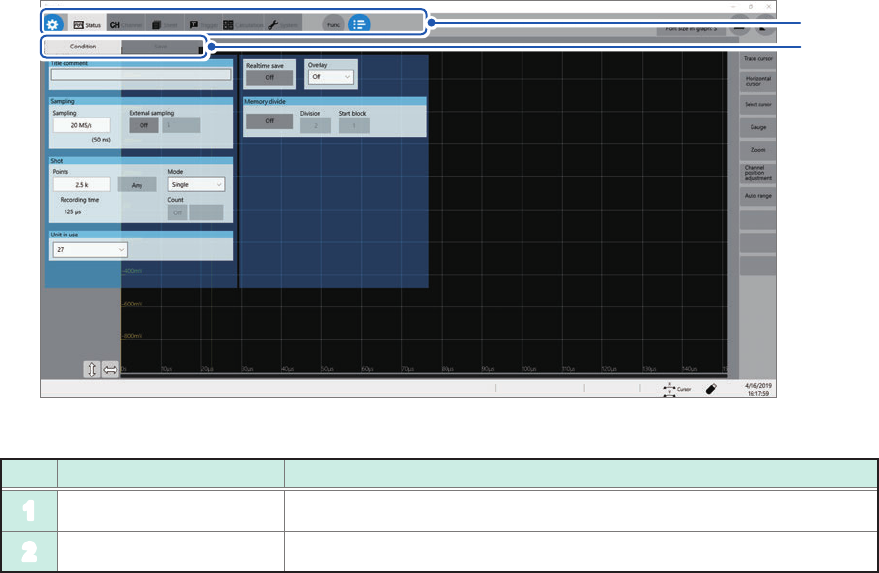
28 Screen Cross-screen functions 1 2 No. Name Description 1 Menu tab Click a tab to choose a menu to open. 2 Sub-menu tab Click a tab to choose a sub-menu to open.
27
Screen
Explanation of each screen
10
1213
11
1
2
8 9
43 5 6 7
14
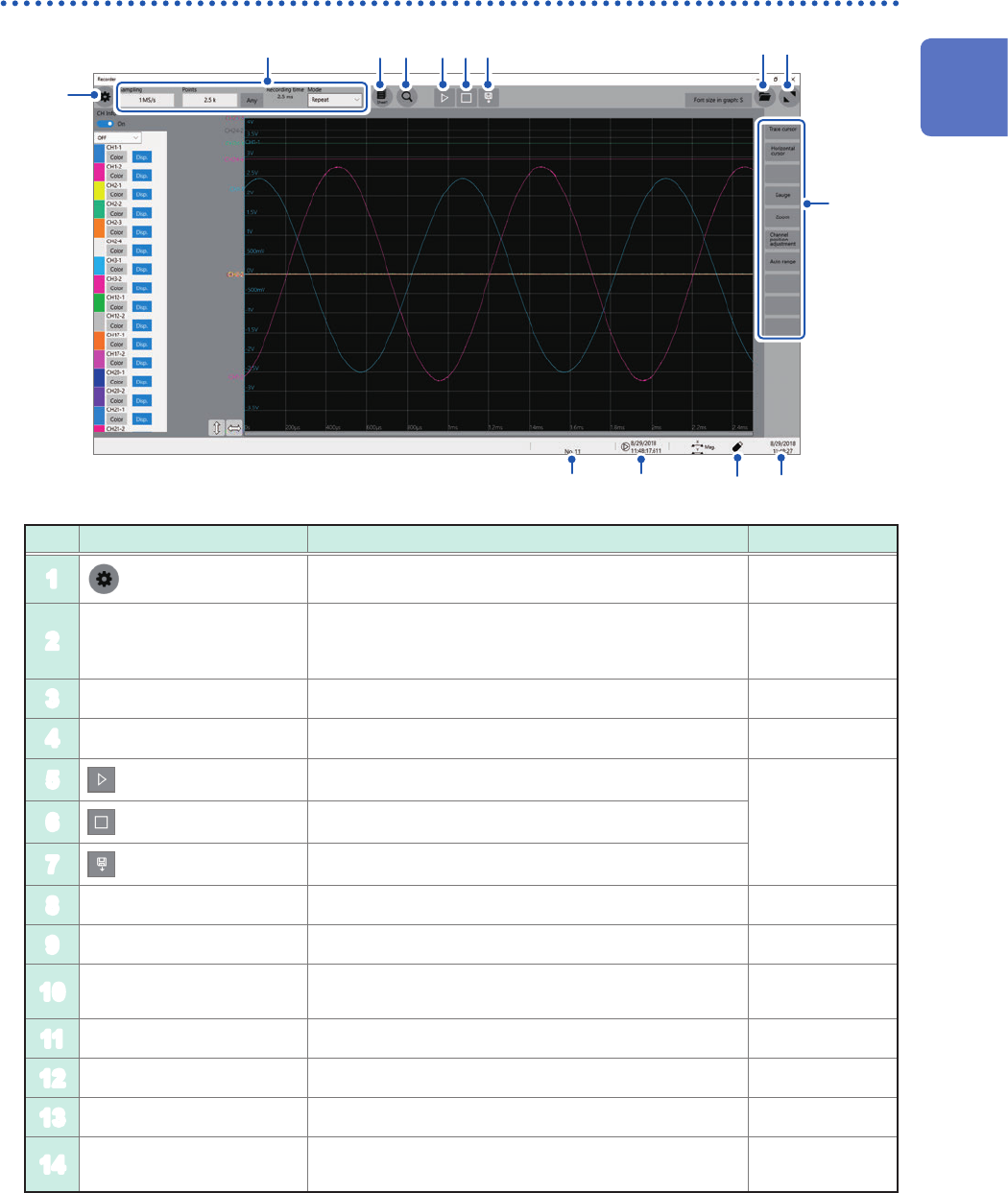
Waveform screen
No. Item Description Reference page
1
Switches between the setting and waveform screens. p. 68, p. 81
2
Measurement condition
setting
Allows you to choose a sampling rate, recording length
(the number of points and user-dened length), and
recording mode (single or repeat).
p. 68
3
Sheet selection Switches among preset sheets. *
1
4
Search setting screen Allows you to set search conditions. *
2
5
(Start icon)
Starts a measurement.
p. 75
6
(Stop icon)
Stops the measurement.
7
(Save icon)
Saves data.
8
File screen Opens the le screen. *
3
9
Waveform area zoom-in Zooms in the waveform area. –
10
Function buttons
Allows you to choose functions available on the
waveform screen.
p. 81
11
Current date and time Displays the current date and time. p. 62
12
Eject button Ejects a USB ash drive. p. 58
13
Trigger time Displays the trigger time. –
14
Number of measurement
times
Displays the processing state of the instrument.
Displays the number of measurement times.
–
*1: Refer to “1.4 Specifying the Sheet Settings” of Instruction Manual.
*2: Refer to “6 Search Function” of Instruction Manual.
*3: Refer to “4 Saving/Loading Data and Managing Files” of Instruction Manual.
1
Overview
28
Screen
Cross-screen functions
1
2
No. Name Description
1
Menu tab Click a tab to choose a menu to open.
2
Sub-menu tab Click a tab to choose a sub-menu to open.
29
Basic Operation
1.4 Basic Operation
Mouse operation
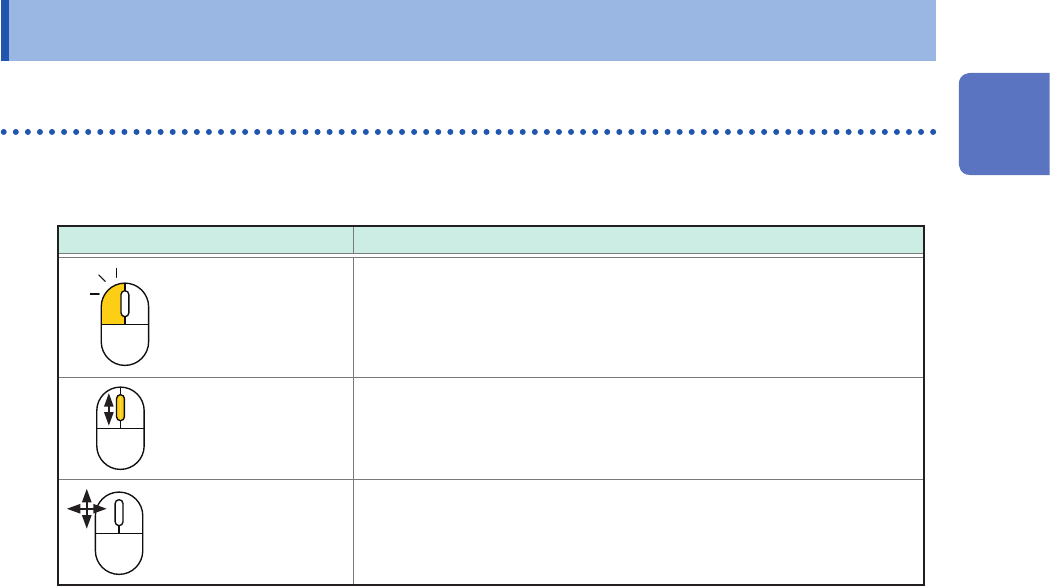
Using a commercially available USB mouse enables you to operate the instrument.
Basic mouse operation for the instrument is as follows:
Mouse operation Description
Click Allows you to choose a menu or execute an action.
Wheel button Changes options to be selected.
Up/down/left/right Moves the mouse cursor around.
External noise may cause the mouse to malfunction. Keep the mouse and mouse cable as far away
as possible from sources of noise.
Use the mouse on an insulated table. Some commercially available mouse devices are susceptible
to noise and using such a mouse on a metal table may cause the instrument to malfunction.
1
Overview