MR8740T_user_manual_eng_20191016H.pdf - 第100页
95 Loading Data T o display the le screen 1 2 1 Open the le screen. 2 Choose a storage device to be operated. When loading data from a storage device Insert a storage device before choosing it. Others • The instrument …
94
Loading Data
4.3 Loading Data
You can load data saved in a storage device or written in the internal memory of the instrument.
Data loading procedure
Before attempting to load the data, make sure that a storage device is inserted, and the save
destination is correctly specied.
Open the le screen, select a storage device, and double-click the le to be loaded.
Waveform and settings les saved in waveform (binary) format can be loaded on the instrument.
The instrument displays only loadable les on the le screen.
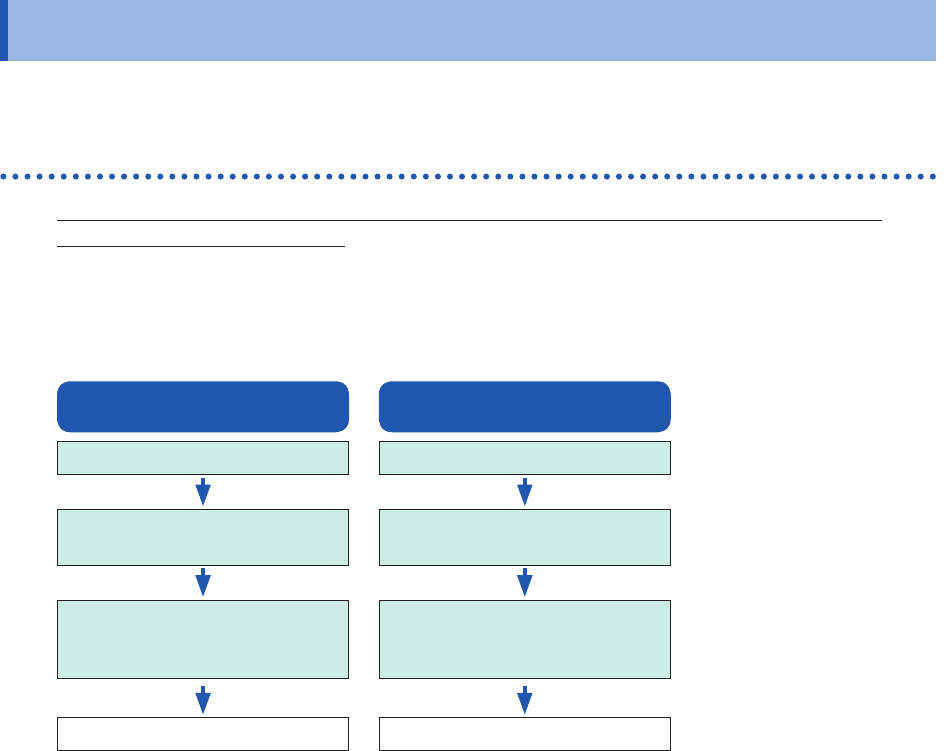
Setting data
Insert a storage device.
Select data to be loaded
(Extension: .SET).
Double click the le
or
select [Open].
Loads data.
Waveform data
Insert a storage device.
Select data to be loaded
(Extension: .MEM).
Double click the le
or
select [Open].
Loads data.
95
Loading Data
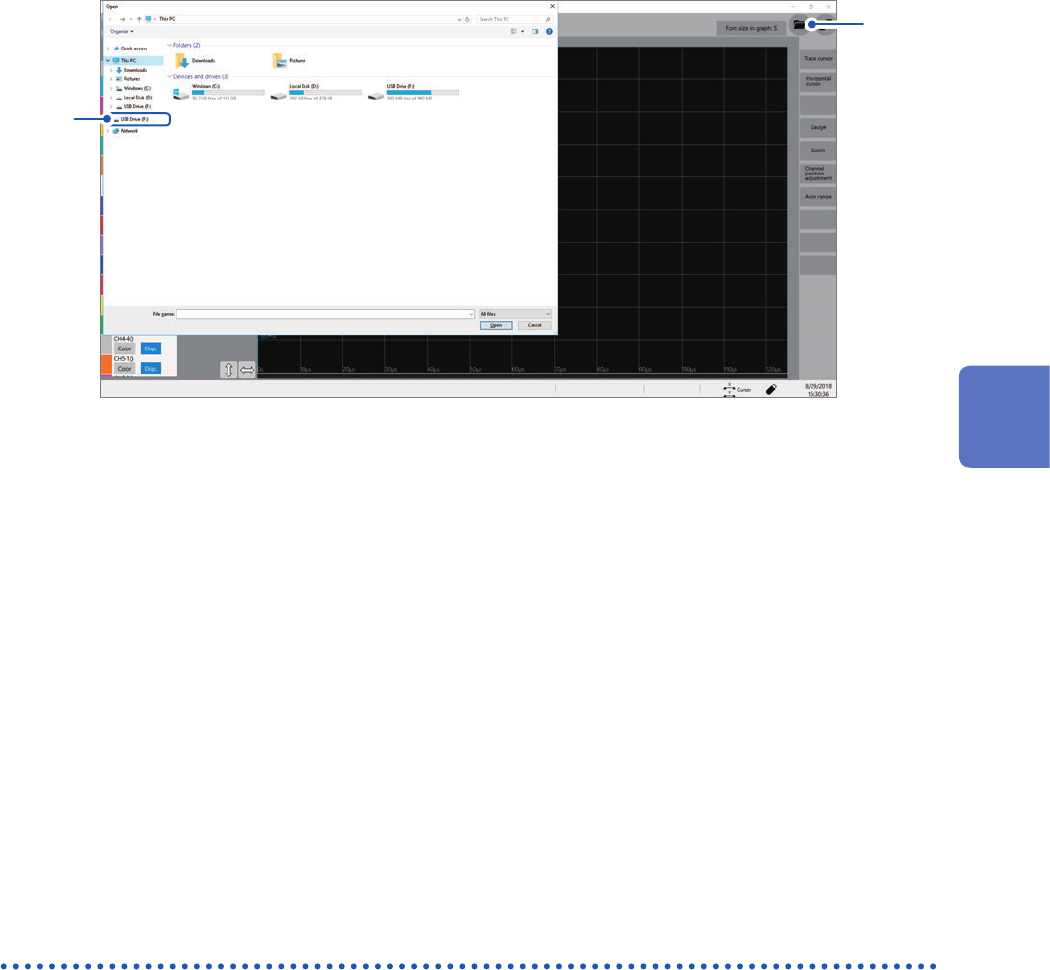
To display the le screen
1
2
1
Open the le screen.
2
Choose a storage device to be operated.
When loading data from a storage device
Insert a storage device before choosing it.
Others
• The instrument can load data saved with Model MR8740T Memory HiCorder only.
• Loading a waveform le changes the settings of the instrument to those when the waveform le
was saved. When you start a measurement in this state, the instrument measures waveforms
with the settings of the loaded waveform le; however, the settings of the modules are restored
to those set before the waveform le was loaded. To discard the module settings of the loaded
waveform le, execute [Initialize waveform data] (Refer to “6.2 Initializing the Instrument” in
Quick Start Manual.).
Automatically loading the settings (Auto-setup function)
The instrument automatically loads the setting data with the le name “STARTUP” stored in the
[CONFIG] folder in the [HIOKI_MR8740T] folder from a storage device at the time of startup.
The instrument searches the drives beginning from drive D in alphabetical order for the le
“STARTUP.SET,” loading the le found rst.
4
Saving/Loading Data and Managing Files
96
Managing Files
4.4 Managing Files
Opening the explorer allows you to manage data saved in storage devices.
Operation available on the explorer
Changing storage
devices
Storage devices can be changed.
Sorting les Files on a le list can be sorted based on the chosen basis.
Moving les to a
folder
Files can be moved to a folder of your choice.
Copying les or
folders
Files can be copied to a specied folder. When you choose folders to be copied, the
chosen folders are copied into the specied folder.
Creating a folder A new folder can be created.
Renaming a le
or folder
A le or folder can be renamed.
Deleting les or
folders
Files and folders can be deleted.
Format A storage device can be formatted.
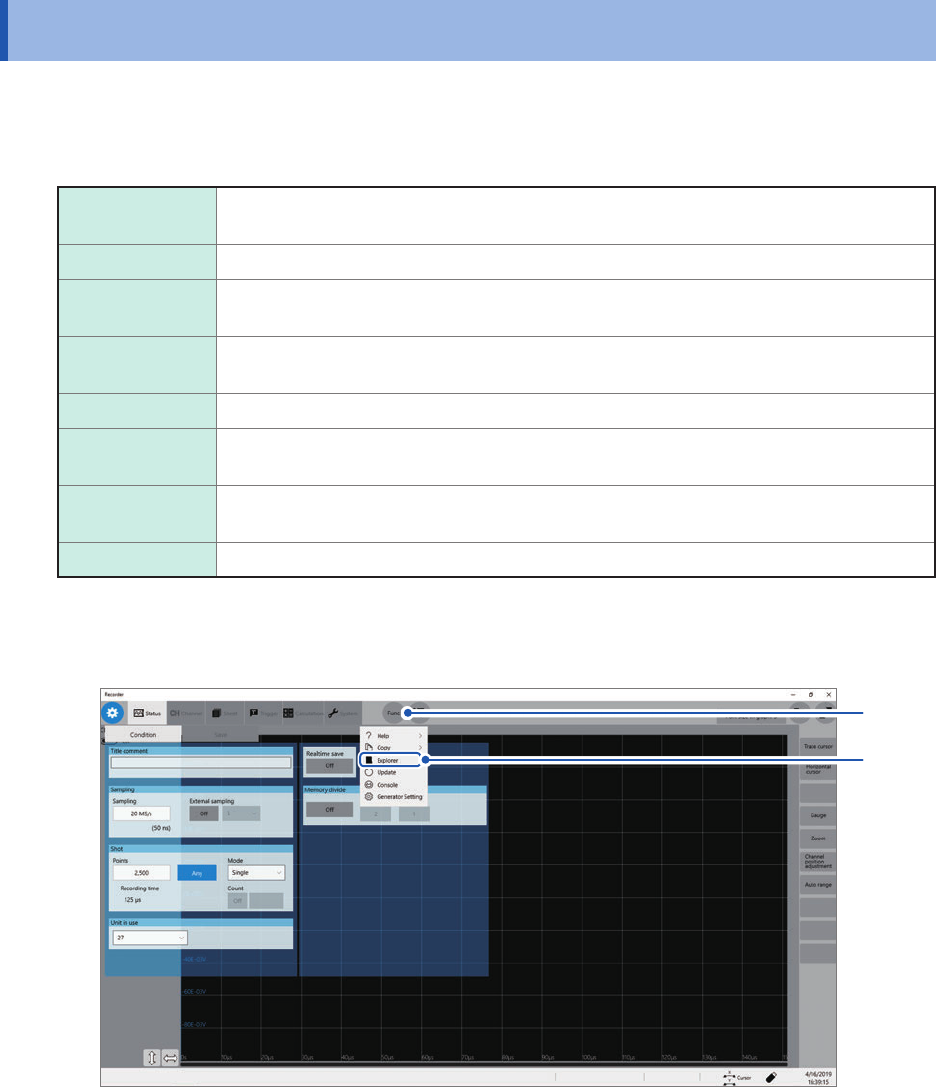
To open the explorer
1
2
1
Click [Func].
2
Choose [Explorer].
Explorer appears.
Choose a storage device to be operated.