MR8740T_user_manual_eng_20191016H.pdf - 第37页
32 Changing the Display Position and Display Magnication of W aveforms 4 Adjust the display position and magnication. The display can be adjusted as follows depending on the selected state. Initialize the position of a…
31
Changing the Display Position and Display Magnication of Waveforms
2
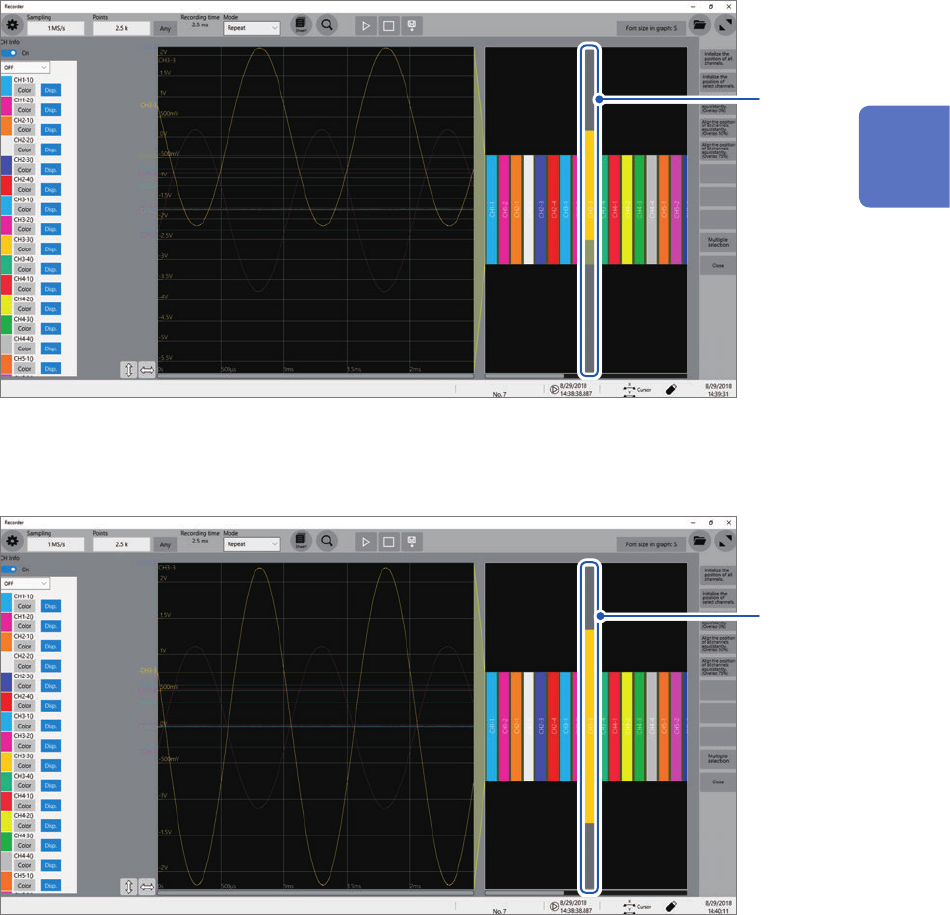
Click a channel number you want to move to choose and drag the chosen area.
The display position of the channel is moved.
2
3
Click a channel number the display position you want to change.
Rotating the wheel button while pointing to the selected area changes the display magnication.
3
2
Operating the Waveform Screen and Analyzing Data
32
Changing the Display Position and Display Magnication of Waveforms
4
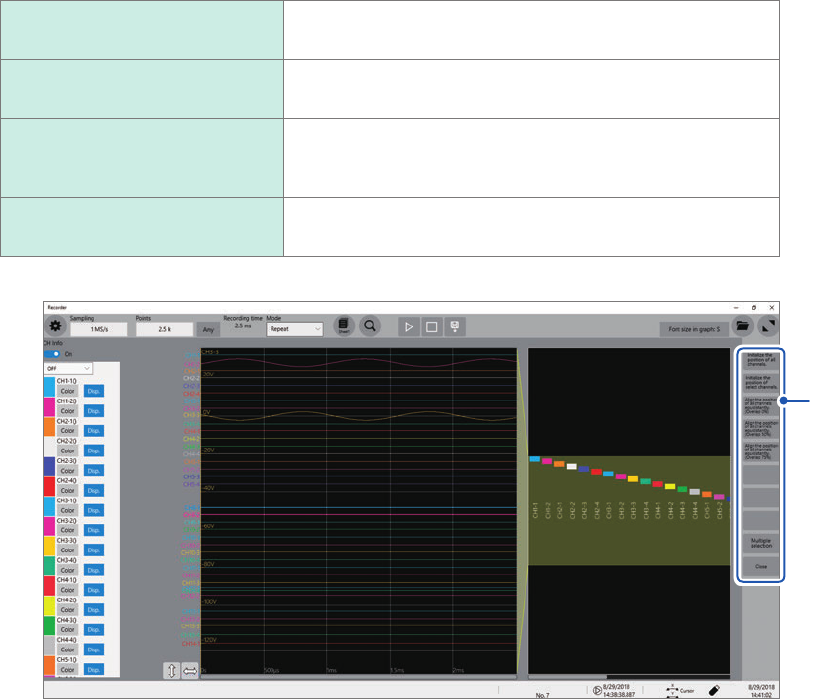
Adjust the display position and magnication.
The display can be adjusted as follows depending on the selected state.
Initialize the position of all
channels.
Restores all the channels to the initial positions and displays
them at the default magnications.
Initialize the position of select
channels.
Restores selected channels only to the initial positions and
displays them at the default magnication.
Align the position of all
channels equidistantly.
Adjusts the display positions and magnications of all
channels such that they are aligned at the same intervals.
Adjust the display position and magnication.
Multiple selection
Allows you to select the channels the displays of which are
to be adjusted.
4
33
Enlarging a Part of the Waveform (Zoom Function)
2.5 Enlarging a Part of the Waveform (Zoom
Function)
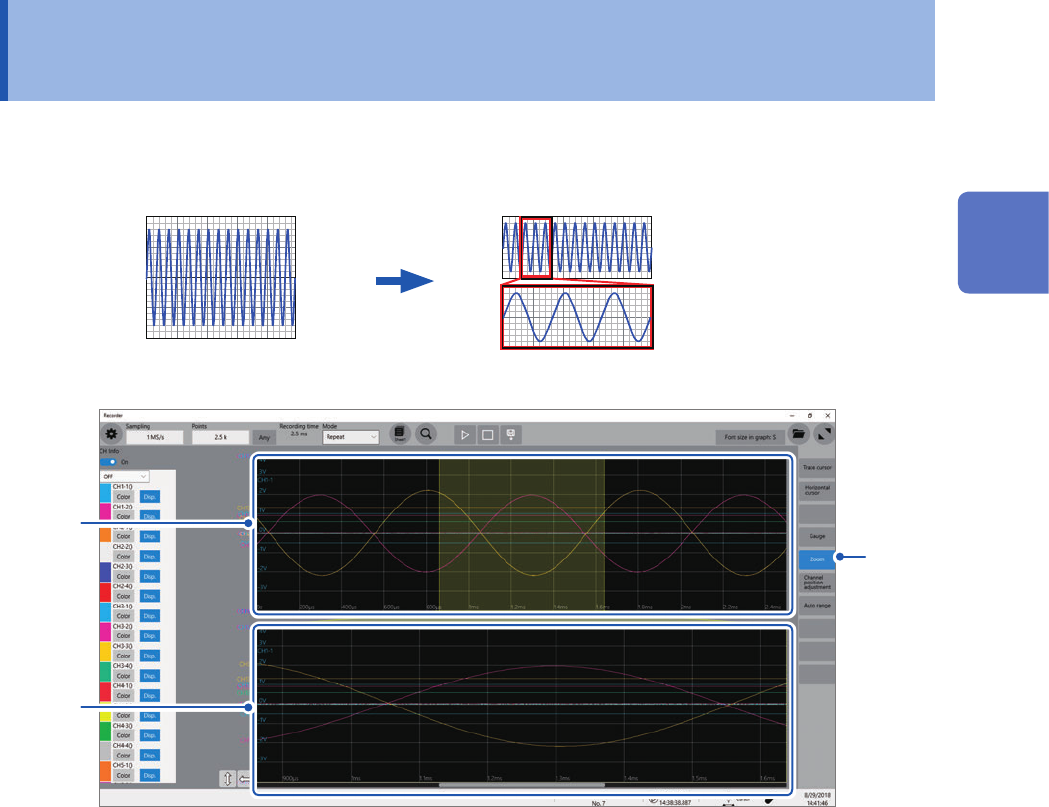
Using the zoom function allows you to enlarge a part of waveforms.
Normal display Magnied display
Normal display
Magnied
2
3
2
1
Click [Zoom].
The screen splits into two, upper and lower, which enable the zoom function.
Upper screen: Displays waveforms in the magnication specied before the zoom function was applied.
The part of the waveforms enclosed by the yellow frame represents the zoomed display range
shown in the lower screen.
Lower screen: Displays magnied waveforms.
2
Changing the display magnication of waveforms
You can change the display magnication on each screen.
3
Drag waveforms to scroll through them on each screen.
To cancel the magnied display
Click [Zoom] on the screen to cancel the magnied display. When you cancel the magnied
display, the display (the upper screen) restores that with the normal magnication.
2
Operating the Waveform Screen and Analyzing Data