MR8740T_user_manual_eng_20191016H.pdf - 第151页
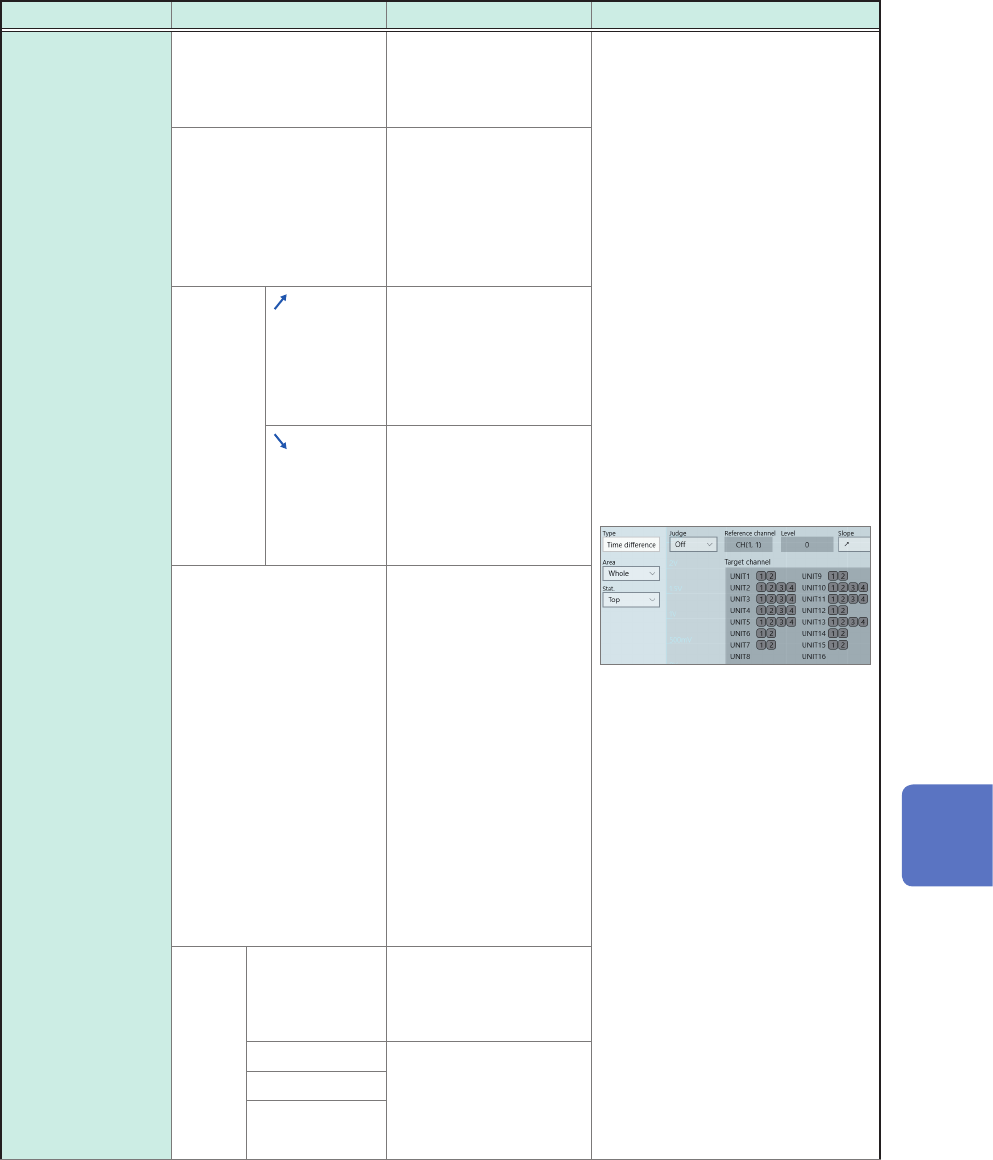
146 Conguring the Numerical Calculation Settings Calculation type Setting Description Example of screen Arithmetic operations Calculation number 1 , Calculation number 2 (No. 1 through No. 107) Allows you to specify two…
145
Conguring the Numerical Calculation Settings
Calculation type Setting Description Example of screen
Time difference
Phase contrast
Reference channel,
Target channel
(Analog, logic, waveform
calculation)
Allows you to specify
the reference channel
and the target channel.
Level*
The instrument
calculates the value
based on the time when
the waveform crossed
the level specied here.
No setting is available
for logic channels.
Slope
Makes calculations
using values based on
a period of time when a
waveform crossed the
specied level in the
positive direction.
Makes calculations
using values based on
a period of time when a
waveform crossed the
specied level in the
negative direction.
Filter(samples)
(Off
, 10 to 10,000)
Allows you to enter
duration used to
determine that a
waveform crosses the
specied level.
Only if a waveform does
not cross the level again
within the specied lter
duration after it has
crossed the level, the
waveform is considered
to have crossed the
level.
This is useful to
eliminate false level-
crossing events caused
by noise.
Stat. Top
Detects a value
obtained rst from the
beginning within the
specied range.
Average Calculates the
average, maximum, or
minimum value for each
parameter within the
specied range.
Max
Min
7
Numerical Calculation Function
146
Conguring the Numerical Calculation Settings
Calculation type Setting Description Example of screen
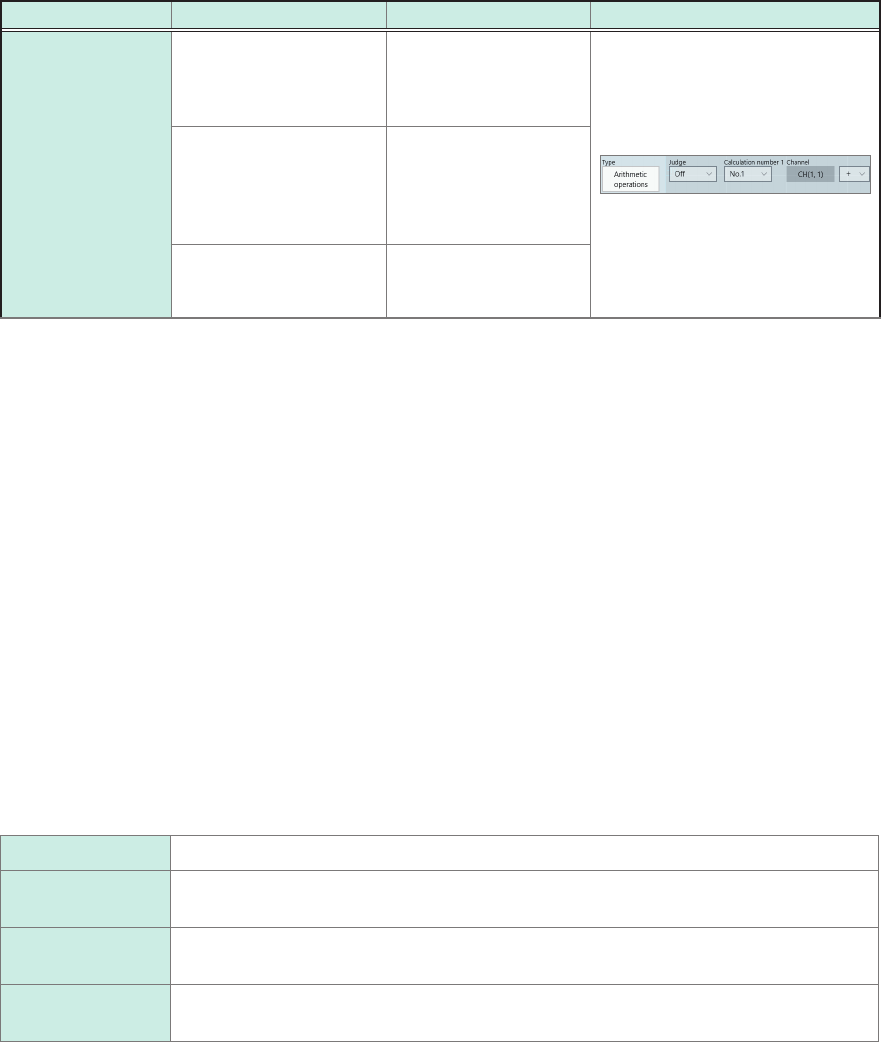
Arithmetic
operations
Calculation number 1,
Calculation number 2
(No. 1 through No. 107)
Allows you to specify
two numerical
calculation numbers to
use for calculations.
Target channel Allows you to specify a
target channel that has
a numerical calculation
number to use for
calculations.
Operator
(+, −, ×, ÷)
Allows you to choose
among the four basic
arithmetic operations.
*: The range you can specify are between −9.9999E+29 and −1.0000E-29, 0, and between +1.0000E-29 and
+9.9999E+29. A value to ve signicant gures can be set (a value to 10 signicant gures can be set for a
time of the level at time setting).
• With the [Period], [Frequency], [Rise time], and [Fall time] calculations, the instrument may not
be able to perform calculations depending on the condition of waveform data.
• With the
[Period]
and
[Frequency]
calculation, correct measurement results may not be obtained
if the lter setting is close to half the period (an integer multiple of an actual period may be
calculated).
• When the scaling is enabled, the instrument scales waveform data before calculation. Units for
parameter values are those set in the scaling function.
• If a waveform across a calculation target channel exceeds the measurable range (overrange
waveform), the instrument substitutes the upper or lower measurement limit for values that
exceed the measurable range before calculation.
Refer to “3.2 Converting Input Values (Scaling Function)” (p. 38).
Settings: Calculations for which [Stat.] can be set
Period, Frequency, Rise time, Fall time, Pulse width, Duty ratio, Time difference, Phase contrast, +Width,
−Width, and Burst width
Top
Makes calculations within the calculation range in the initial condition.
Average Calculates the average value of the calculation results for the data within the
calculation range.
Max Calculates the maximum value of calculation results for data within the calculation
range.
Min Calculates the minimum value of calculation results for data within the calculation
range.
147
Conguring the Numerical Calculation Settings
Displaying numerical calculation results
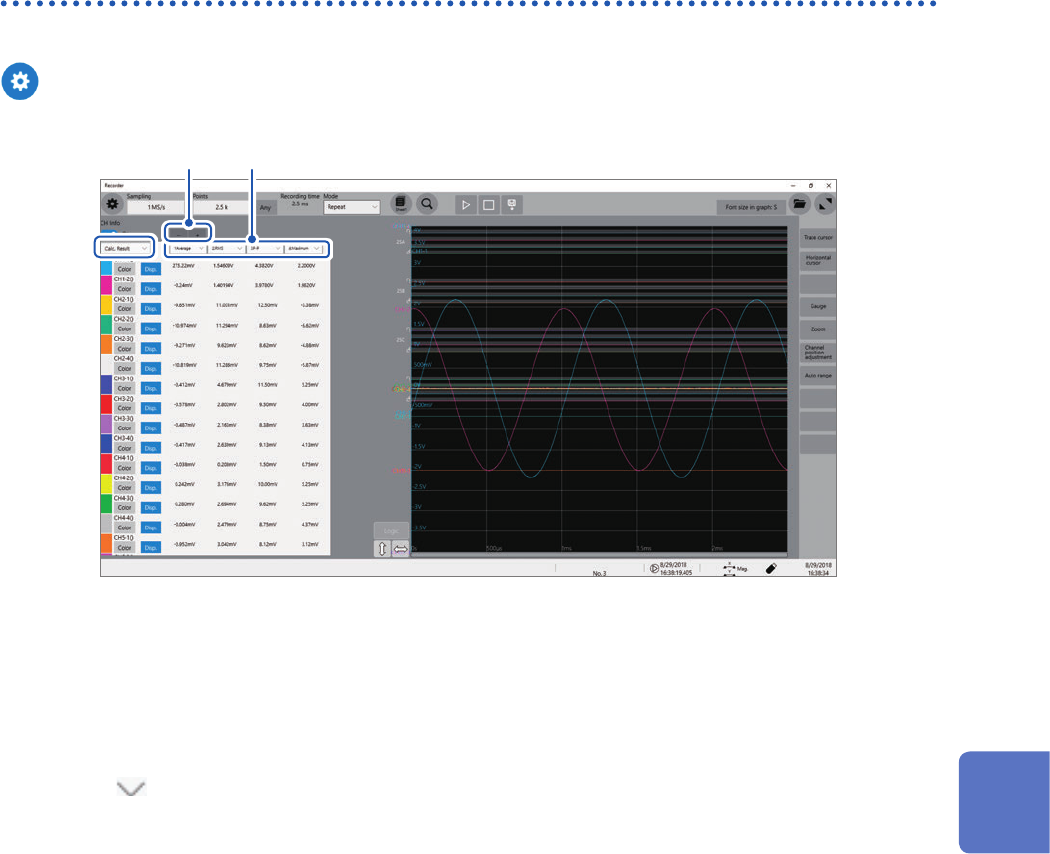
You can check calculation results on the waveform screen.
> [Numeric Calc.]
a
b c
• You can display or hide the screen of the numerical calculation results every time you click [CH
info].
• If no periods are found or a calculation is aborted, the character string [******] appears instead of
a calculation result.
• For channels not specied as a calculation target, the character, [–] appears.
Click [ ] under the [CH Info] toggle switch, and then choose [Calcu Result] from the list (
a
).
To save calculation results after measurement
Refer to “Freely selecting data items to be saved and save les (save icon)” (p. 90).
To change the display width of the calculation result screen
You can change the display width of the calculation results by clicking [–] or [+] (
b
).
You can choose calculation numbers to be displayed by clicking the buttons (
c
).
• You can specify up to four calculation results to be displayed.
• Choose calculation numbers you want to display from the list.
7
Numerical Calculation Function