MR8740T_user_manual_eng_20191016H.pdf - 第23页
18 Starting/Stopping Measurement 1.5 Starting/Stopping Measurement Starting a measurement When you click the start icon, the instrument starts a measurement. • W aveform data shown on the screen is cleared once the measu…
17
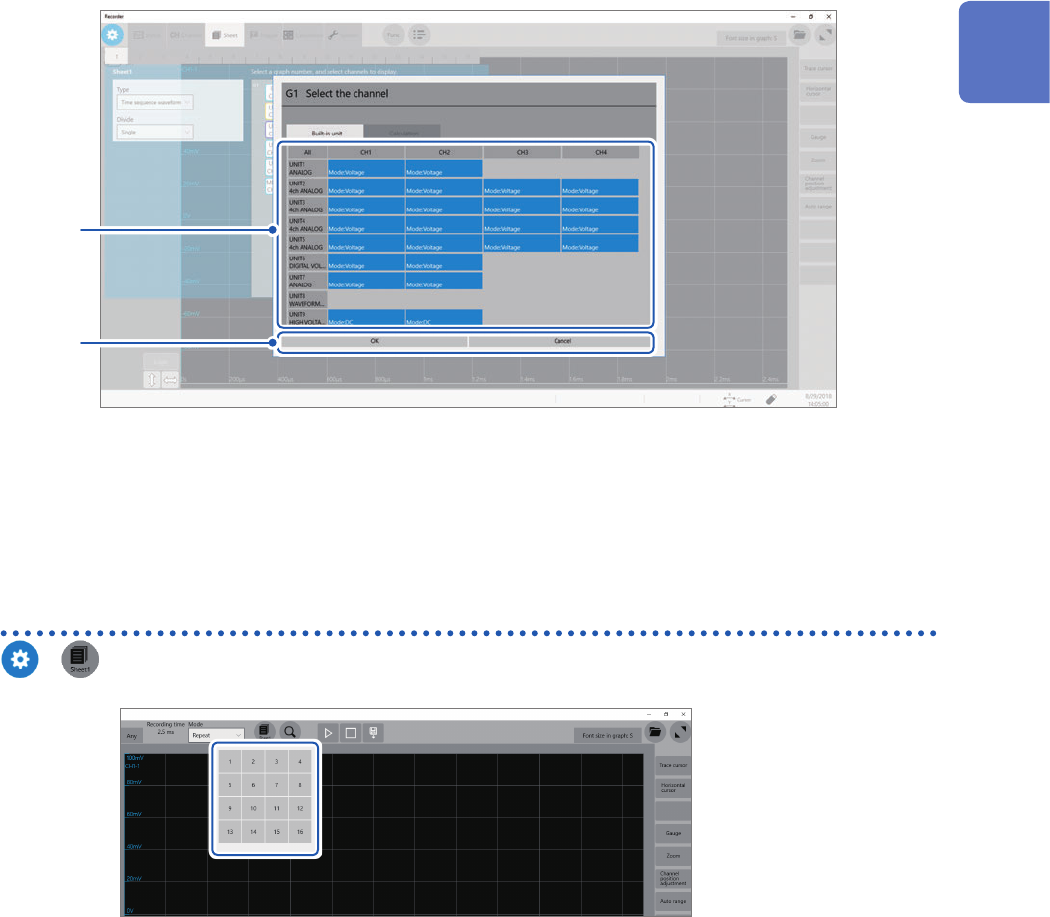
Conguring the Sheet Settings
5
Choose channels to be displayed on the graph.
All channels are chosen in the default setting. Click a button to deselect a channel (Click it again to select it).
5
6
6
Click [OK].
Your selection is conrmed.
Clicking [Cancel] closes the dialog box without your selection conrmed.
Switching sheets on the waveform screen
>
Choose sheet numbers to be displayed.
1
Measurement Method

18
Starting/Stopping Measurement
1.5 Starting/Stopping Measurement
Starting a measurement
When you click the start icon, the instrument starts a measurement.
• Waveform data shown on the screen is cleared once the measurement starts.
• You can also start a measurement by inputting a signal into the external control terminal.
Refer to “12 Externally Controlling the Instrument” (p. 209).
Waveform display during measurement
In general, the waveforms appear after data with the specied recording length has been acquired.
When the measurement speed is relatively slow, the instrument displays waveforms while it is
acquiring the data.
However, even if a slow-speed range is set, the instrument may display waveforms after it has been
acquired the data of the whole waveform, depending on the overlaying or magnication setting.
To automatically save data during measurement
Refer to “Automatically saving waveform data” (p. 84).
Stopping the measurement
Clicking the stop icon once stops the measurement after the instrument has acquired the
waveforms with the specied recording length.
Click the stop icon once and click [OK] on the dialog box displayed to stop the measurement.
19
2
Operating the Waveform Screen
and Analyzing Data
You can analyze measured data with various functions including cursor measurement of input
waveforms and searches on the waveform screen. You can also change measurement conditions
or other settings on this screen.
Operation available on the waveform screen
Changing the display magnication of
waveforms
• Magnifying/demagnifying waveforms (p. 29)
• Magnifying a part of waveforms horizontally
(p. 33)
Using the trace cursors and horizontal
cursors
• Reading measured values (p. 20)
Moving the waveform display position
• Moving waveforms by dragging them
• Moving waveforms with the scroll bar
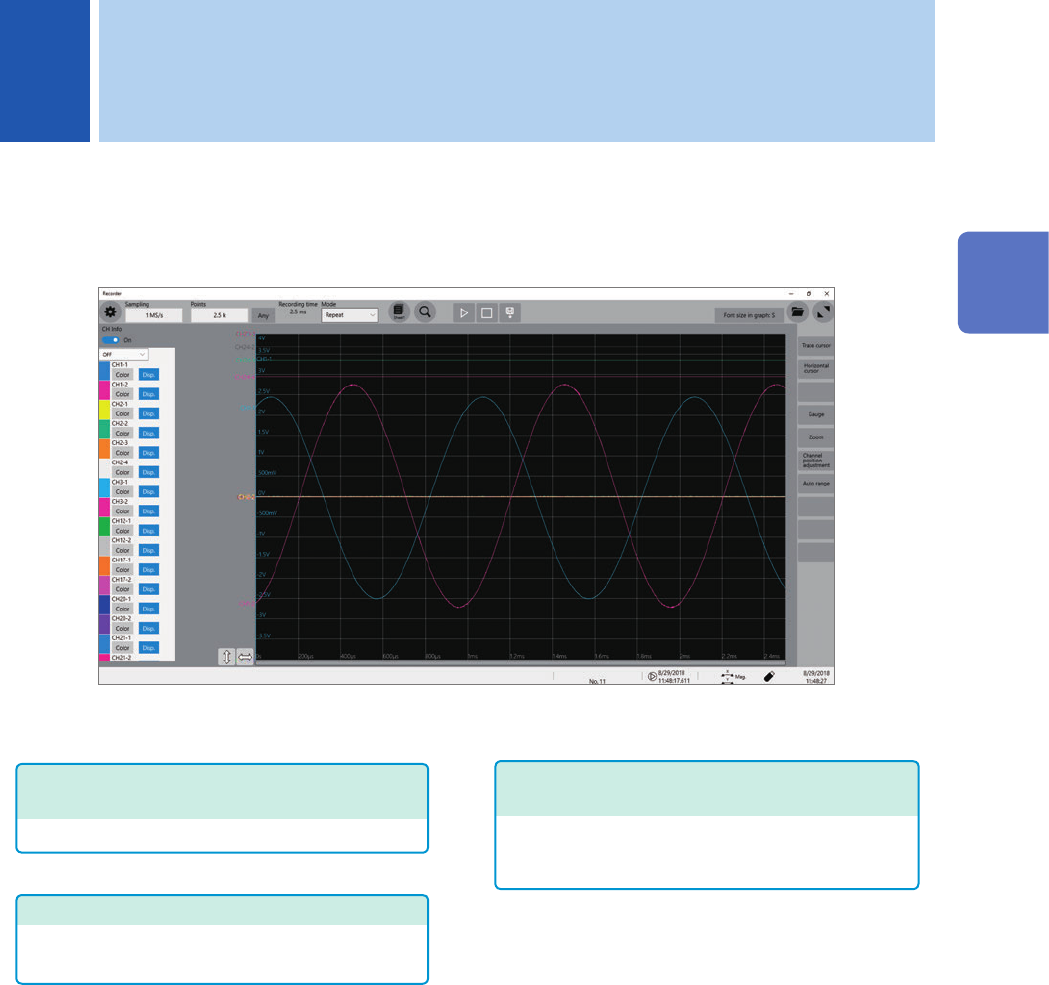
You can display or hide waveforms with [CH Info] set to [On].
You can also change waveform color.
• Clicking [Color] allows you to change the waveform display color.
• Clicking [Disp.] toggles between showing and hiding a waveform.
• Right-clicking [Disp.] toggles between showing and hiding waveforms acquired across all
channels.
Setting [CH Info] to [Level Monitor] allows display values of signals being inputted into measuring
modules.
2 Operating the Waveform Screen and Analyzing Data
2
Operating the Waveform Screen and Analyzing Data