MR8740T_user_manual_eng_20191016H.pdf - 第97页
92 Saving Data 8 Congure advanced save settings according to the [T ype] box setting. Saving format Setting Description W aveform (T ext) Thin out Off , On ( 2 to 1,000 ) A large amount of space is required to save l…
91
Saving Data
4
Click the [Type] box, and then choose a save format of data from the list.
Waveform
(Binary)
Saves waveform data in binary format.
Choose this option to reload the waveforms into the instrument.
Waveform (Text) Saves waveform data in text format.
Choose this option to load the waveforms with a computer.
Waveform (Float) Saves waveform data in binary format (32-bit oating point).
Choose this option to load the waveforms with a computer.
Screenshot Saves screenshots.
You can display the saved data on a computer with image viewing software.
Numerical
calculation result
Saves numerical calculation results.
Waveform
(Binary)
Saves data of all blocks in binary format.
(When the memory division set to [On])
Waveform (Text) Saves data of all blocks in text format.
(When the memory division set to [On])
Setting Saves the present measurement conditions.
5
Click the [Channel] box, and then choose an option for channels to be saved.
When [Type] is set to [Waveform (Binary)] or [Waveform (Text)]
All Saves measured data of all channels.
Saves the data acquired across the channels with the display setting set to [Off].
Display
Saves data of all sheets with the display setting set to [On].
6
Click the [Range] box, and then choose an option for save range from the list.
When [Type] is set to [Waveform (Binary)] or [Waveform (Text)]
All
Saves all data written in the memory.
A_B Saves the data in the range between trace cursor [A] and trace cursor [B].
C_D Saves the data in the range between trace cursor [C] and trace cursor [D].
The instrument saves data acquired across the channels displayed on the screen.
When no trace cursors are set, the instrument saves data or the whole range even if you choose [A_B] or [C_D].
7
Click the [Divide] box, and then from the list, choose a size of each le.
When [Type] is set to [Waveform (Binary)]
Off
Saves a le without dividing it.
16 MB Choose this option to divide a large le into several les and save them. A le is
divided into several les each of which has the specied size. The instrument creates
a folder with the specied name, divides a le into several les, and then saves them
in the folder.
32 MB
The instrument automatically creates a folder, and then creates waveform les and an index le (extension:
.IDX) in the folder. Loading the IDX le allows the waveform les to be loaded in a batch.
When using the memory division function, you cannot use the division save function.
When [Type] is set to [Waveform (Text)].
Off
Saves a le without dividing it.
60,000 Data
The instrument divides a le into several les each of which contains the specied
number of data points.
1,000,000 Data
When using the memory division function, you cannot use the division save function.
Refer to “Memory Dividing Function” (p. 173).
4
Saving/Loading Data and Managing Files
92
Saving Data
8
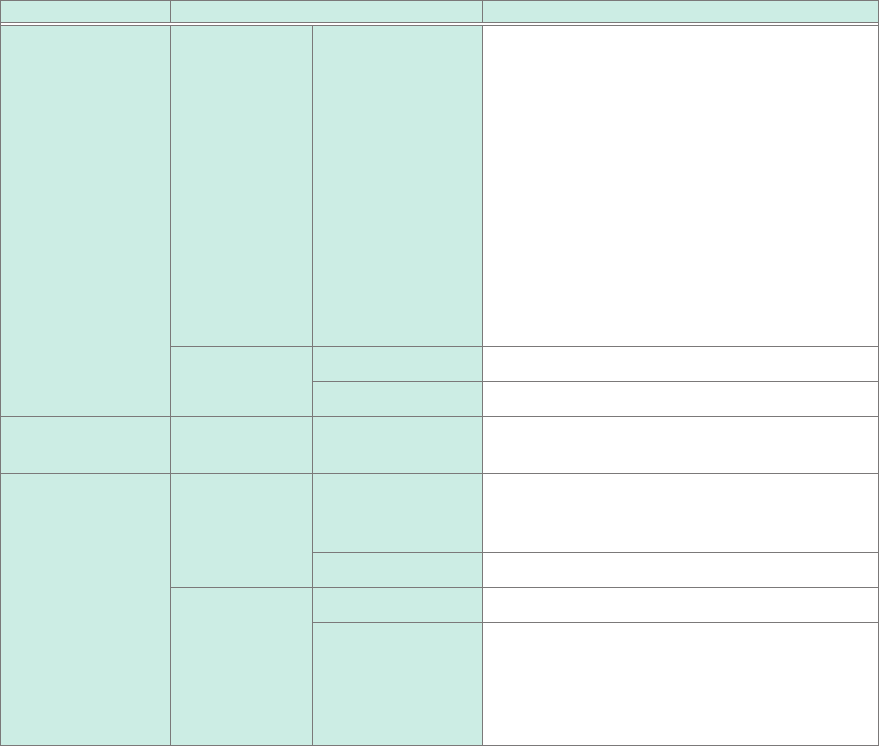
Congure advanced save settings according to the [Type] box setting.
Saving format Setting Description
Waveform (Text) Thin out Off
,
On (2 to 1,000)
A large amount of space is required to save
les in text format. Decimating data before
saving a le can reduce the le size.
This setting allows you to specify the
decimation number (the instrument retains a
data point out of the decimation number of data
points).
Example
When you enter [3], the instrument
retains one data point out of three
consecutive data points: it decimates
the two other points. The number of
data points is reduced by half of the
original amount.
Data All users
Saves whole data.
Event Saves only the data points at event marks.
Screen image
(screenshot)
Type BMP
, PNG,
JPEG
Allows you to choose a type for saving image
les.
Numerical
calculation result
File
designation
New
Saves les with a new le name each time. The
instrument allocates sequence numbers when
the same name is given.
Append Appends data to the same le and saves it.
File division Off
Saves all calculations in a single le.
Split by Calc. No. Creates a new folder, divides a le into several
les according to calculation number, and save
them in the folder. The instrument appends the
string “_K + sequential number” following each
le name.
93
Saving Data
9
(When using the memory division function)
Choose an option for blocks to be saved.
Display block
Saves waveforms included in displayed blocks.
All block Saves waveforms included in the specied number of blocks being used counting
from the start block.
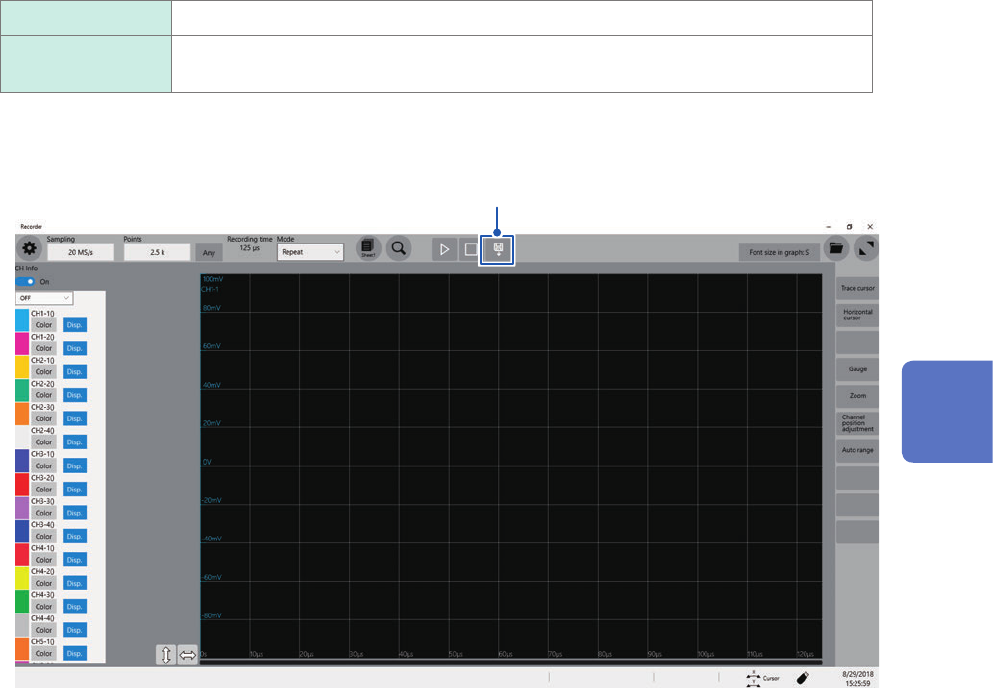
Whenever you click the save icon, the instrument saves data in the setting specied.
Click
4
Saving/Loading Data and Managing Files