MR8740T_user_manual_eng_20191016H.pdf - 第210页
205 Operating the Instrument With a Browser Installed in a Computer 1 1.6 Operating the Instrument With a Browser Installed in a Computer Y ou can congure the instrument settings, display waveforms , and acquire data fr…

204
Controlling the Instrument with Command Communications (LAN)
5
Click [Port number] box, and then enter the most signicant 3 digits of the 4-digit port
number.
The last digit is xed at [2].
6
Click the [Character code] box, and then choose a character code setting from the list.
AUTO
Automatically species a text code depending on the display language.
The text code UTF-8 is set for English; SJIS for Japanese.
SJIS Sets the character code to SJIS.
UTF-8 Sets the character code to UTF-8.
Using a 4K-resolution monitor with the maximum resolution set may require longer time for processing
command communication.
205
Operating the Instrument With a Browser Installed in a Computer
11.6 Operating the Instrument With a Browser
Installed in a Computer
You can congure the instrument settings, display waveforms , and acquire data from a computer
with a web browser, such as Internet Explorer
®
, installed in the instrument or your computer .
Internet Explorer
®
Version 8 or later is recommended.
Such web browser allows you to congure settings of the instrument and modules.
You can also congure settings of MR8790 Waveform Generator Unit, MR8791 Pulse Generator
Unit, and Model U8794 VIR Generator Unit using the instrument.
> [System] > [Comm.]
1
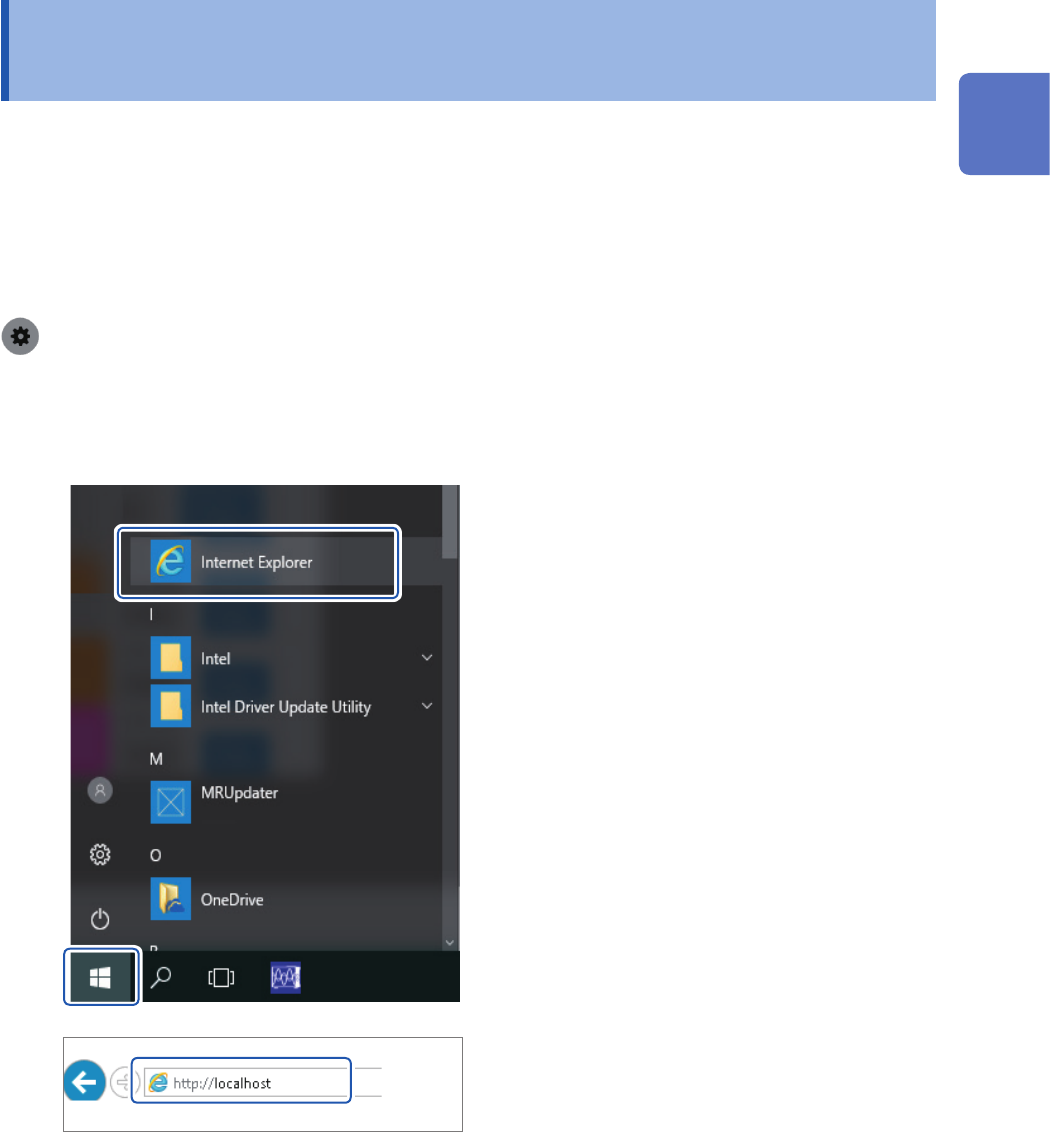
Start a web browser.
When using the web browser installed in the instrument
Click the start button on the bottom-left corner,
and then click [Internet Explorer] in the menu.
Enter [http://localhost] in the address bar.
When connecting your computer to the instrument using a web browser
The following example describes how to connect your computer to the instrument with Internet
Explorer
®
.
(1) Click the start button on the bottom-left corner of the computer screen, and then click [Internet
Explorer] in the menu.
(2) Enter the character string [http://] followed by the IP address or the computer name in the
address bar
11
Connecting the Instrument to Computers
206
Operating the Instrument With a Browser Installed in a Computer
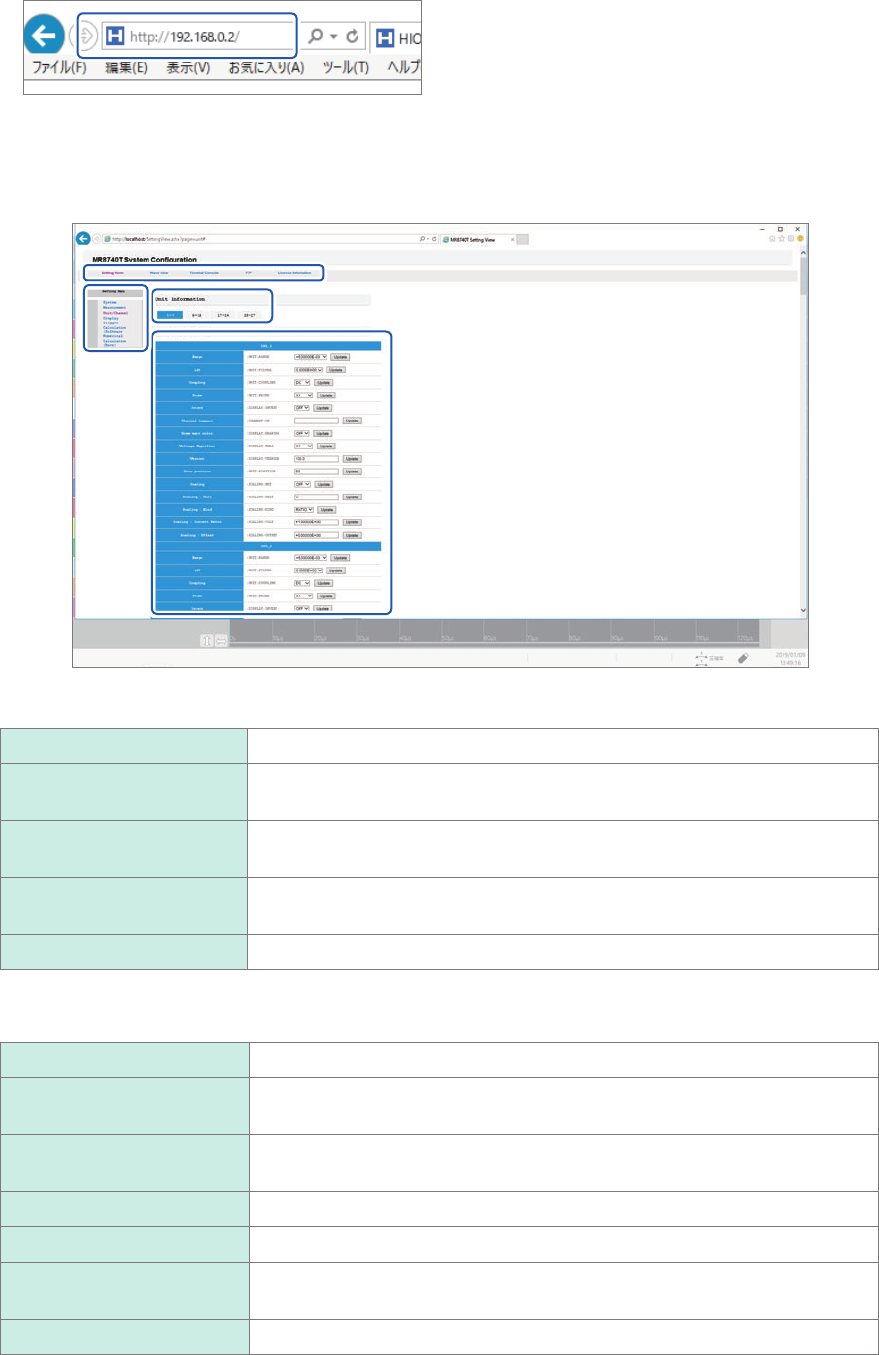
When the IP address of the instrument is “192.168.0.2”
2
Congure settings of the instrument using the web browser
(2)
(1)
(4)
(3)
(1) Web browser menu
Setting Home Allows you to congure settings of the instrument
Wave view
Displays measured waveforms (cannot display waveforms during
measurement)
Terminal Console
Allows you enter commands. (You can directly enter communication
commands.)
FTP
Acquires the FTP information and data written in the memory of the
instrument.
License Information Acquires the license information.
(2) Various settings of the instrument
System Allows you to congure the system settings
Measurement
Allows you to set measurement conditions (such as the sampling rate and
recording length).
Unit/Channel
Allows you to congure settings of modules and channels (such as
measurement range).
Display Allows you to congure the screen display settings.
Trigger Allows you to congure the trigger settings.
Calculation (Software
Numerical)
Allows you to congure the numerical calculation settings.
Calculation (Wave) Allows you to congure the waveform calculation settings.