MR8740T_user_manual_eng_20191016H.pdf - 第181页
176 Displaying W aveforms
175
Displaying Waveforms
9.2 Displaying Waveforms
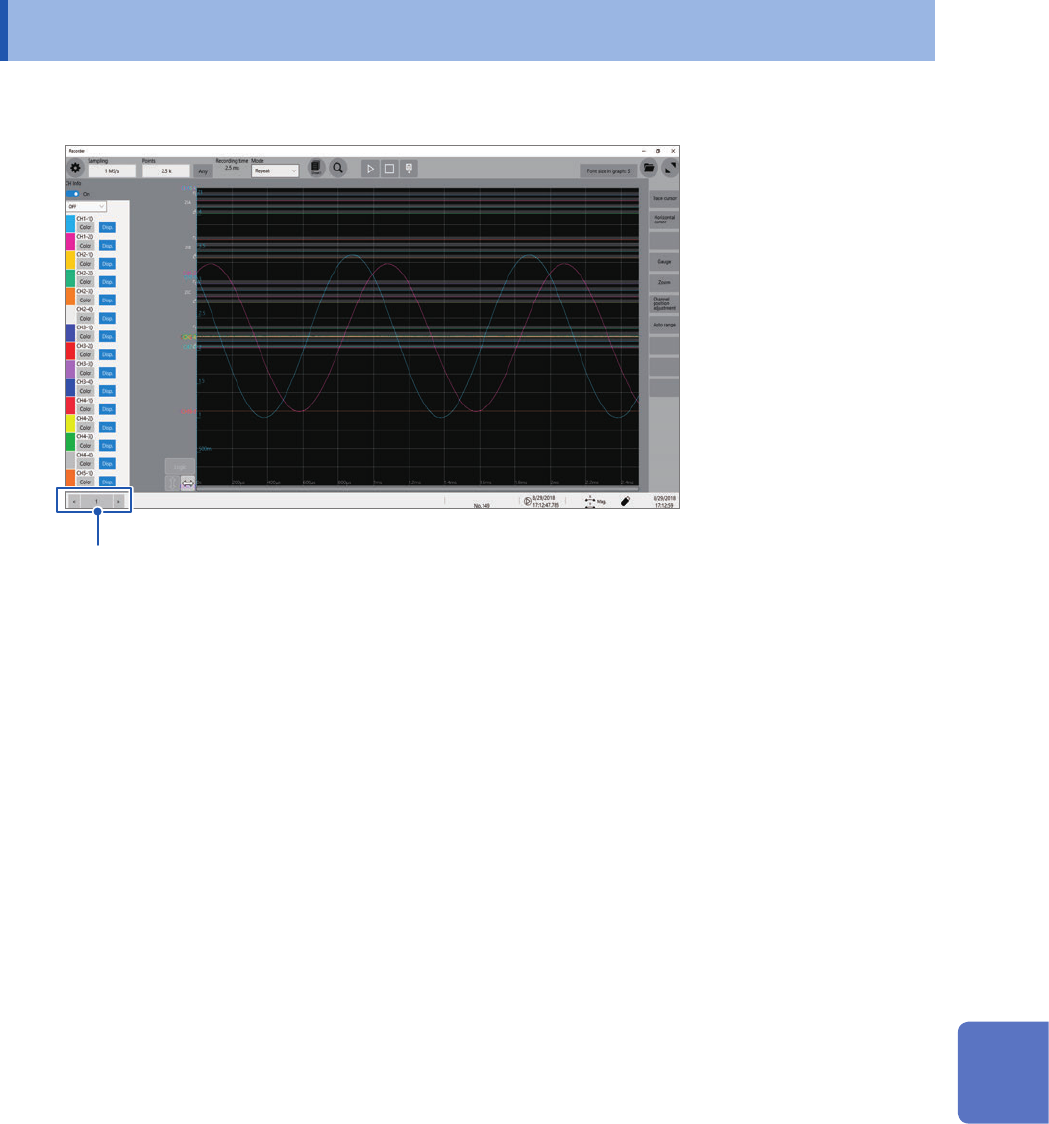
You can choose a block to display waveforms stored in it.
Choose a block number you specied.
Waveform calculation with the memory dividing setting
• With the memory dividing enabled, waveforms Z1 through Z16, which are obtained through
waveform calculations, remain in the block nally calculated only.
• To observe calculated waveforms stored in other blocks, execute another calculation.
9
Memory Dividing Function
176
Displaying Waveforms
177
10
Conguring the System
Environment Settings
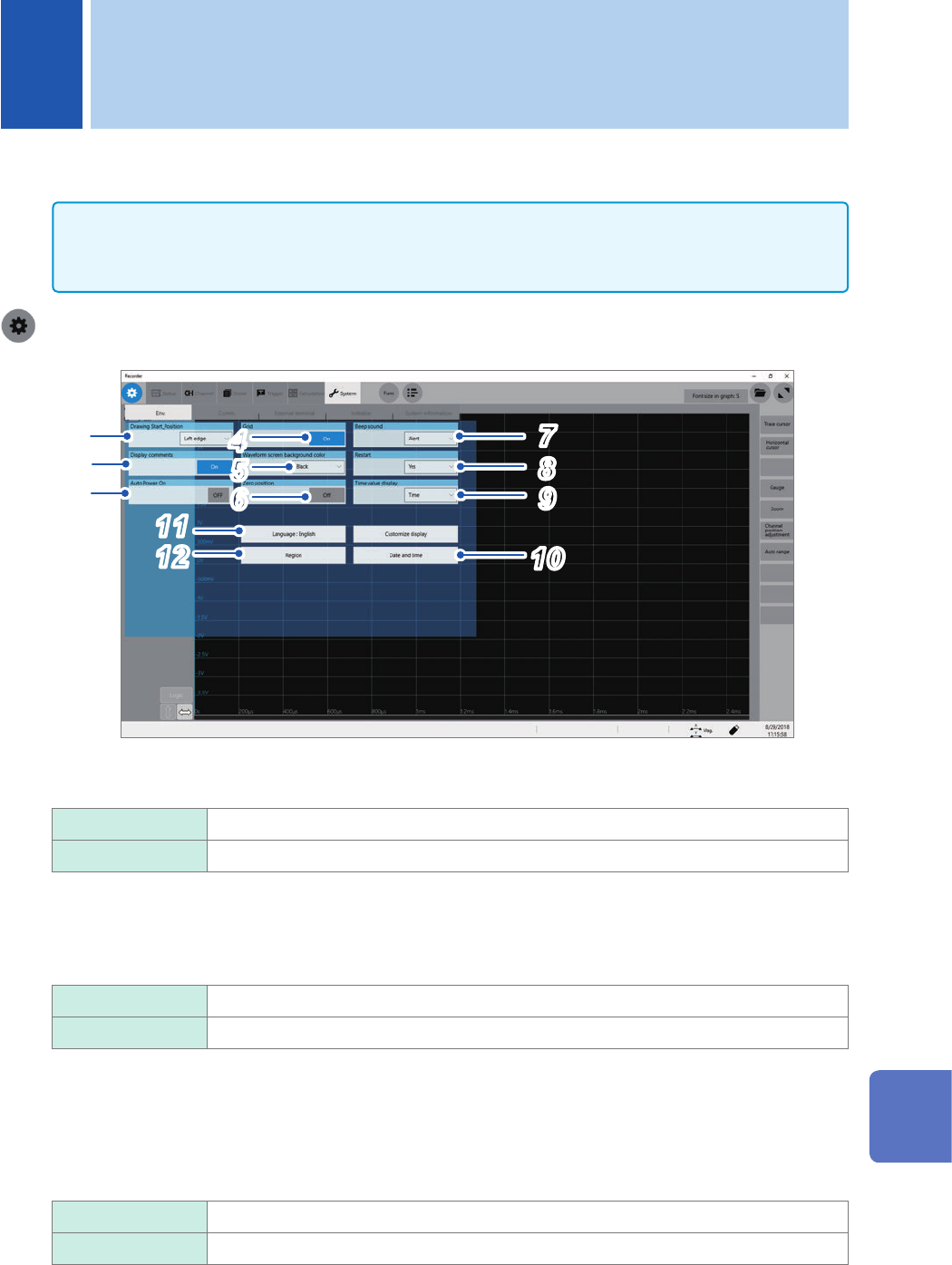
You can congure the system environment settings for the instrument.
IMPORTANT
Do not change any Windows
®
setting unless otherwise indicated in this document.
Doing so may cause unstable system operation.
> [System] > [Env.]
71
2
3
4
5
6
8
10
11
9
12
1
Click the [Drawing Start_Position] box, and then choose a start position of the scrolling
display from the list.
Left edge
Starts scrolling through waveforms from the left side of the waveform screen.
Right edge Starts scrolling through waveforms from the right side of the waveform screen.
2
Click the [Display comments] button to choose a comment display setting.
You can display a title comment and each channel comment on the waveform screen. Each channel comment
appears along with each input-channel marker.
On
Displays comments.
Off Does not display any markers.
3
Click the [Auto Power on] button, and then congure the automatic power-on setting.
When you choose [On], just supplying power allows the instrument to start Windows
®
and to be ready for
measurement. You do not have to operate the start button on the front side or the main power switch on the
rear side. Always set the switch on the rear side to on.
The instrument does not store the [Auto Power On] setting in any le.
Off
Disables the auto-power-on setting.
On Enables the auto-power-on setting.
10 Conguring the System Environment Settings
10
Conguring the System Environment Settings