MR8740T_user_manual_eng_20191016H.pdf - 第29页
24 Reading Measured V alues (T race Cursors, Horizontal cursor) How to read cursor values For the trace cursors • Choose trace cursors the value of which is to be displayed at 1 and 2 . The time values of chosen trace cu…

23
Reading Measured Values (Trace Cursors, Horizontal cursor)
Changing the display magnication of waveforms while moving the trace cursor
Sliding the mouse upward on the screen while dragging the trace cursor enlarges the waveform
display centered around the trace cursor in proportion to the dragging distance.
Sliding the mouse downward compresses the waveform display.
Once you have the magnication to a suitable size, horizontally moving the trace cursor changes
the the cursors display position.
Stopping dragging the trace cursor reverts the display to the original magnication.
To move the cursors precisely
Choose a cursor and rotate the wheel button upward or downward to move the cursor in one
sample increments.
If no trace cursors appear on the screen even though the trace cursors are
enabled
You can check the trace cursors positions on the scroll bar. (p. 28)
For the horizontal cursors
Congure the setting in the same way as the trace cursor.
1
Set [CH Info] toggle switch to [On].
2
Click [horizontal cursor].
3
Choose two cursors to be used from among [Horizontal cursor A] through [Horizontal cursor
H].
4
Choose [Horizontal Cur.] from the drop-down list.
After that, congure the horizontal cursor setting by following the procedure of the trace cursor setting
beginning from step
5
.
2
Operating the Waveform Screen and Analyzing Data
24
Reading Measured Values (Trace Cursors, Horizontal cursor)
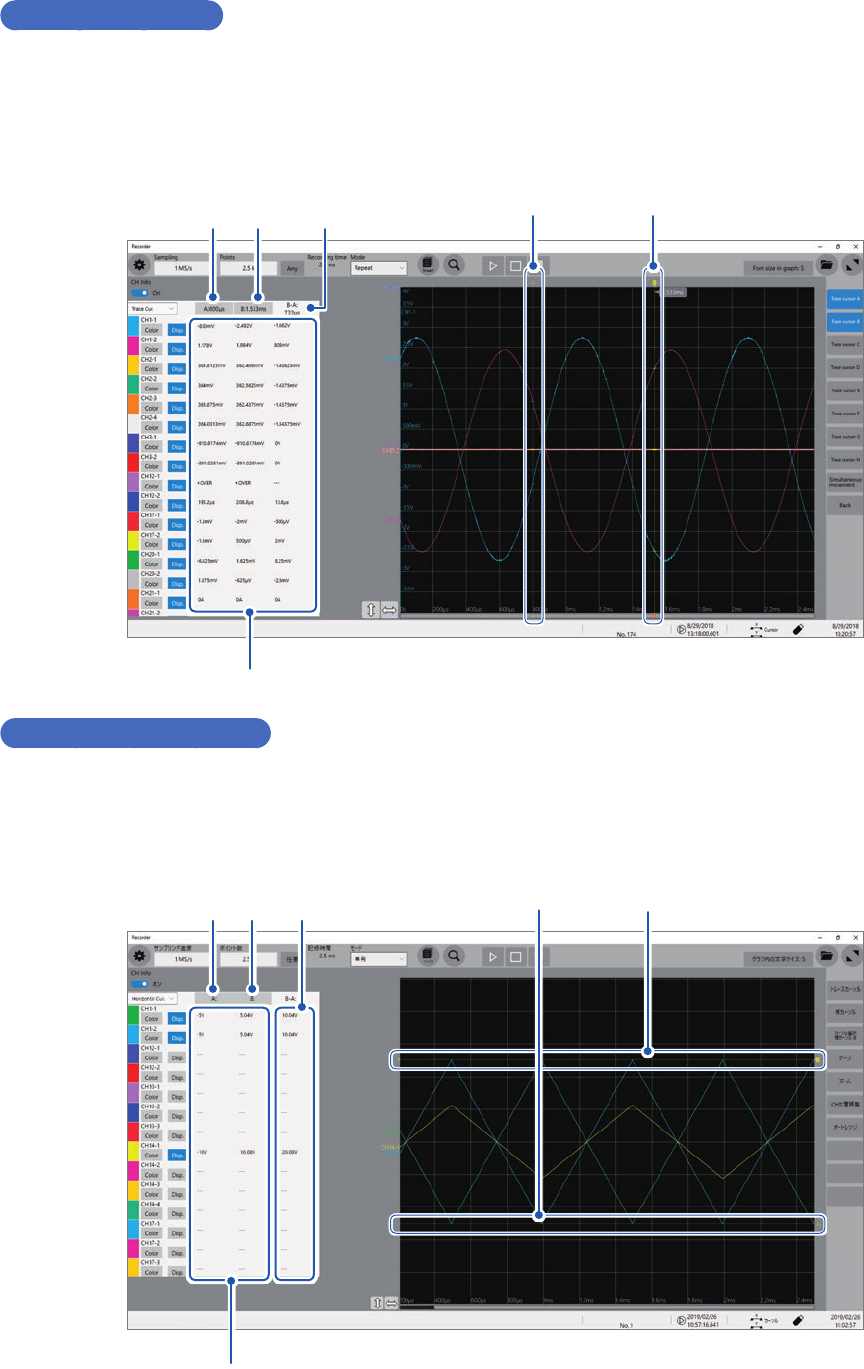
How to read cursor values
For the trace cursors
• Choose trace cursors the value of which is to be displayed at
1
and
2
.
The time values of chosen trace cursors are displayed on the waveform screen.
• The difference in time values of chosen trace cursors (the time at
2
minus that at
1
) is displayed
at
3
.
Trace cursor A
Trace cursor B
Cursor values
1 2 3
For the horizontal cursors
• Choose horizontal cursors the values of which are to be displayed at
1
and
2
.
• The difference in measured values of chosen horizontal cursors (the value at
2
minus that at
1
)
is displayed at
3
.
Horizontal cursor A
Horizontal cursor B
Cursor values
1 2 3
25
Displaying Vertical Scales (Gauge Function)
2.2 Displaying Vertical Scales (Gauge Function)
Using the gauge function enables the vertical scales (for convenience, hereafter referred to as
“gauges”) to be displayed overlapping waveforms.
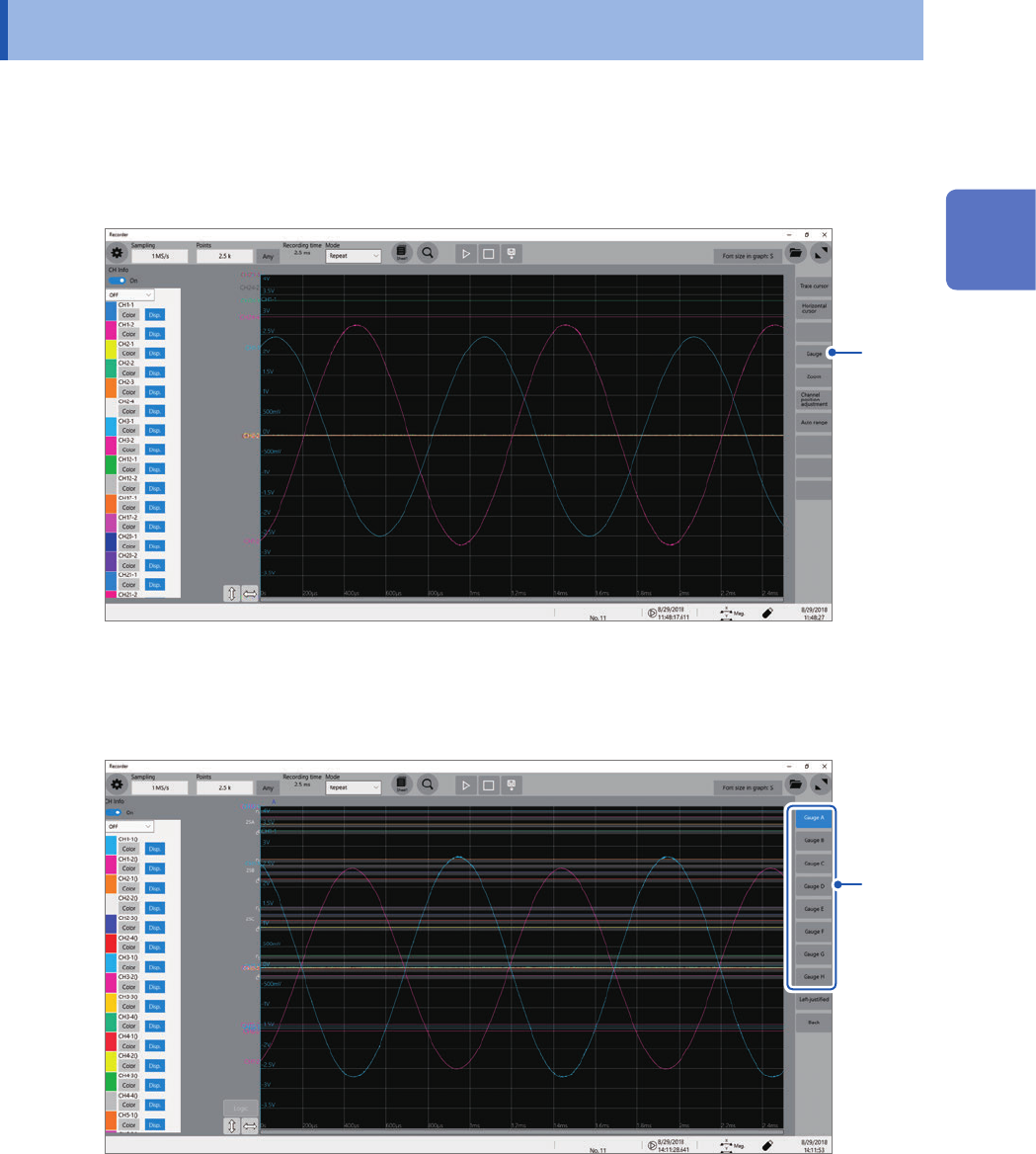
1
Click [Gauge].
1
2
Choose gauges to be displayed from among [Gauge A] through [Gauge H].
The screen display the gauges at the left.
You can move a gauge after click it to select.
2
Click [Left-justied] aligns the gauges to the left.
2
Operating the Waveform Screen and Analyzing Data