MR8740T_user_manual_eng_20191016H.pdf - 第39页
34 Enlarging a Part of the W aveform (Zoom Function)
33
Enlarging a Part of the Waveform (Zoom Function)
2.5 Enlarging a Part of the Waveform (Zoom
Function)
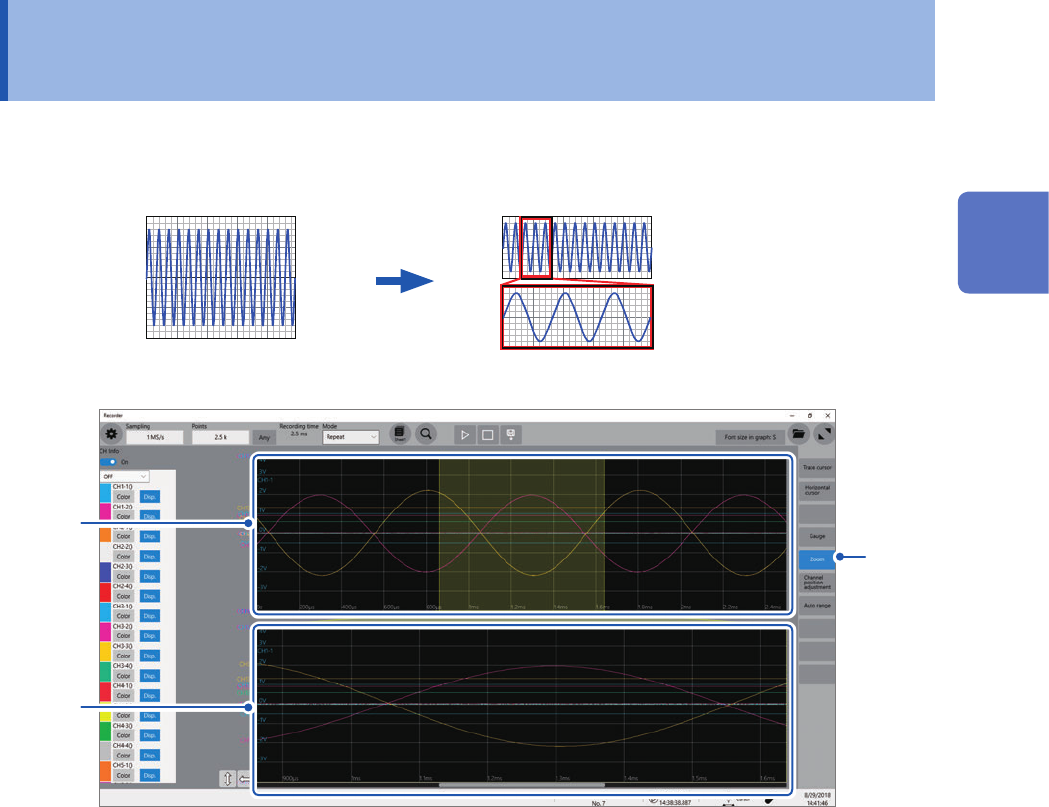
Using the zoom function allows you to enlarge a part of waveforms.
Normal display Magnied display
Normal display
Magnied
2
3
2
1
Click [Zoom].
The screen splits into two, upper and lower, which enable the zoom function.
Upper screen: Displays waveforms in the magnication specied before the zoom function was applied.
The part of the waveforms enclosed by the yellow frame represents the zoomed display range
shown in the lower screen.
Lower screen: Displays magnied waveforms.
2
Changing the display magnication of waveforms
You can change the display magnication on each screen.
3
Drag waveforms to scroll through them on each screen.
To cancel the magnied display
Click [Zoom] on the screen to cancel the magnied display. When you cancel the magnied
display, the display (the upper screen) restores that with the normal magnication.
2
Operating the Waveform Screen and Analyzing Data
34
Enlarging a Part of the Waveform (Zoom Function)
35
3
Advanced Functions
Advanced measurement and settings
• Overlaying new waveforms with previously
acquired waveforms (p. 36)
Detailed module settings (p. 46)
• Anti-aliasing lter
• Thermocouple type
• Reference junction compensation
• Wire break detection
• Data refresh
• Executing auto-balance
• Probe division ratio
• Response time
• Measurement mode
Converting input values (scaling) (p. 38)
Fine-adjusting input values (p. 43)
Inverting a waveform (p. 44)
Copying a setting to another channel
(p. 45)
3 Advanced Functions
3
Advanced Functions