MR8740T_user_manual_eng_20191016H.pdf - 第93页
88 Saving Data Real-time save Since setting the real-time save to [On] allows data to be saved in a storage device simultaneously with measurement, the instrument can perform measurement for a long period of time regardl…
87
Saving Data
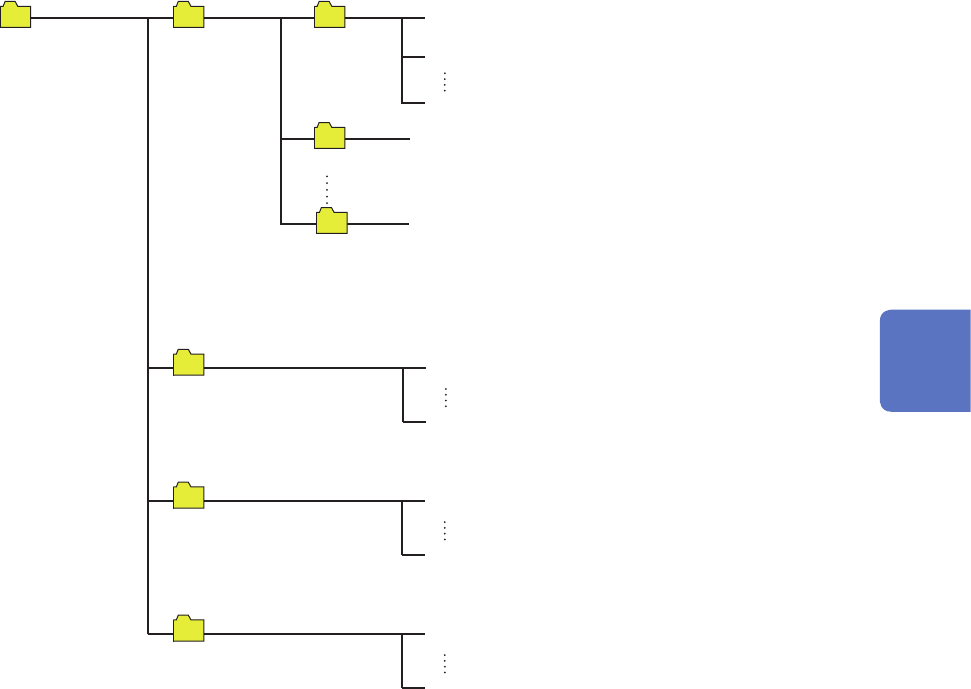
Structure of the save destination folders
The instrument saves folders under the “HIOKI_MR8740T” folder as follows.
Every folder can collectively retain up to 5000 les and folders.
MEASURE
0001MEAS.CSV
5000MEAS.CSV
PICT
0001SCR.BMP
5000SCR.BMP
CONFIG
0001CONF.SET
5000CONF.SET
When the number of les in the xxxxDATA (“xxxx”
represent a gure of 0001 to 9999) folder reaches
5000, the instrument automatically creates a new
folder with the next number.
When [Method] is set to [Delete], the instrument
automatically creates the xxxxDELSAVE (“xxxx”
represent a gure of 0002 to 9999) folder and
saves les in this folder. Files in this folder are
subject to being deleted.
0001DATA
HIOKI_MR8740T
WAVE
0002DATA
9999DATA
0001AUTO.MEM
0001AUTO.CSV
Up to 5000 les
4
Saving/Loading Data and Managing Files
88
Saving Data
Real-time save
Since setting the real-time save to [On] allows data to be saved in a storage device simultaneously
with measurement, the instrument can perform measurement for a long period of time regardless of
the capacity of the internal memory.
The measurement condition settings are different between setting the real-time save to [On] and
[Off].
• When setting the real-time save to [On], you cannot use the following functions:
Auto-save, trigger function, waveform calculation function, and memory division function.
• No storage device can be removed or replaced during the real-time save.
• If displaying the message, Warning No. 235 [Real-time save could not be completed within
available time.], the instrument may record abnormal data in a waveform le saved in a storage
device.
• The operation may be automatically restricted or the magnication may be changed if there is a
risk that saving data cannot be completed in time during the real-time save.
• When any numerical calculation is set, only manual calculation can be executed.
After the measurement has been complete, select
> [Calculation] > [Numerical
calculation], and then click [Execute].
• When using a USB ash drive for real-time save, select Model Z4006 USB Drive (option).
• When using a ash drive for real-time save, connect it to the USB 3.0 connector on the rear side
of the instrument. Connecting the drive to the USB 2.0 connector cannot deliver the real-time
save speed specied in the product specications.
Maximum recording time
• When the real-time save is set to [On], the maximum recording time is determined based on the
recording interval, the remaining capacity of a storage device, and the number of channels to be
used.
• When the sampling rate is set at a slow rate, the recording time is set to a long period of time
(one year or more) depending on a condition. The operation cannot be guaranteed because the
warranty period or product life may disturb it.
• When the external sampling is used, the instrument calculates the maximum recording time
assuming a recording interval of 500 MS/s.
Refer to “Maximum recordable time when the real-time save is enabled (values for reference
purposes)” (p. 221).
Waveform data
When recording waveforms with the real-time save set to [On], the instrument directly saves
measured waveform data (.MEM) onto a storage device. If the le size is large, the instrument
automatically divides the le into several les each of which has 512 MB and saves them.
Deleting and saving les when saving data in real time
• If the capacity of the storage device becomes full while the instrument is storing les, it
automatically deletes waveform les created after the measurement has started beginning from
the oldest, securing free space in the storage device. When free space in a storage device is less
than the sum of the created le size and 512 MB before starting a measurement, however, the
instrument cannot overwrite any new les over the older les. Use a storage device with as much
free space as possible.
• The instrument does not delete waveform les saved in the past.
• When [Method] is set to [Delete], the recording length can be set at 10000 days at a maximum;
however, data the instrument retains after the measurement is limited to a free space size of a
storage device at the start of recording (recording time of the normal saving).
89
Saving Data
> [Status] > [Save]
2
3
4
5
1
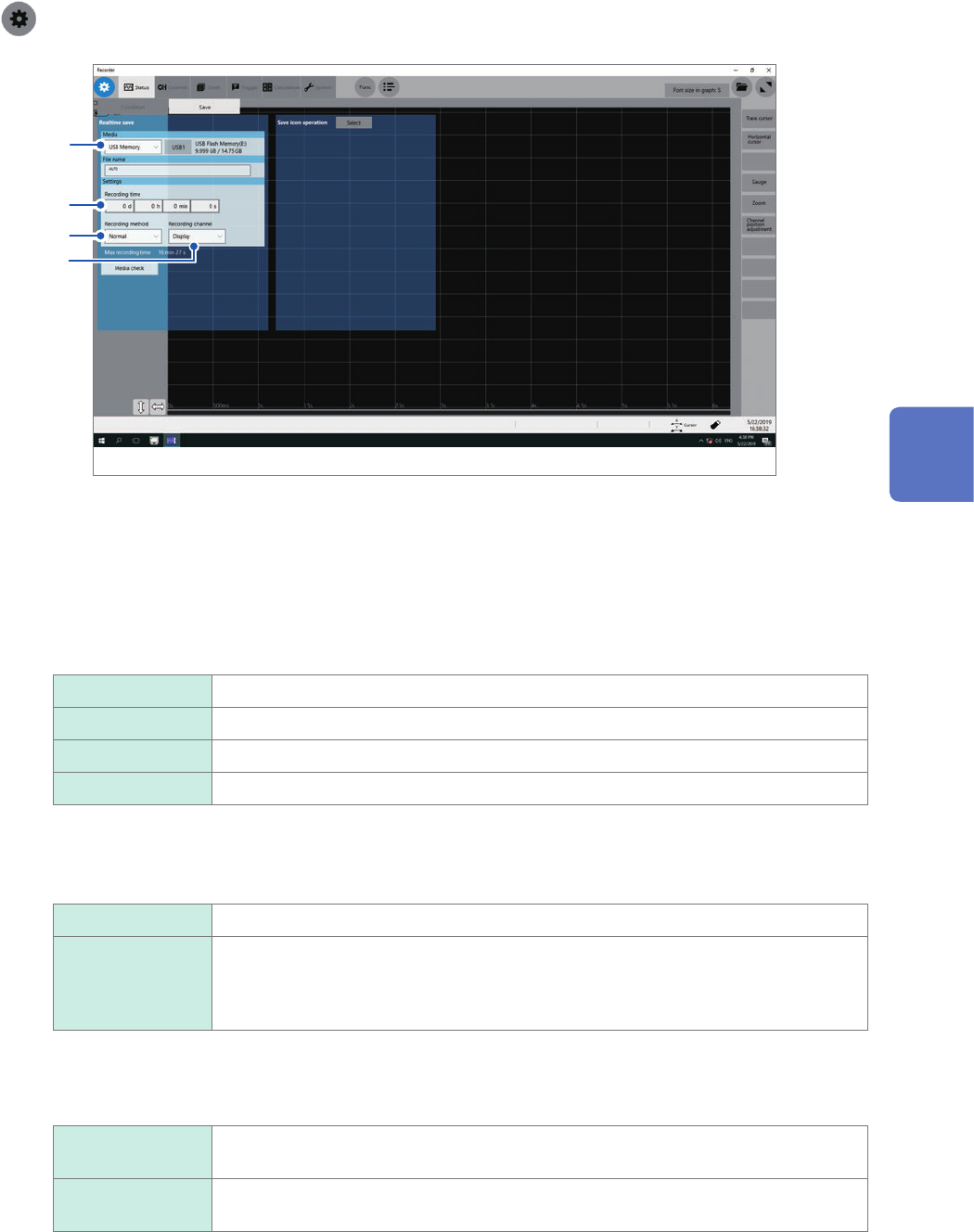
Congure the real-time save and sampling rate settings on the [Condition] screen
Refer to “1.2 Setting Measurement Conditions” (p. 5).
2
Click the [Media] box, and then choose a destination to save from the list.
3
Click the [Recording time] box, and then enter a recording time.
d 0 to 10000 (days)
h 0 to 23 (hours)
min 0 to 59 (minutes)
s 0 to 59 (seconds)
4
Click the [Method] box, and then from the list, choose a saving way if a space of a storage
device is insufcient.
Normal
Stops the real-time save and measurement if the storage device is full.
Delete Deletes older les and saves les in real time if the storage device is full (waveform
les only).
The instrument deletes les only created after the measurement has started. It does
not delete previously existing les.
Setting [Media] to [FTP] forces this setting into [Normal].
5
Click the [Channel] box, and then choose an option for channels to be recorded.
Display The instrument records data acquired across channels with the waveform display set
to [On].
All
Records data acquired across all measured channels. The instrument also records
data acquired across channels with the waveform display set to [Off].
6
Check settings that include the input channel settings, and then click the start icon.
The instrument saves data onto a storage device in real time during measurement.
4
Saving/Loading Data and Managing Files