MR8740T_user_manual_eng_20191016H.pdf - 第138页
133 7 Numerical Calculation Function 7 Numerical Calculation Function The instrument makes calculations using acquired waveform data to numerically displays calculation results on the waveform screen. The instrument can …
132
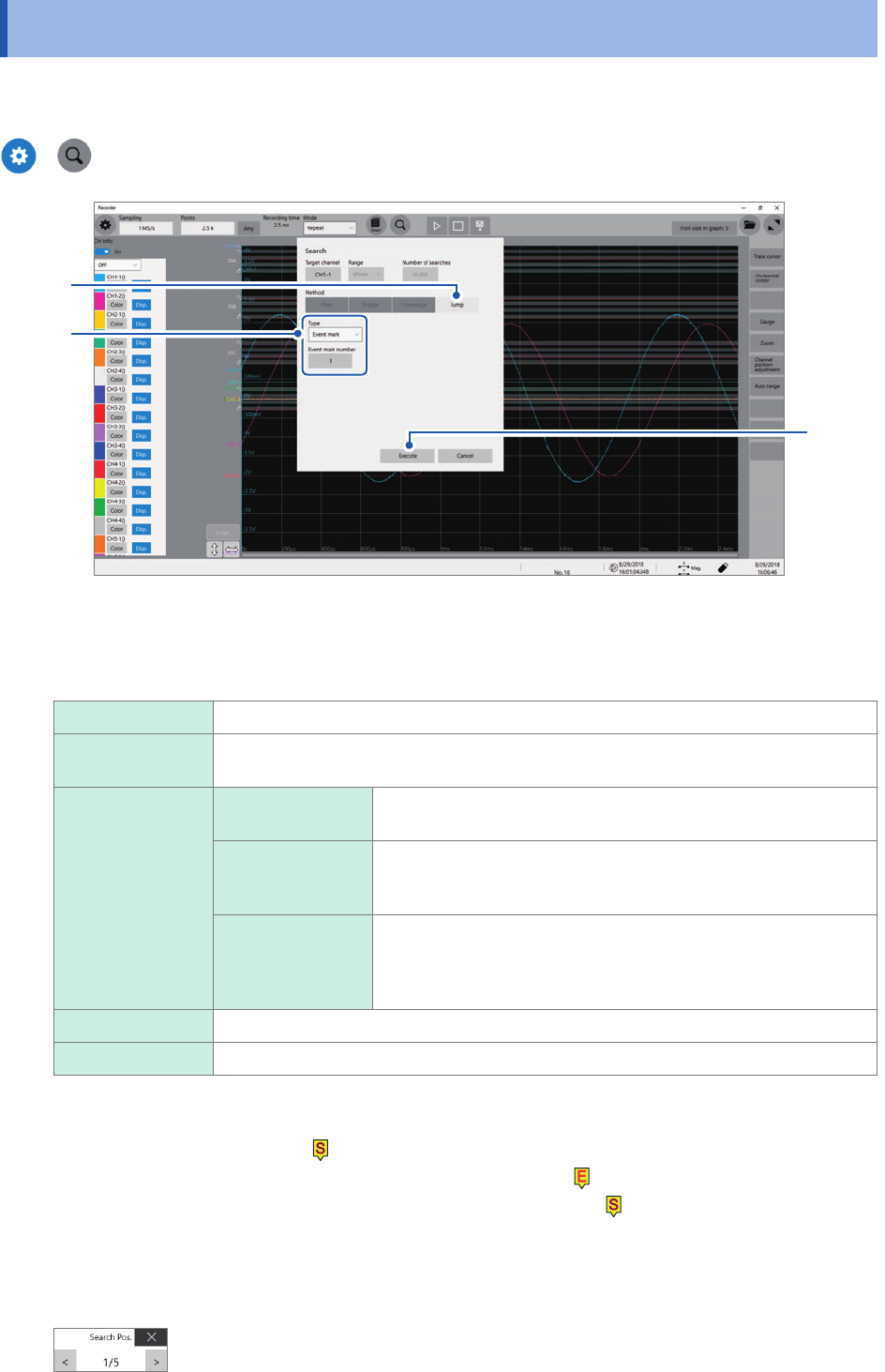
Jump to the Specied Position
6.4 Jump to the Specied Position
The display can jump to the specied time, trace cursor position, event number, trigger point, or
search mark.
>
1
3
2
1
In the [Method] area, click [Jump] to set the search method to the jump method.
2
Click the [Type] box, and then from the list, choose a type to jump to.
Event mark
Allows you to enter an event number to jump to in the [Event mark number] box.
Cursor Allows you to select a position, at which a trace cursor is specied, the display is to
jump to.
Time Time Allows you to enter an absolute time to jump to when ([System]
> [Env.] >) [Time value display] is set to [Date].
Time from trigger
point
Allows you to enter a time relative to the trigger point to jump to
when ([System] > [Env.] >) [Time value display] is set to [Time]
or [Mod 60].
Points Allows you to enter the number of points to jump to in the [Points]
box when measurement is performed using the external sampling
or when ([System] > [Env.] >) [Time value display] is set to
[Samples].
Trigger The display jumps to the start trigger point.
Search number Allows you to enter a search number to jump to in the [Search number] box.
3
Click [Execute].
The instrument put search marks
( )
at positions where the search condition is satised.
When [Type] is set to [Event mark], you can jump to an event mark
( )
position.
When [Type] is set to [Search number], you can jump to a search mark
( )
position.
The jump-destination switching panel appears on the waveform screen.
4
Switch jump destinations using the [Search Pos.] switching panel to check jump results.
You can switch the retrieved positions by clicking [<] or [>].
133
7 Numerical Calculation Function
7
Numerical Calculation Function
The instrument makes calculations using acquired waveform data to numerically displays
calculation results on the waveform screen. The instrument can evaluate these calculation results
on a pass/fail basis.
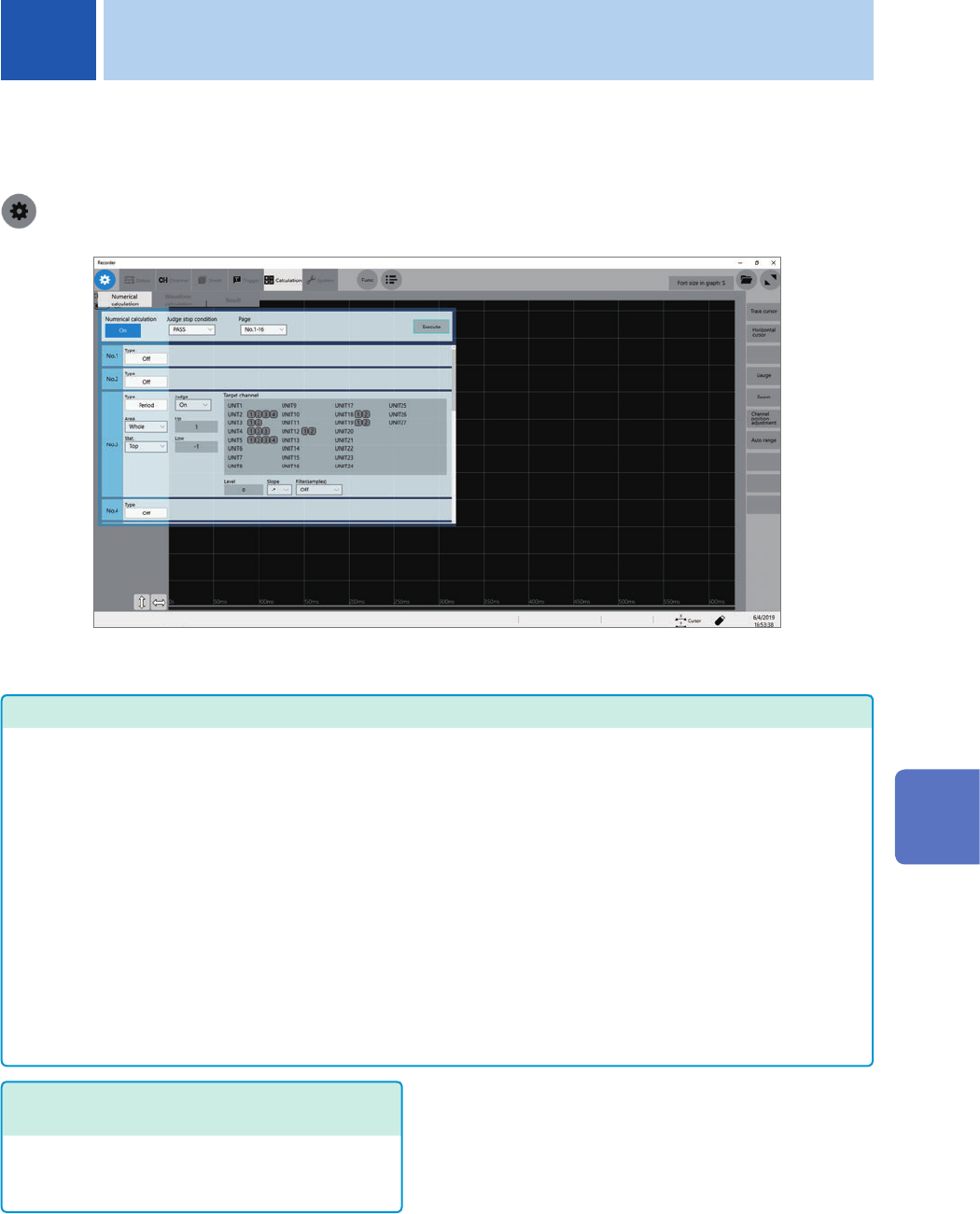
> [Calculation] > [Numerical calculation]
Operation available on the [Numerical calculation] screen
Numerical Calculation
• Average value
• RMS
• P-P
• Maximum
• Time to maximum
• Minimum
• Time to minimum
• Period
• Frequency
• Rise time
• Fall time
• Standard deviation
• Area
• X-Y area
• Time to level
• Level at time
• Pulse width
• Duty ratio
• Pulse count
• Arithmetic operations
• Time difference
• Phase contrast
• High level
• Low level
• Intermediate value
• Amplitude
• Overshoot
• Undershoot
• +Width
• −Width
• Burst width
• Accumulation
• Angle of XY waveform
(33 types in total)
• Calculation using the data
between the cursors
Numerical calculations can be
performed using data within the
range specied with the trace
cursors.
For details on arithmetic
expressions, refer to “Calculation
target channels and setting contents
of calculation conditions for each
calculation type” (p. 139).
Evaluating numerical calculation results
on a pass/fail basis (p. 148)
Evaluating numerical calculation results by
comparing them with specied reference ranges,
giving pass or fail judgments.
The instrument can simultaneously execute up to 108
types of numerical calculations. When the scaling
function is enabled, the instrument makes calculations
using scaled values.
7
Numerical Calculation Function
134
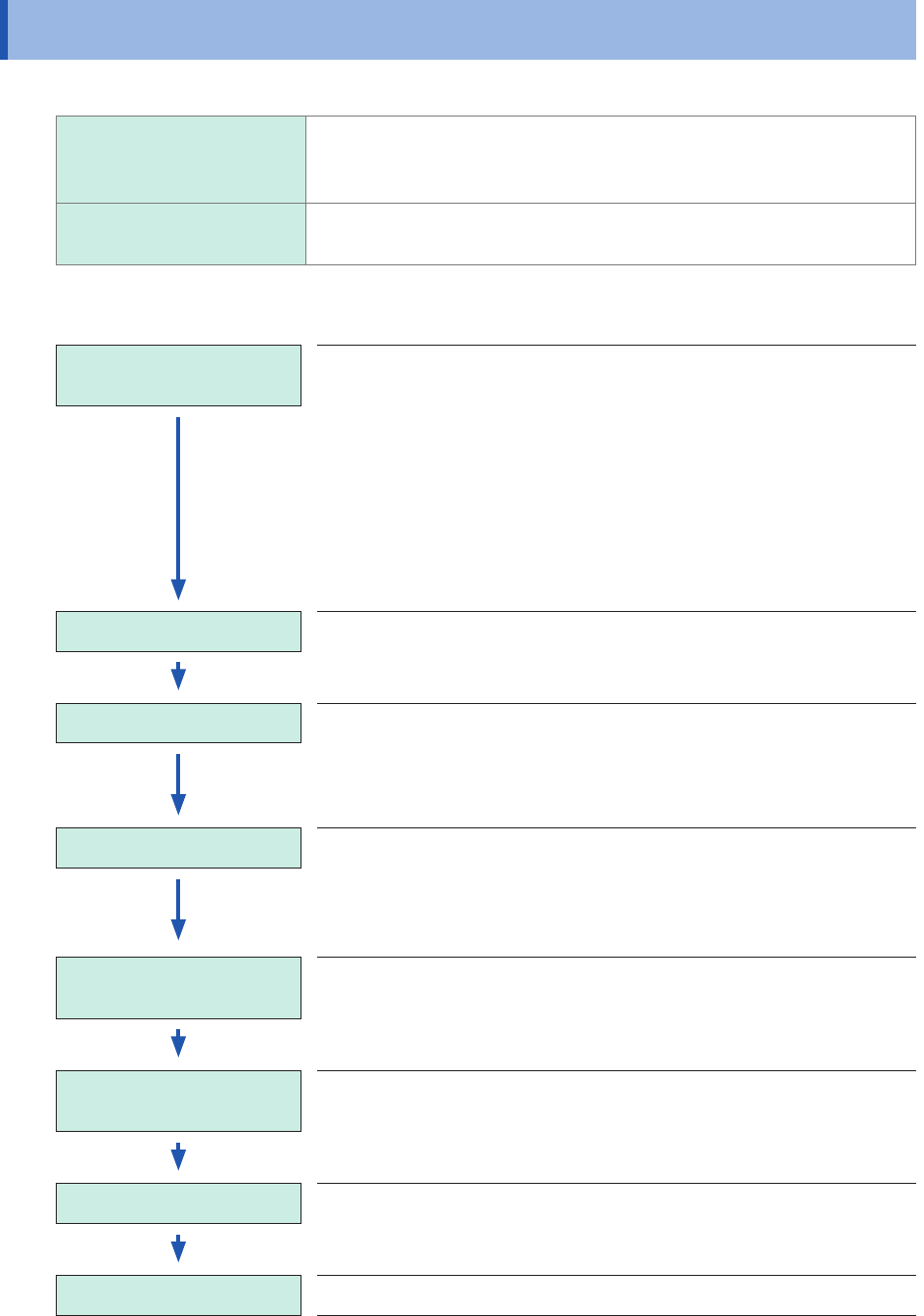
Numerical Calculation Procedure
7.1 Numerical Calculation Procedure
The following two methods are available:
Automatically making
calculations after
measurement
You have to congure the FFT calculation settings before starting
measurement.
(not available when the real-time save is set to on)
Making calculations using
existing data
The instrument can make calculations using waveform data that has
already been acquired or that saved on storage devices.
Performing calculation during measurement
Conguring the calculation
settings
Congure the calculation settings on the [Numerical
calculation] screen.
(p. 136)
Set evaluation criteria to evaluate calculation results.
To automatically save calculation results, congure the saving
settings before starting measurement.
• Conguring the [Calculation result] settings.
(p. 148)
(p. 86)
Starting a measurement
Acquiring data When a trigger condition is satised, the instrument
starts to acquire data.
(If no trigger is specied, clicking the start icon allows the
instrument to start acquiring data.)
Calculation The message [Calculating] appears on the screen status
bar.
The instrument calculates the data, No. 1 through No. 108 in
turn.
(To force-quit the calculation, click the stop icon.)
Displaying calculation
results
The numerical calculation result screen of the waveform
screen displays calculation results.
(p. 147)
(Evaluating calculation
results)
(Only when the evaluation setting is enabled)
(Saving results) (When the auto-save is set to [On])
The instrument automatically saves calculation results.
Finishing the measurement