MR8740T_user_manual_eng_20191016H.pdf - 第194页
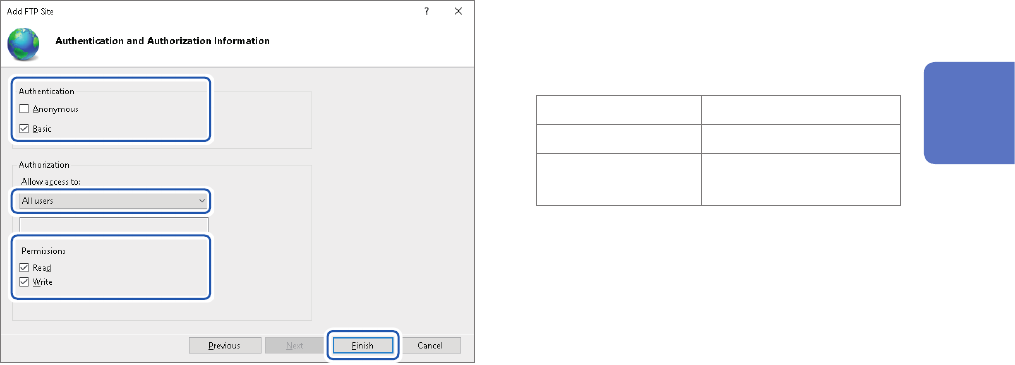
189 Managing Data in the Instrument With the FTP Server Function 10 Congure the [Authentication and Authorization Information] settings as follows: [Authentication] Choose [Basic] . [Authorization] [All users] [Permissi…
188
Managing Data in the Instrument With the FTP Server Function
7
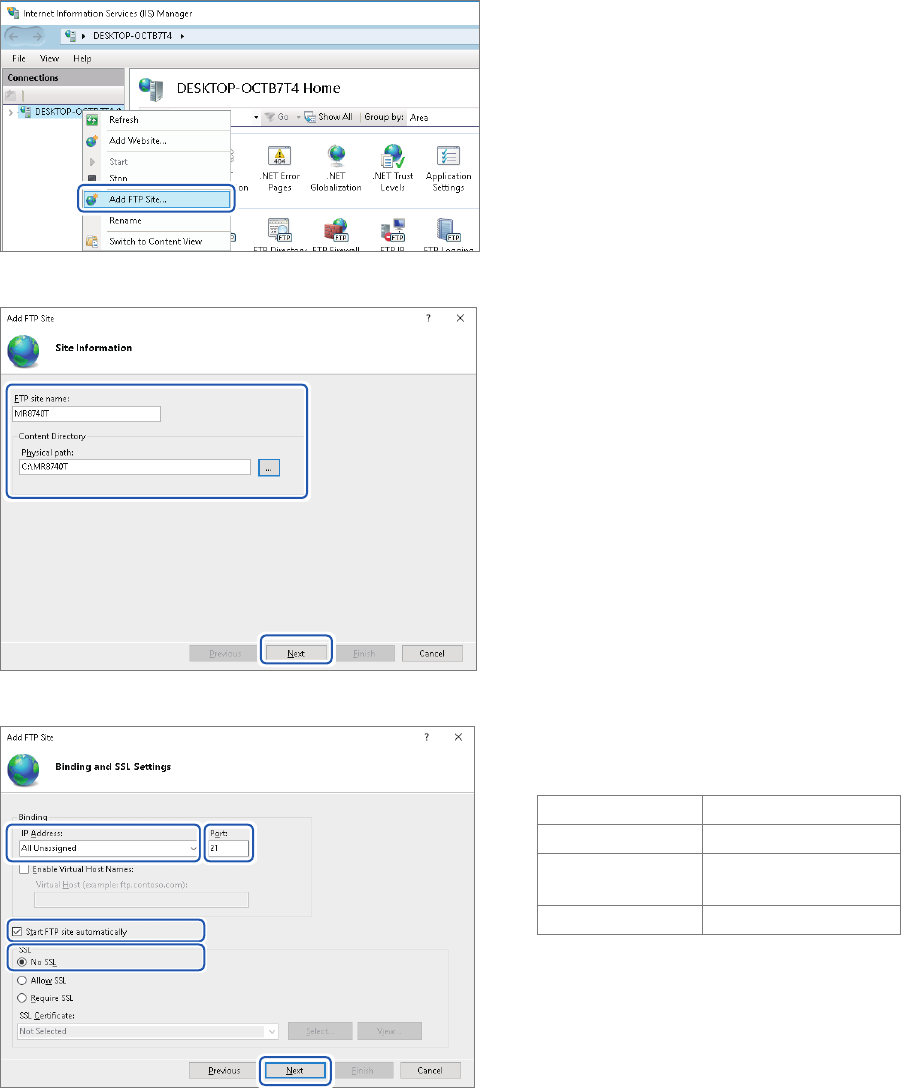
Right-click on the item displayed
under [Connections] on the left
side of the screen to display the
shortcut menu, then click [Add
FTP Site].
Communication may be blocked
depending on the settings of the
computer-protecting software (example:
rewall).
8
Enter site information.
Example:
[FTP site name]: [MR8740T]
[Content Directory]:
Choose a directory in which data from the
FTP client will be saved.
Click [Next].
9
Congure the [Binding] and [SSL]
settings as follows:
[IP Address] [All Unassigned]
[Port] [21]
[Start FTP site
automatically]
Select
[SSL] [No SSL]
Click [Next].
189
Managing Data in the Instrument With the FTP Server Function
10
Congure the [Authentication and
Authorization Information] settings
as follows:
[Authentication] Choose [Basic].
[Authorization] [All users]
[Permissions]
Choose both [Read]
and [Write].
Click [Finish].
11
Connecting the Instrument to Computers
190
Managing Data in the Instrument With the FTP Server Function
Congure the access user setting
Congure this setting to use the FTP client with the instrument. See step 4 on p. 191.) See step 4
in ).
You can use the FTP with a user name and password you specied.
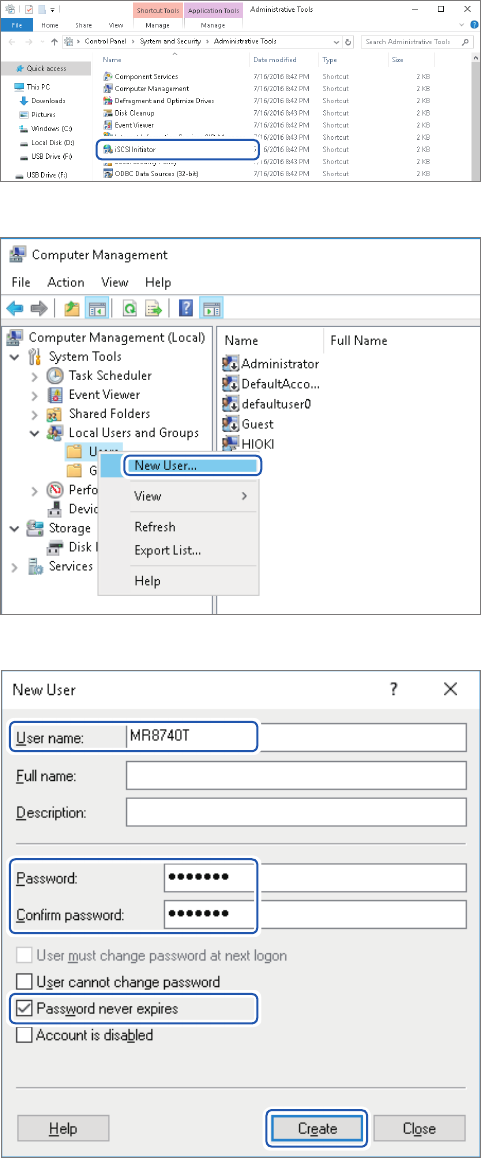
11
Choose [Computer Management]
in [Administrative Tools]
mentioned in step
5
(p. 187).
12
Right-click [Users] under [Local
Users and Groups], then choose
[New User].
13
Enter the le name in the [Users
name] box.
Enter the same password in
the [Password], and [Conrm
password] box.
Select the [Password never
expired] check box.
Click [Create].