MR8740T_user_manual_eng_20191016H.pdf - 第11页
6 Setting Measurement Conditions 3 Click the [External sampling] button to set it to [On] or [Off] . Off Disables the external sampling function. On Choose this option to sample data at a sampling rate dened by a sign…
5
Setting Measurement Conditions
1.2 Setting Measurement Conditions
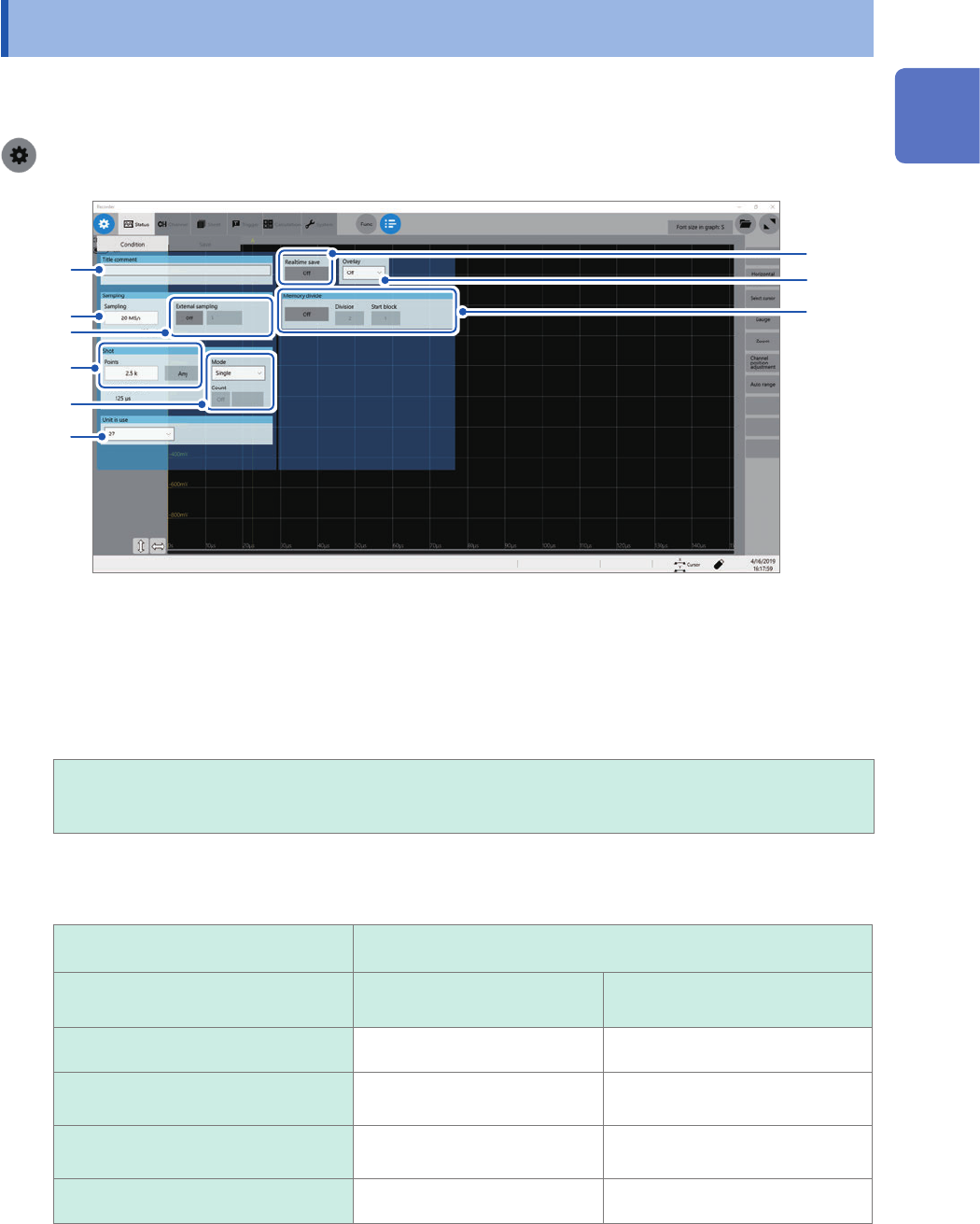
You have to set conditions required for measurement, such as the sampling rate ([Sampling]) and
recording length ([Shot]).
> [Status] > [Condition]
7
1
2
3
4
5
9
6
8
1
Enter a comment in the [Title comment] box.
Number of characters that can be entered: up to 40
2
Click the [Sampling] box, and then choose a sampling rate from the list.
Refer to “Sampling rate setting guideline” (p. 7).
20 MS/s, 10 MS/s, 5 MS/s, 2 MS/s, 1 MS/s,
500 kS/s, 200 kS/s, 100 kS/s, 50 kS/s, 20 kS/s, 10 kS/s, 5 kS/s, 2 kS/s, 1 kS/s,
500 S/s, 200 S/s, 100 S/s, 50 S/s, 20 S/s, 10 S/s, 5 S/s, 2 S/s, 1 S/s
When the real-time save is set to [On], due to the combination of the number of channels to be saved and
save destinations, the maximum sampling rate that can be set varies as follows:
Maximum sampling rate that can be
chosen
Destination to save
Number of channels to be saved Built-in SSD USB ash drive*
12 channels or less 5 MS/s 1 MS/s
33 to 64 channels (SSD)
25 to 64 channels (USB ash drive)
2 MS/s 500 kS/s
13 to 32 channels (SSD)
13 to 24 channels (USB ash drive)
1 MS/s 200 kS/s
65 channels or more 500 kS/s 100 kS/s
(When Model U8991 is installed, double the number of its channels and nd the maximum sampling rate.)
*: Only if Model Z4006 USB Drive, a Hioki-designated option, is used, the real-time save operation with the
instrument is guaranteed
1
Measurement Method
6
Setting Measurement Conditions
3
Click the [External sampling] button to set it to [On] or [Off].
Off
Disables the external sampling function.
On Choose this option to sample data at a sampling rate dened by a signal inputted into
the external control terminal (EXT.SMPL).
Samples data at rising edges of the input signal.
Samples data at falling edges of the input signal.
4
In the [Shot] area, click the [Points] box, and then choose an option for the number of points
to be measured from the list.
2.5 k
, 5 k, 10 k, 20 k, 50 k, 100 k, 200 k, 500 k, 1 M, 2 M, 5 M, 10 M, 20 M, 50 M, 100 M
Enabling [Any] and clicking [Points] allows you to enter the number of points in 100 increments.
When the real-time save is set to [On], you cannot specify the recording length in the [Points] box.
Choose [Save], and enter the recording length in the [Recording time] box. (p. 89)
The maximum recording length you can specify varies depending on the number of modules to be used, the
number of divided memories, and module types to be used.
5
Click the [Mode] box, and then choose a recording mode from the list.
Single Measures waveforms only once. Clicking the start icon starts recording waveforms,
and then stops when recording-length waveforms have been acquired.
Repeat
Measures waveforms repeatedly. Clicking the stop icon stops the measurement.
When you choose [Repeat] and set [Count] to [On], measurements repeat the number of times entered in
the [Count] box.
When [Realtime save] is set to [On], you can choose [Single] mode only.
6
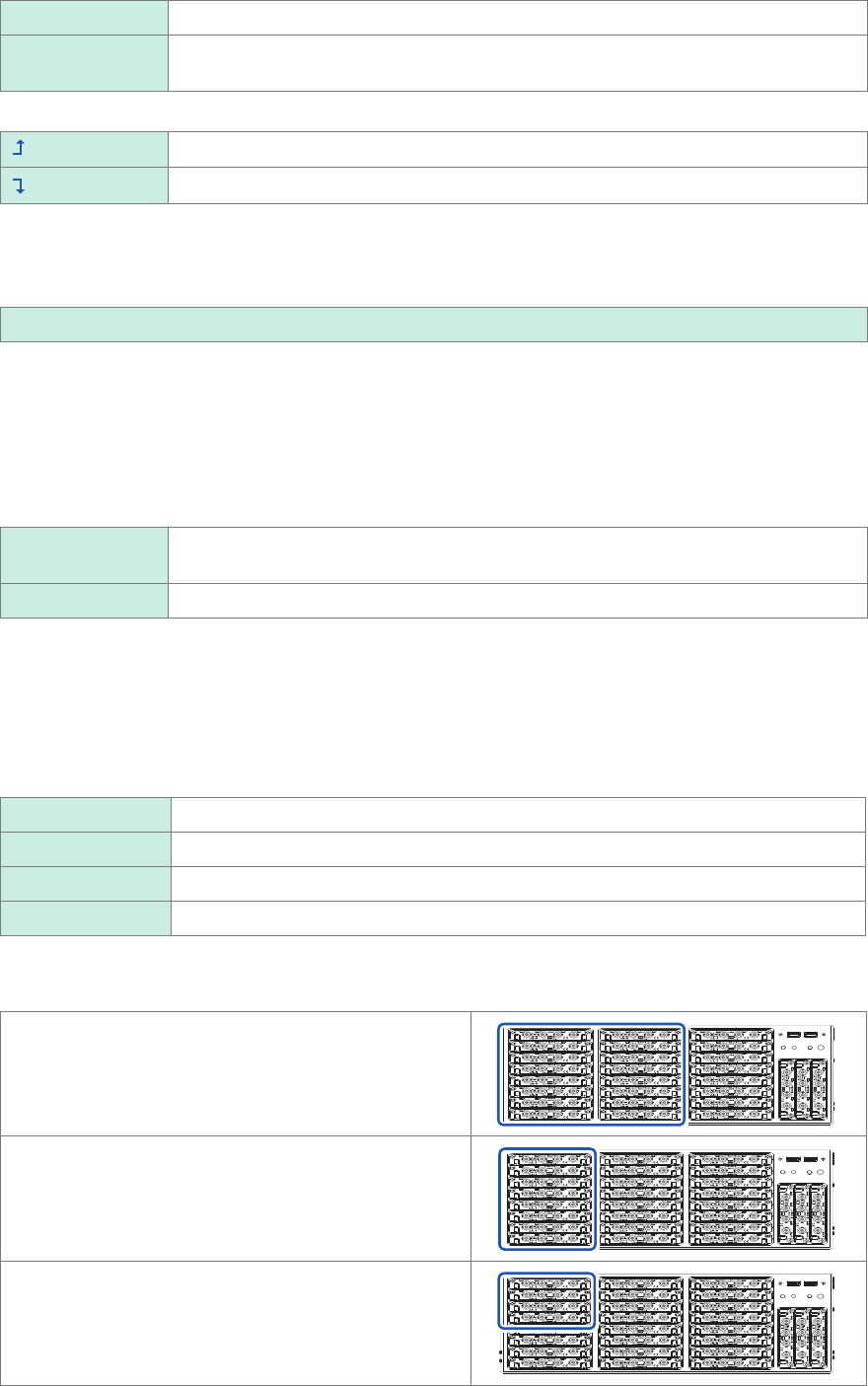
Click the [Unit in use] box, and then choose the number of modules to be used for
measurement from the list.
27
Measures waveforms through all modules.
16 Measures waveforms through module 1 through module 16.
8 Measures waveforms through module 1 through module 8.
4 Measures waveforms through module1 through module 4.
You cannot perform measurement across invalid units. Generator modules, however, can be used.
Logic modules can be used only if the number of modules is set to [27].
16 modules
Enables module 1 through module 16 installed in the
slots shown in the right.
8 modules
Enables module 1 through module 8 installed in the slots
shown in the right.
4 modules
Enables module 1 through module 4 installed in the slots
shown in the right.
7
Setting Measurement Conditions
7
Click the [Realtime save] button to set it to [On].
The instrument can record data in the built-in SSD and a storage device while measuring waveforms.
Refer to “Real-time save” (p. 88).
8
Congure the overlaying setting.
Refer to “3.1 Overlaying New Waveforms With Previously Acquired Waveforms” (p. 36).
9
Conguring the memory division settings
Refer to “Memory Dividing Function” (p. 173).
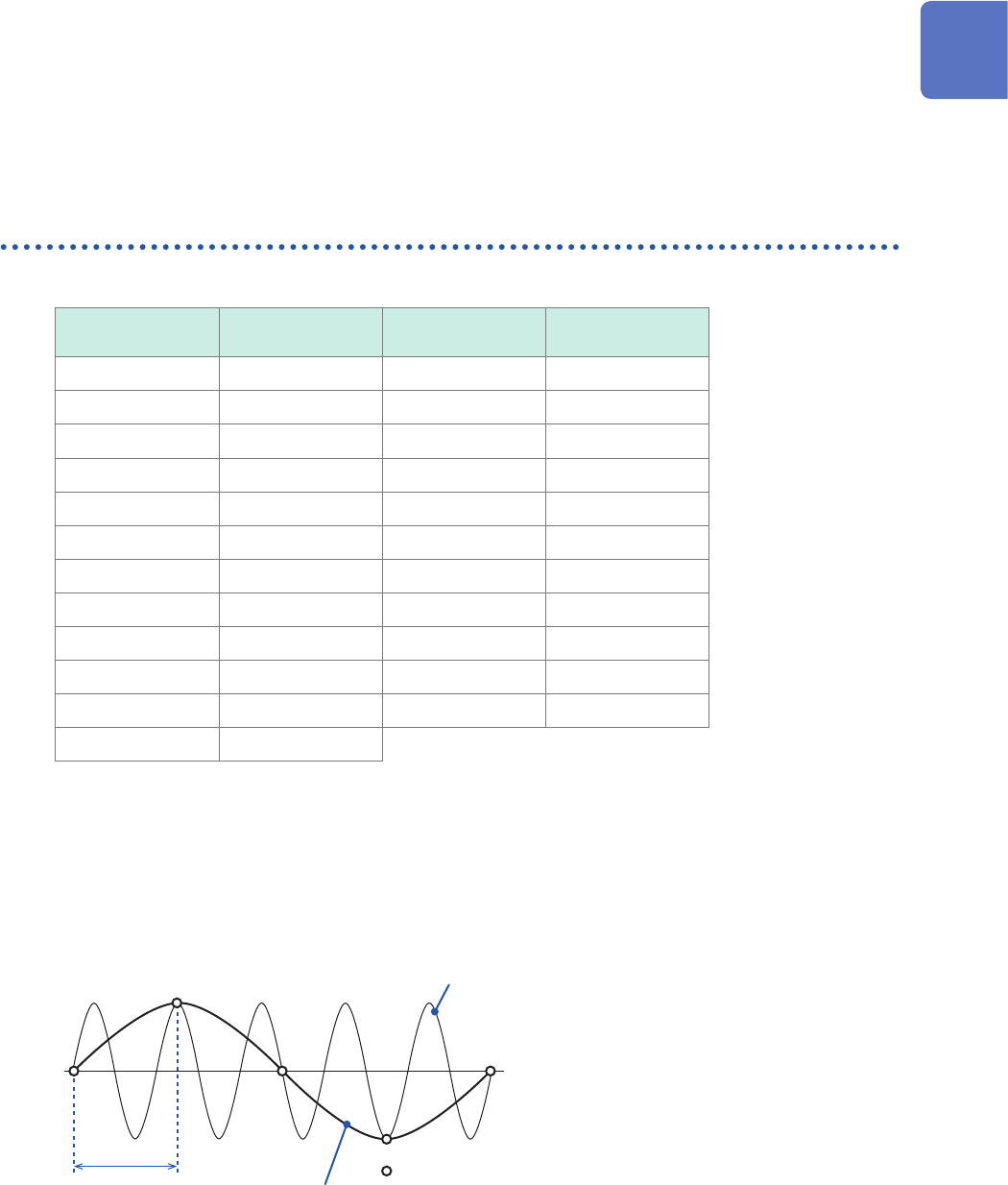
Sampling rate setting guideline
Choose a sampling rate using the following table as a guideline.
Maximum display
frequency
Sampling rate
Maximum display
frequency
Sampling rate
800 kHz 20 MS/s 80 Hz 2 kS/s
400 kHz 10 MS/s 40 Hz 1 kS/s
200 kHz 5 MS/s 20 Hz 500 S/s
80 kHz 2 MS/s 8 Hz 200 S/s
40 kHz 1 MS/s 4 Hz 100 S/s
20 kHz 500 kS/s 2 Hz 50 S/s
8 kHz 200 kS/s 0.8 Hz 20 S/s
4 kHz 100 kS/s 0.4 Hz 10 S/s
2 kHz 50 kS/s 0.2 Hz 5 S/s
800 Hz 20 kS/s 0.08 Hz 2 S/s
400 Hz 10 kS/s 0.04 Hz 1 S/s
200 Hz 5 kS/s
If the instrument plots false waveforms (aliasing)
If a measured signal oscillates at a higher frequency compared to the sampling rate you choose,
the instrument may plot a false waveform oscillating at a frequency lower than that of the actual
signal once the signal frequency reaches a certain level. This phenomenon is called aliasing.
Actual input
signal
Sampling interval:
Sampled points
Observed
waveform
A sampling interval longer than the cycle of the
input signal causes aliasing.
To plot a sign wave that allows you to observe the peaks without any aliasing, the instrument needs
to sample the waveform at a minimum of 25 points per cycle.
1
Measurement Method