MR8740T_user_manual_eng_20191016H.pdf - 第167页
162 Conguring W aveform Calculation Settings 8.2 Conguring W aveform Calculation Settings > [Calculation] > [W aveform calculation] 8 9 10 1 2 3 13 11 16 12 4 1 Click the [W aveform calculation] button to set it …
161
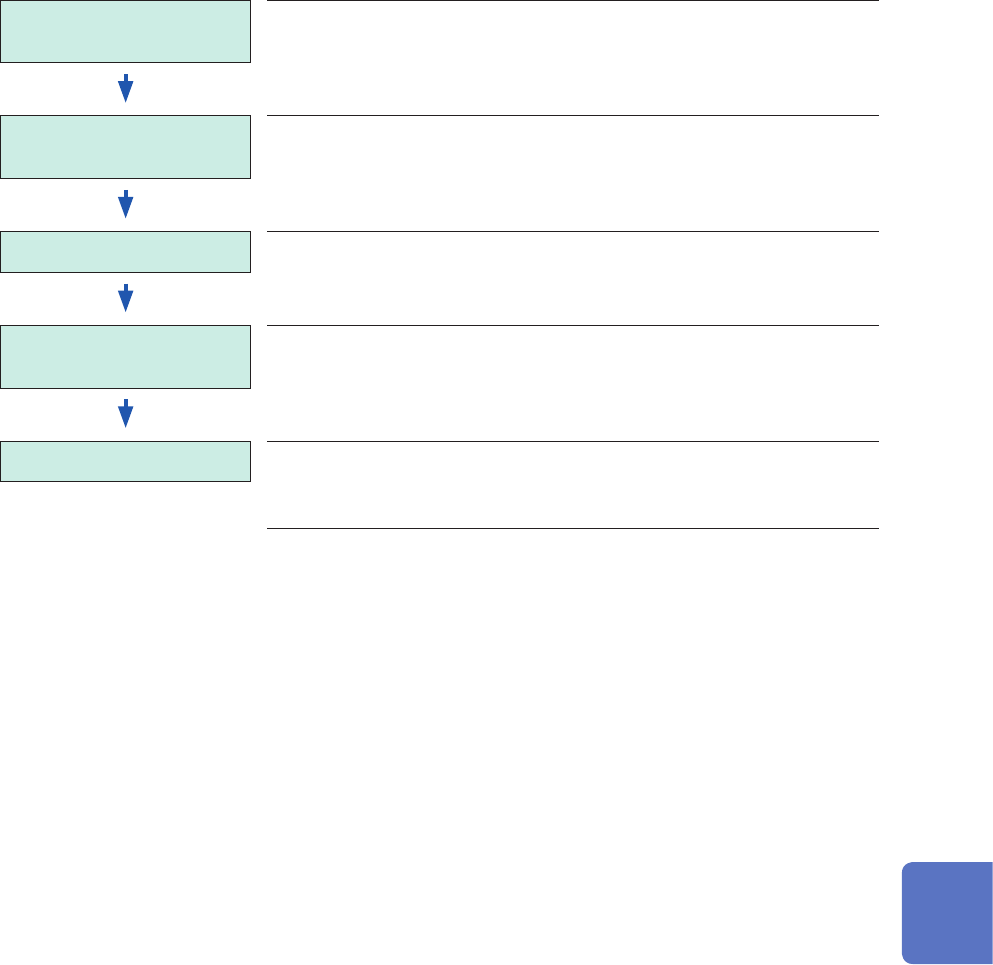
Waveform Calculation Procedure
Calculating existing data
(Loading data)
(To load measured data from a storage device to use for
calculation)
(p. 94)
Conguring the calculation
settings
Congure the calculation settings on the [Waveform
calculation] screen.
(p. 162)
Performing calculation Choose [Execute] to execute calculations.
(To force-quit the calculation, click the stop icon.)
Displaying calculation
results
The instrument displays results on the waveform screen.
(Saving results) Save calculation results as needed.
• To save the calculation results, click the save icon.
• The instrument can makes calculations using waveforms with a length of up to 2,000,000 points.
To make a calculation using waveforms with a length longer than this points, partly save the
waveforms with a length of less than 2,000,000 points and then reload the waveforms to make
another calculation.
• Using the memory division function allows the instrument to display calculation results of the last
measured block.
• When the instrument make a calculation using waveforms during measurement, force-quiting
calculation prohibits the instrument from displaying calculation results.
• To restart the calculation, choose [Execute] in the [Waveform calculation] screen.
To specify a range for calculation
Before executing calculation, specify a calculation range with the trace cursors on the waveform
screen. Set [Area] to [A_B] or [C_D] on the [Waveform calculation] screen.
With the [A_B] setting, the instrument calculates the data between trace cursors A and B; with the
[C_D] setting, between trace cursors C and D.
Refer to “8.2 Conguring Waveform Calculation Settings” (p. 162).
To automatically save waveform calculation results after measurement
Refer to “Automatically saving waveform data” (p. 84).
8
Waveform Calculation Function
162
Conguring Waveform Calculation Settings
8.2 Conguring Waveform Calculation Settings
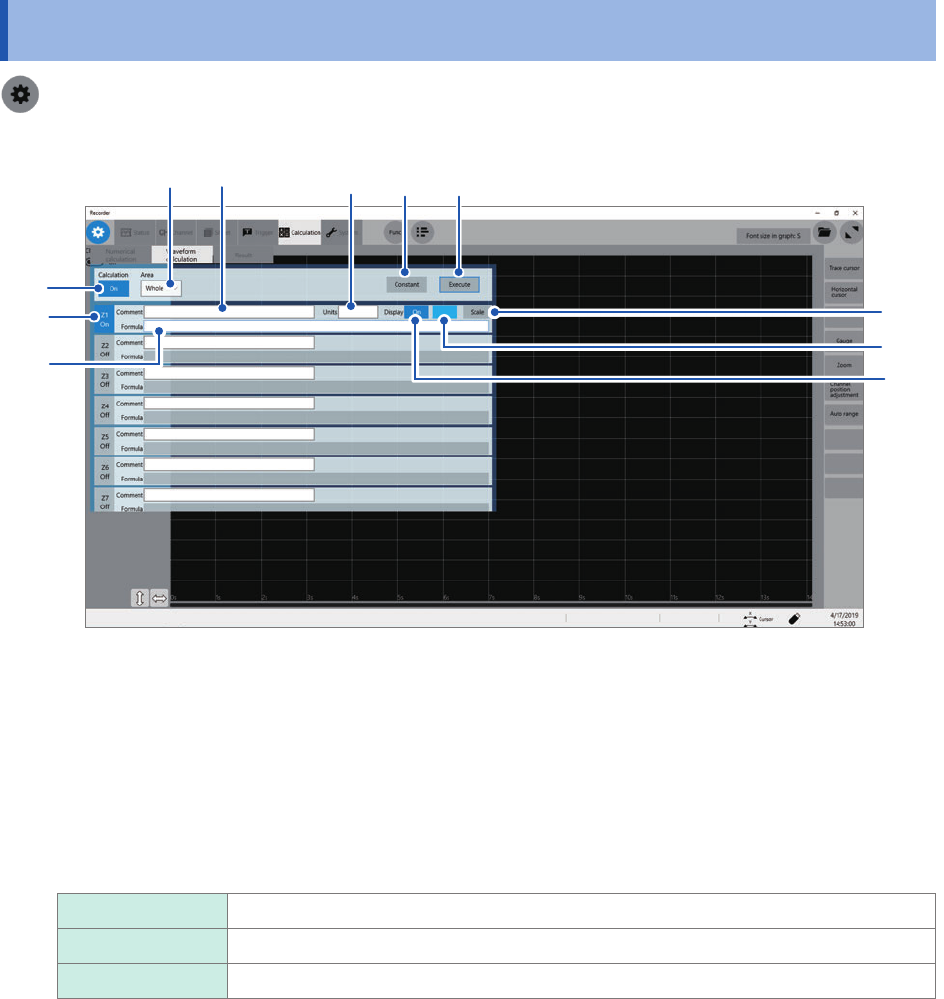
> [Calculation] > [Waveform calculation]
8
9 10
1
2
3
13
11
16
12
4
1
Click the [Waveform calculation] button to set it to [On].
2
Click any of the channels, [Z1] through [Z16], you want to specify a arithmetic calculation to
set it to [On].
3
Click the [Area] box, and then from the list, choose an option for a waveform calculation
range.
Whole
Calculates whole waveform data.
A_B Calculates waveform data between cursors A and B.
C_D Calculates waveform data between cursors C and D.
163
Conguring Waveform Calculation Settings
4
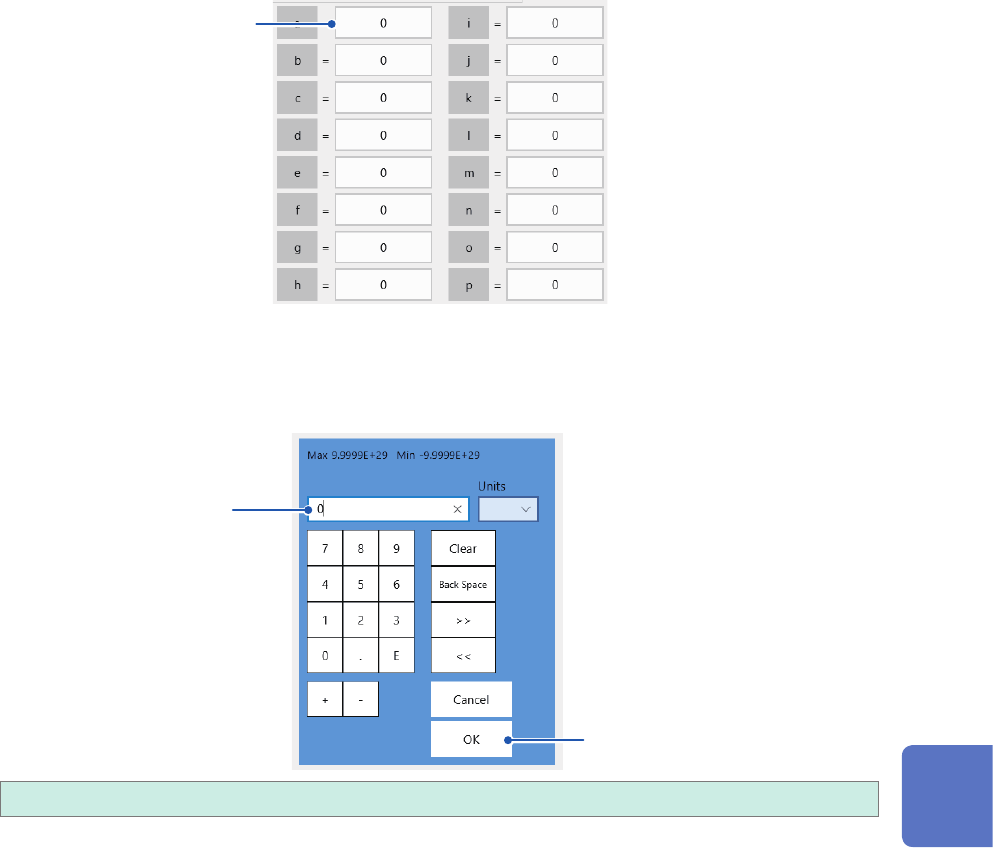
When a constant is used.
Click [Constant], and then specify constants to be used for calculation.
The numerical entry dialog box appears.
5
Click a box that has an alphabet you want to allocate a constant to.
5
The numerical entry dialog box appears.
6
Enter a constant.
6
7
−9.9999E+29 to −1.0000E29, 0, +1.0000E29 to +9.9999E−29
You can specify a number to ve or less signicant gures.
Use the numerical keypad, [+] button, and [−] button to enter.
The instrument feeds constants you have dened to the constant display on the arithmetic
expression setting dialog box.
7
Click [OK].
The numerical entry dialog box closes.
8
Waveform Calculation Function