MR8740T_user_manual_eng_20191016H.pdf - 第33页
28 Scrolling Through W aveforms Checking a position of waveforms with the scroll bar The scroll bar provides the position and size of the displayed part of the waveforms relative to the entire recording-length waveforms.…
27
Scrolling Through Waveforms
2.3 Scrolling Through Waveforms
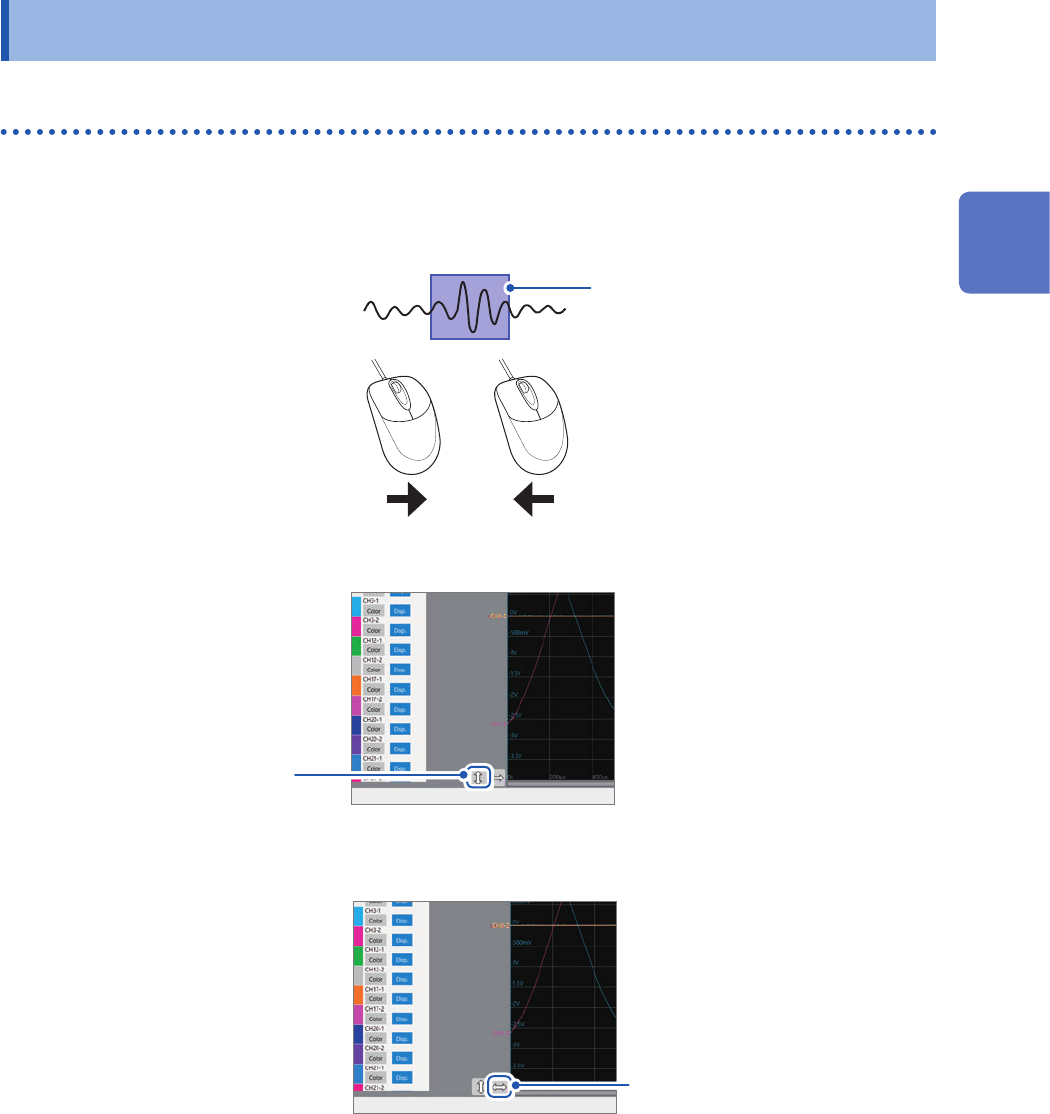
Scrolling through waveforms
Dragging the waveform screen scrolls through waveforms that are being measured or existing
waveforms.
Scrolling direction
Screen display
Previous Latest
Dragging the waveform
rightward:
Scrolls through the waveform
backward from the present.
Dragging the waveform leftward:
Scrolls through the waveform
forward from the present.
To anchor the waveforms vertically
Click the vertical arrows
button to anchor waveforms
in the vertical direction.
To anchor the waveforms horizontally
Click the horizontal
arrows button to anchor
waveforms in the
horizontal direction.
To observe waveforms previously obtained during slow-speed measurement
When the waveforms are being displayed during a slow-speed measurement, dragging the
waveform screen allows you to observe waveforms previously obtained. To observe the waveforms
that are presently measured again, click [
] on the screen.
2
Operating the Waveform Screen and Analyzing Data
28
Scrolling Through Waveforms
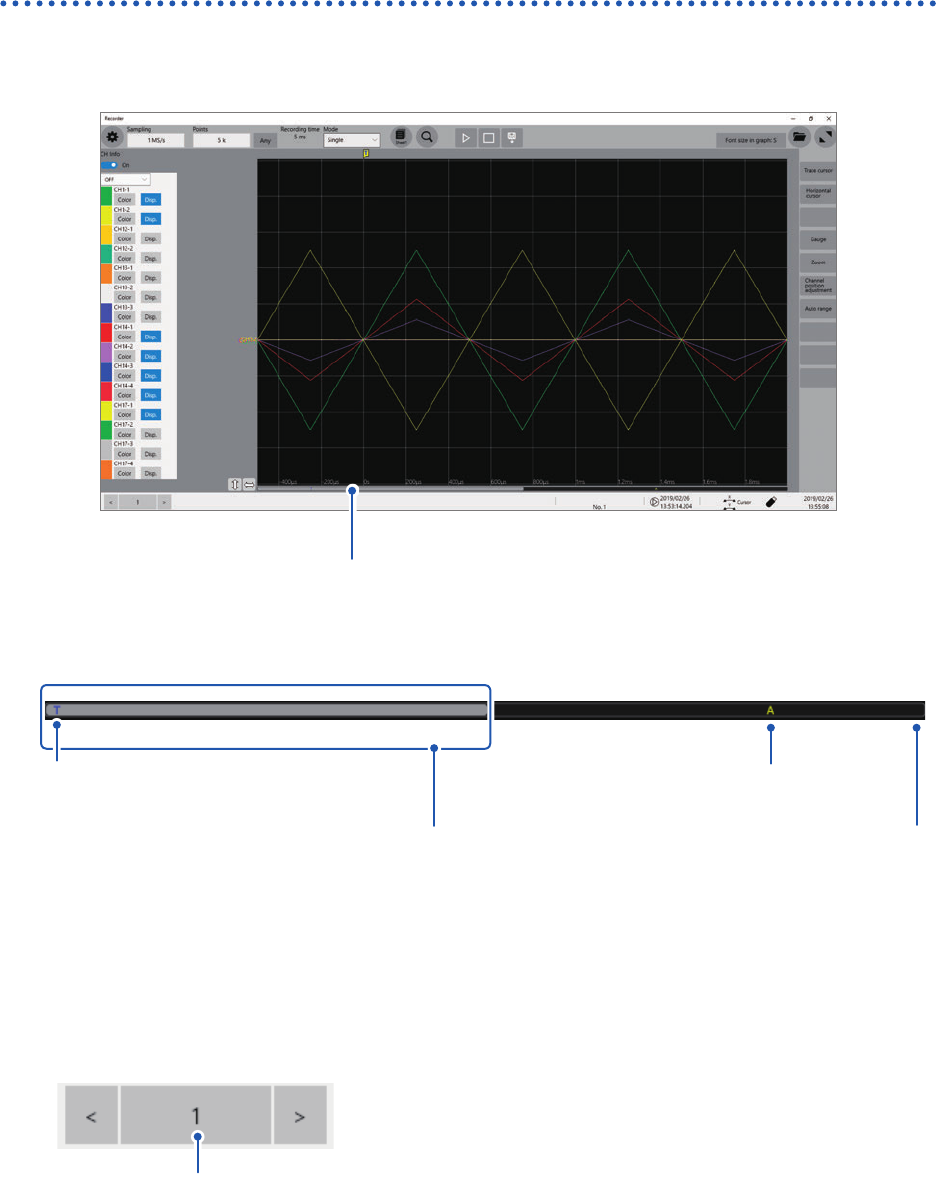
Checking a position of waveforms with the scroll bar
The scroll bar provides the position and size of the displayed part of the waveforms relative to the
entire recording-length waveforms. It also shows the positions of the trigger point and trace cursors.
Scroll bar
Verifying the position of the trigger point and cursors on the scroll bar
Trigger point
Screen display range
Trace cursor A
Recorded range
With the display zoomed in, the scroll bars are displayed at both the top and bottom.
To switch over to another block when [Memory divide] is set to [On]
You can move a block by specifying a block number to be displayed.
Block number
29
Changing the Display Position and Display Magnication of Waveforms
2.4 Changing the Display Position and Display
Magnication of Waveforms
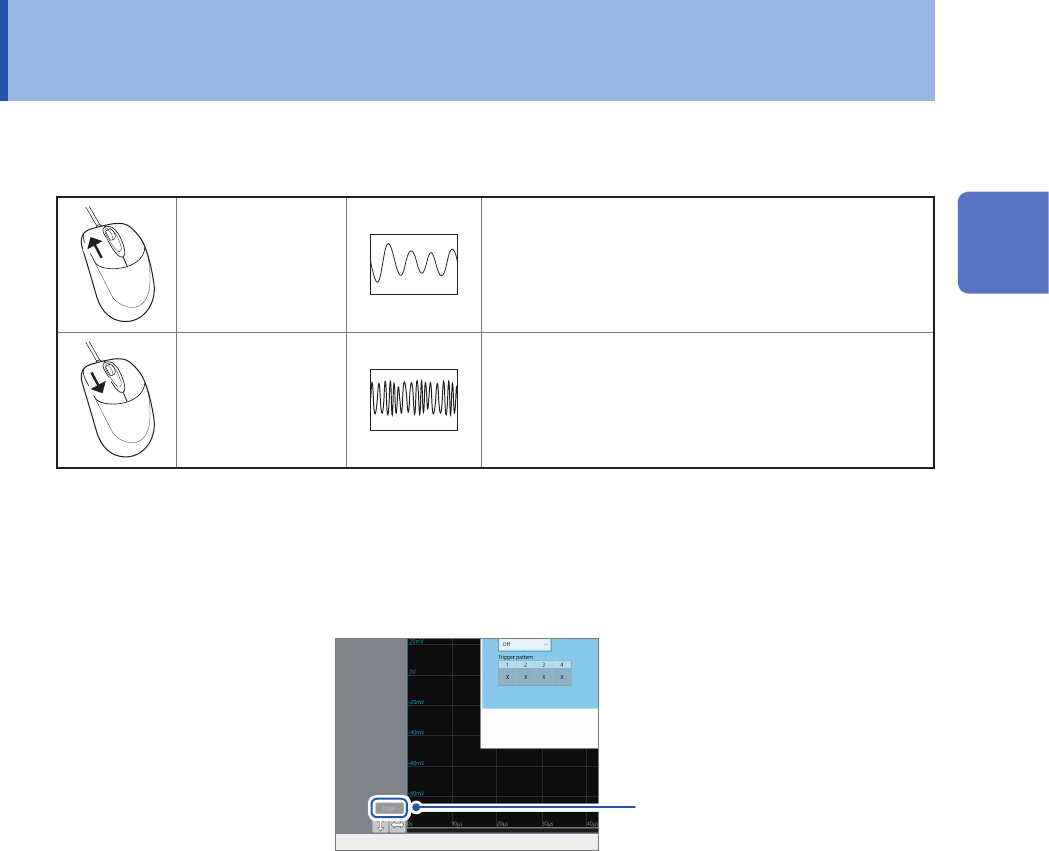
You can change the display magnication of waveforms by pointing to the time axis on the
waveform screen and rotating the wheel button.
Rotating the
wheel button
upward
Zooms in the waveforms.
Rotating the
wheel button
downward
Zooms out the waveforms.
To change the display position of logic channels in a batch
You can move logic channels only after click [Logic] to choose.
When [Logic] is not chosen, you can move analog channels only.
Click the button to select or
deselect it.
2
Operating the Waveform Screen and Analyzing Data