MR8740T_user_manual_eng_20191016H.pdf - 第190页
185 Conguring the LAN Settings and Connecting the Instrument to the Network LAN setting procedure Follow this procedure in accordance with the intended usage. For details on each setting, refer to “Setting items” (p. 18…
184
Conguring the LAN Settings and Connecting the Instrument to the Network
Renaming the computer
This name in the [Current PC name] box identies the instrument on the network.
If necessary, change the computer name to a unique one among the network devices.
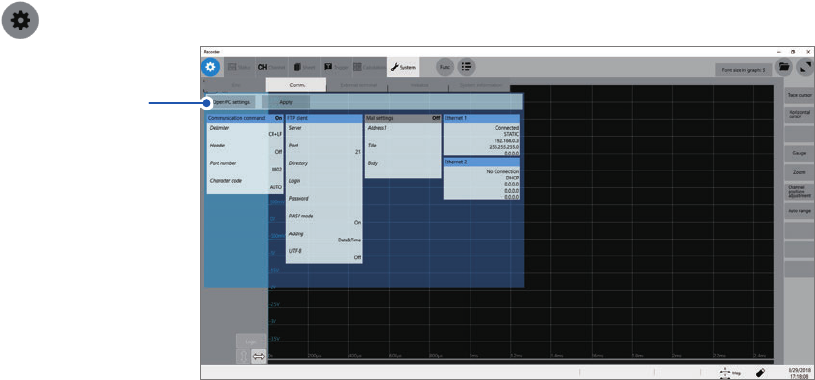
> [System] > [Comm.]
1
1
Click [Open PC settings.].
The Ethernet settings screen appears.
2
Click [Home].
The Windows
®
settings screen appears.
3
Click [System].
4
Click [About] under System.
5
Click [Rename PC], and then enter another name in the [Current PC name] box.
6
Click [Next].
Restarting the instrument is required.
7
Click [Restart now].
185
Conguring the LAN Settings and Connecting the Instrument to the Network
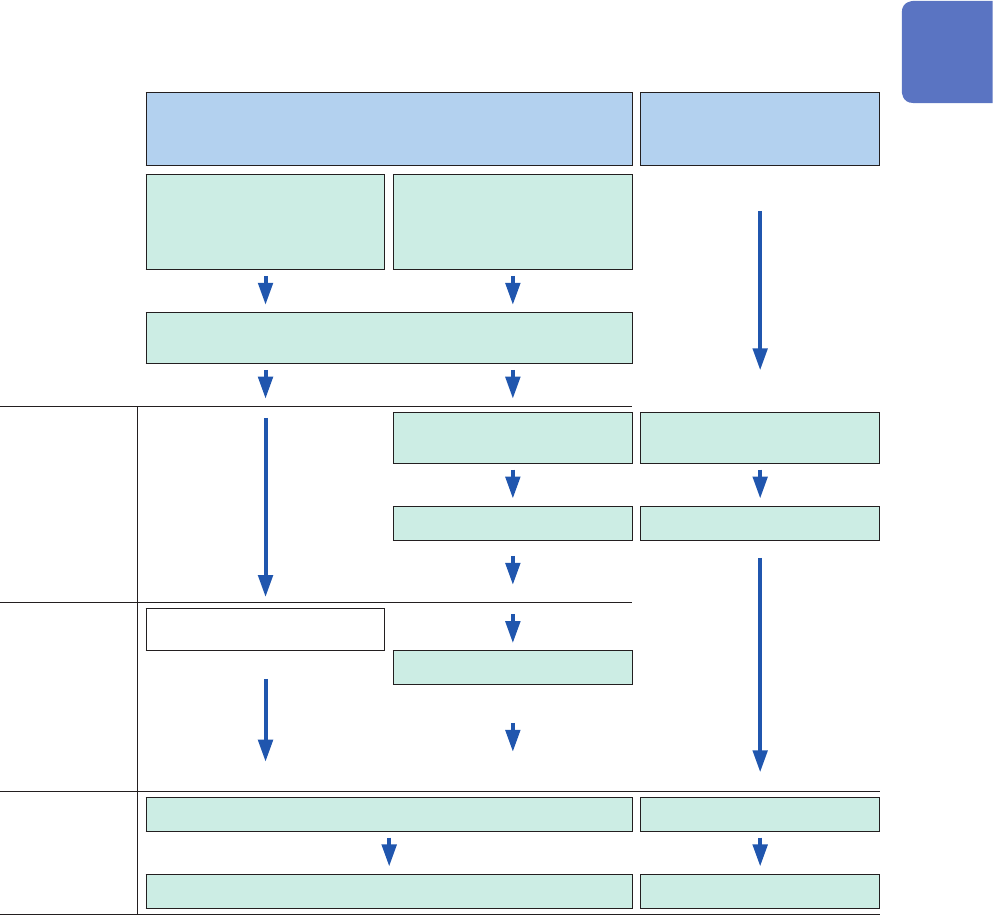
LAN setting procedure
Follow this procedure in accordance with the intended usage.
For details on each setting, refer to “Setting items” (p. 183).
For details on your network including the IP address, contact your network administrator.
Intended use Connecting the instrument to the existing network
Directly connecting
the instrument to your
computer
Connect the instrument
to the network using
the IP address obtained
automatically.
Connect the instrument
to the network using the
specied IP address.
When you would like to name the instrument, congure the
[Current PC name] setting.
Settings to
connect the
instrument and
computer to the
same network
Enter [IP Address] of the
instrument.
Enter [IP Address] of the
instrument.
Enter [Subnet Mask]. Enter [Subnet Mask].
Settings to
connect the
instrument to
the different
network from
the computer
network (using
the gateway)
(Automatically specied.)
Enter [Default gateway].
Connection
Click [Apply]. Click [Apply].
Connect a straight-through cable. Connect a crossover cable.
11
Connecting the Instrument to Computers
186
Managing Data in the Instrument With the FTP Server Function
11.2 Managing Data in the Instrument With the FTP
Server Function
Conguring the FTP sever setting with the instrument
The following example shows how to congure the FTP server settings on Windows 10.
The Microsoft
®
Windows
®
Home Edition does not include any FTP server. Use free software such
as the FileZilla* Server.
*: Trademark of another company
• The setting contents may vary with environment. When necessary, refer to the help topics of the
FTP server or consult your network administrator.
• Microsoft
®
Windows
®
administrator privileges are required for setup.
Enabling the FTP
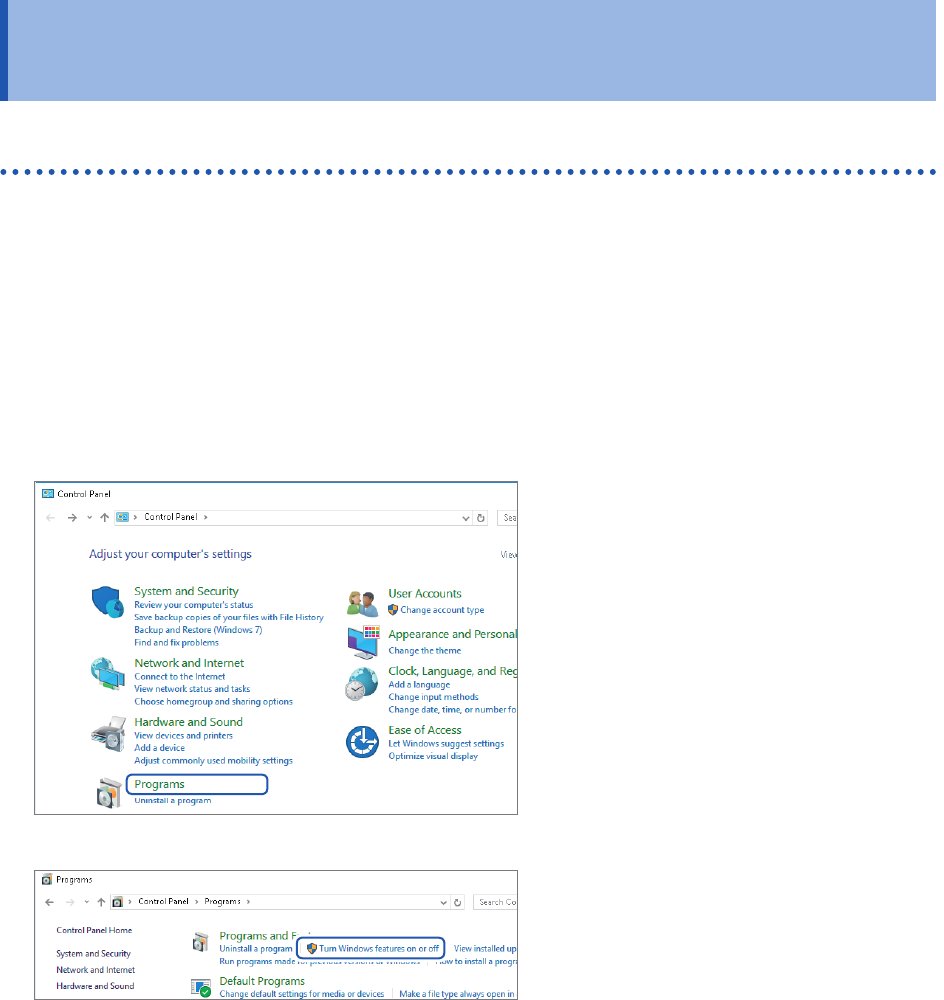
1
Start [Control Panel], and then
click [Programs].
2
Click [Turn Windows features on
or off].
The [Windows Features] dialog box
appear.