MR8740T_user_manual_eng_20191016H.pdf - 第188页
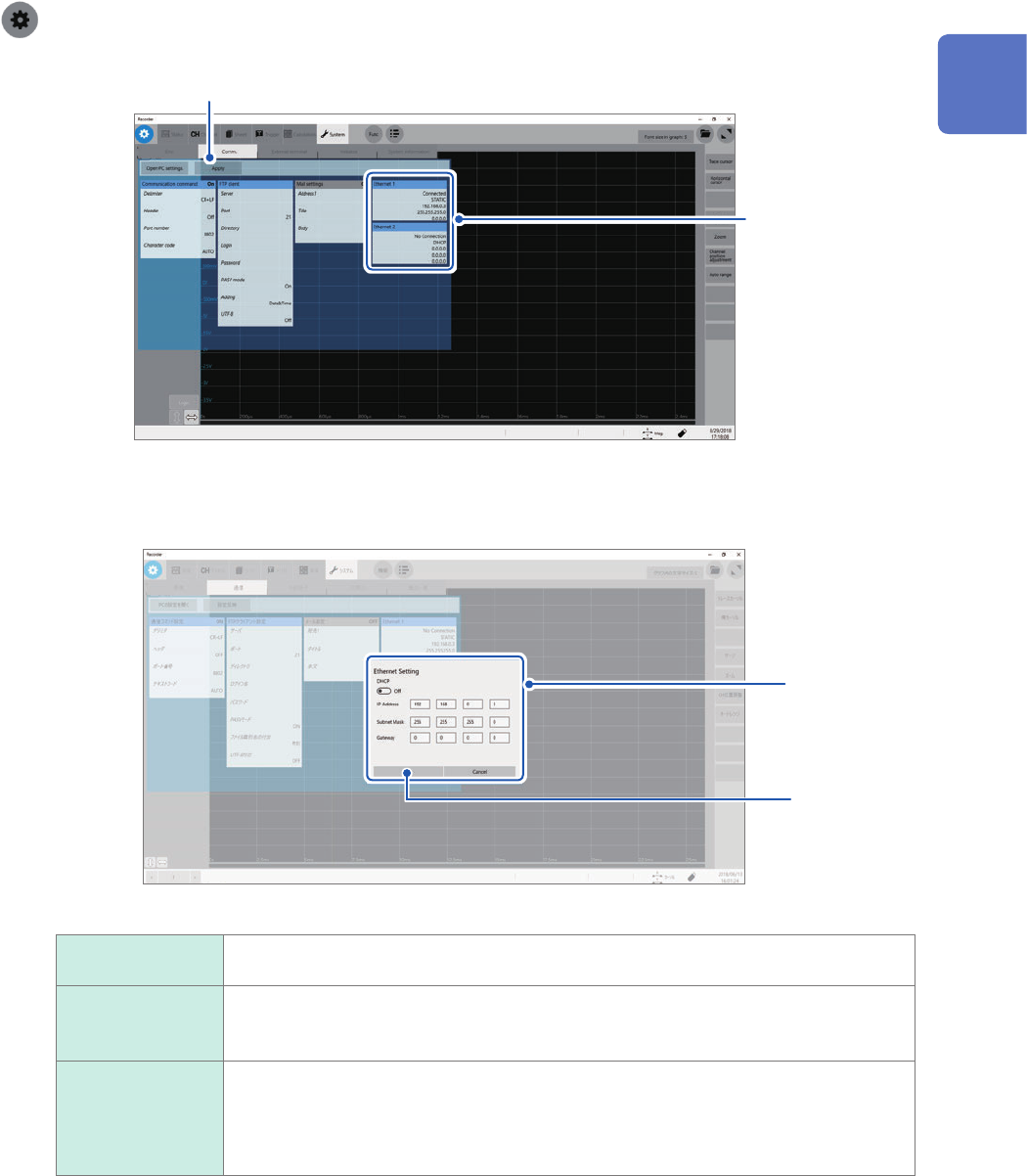
183 Conguring the LAN Settings and Connecting the Instrument to the Network Setting items > [System] > [Comm.] 4 1 1 Click [Ethernet 1] or [Ethernet 2] . The Ethernet settings screen appears. 2 3 2 Enter the neces…

182
Conguring the LAN Settings and Connecting the Instrument to the Network
11.1 Conguring the LAN Settings and Connecting
the Instrument to the Network
Congure the LAN settings of the instrument and connect the instrument to your computers with
LAN cables before accessing the instrument from your computers using the FTP or a web browser,
or using command communication.
Be sure to specify the LAN settings before connecting the instrument to the network. When you
change the settings while the instrument is connected to the network, the IP addresses may fail to
be unique or invalid address data may be transmitted over the network.
For more information on how to connect the instrument to computers, refer to “2.4 Connecting the
Instrument With Computers” in Quick Start Manual.
IMPORTANT
Do not change any Windows
®
setting unless otherwise indicated in this document.
Doing so may cause unstable system operation.
Conguring the LAN settings with the instrument
Items to be checked before conguring the LAN settings
The required settings are different depending on whether to connect the instrument to an existing
network or to establish a new network consisting of only the instrument and a computer.
When connecting the instrument to the existing network
Ask your network administrator to assign the following items in advance. Be sure that there is no
conict with other devices.
• The computer name and address of the instrument
Computer name (up to 15 characters): ____________
IP address: .................................. ___.___.___.___
Subnet mask: .............................. ___.___.___.___
• Gateway
Whether to use a gateway: ......... Yes/No
IP address (When used): ___.___.___.___
When establishing a new network consisting of the instrument and a computer
(Using the instrument on the local network not connect to any external networks)
When no administrator exists for your network or you are entrusted with the settings, the following
addresses are recommended.
Setting example:
IP Address
Computer: 192.168.0.1
Recorder 1: 192.168.0.2
Recorder 2: 192.168.0.3 . . . Assign numbers in a sequential order.
↓
↓
Computer name ...................Any name (required to be unique)
Subnet mask........................255.255.255.0
Gateway ..............................Off
183
Conguring the LAN Settings and Connecting the Instrument to the Network
Setting items
> [System] > [Comm.]
4
1
1
Click [Ethernet 1] or [Ethernet 2].
The Ethernet settings screen appears.
2
3
2
Enter the necessary items.
IP Address
The IP addresses are used to identify individual devices on the network.
Assign a unique address different from that of other devices.
Subnet Mask
The subnet mask divides the IP address into the network address and the host address.
Congure the subnet mask settings in the same way as those of other devices on the
network.
Gateway
For network connection
When your computer to be used (host device) connects to another network than the
instrument, specify a gateway device.
When your computer connects to the same network, usually assign the same address
as the default gateway in the computer communications settings.
3
Click [OK].
4
Click [Apply].
11
Connecting the Instrument to Computers
184
Conguring the LAN Settings and Connecting the Instrument to the Network
Renaming the computer
This name in the [Current PC name] box identies the instrument on the network.
If necessary, change the computer name to a unique one among the network devices.
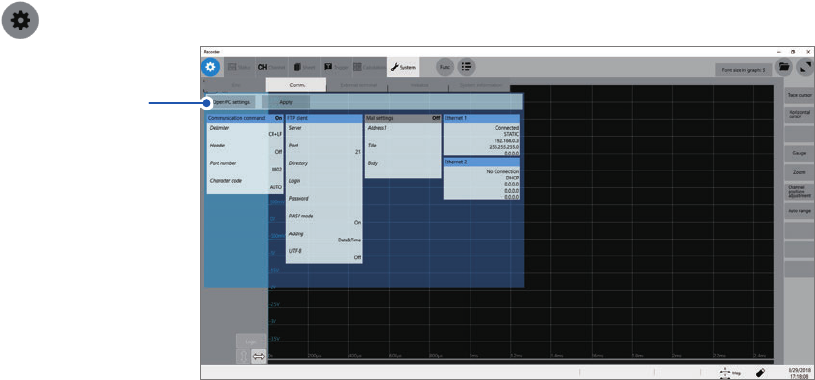
> [System] > [Comm.]
1
1
Click [Open PC settings.].
The Ethernet settings screen appears.
2
Click [Home].
The Windows
®
settings screen appears.
3
Click [System].
4
Click [About] under System.
5
Click [Rename PC], and then enter another name in the [Current PC name] box.
6
Click [Next].
Restarting the instrument is required.
7
Click [Restart now].