3OM-996-005.pdf - 第152页
4.1.2 Composition of "Pattern Program" Edit Window This session describes the composition and the icons on the toolbars of the "Pattern Program" edit window . Fig. 3B139 "Pattern Program" Ed…
• Use of Existing Pattern Program
(1) Press the [DATA EDIT] button on the main menu bar. An "EDIT SEL."
menu opens.
(2) Press the [PATT PRGM] button.
The "Pattern Program Edit" window opens.
(3) Select the pattern program to be edited and press the [Edit Prgm]
button.
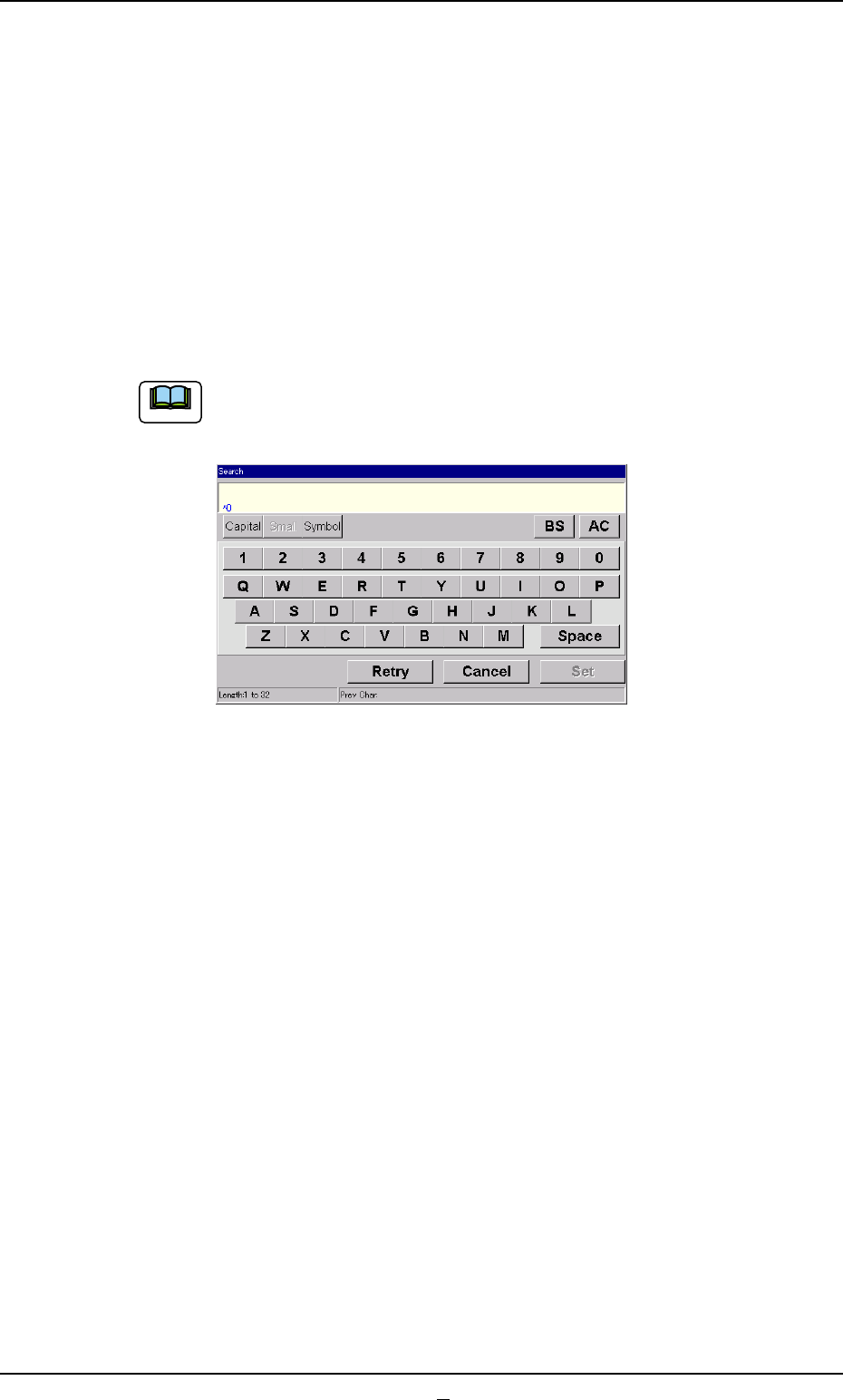
The search function can be used to quickly find appropriate
pattern programs.
Fig. 3B138-1
When the [Search] button is pressed, the "Search" window
opens.
When the desired pattern program name is entered and the
[Set] button is pressed, the result appears in the "List of Model
Names" pane.
"*" (asterisk) and "?" (question mark) can be used as wild cards.
abc* : The search function retrieves the program names which
start with "abc".
a?c : The search function retrieves the program names which
start with "a" and contain "c" as the third character.
When the [All] button is pressed, all pattern programs are displayed.
Note
4.1 Basic Operations in Edit Windows
0403-001 2-81-1 AIM01EDTP
4.1.2 Composition of "Pattern Program" Edit Window
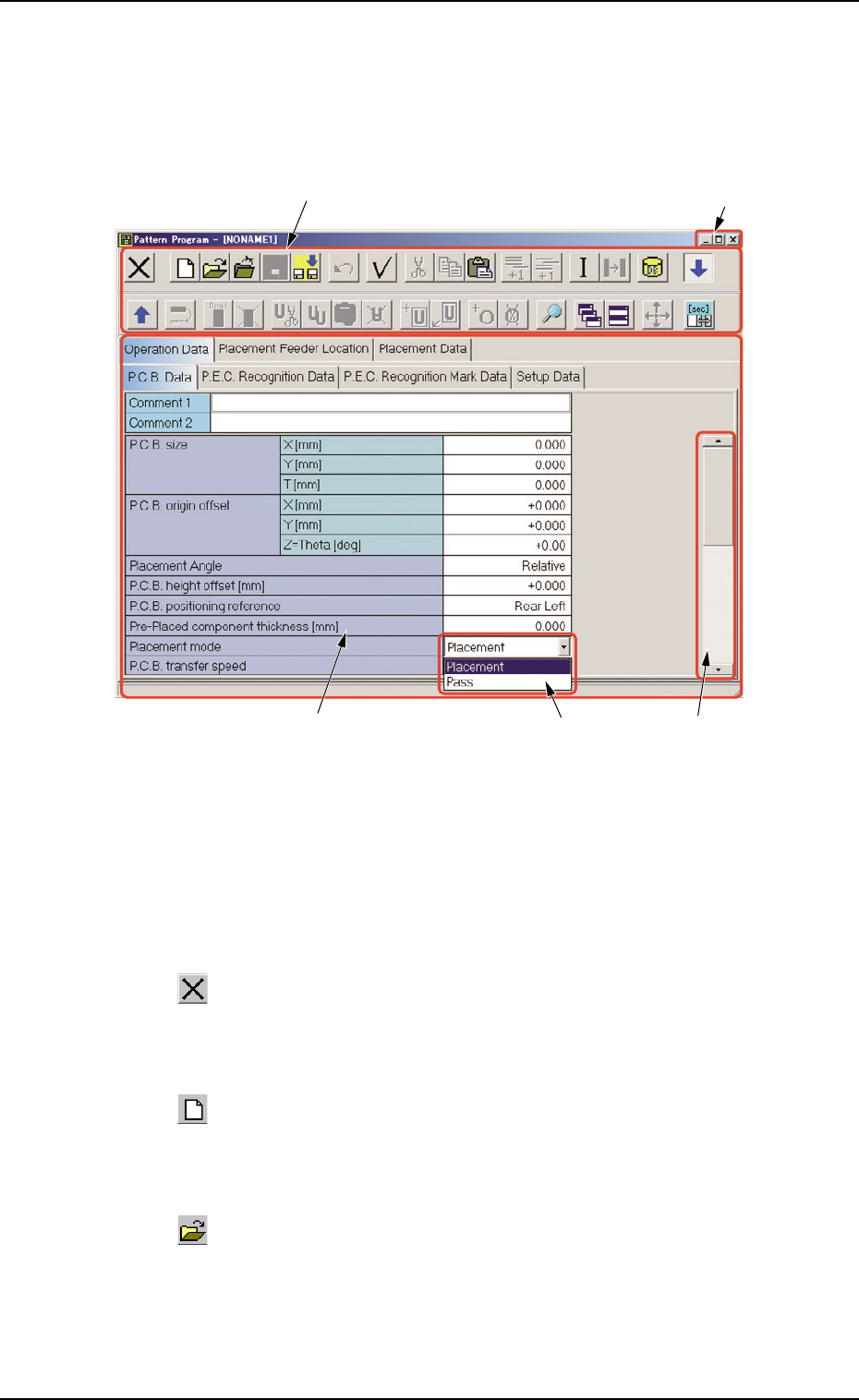
This session describes the composition and the icons on the toolbars
of the "Pattern Program" edit window.
Fig. 3B139 "Pattern Program" Edit Window
*1 Toolbar
The "Pattern Program" edit window is provided with the operation
commands (the icons on the toolbars) that can be executed.
: Exit
When pressed, this closes the "Pattern Program" edit win-
dow.
: New
When pressed, this opens a new "Pattern Program" win-
dow.
: Open File
When pressed, this opens an existing "Pattern Program"
edit window.
*2
*1 Toolbar
*3 Tab Sheet
*4 Drop-Down List
*5
0510-002 2-82 AIM01EDTP
4.1 Basic Operations in Edit Windows
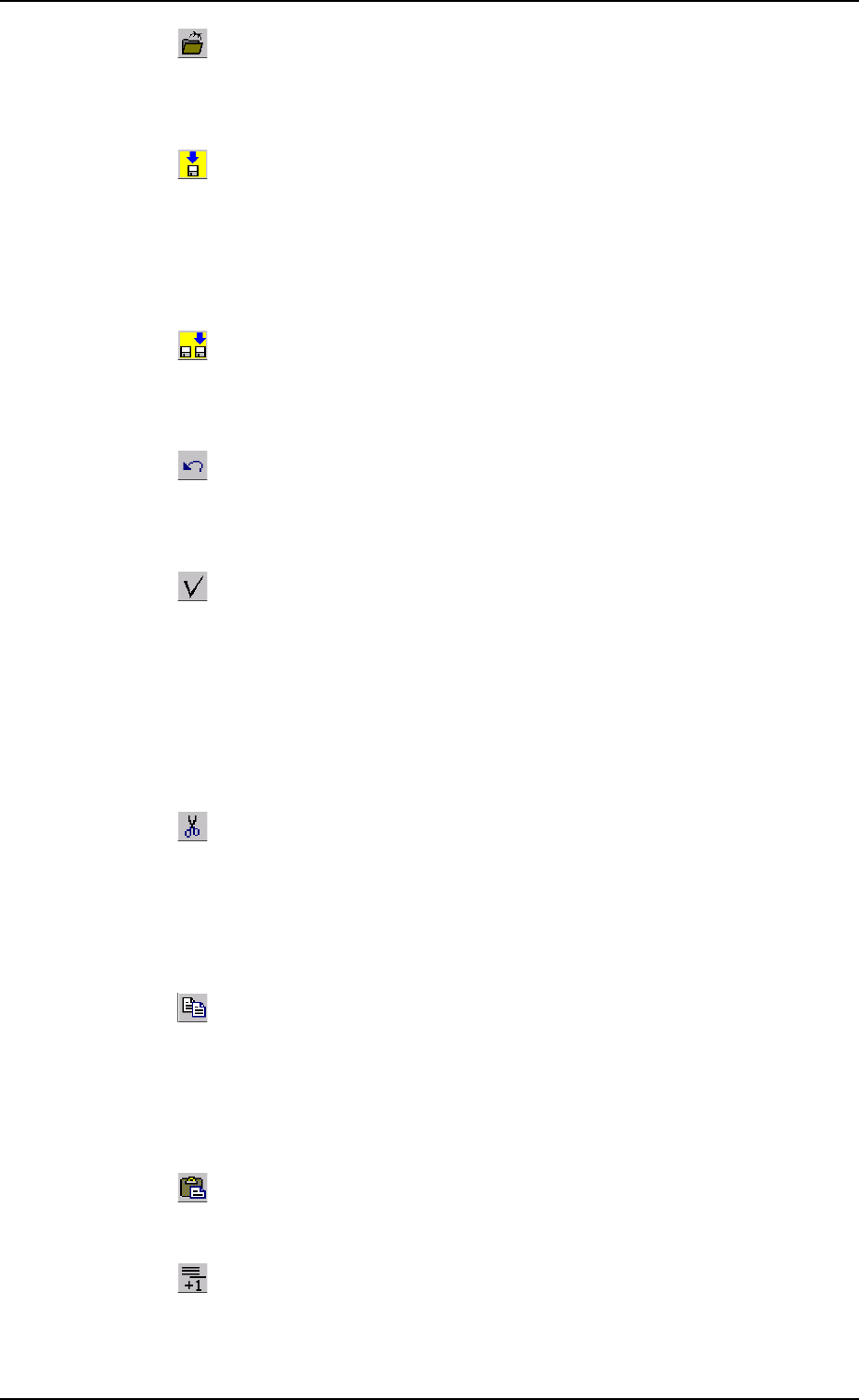
: Close
When pressed, this closes the active "Pattern Program"
file (window).
: Save
When pressed, this saves the edited data, replacing the
existing file with the current one.
When a new file is created, it will be saved with a new file
name.
: Save As
When pressed, this saves the edited data (file) with a new
name.
: Undo
When pressed, this reverses the effect of your previous
action.
: Check
When pressed, this checks if there is any deficiency in
the selected pattern program.
When any deficiency is found, the contents (message) of
the error is displayed in the lower area of the window.
When the message line is selected, the deficient data is
expressed in red.
: Cut
When pressed, this removes the selection (data) and
stores it in the Clipboard (a temporary holding area).
The "Paste" icon can be used to copy the selection into
the data at the insertion point’s location.
: Copy
When pressed, this transfers the selection to the Clip-
board without removing the selection.
The "Paste" icon can be used to copy the selection into
the data at the insertion point’s location.
: Paste
When pressed, this pastes the contents of the Clipboard.
: Add Line
When pressed, this adds a blank line to the last one.
0305-001 2-83
AIM01EDTP
4.1 Basic Operations in Edit Windows