3OM-996-005.pdf - 第155页
: Paste Unit When pressed, this copies the selection (U data) at the insertion point’s location. : Delete Unit When pressed, this deletes the currently displayed U data. : Add New Unit When pressed, this adds the current…
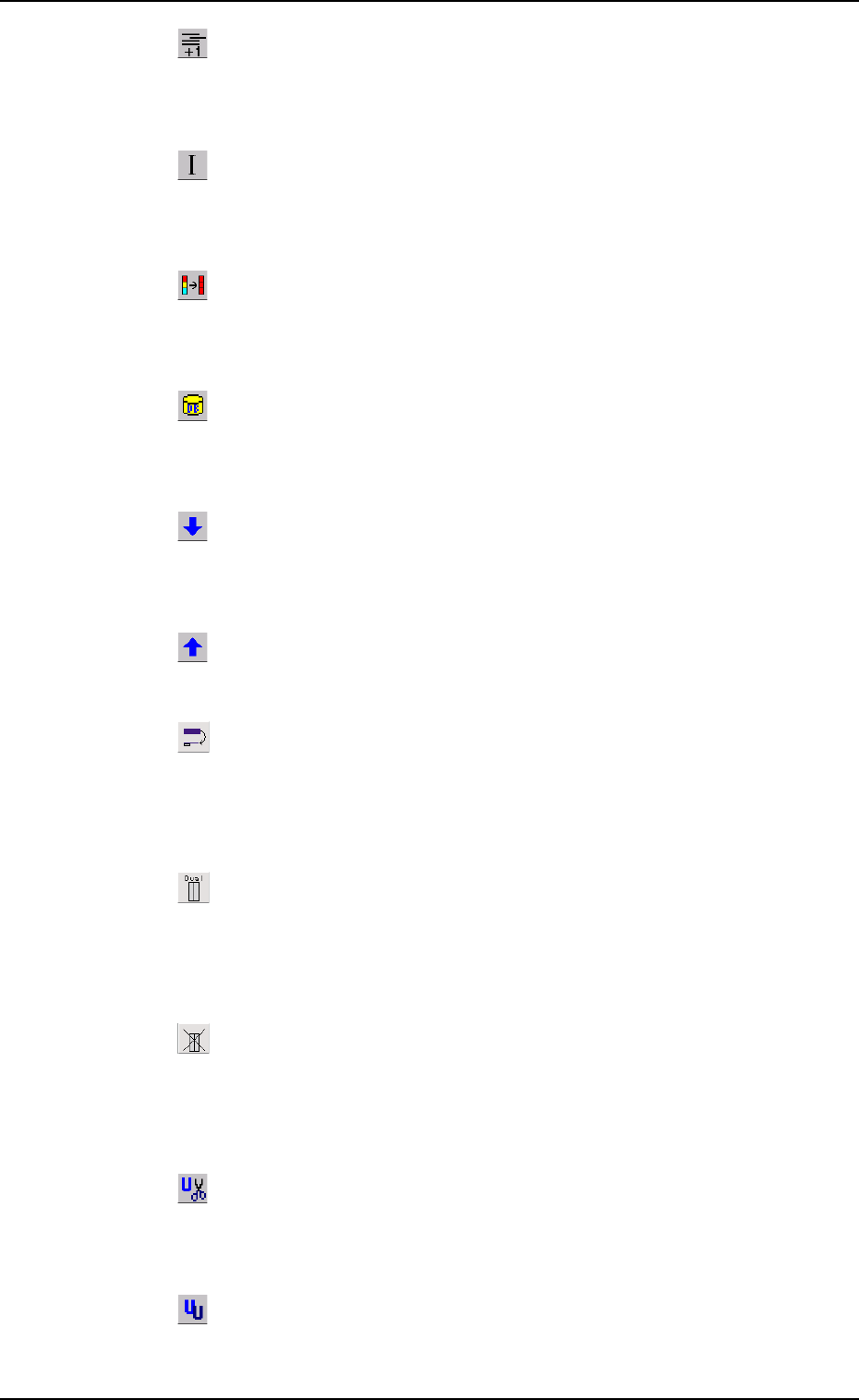
: Insert Line
When pressed, this inserts a blank line at the insertion
point’s location.
: Initialize
When pressed, the changed parameters are reset to the
defaults.
: Fill
When pressed, this fills all the selected text boxes with
the parameter in the first text box.
: Component ID List
When pressed, this opens the "Component ID List" win-
dow, enabling you to use the database (component library).
: Open 2nd. Toolbar
When pressed, this opens the second toolbar.
The second toolbar is provided with the following icons.
: Close 2nd. Toolbar
When pressed, this closes the second toolbar.
: Transfer the selected step data
When pressed, this button moves the selected step data.
The selected line (step data) can be moved to an arbi-
trary position.
: When pressed, this button specifies the selected
feeders as dual ones.
Only the feeders (selected lines) that meet the condition
can be specified as dual feeders.
: When pressed, this button cancels the dual-feeder
specification.
Only the feeders specified as dual ones can be released
from the dual-feeder specification.
: Cut Unit
When pressed, this removes the selection (U data) and
stores it in the Clipboard.
: Copy Unit
When pressed, this transfers the selection (U data) to the
Clipboard without removing the selection.
0305-001 2-84
AIM01EDTP
4.1 Basic Operations in Edit Windows
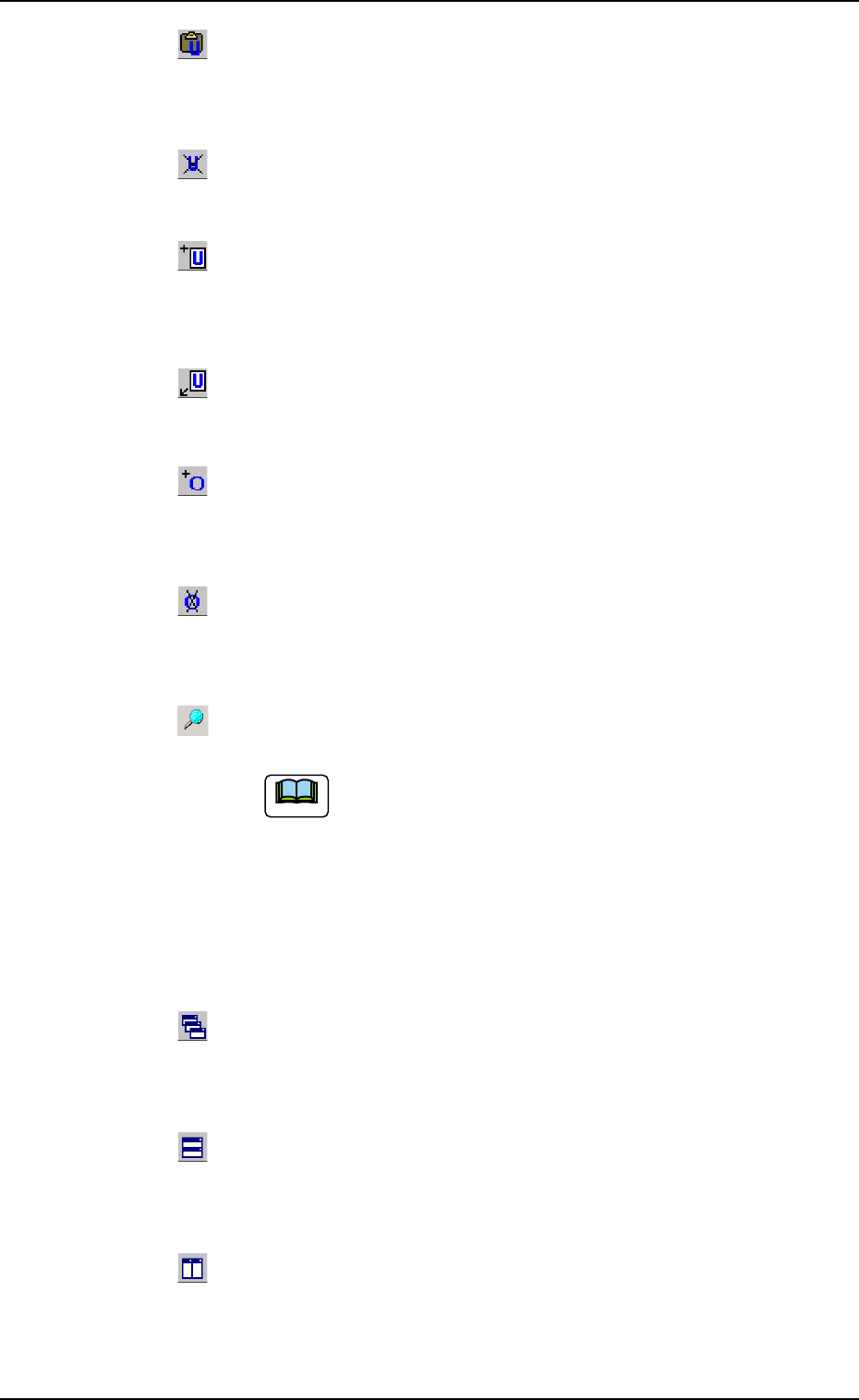
: Paste Unit
When pressed, this copies the selection (U data) at the
insertion point’s location.
: Delete Unit
When pressed, this deletes the currently displayed U data.
: Add New Unit
When pressed, this adds the current U data to the last
line.
: Insert New Unit
When pressed, this inserts the U data behind the cur-
rently displayed "U##" tab sheet.
: Add O Data
When pressed, this adds the O data to the currently se-
lected U data.
: Delete O Data
When pressed, this deletes the O data from the currently
selected U data.
: When pressed, this searches the data.
The "Search" dialog box opens.
"*" (asterisk) and "?" (question mark) can be used
as wild cards.
abc*: The search function retrieves the data
which starts with "abc".
a?c : The search function retrieves the data
which starts with "a" and contains "c" as
the third character.
: Cascade
The currently opened windows (programs) are cascaded
(overlaid), making each title bar visible.
: Tile Horizontally
When pressed, this re-arranges the currently opened "Pat-
tern Program" windows up and down.
: Tile Vertically
The currently opened windows (programs) are re-arranged
side by side.
0305-001 2-85
AIM01EDTP
4.1 Basic Operations in Edit Windows
Note
0510-002 2-86 AIM01EDTP
4.1 Basic Operations in Edit Windows
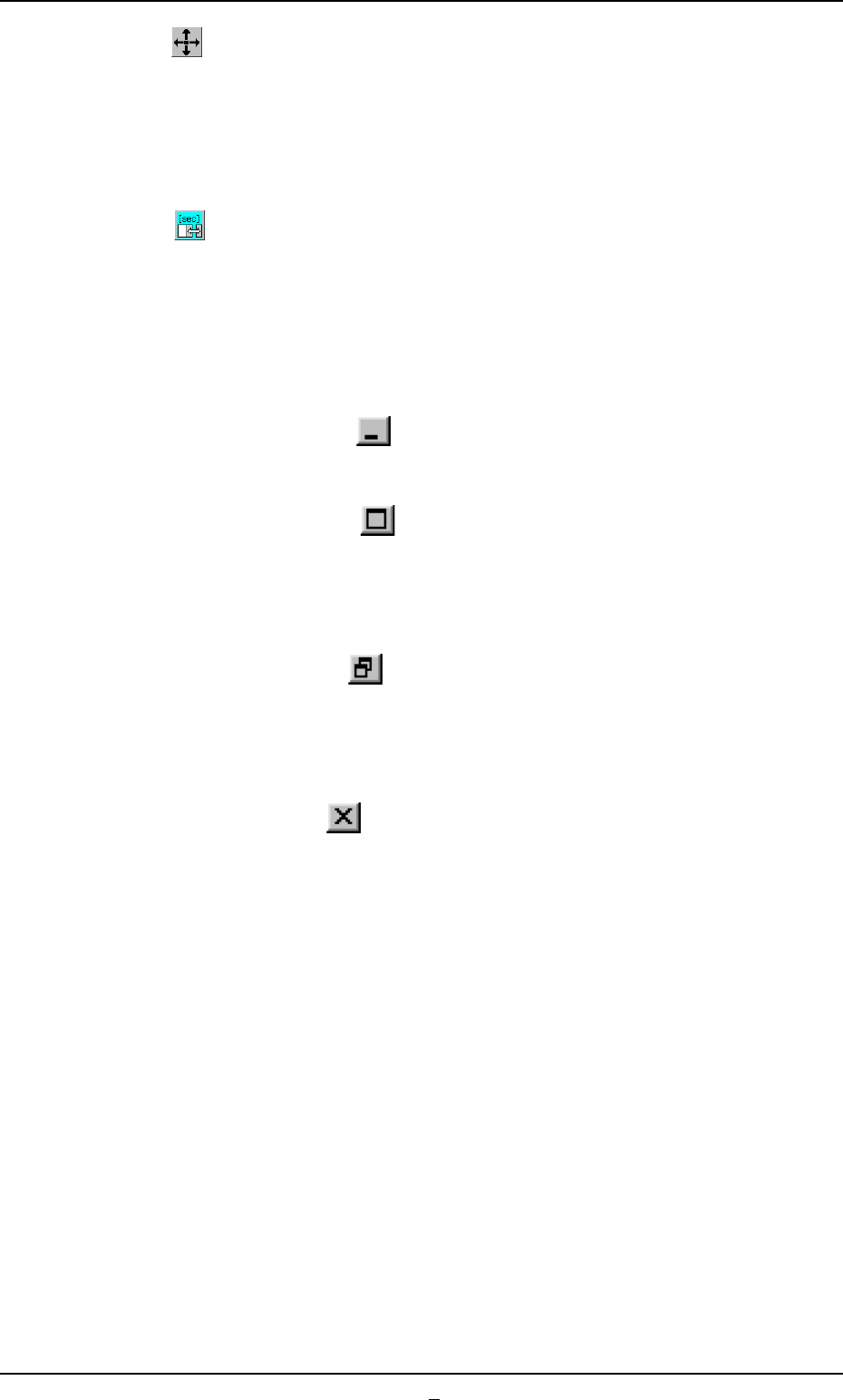
: When pressed, this enters the offset value in the se-
lected line.
The X, Y, and Z values in the line selected in the place-
ment data (P-data) can be changed collectively as much
as the entered value.
: When pressed, this button changes the items (titles) from
"Library Comment", "Dir [deg]", "Carrier Data Type", "Width
[mm]", and "Fd. Pitch [mm]" to "Pick-Up [sec]", "Turret
[sec]", "‘Place. [sec]", "X/Y Table", and "Recog. [sec]".
*2 [Minimize], [Maximize], [Restore], and [Close] Buttons
[Minimize] Button (
)
Minimizing a window reduces the window to an icon.
[Maximize] Button (
)
When a window is not at its maximum size, this button appears in
the window’s upper-right corner. When pressed, this enlarges the
edit window to its maximum size.
[Restore] Button (
)
When a window is already at its maximum size, the [Maximize] but-
ton switches to the [Restore] button, which returns the window to its
previous size.
[Close] Button (
)
When pressed, this closes the active window.
*3 Tab Sheets
The provided tab sheets enable the operator to edit the pattern pro-
gram.