3OM-996-005.pdf - 第268页
(4) [B: comp. Missing] Button Each text box shows the total number of missing components detected through recognition operation for each individual feed- ers. (5) [C: comp. V ertical] Button Each text box shows the total…
4.3 "Handling Errors Per Feeder" Tab
The corresponding tab sheet enables the operator to view the handling
errors on each individual feeders.
• Sheet Layout
When the "Handling Errors Per Feeder" tab is pressed in the "Pattern
Program Management Data" window, the following tab sheet appears
inside the window.
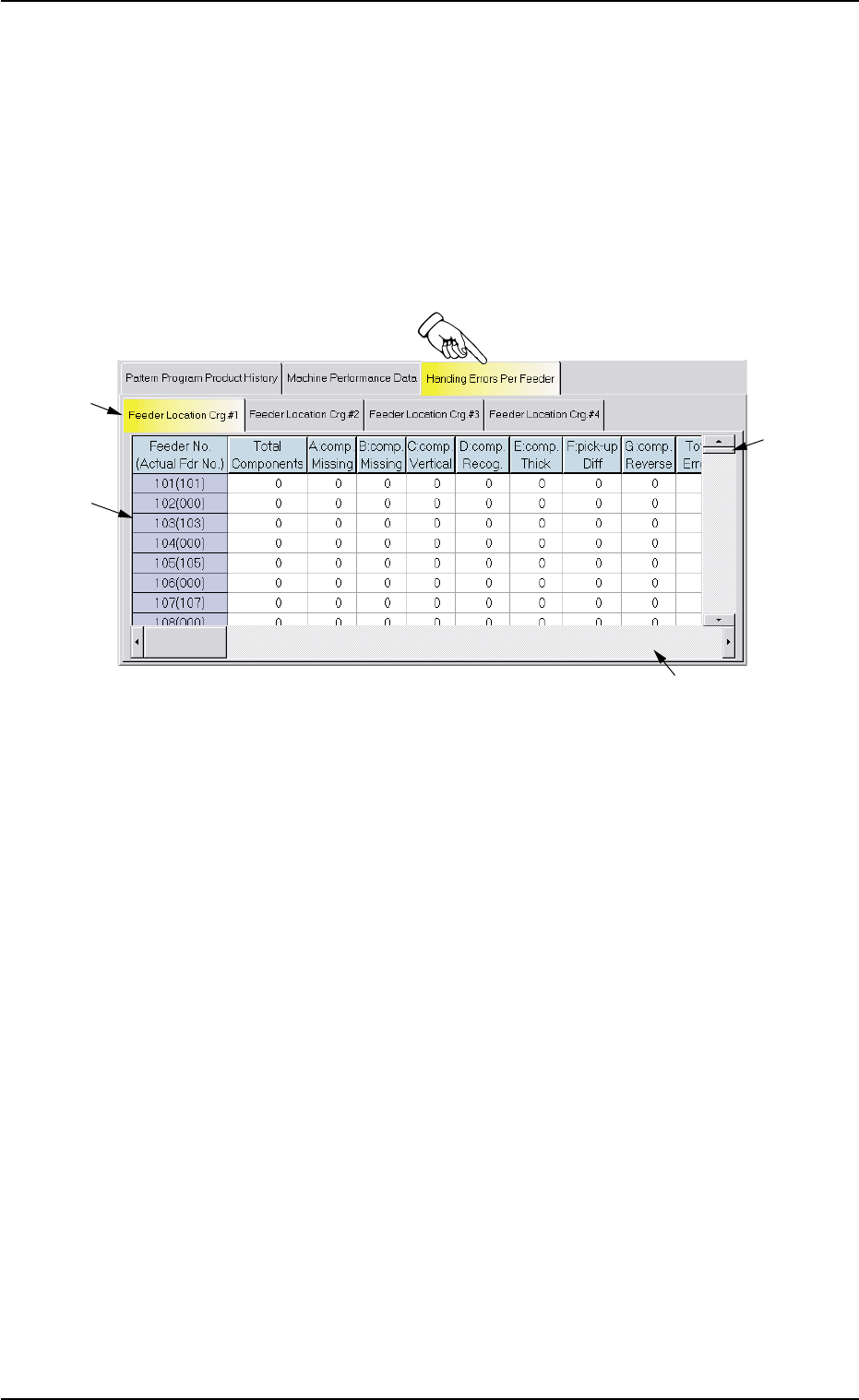
Fig. 3D18 "Handling Errors Per Feeder" Tab Sheet
• Sheet Composition
*1 "Feeder Location Crg. #1 through #4" Tabs
The "Handling Errors Per Feeder" tab sheet is divided further into
four tab sheets and each tab sheet shows the handling errors per
feeder on each individual feeder carriages.
When a tab is pressed, the corresponding tab sheet appears, indi-
cating that the related feeder carriage is selected.
*2 Items
The following items are displayed.
(1) [Feeder No. (Actual Fdr No.)] Button
Shown are the feeder Nos.
(2) [Total Components] Button
Each text box shows the total number of picked components
(number of pick-up actions) for each individual feeders.
(3) [A: comp. Missing] Button
Each text box shows the total number of missing components
detected by the linear measure detection sensor for each indi-
vidual feeders.
*1
*3
*2
*4
0305-001 4-40 AIM01EDTP
4.3 "Handling Errors Per Feeder" Tab

(4) [B: comp. Missing] Button
Each text box shows the total number of missing components
detected through recognition operation for each individual feed-
ers.
(5) [C: comp. Vertical] Button
Each text box shows the total number of vertical components
detected by the linear measure detection sensor for each indi-
vidual feeders.
(6) [D: comp. Recog.] Button
Each text box shows the total number of errors detected through
recognition operation for each individual feeders.
(7) [E: comp. Thick] Button
Each text box shows the total number of errors in component
thickness detected by the linear measure detection sensor for
each individual feeders.
(8) [F: pick-up Diff] Button
Each text box shows the total number of pick-up difference er-
rors detected through recognition operation for each individual
feeders.
(9) [G: Comp. Reverse] Button
Each text box shows the total number of reversed component
errors detected through recognition operation for each individual
feeders.
(10) [Total Errors] Button
Each text box shows the total number of errors detected in (3)
through (9).
(11) [Rate of Error (%)] Button
Each text box shows the percentage of the total number of er-
rors per the number of picked components.
(12) [Shrtg. of Comp.] Button
Each text box shows the total number of component shortage
errors detected for each individual feeders.
(13) Component backtrack
Shown is the total number of component backtrack errors for each
individual feeders.
4.3 "Handling Errors Per Feeder" Tab
0403-002 4-41 AIM01EDTP
0403-002 4-42 AIM01EDTP
4.3 "Handling Errors Per Feeder" Tab
(14) Component output error (Pickup error)
Shown is the total number of the output-error-caused compo-
nents (pickup errors) for each individual feeders.
(15) Component output error (Others)
Shown is the total number of the output-error-caused compo-
nents (errors other than pickup ones) for each individual feeders.
(16) Component ID.
Shown are the component IDs for each individual feeders.
(17) Type
Shown are the packaging types of the related component IDs.
(18) Width (mm)
Shown are the component widths.
When one of the above buttons is pressed, the feeder No. with
the biggest parameter under the selected button is displayed in
the first line and feeder Nos. having the subsequent (second,
third, fourth, ...) biggest parameters follow. That is, parameters
are re-arranged in order of error counts (from the biggest to the
smallest ones), making it easy to analyze and improve produc-
tion rate.
When the [Feeder No.] button is pressed, feeder Nos. are ar-
ranged in their initial order (order of slot Nos.).
*3 Vertical Scroll Bar
Up and down arrows are located at both ends of a scroll bar. The up
or the down arrow can be pressed to scroll up or down a tab sheet
to expose hidden parameters (data for the hidden feeder Nos.).
*4 Horizontal Scroll Bar
Right and left arrows are located at both ends of a scroll bar. The
right or the left arrow can be pressed to scroll right or left a tab sheet
to expose hidden parameters.
Note