3OM-996-005.pdf - 第342页
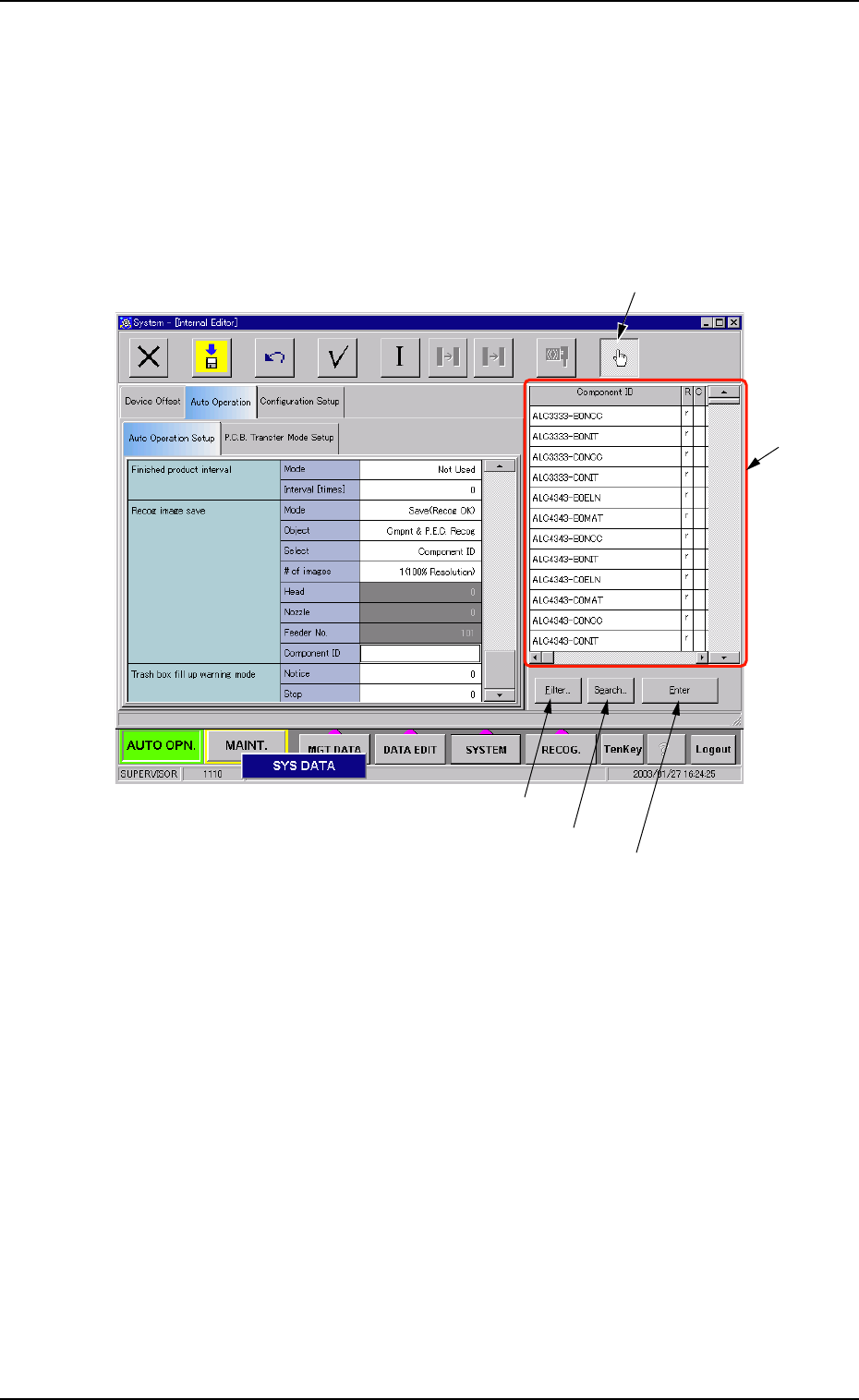
(3) Select a component ID from the list of component IDs and press the [Enter] button. (a) [Filter ...] Button When pressed, the "Filter" dialog box opens, making it pos- sible to select a type of component IDs…
• How to specify a component ID name
(1) Set "Component ID" in the "Select" text box of the label "Recog
image save". The "Component ID" text box turns white.
(2) While selecting the "Component ID" text box, press the "Selecting
the component ID" button. A list of component IDs is displayed.
Fig. 3E44
3.3 "Auto Operation" Tab
"Selecting the component ID" Button
"List of
Component
IDs" Pane
[Filter...] Button
[Search...] Button
[Enter] Button
0305-001 5-53 AIM01EDTP
(3) Select a component ID from the list of component IDs and press the
[Enter] button.
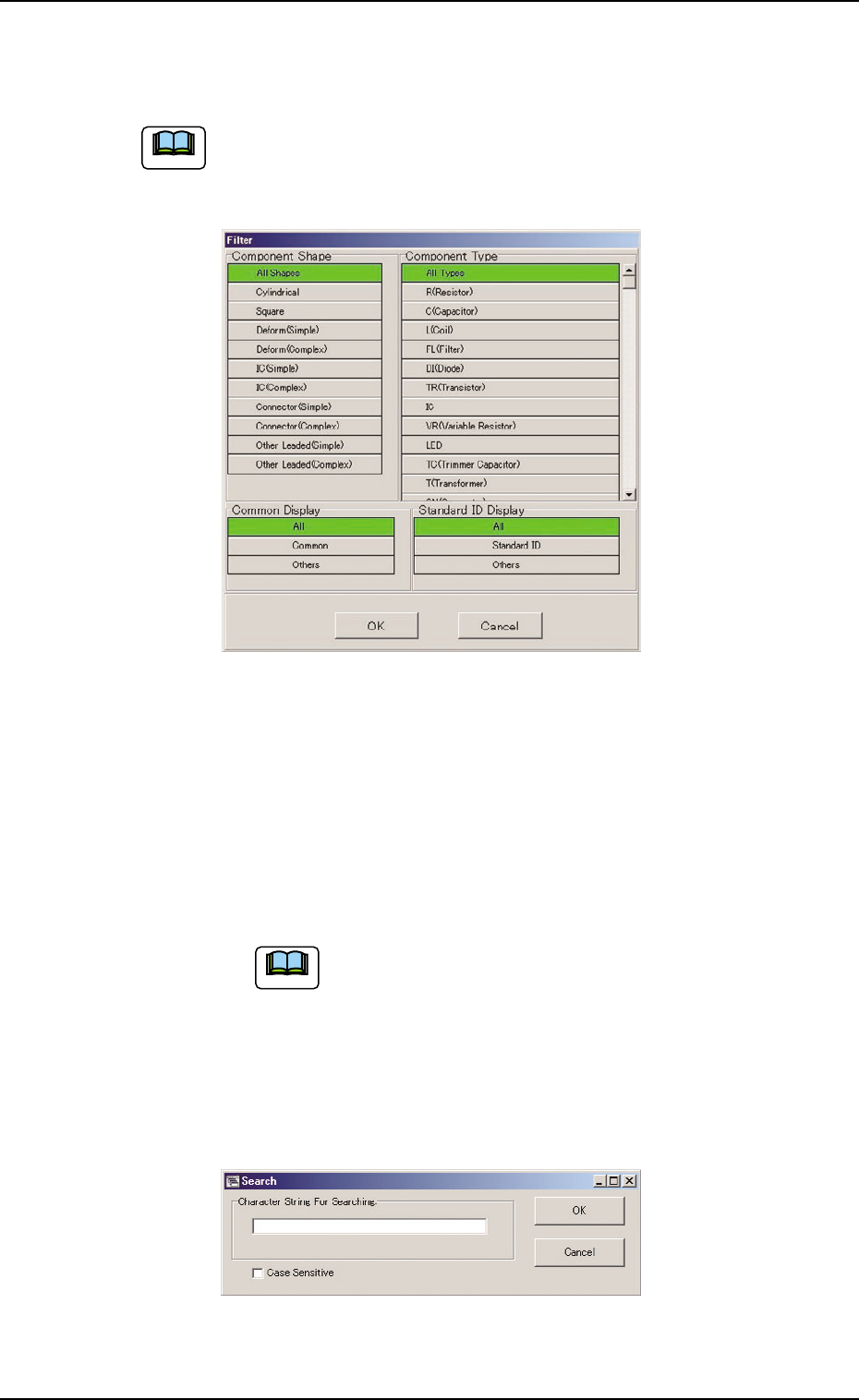
(a) [Filter...] Button
When pressed, the "Filter" dialog box opens, making it pos-
sible to select a type of component IDs.
Fig. 3E45
(b) [Search...] Button
When pressed, the "Search" dialog box opens, making it
possible to search a component ID.
Enter characters in the blank field and press the [OK] but-
ton. The "Search" window closes and the component IDs
including the entered characters are displayed in "List of
Component IDs".
"*" (asterisk) and "?" (question mark) can be used
as wild cards.
abc* : The search function retrieves the compo-
nent ID names which start with "abc"
a?c : The search function retrieves the compo-
nent ID names which start with "a" and
contain "c" as the third character.
Fig. 3E46
3.3 "Auto Operation" Tab
0510-002 5-54 AIM01EDTP
Note
Note
3.3.2 "P.C.B. Transfer Mode Setup" Tab
• Sheet Layout
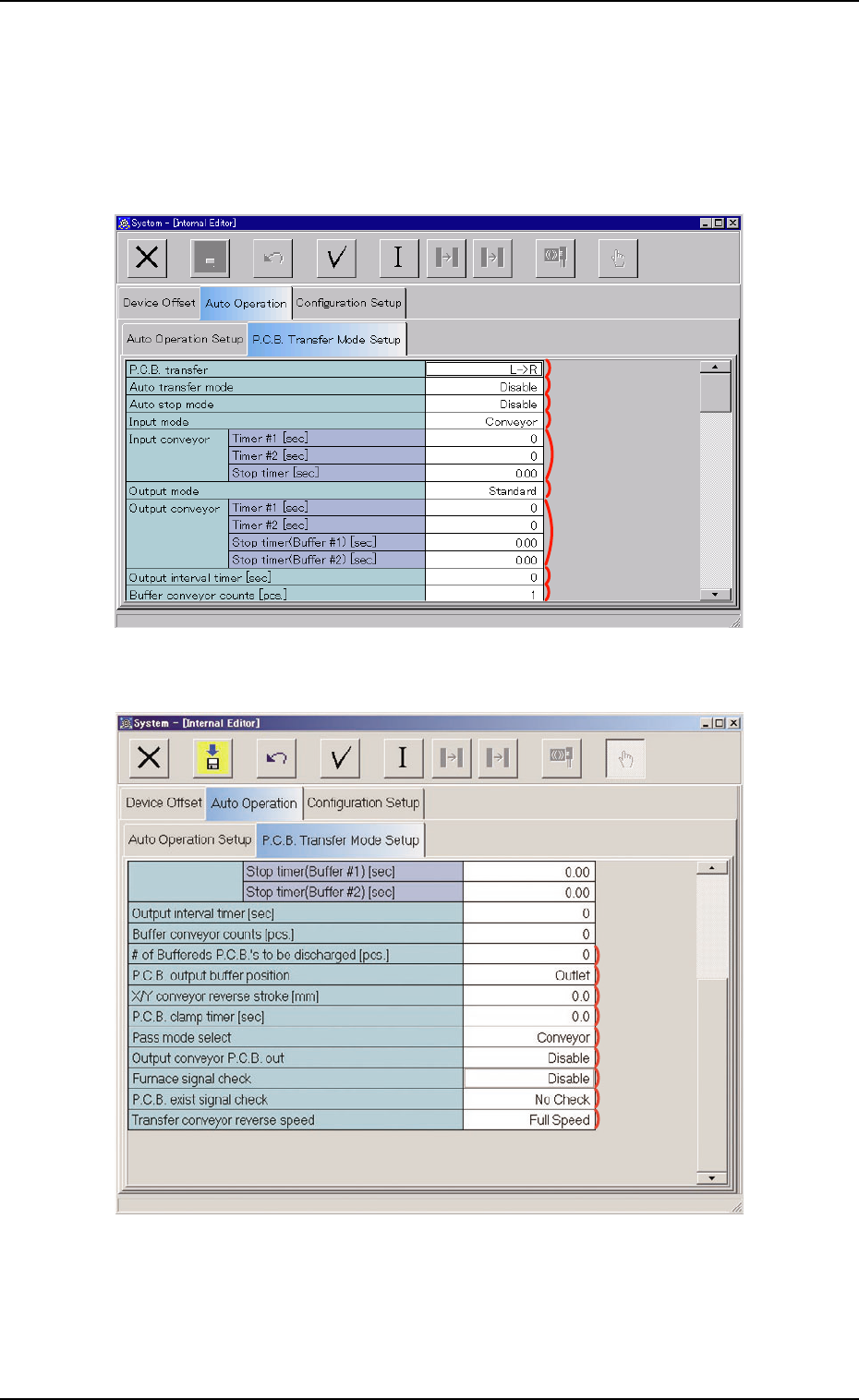
When the "P.C.B. Transfer Mode Setup" tab is pressed in the "Auto
Operation" tab sheet, the following tab sheet appears.
Fig. 3E47 "P.C.B. Transfer Mode Setup" Tab Sheet (1)
Fig. 3E48 "P.C.B. Transfer Mode Setup" Tab Sheet (2)
0510-003 5-55
AIM01EDTP
3.3 "Auto Operation" Tab
*1
*2
*3
*4
*5
*6
*7
*8
*9
*10
*11
*12
*13
*14
*15
*16
*17
*18