3OM-996-005.pdf - 第236页
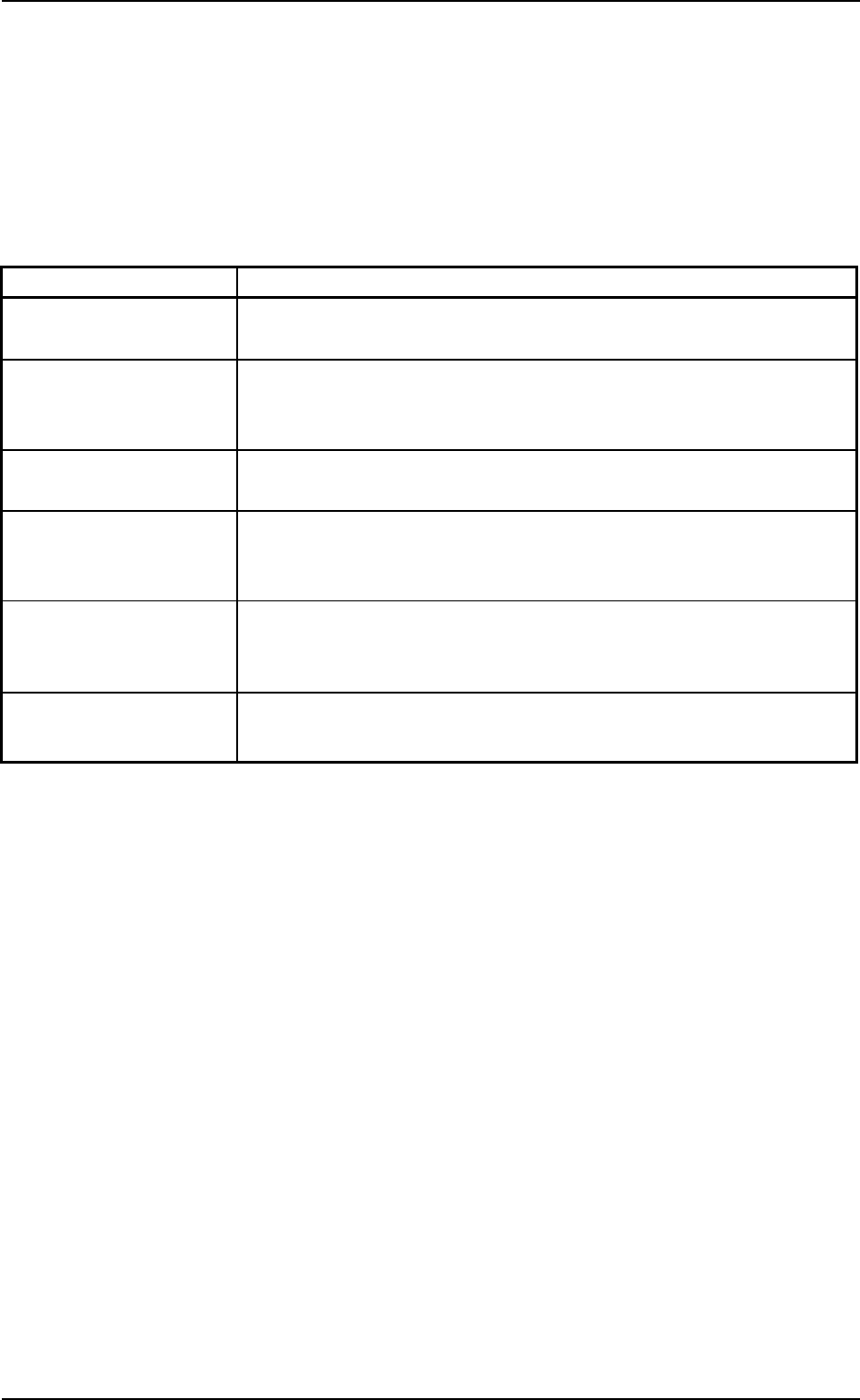
3 . 1 Basic Operations in "Management Data" Window 3.1.1 T oolbar and Icons The following table shows the functions of the icons on the toolbar . T able 3D4 Commands Icons Functions Close When pressed, this but…
*3 Information on Active File
This section displays "Clear Date", "Comment", and "Device Name".
*4 Tabs and Tab Sheets
The "Management Data - [manage (Type#)] window is provided with
the following six tab sheets. When a tab is pressed, the correspond-
ing tab sheet appears inside the window.
Table 3D3
Tabs Description
Mach. Prfrm. Data The corresponding tab sheet enables the operator to view various
counts (results of accumulated data) as machine performance data.
Sub-System Err. Cnt. The corresponding tab sheet enables the operator to view the
summed number of errors that occurred on each individual devices
during automatic operation.
Handling Err. Per Fdr The corresponding tab sheet enables the operator to view the pick-
up data of each individual feeders.
Head Mgt. Data The corresponding tab sheet enables the operator to view various
counts (results of accumulated performance data) of each individual
heads.
Noz. Mgt. Data The corresponding tab sheet enables the operator to view various
counts (results of accumulated performance data) of each individual
nozzles.
Handling/Plac. Data The corresponding tab sheet enables the operator to view the com-
ponent pick-up and placement data.
0305-001 4-10
AIM01EDTP
3. "Management Data" Window
3.1 Basic Operations in "Management Data" Window
3.1.1 Toolbar and Icons
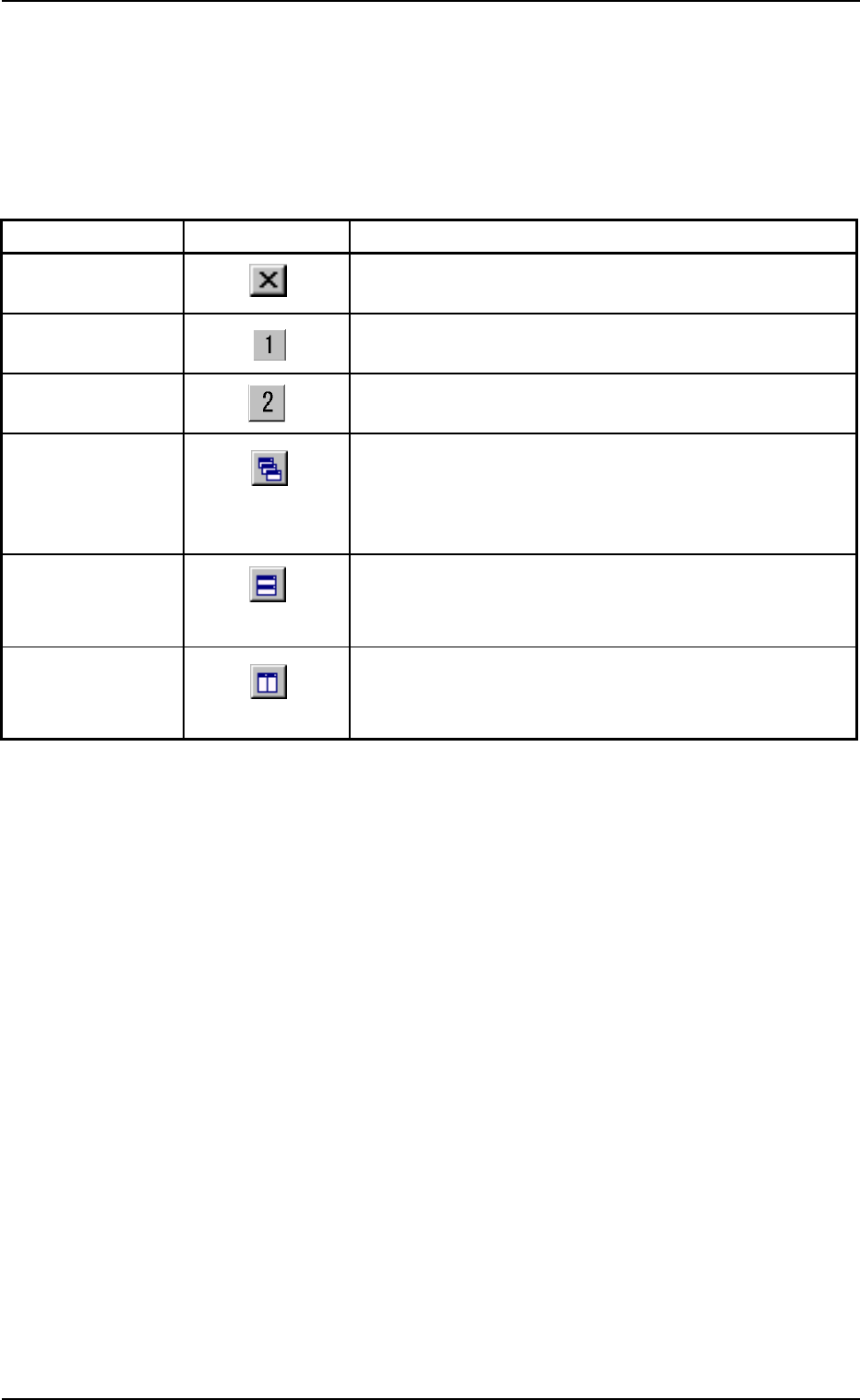
The following table shows the functions of the icons on the toolbar.
Table 3D4
Commands Icons Functions
Close When pressed, this button closes the "Management
Data - [manage (Type#)]" window.
Type1 When pressed, this button makes the "Management
Data - [manage (Type1)]" window visible.
Type2 When pressed, this button makes the "Management
Data - [manage (Type2)]" window visible.
Cascade When the "manage (Type1)" and the "manage (Type2)"
windows are opened at the same time, cascading the
windows overlays them so that you can see each title
bar.
Tile Horizontally When the "manage (Type1)" and the "manage (Type2)"
windows are opened at the same time, each window
is re-arranged up and down.
Tile Vertically When the "manage (Type1)" and the "manage (Type2)"
windows are opened at the same time, each window
is re-arranged side by side.
0305-001 4- 11
AIM01EDTP
3.1 Basic Operations in "Management Data" Window
3.1.2 Navigations in "manage (Type #)" Windows
(1) How to close the "manage (Type #)" window
When the "
" icon is pressed, the "manage (Type #)" window
closes.
(2) How to select a "manage (Type #)" window
When the " " icon is pressed, the "manage (Type1)" window be-
comes visible.
When the " " icon is pressed, the "manage (Type2)" window be-
comes visible.
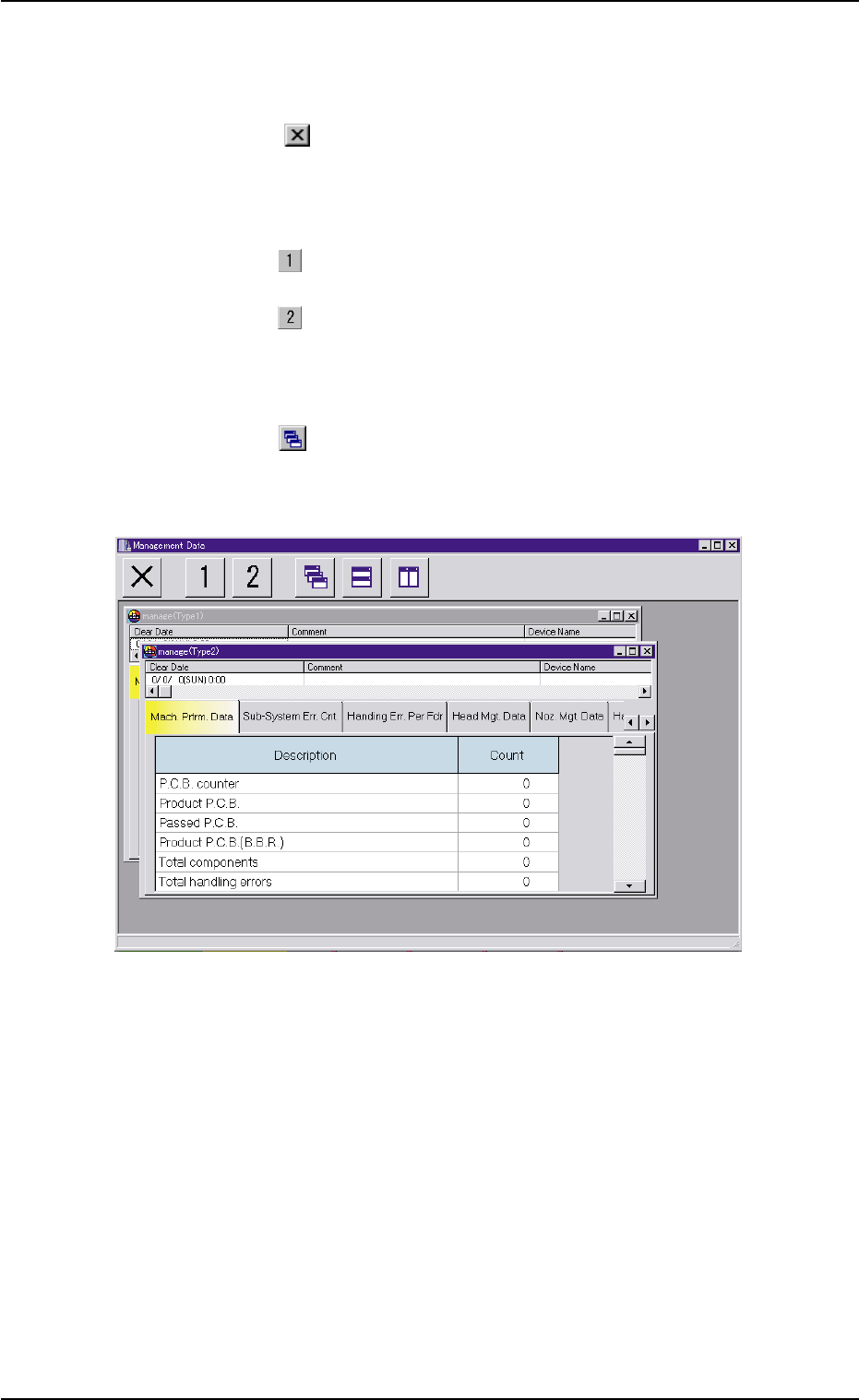
(3) How to cascade two "manage (Type #)" windows
When the " " icon is pressed, the "manage (Type1)" and "man-
age (Type2)" windows are cascaded (overlaid), making each title
bar visible.
Fig. 3D6 Cascaded "Management Data" Windows
3.1 Basic Operations in "Management Data" Window
0305-001 4-12 AIM01EDTP