3OM-996-005.pdf - 第195页
*4 [Close] Button When this button is pressed, the "T ype Addition" window closes. *5 [Change] Button When this button is pressed, a component type is changed to the contents entered in the "T ype Name&quo…
2.3 Basic Usage of the "Selection of component ID"
Window
2.3.1 Type Addition
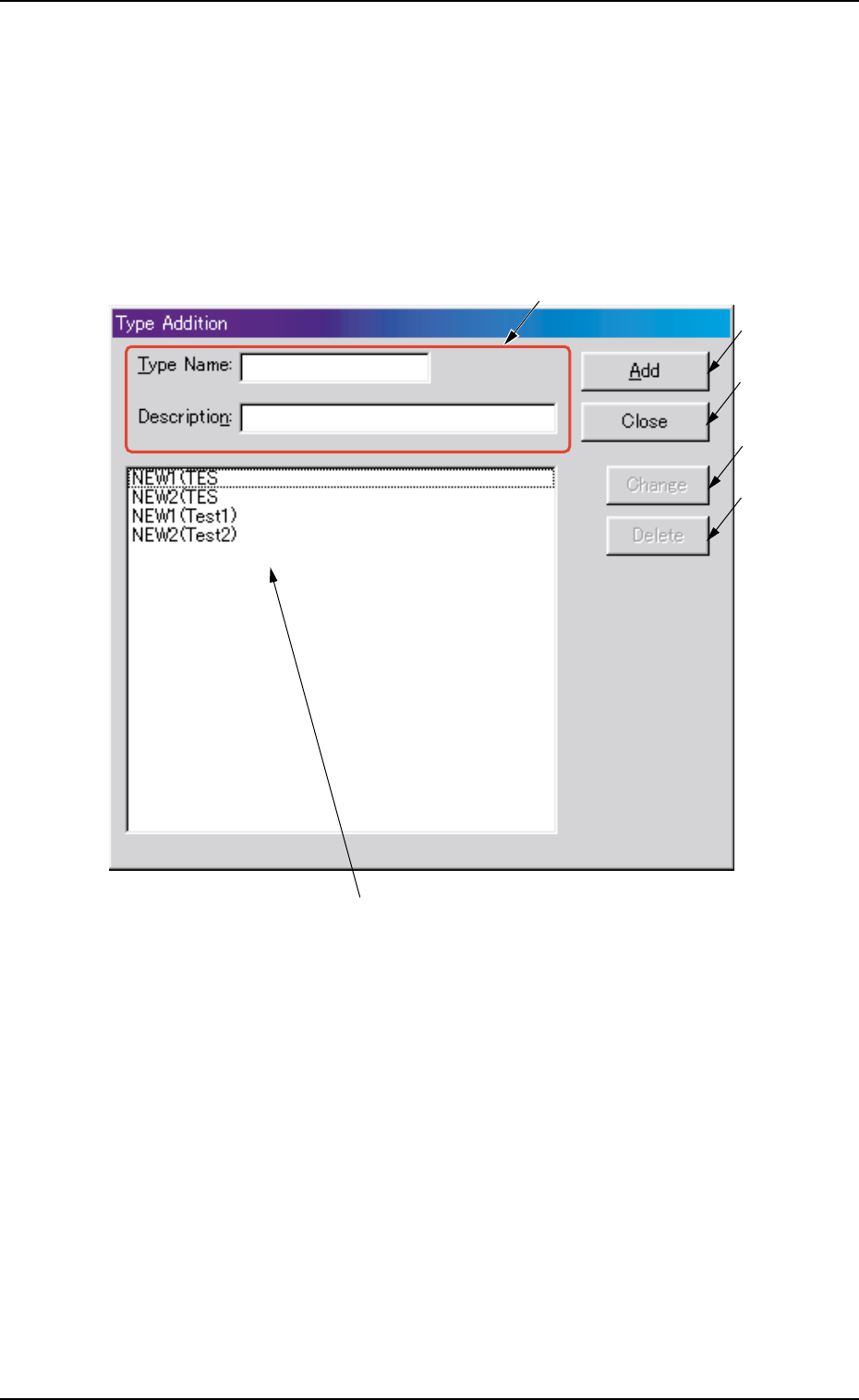
When the [Type Addition] button is pressed, the following window ap-
pears.
Fig. 3C5 "Type Addition" Window
• Composition of "Type Addition" Window
*1 Type Name and Description
Enter a parameter in each text box.
*2 "List of Component Types" Pane
Newly created component types are displayed in this pane.
*3 [Add] Button
When this button is pressed, a type entered in the "Type Name" text
box is added as a new type.
0305-001 3-7
AIM01EDTP
*3
*4
*5
*6
*2
*1
2.3 Basic Usage of the "Selection of component ID" Window

*4 [Close] Button
When this button is pressed, the "Type Addition" window closes.
*5 [Change] Button
When this button is pressed, a component type is changed to the
contents entered in the "Type Name" and "Description" text boxes.
*6 [Delete] Button
When this button is pressed, the component type selected in "*2" is
deleted.
0305-001 3-8
AIM01EDTP
2.3 Basic Usage of the "Selection of component ID" Window
2.3.2 Deleting a Component ID
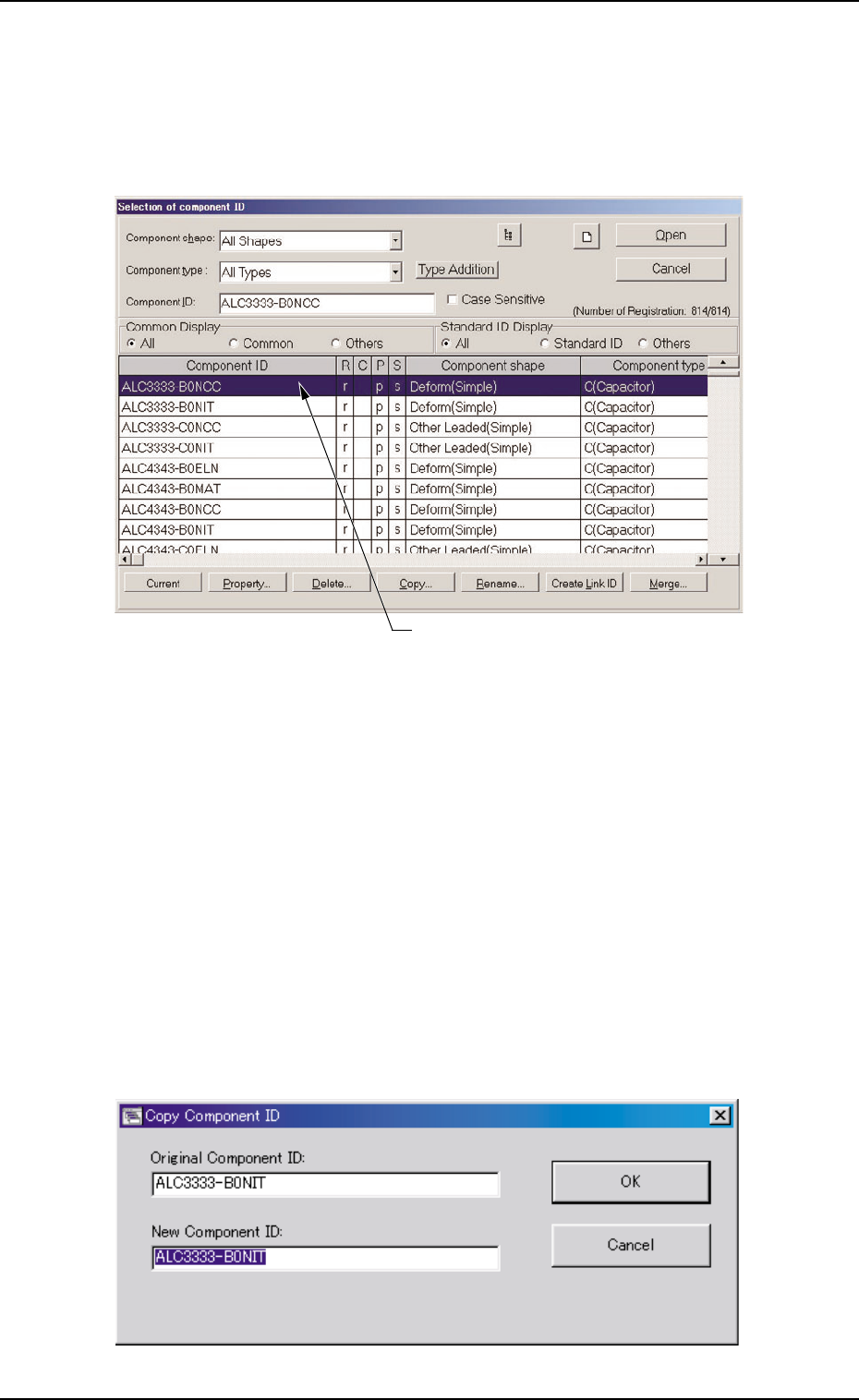
(1) Select the component ID to be deleted.
The selected component ID turns blue, indicating that it is se-
lected.
Fig. 3C6
(2) Press the [Delete...] button.
The "Confirmation" dialog box opens. When the [YES] button is
pressed, the selected component ID is deleted. Pressing the [NO]
button closes the "Confirmation" dialog box without deleting the
component ID.
2.3.3 Copying a Component ID
(1) Select the component ID to be copied.
The selected component ID turns blue, indicating that it is se-
lected.
(2) Press the [Copy...] button.
The "Copy Component ID" dialog box opens.
Fig. 3C7
Selected Component ID
2.3 Basic Usage of the "Selection of component ID" Window
0510-002 3-9 AIM01EDTP