OperationInstruction_Vsision XP.pdf - 第167页
V ISION XP+ V AC Page 159 6 Rehm Recorder 6.2 Live mode configuration Operating Instructions V ersion 1.5 Using " > " t o skip prompts the a pplication to ask whe ther the configuration should be saved. Fig.…
Page 158 VISION XP+ VAC
6 Rehm Recorder
6.2 Live mode configuration
Operating Instructions
Version 1.5
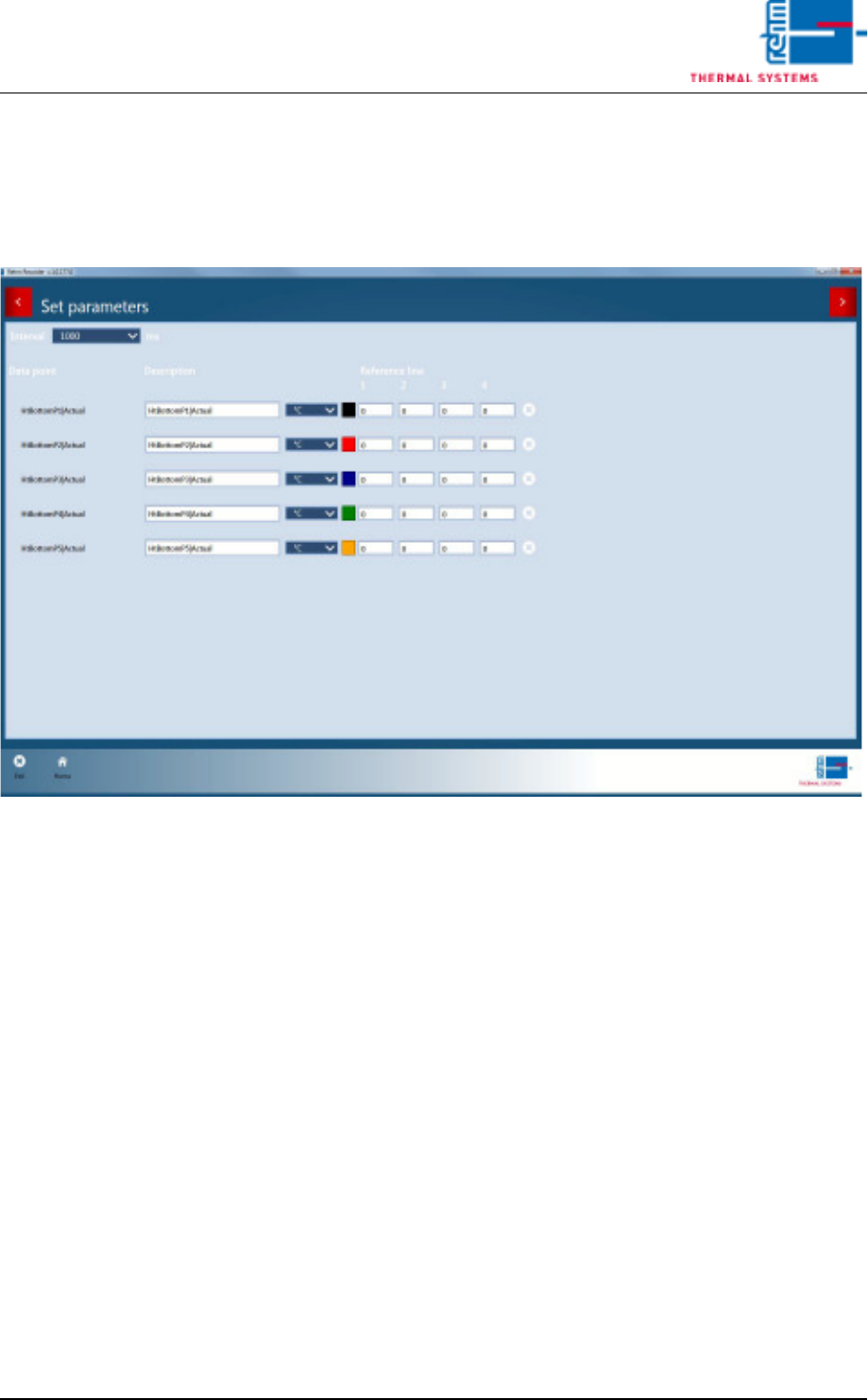
6.2.4 Set parameters
The recording interval for all data points (in milliseconds) can be set from this
screen.
Fig. 6-8 Set parameters 1
Names of data points can be changed directly in the fields. The selection of
the associated unit can be changed from the selection list. The assignment
to a unit decides the axis to which the data point is assigned in the chart.
Boundary lines are plotted on the chart with values 1, 2, 3 and 4. These
boundary lines are shown in the same colour as the data point.
The "x" at the end of every row deletes the respective data point from the
configuration.
Clicking a colour opens a colour selection in which the colour of a data point
in the chart can be chosen.
VISION XP+ VAC Page 159
6 Rehm Recorder
6.2 Live mode configuration
Operating Instructions
Version 1.5
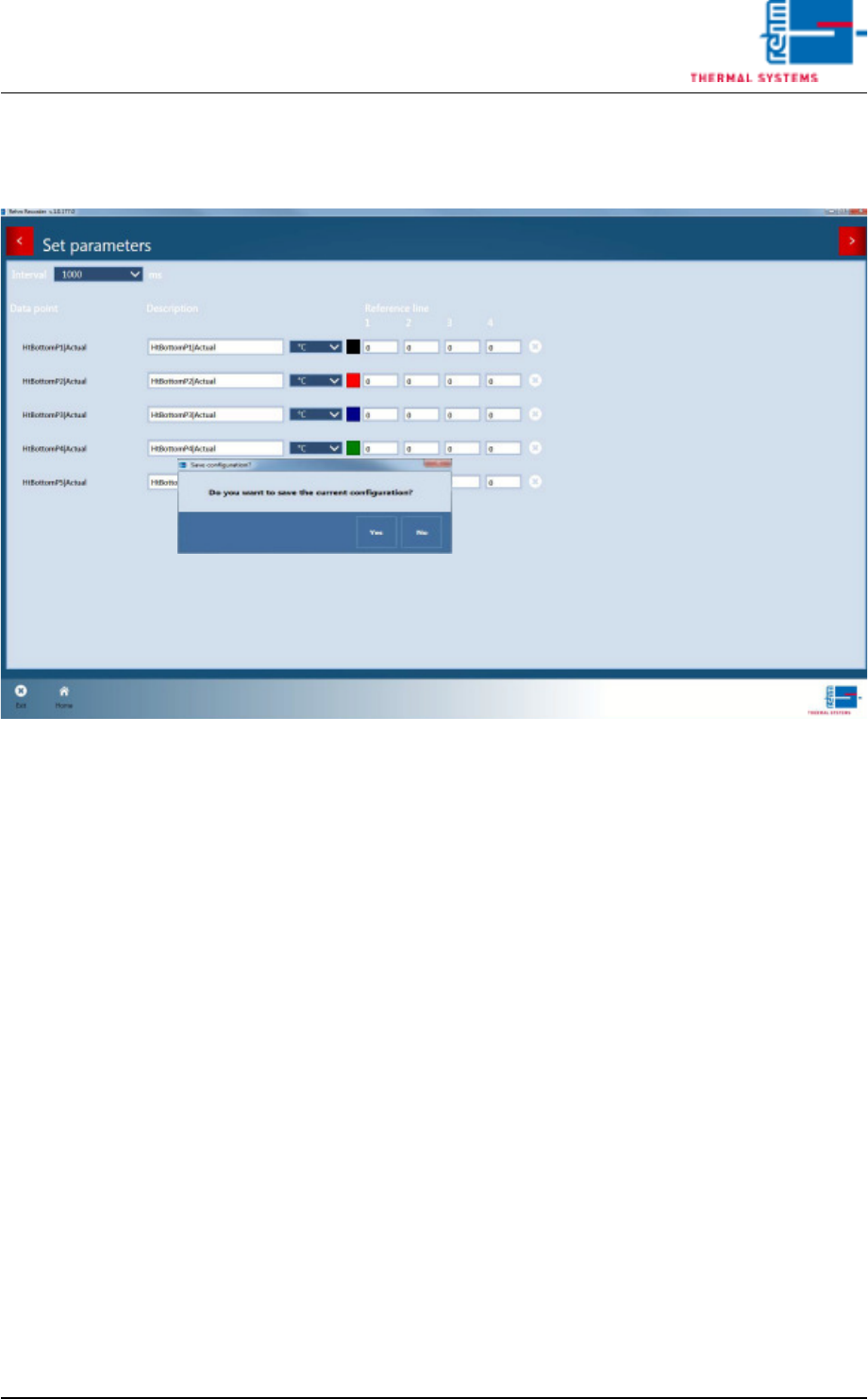
Using ">" to skip prompts the application to ask whether the configuration
should be saved.
Fig. 6-9 Set parameters 2 and 3
The configuration is then stored in the default folder configured in settings,
in subfolder "Configurations".
Confirming this entry shows the overview of existing configurations.
Page 160 VISION XP+ VAC
6 Rehm Recorder
6.2 Live mode configuration
Operating Instructions
Version 1.5
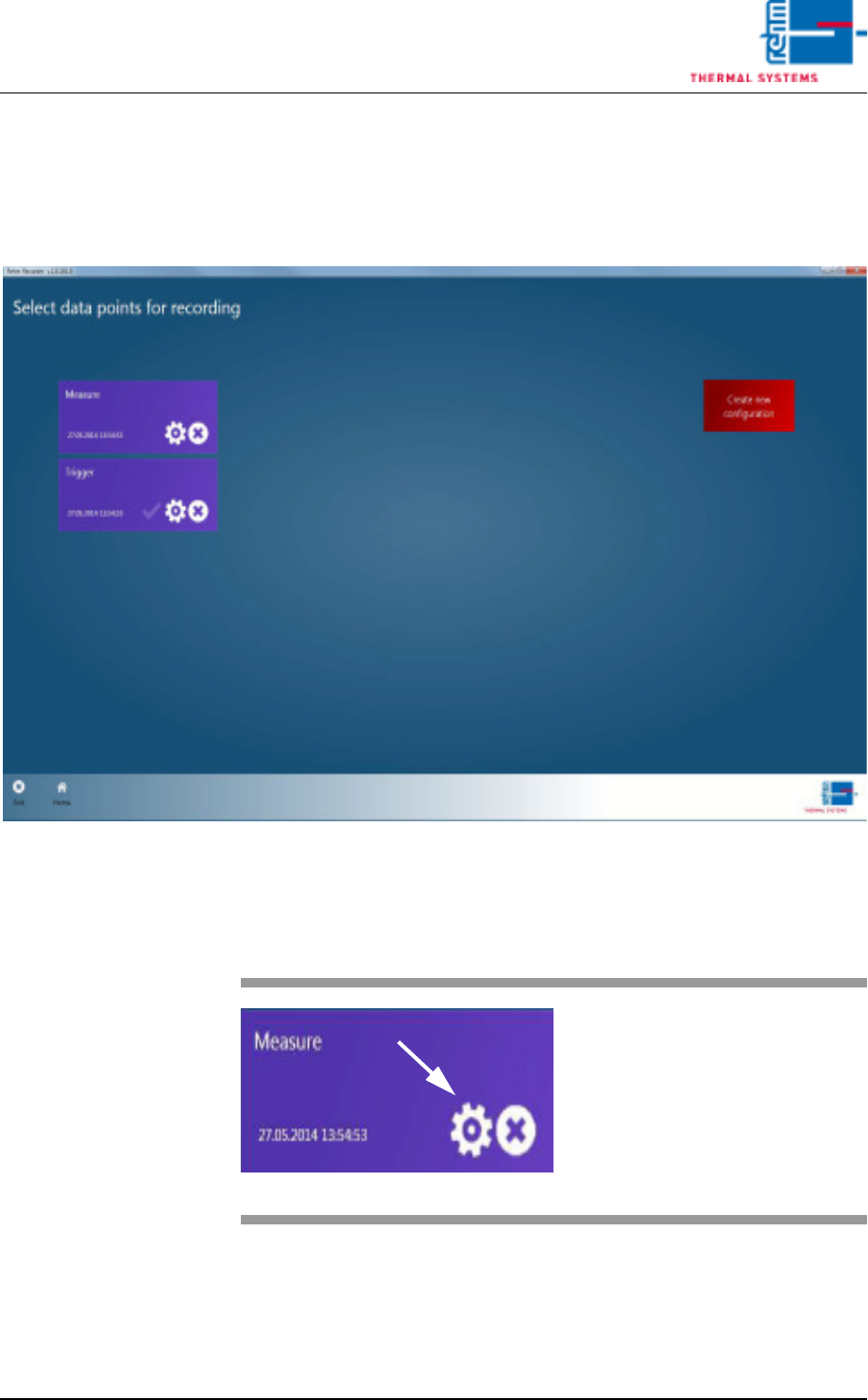
6.2.5 Edit existing configuration
If you want to edit a configuration already created, click the cog icon for the
required configuration tile in the overview.
Fig. 6-10 Configuration selection
6.2.6 Load configuration
Fig. 6-11 Starting 1
You are then shown the same Wiz-
ard as for creating a new configura-
tion, only here the data of the
configuration selected is loaded.