OperationInstruction_Vsision XP.pdf - 第54页
Page 46 Vision XP+ V AC 4 Equipment 4.2 Display Elements and Controls on the System Operating Instructions V ersion 1.5 4.2.7 Keyboard Fig. 4-9 Keyboard A) Function keys F 1 - F12 B) T ab key C) Return key D) T ouchpad E…
Vision XP+ VAC Page 45
4 Equipment
4.2 Display Elements and Controls on the System
Operating Instructions
Version 1.5
4.2.6 Monitor Screen
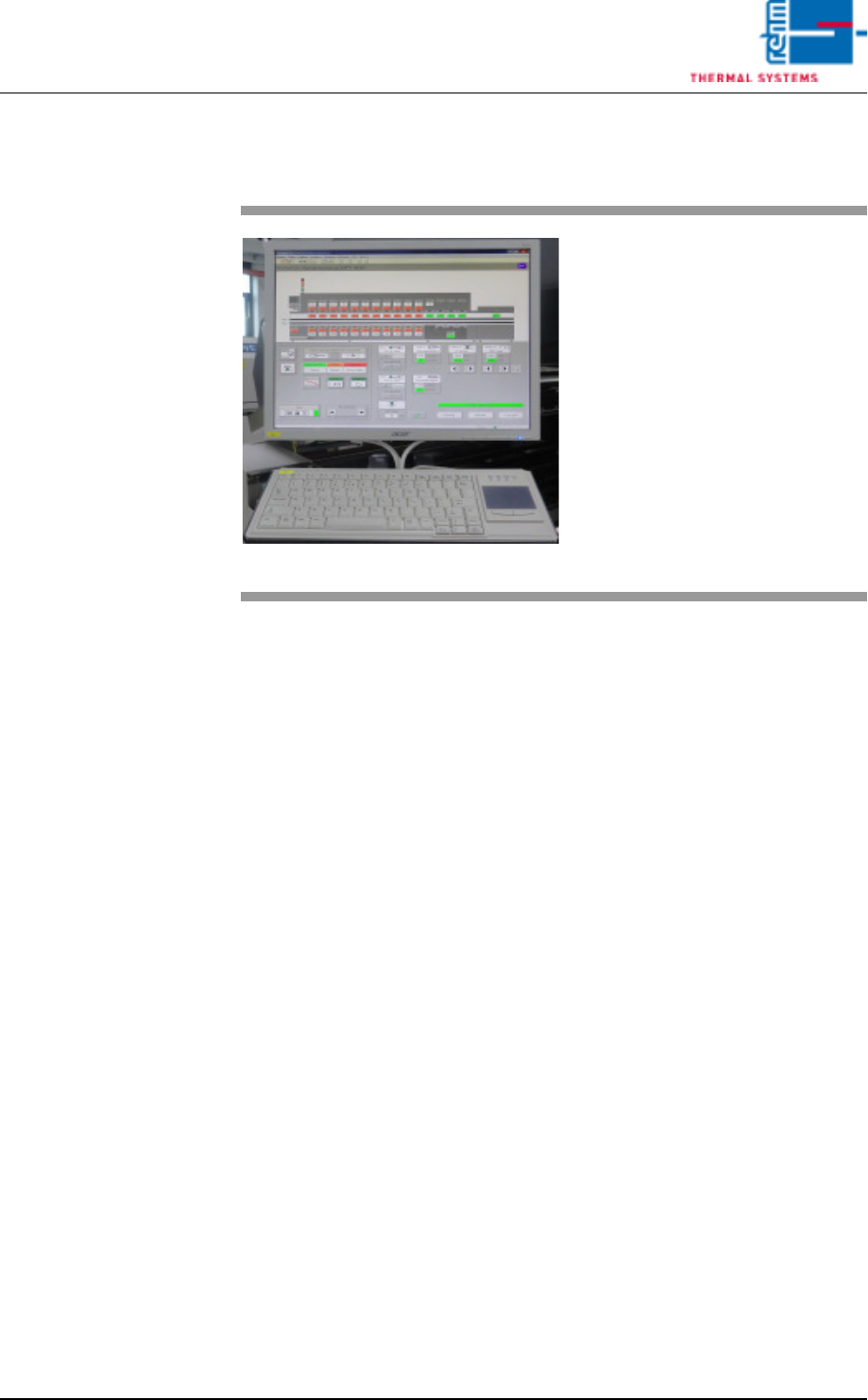
Fig. 4-8 Monitor Screen with Keyboard
The monitor screen and the key-
board are on top of a rotating con-
sole on the system.
The graphic user interface (based
on the Windows standard) is used
to operate and monitor the system.
A color monitor with a resolution of
1280 x 1024 pixels is utilized for
display purposes.
Page 46 Vision XP+ VAC
4 Equipment
4.2 Display Elements and Controls on the System
Operating Instructions
Version 1.5
4.2.7 Keyboard
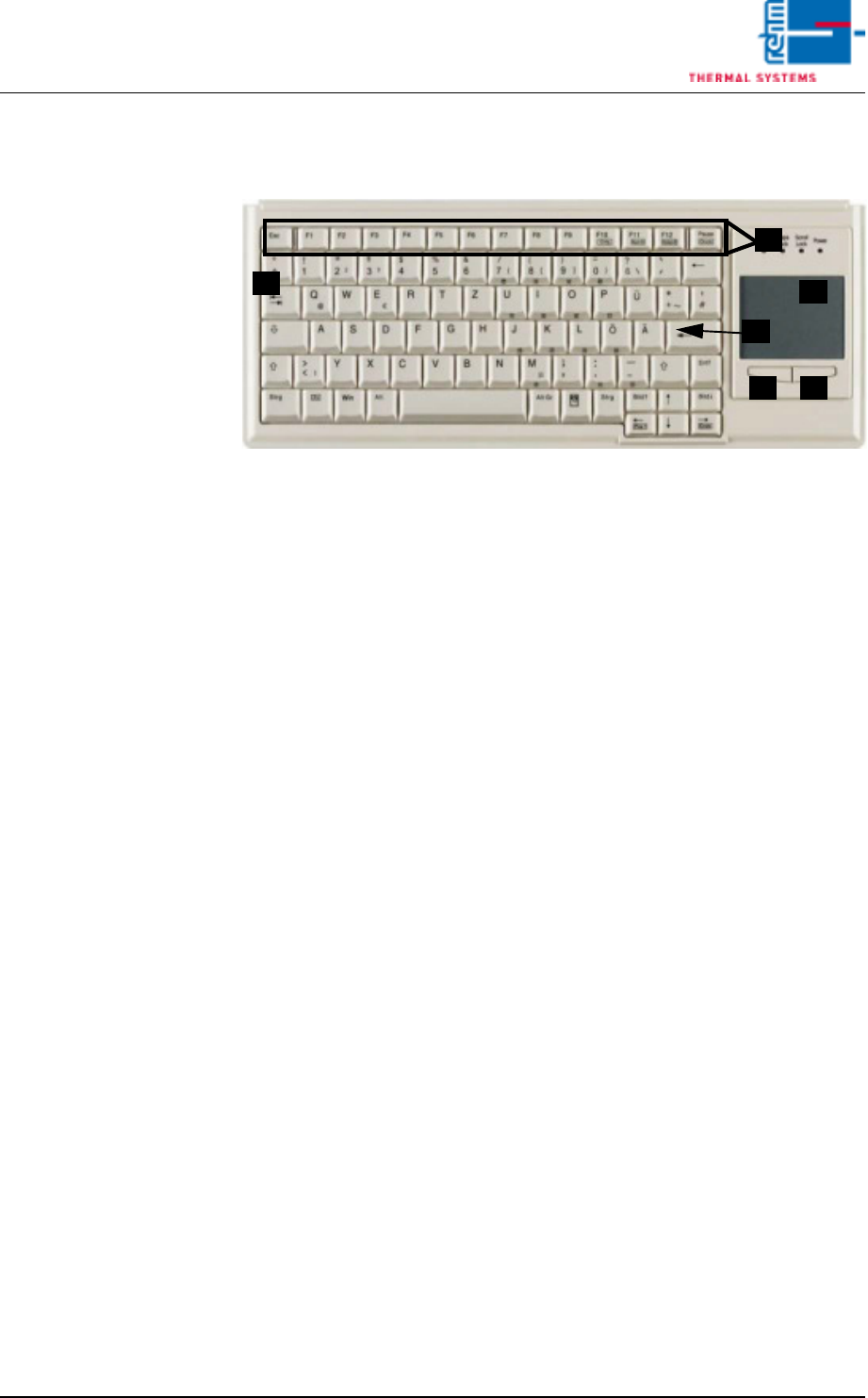
Fig. 4-9 Keyboard
A) Function keys F1 - F12
B) Tab key
C) Return key
D) Touchpad
E) Left mouse key
F) Right mouse key
The keyboard and the touchpad are used as standard input devices for the
graphic user interface furnished with the software.
Use a finger to move the arrow across the touch pad to the desired position
on the user interface. Use the left mouse button select and launch the rele-
vant function. Carrying out actions by pressing the left mouse button will be
referred to as clicking in this operating manual.
B
C
D
E F
A
Vision XP+ VAC Page 47
4 Equipment
4.2 Display Elements and Controls on the System
Operating Instructions
Version 1.5
The important function
keys
F1 Help function
F2 Select next window
F3 Select previous window
F10 Go to menu bar
Software-specific
function keys
Tab Jump forward from one field to the next
Shift + tab Jump backwards from one field to the next
Y (scroll up) To previous entry in a list
Z (scroll down) To next entry in a list
y (backspace) Delete the character to the left of the cursor
Delete Delete the character to the right of the cursor
Insert Toggle between insertion and overwrite modes
Home Jump to the beginning of the line in an entry field, or
to the beginning of a list
End Jump to the end of the line in an entry field, or to the
end of a list
Ctrl + Home Jump to first field
Ctrl + End Jump to last field
Ctrl + Delete Delete a field
Page Z Jump to the next page of a list
Enter Actuating a field; selection from a list
Space Actuating a button
Esc Exit a window
Note!
A separate set of keyboard operating and service instructions is also pro-
vided which includes descriptions of keys, displays and setup options.
Please observe the maintenance instructions and user tips included in
these instructions.