OperationInstruction_Vsision XP.pdf - 第48页
Page 40 Vision XP+ V AC 3 From T ransport to Initial Start-Up 3.5 Switching the System Off Operating Instructions V ersion 1.5 3.5 Switching the Sy stem Off Proceed as follows in order to swi tch the system off: 1. Make …
Vision XP+ VAC Page 39
3 From Transport to Initial Start-Up
3.4 Initial Start-Up
Operating Instructions
Version 1.5
3.4.2 Switching the System On
1. Turn the system on with the mains switch.
2. If an uninterruptible power supply has been installed, it is turned on with
the On/Off button.
3. The operating system is started. The login window may appear at the
monitor after approximately 1 minute.
4. Type Administrator into the “User Name” field and AdmV8 into the
“Password” field, and acknowledge by clicking the OK button.
5. “Visu2 is started automatically. The password prompt window appears.
6. When using the software for the first time, enter Administrator to the
“Name” field and AdmV8 to the “Password” field. After Visu2 has been
initialized, change the administrator password (see chapter 5.3.2
Changing a Password, on page 91) and enter a new user (see chapter
5.3.3 User Administration, on page 92).
7. Make sure that the loaded program is the right program for the product
to be manufactured. If not, load an appropriate program (see chapter
5.4.1 Load Program, on page 100). If no program is available, adjust
system settings appropriately and save them using a new program
name.
8. Start the PCB conveyor by clicking the Drive On/Off icon.
9. Turn on the heaters by clicking the Heat On/Off icon.
10. After about 30 minutes, the green signal lamp lights up in order to indi-
cate that the system is ready for operation.
Note!
The normal operating state upon power up N2 systems is when the traffic
signal is red. In systems without N2 the traffic lights are only orange.
Page 40 Vision XP+ VAC
3 From Transport to Initial Start-Up
3.5 Switching the System Off
Operating Instructions
Version 1.5
3.5 Switching the System Off
Proceed as follows in order to switch the system off:
1. Make sure that the system is completely empty of PCBs.
2. Click the Heat On/Off software button in order to switch the heaters off.
Click the Drive On/Off software button in order to switch the conveyor
off.
3. Or shut the system down by means of the auto-off program.
4. The fans in the heating zones and the conveyor continue to run in order
to assure complete cool-down, and to prevent damage to the motors.
5. The cool-down cycle is controlled by measuring temperature at the heat-
ers and the watchdogs. After the temperature at all measuring points
has fallen below the selected setpoint for the cooling cycle, the fans in
the heat zones and the conveyor are switched off.
6. Click “Exit” in the “System” menu in order to close the system software.
7. Shut down the operating system.
8. Turn off the uninterruptible power supply (optional) with the On/Off but-
ton.
9. Turn the system off with the mains switch.
3.6 Storage
If the system is shut down and stored, we recommend to store the system
dust-free, dry and at the temperature from -25°C to +55°C.
To avoid further damages, you should rinse the water carrying pipes with an-
tifreeze agent with the danger of frost.
Warning!
During operation, the system may only be switched off with the mains
switch in the event of an emergency.
Shut down the operating system properly before switching the system off.
If the system is switched off during operation without first properly shutting
down the operating system, the cool-down cycle is not activated and the
system, as well as the PC, may be damaged.
Warning!
Never switch the system off before the cool-down cycle has been complet-
ed. The system might otherwise be damaged as the result of heat
accumulation.
Vision XP+ VAC Page 41
4 Equipment
4.1 System Segments
Operating Instructions
Version 1.5
4 Equipment
Some of the components listed in this chapter are options, and may vary de-
pending upon system variant.
4.1 System Segments
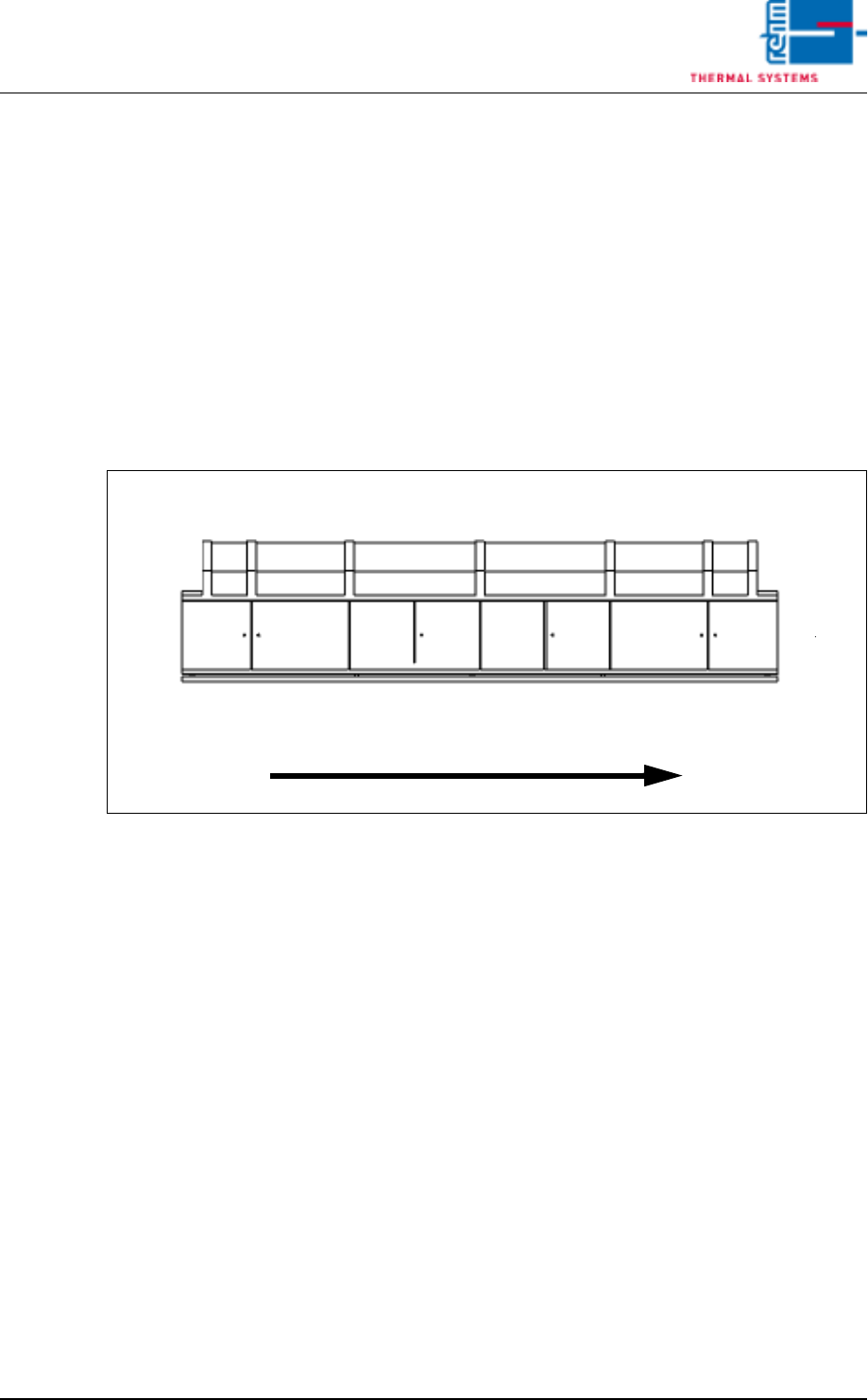
The individual system segments are represented as schematic drawings in
the following graphics. The terms specified for the segments in the graphic
are utilized throughout these operating instructions as well.
Fig. 4-1 System Segments
System Rear Panel
Inlet
Preheating
Peak
Cooling Tract
Outlet
Operating Side
Transport Direction
Zone
vacuum zone