OperationInstruction_Vsision XP.pdf - 第87页
V ISION XP+ V AC Page 79 5 Software 5.1 General Software Buttons and Setting Operating Instructions V ersion 1.5 5 Software The individual software buttons, program menus and windows are explained in this chap ter . Y ou…
Page 78 Vision XP+ VAC
4 Equipment
4.13 Operating Hours Counter (optional)
Operating Instructions
Version 1.5
4.13 Operating Hours Counter (optional)
4.14 Additional Heat Zone Monitoring (optional)
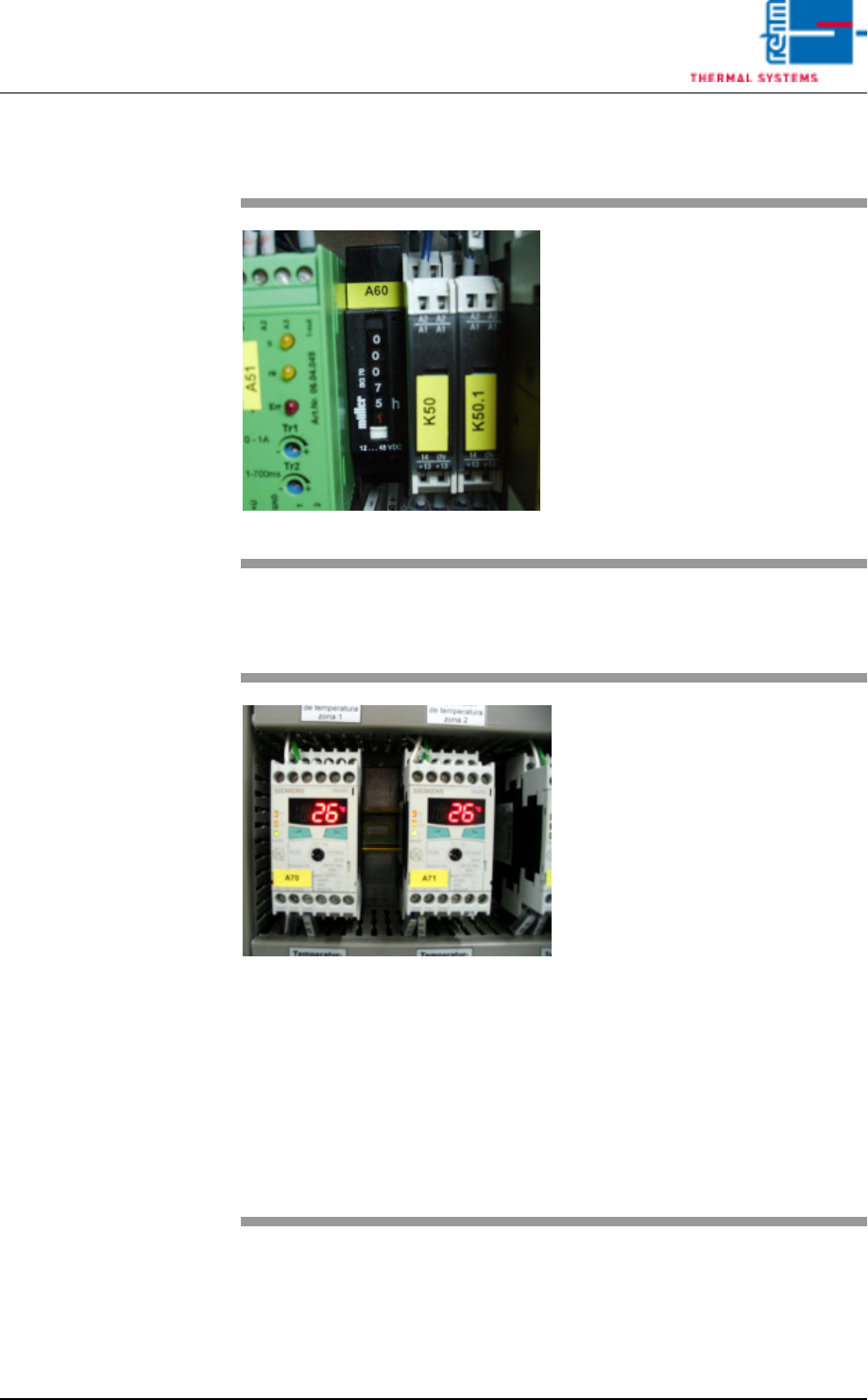
Fig. 4-65 Operating Hours Counter
The operating hours counter is lo-
cated in the second control cabinet.
Operating hours are displayed here,
during which the system has been
operated with the heat switched on.
Fig. 4-66 Additional Heat Zone Monitoring
A separate module can be installed
for each zone for the purpose of
hardware heat zone monitoring.
The module turns the heat off in the
event of an error. Refer to the
included operating instructions from
Siemens regarding settings for ad-
ditional heat zone monitoring.
Default values:
– Value 1: peak zone 360° C, pre-
heating zone 310° C
– Hysteresis: 5° C
– Delay time: 5 seconds
– Current principle:
normally closed
– Temperature mode:
when exceeded
– Sensor type: K
VISION XP+ VAC Page 79
5 Software
5.1 General Software Buttons and Setting
Operating Instructions
Version 1.5
5 Software
The individual software buttons, program menus and windows are explained
in this chapter. You will be guided through the required entries and software
functions.
Fewer functions may be included depending upon which system is used.
5.1 General Software Buttons and Setting
General Software
Buttons
The buttons listed below appear in numerous windows. The significance of
these buttons and their use is described here.
Fig. 5-1 OK Button
The current selection is acknowledged and/or saved
with the OK button.
Fig. 5-2 Yes Button
The current prompt is closed and the respective
action is executed when the Yes button is clicked.
Fig. 5-3 No Button
The current prompt is closed without executing the
respective action when the No button is clicked.
Fig. 5-4 Cancel Button
The current procedure is cancelled when the Cancel
button is clicked. The respective data are not saved
to memory.
Fig. 5-5 Delete Button
Selected (marked) data, products, programs etc. are
deleted when the Delete button is clicked.
Deletion cannot be undone.
Fig. 5-6 Save Button
Entered values or any other changes are saved to
memory when the Save button is clicked.
Previous entries are overwritten and cannot be
restored if they have not been saved to memory
elsewhere.
Fig. 5-7 Set Button
All setpoints which are visible in the current window
are transferred to the controller when the Set button
is clicked.
Page 80 VISION XP+ VAC
5 Software
5.2 Main Window
Operating Instructions
Version 1.5
Use of Color The utilized colors have the following meanings:
Green:Values are OK.
Orange:Values are too low.
Red:Values are too high.
Pink:The limit value has been reached. The system is shut down.
Blue:Action is required by the operator.
Entering Values Setpoints can be entered directly to the windows.
Setpoints are transferred directly to the controller when the enter key is
activated.
If the cursor is moved to the next entry field with the tab key or the mouse,
values are only displayed at the window. Setpoints do not become active
until the set button is clicked, by means of which they are transmitted to the
controller.
Buttons can be activated with the mouse, or they can be jumped to by
pressing the tab key and activated with the space bar.
5.2 Main Window
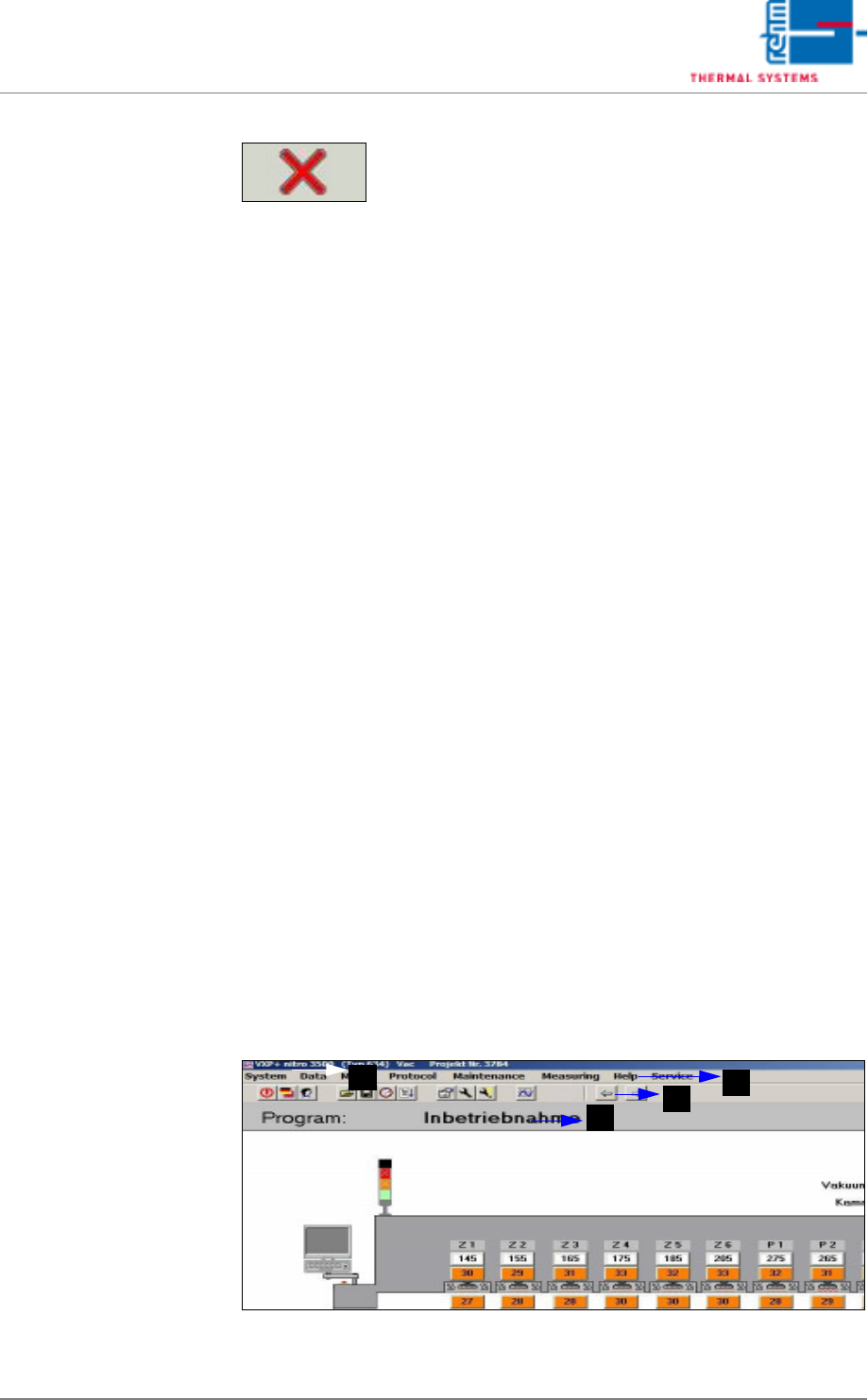
The main window and all available options are explained in this chapter.
Fewer functions may be included depending upon which system is used.
The system’s most important functions are integrated into the main window.
The various parameters can be viewed and changed.
Fig. 5-9 Main Window (excerpt)
Fig. 5-8 Abort Button
The currently active window is closed when the Abort
button is clicked. The respective data are not saved
to memory.
Setpoints which have been entered, but have not yet
been acknowledged with the enter key (on the
keyboard), i.e. have not yet been transferred to the
controller, are lost. If you want to transfer the set-
points before exiting the window, click the
“Set” button first.
B
D
A
C