OperationInstruction_Vsision XP.pdf - 第97页
V ISION XP+ V AC Page 89 5 Software 5.2 Main Window Operating Instructions V ersion 1.5 Further Po ssible Functions (optional) Fig. 5-1 3 C mk V alue The Capability Con trol System program (CCS) is l aunched in th e back…

Page 88 VISION XP+ VAC
5 Software
5.2 Main Window
Operating Instructions
Version 1.5
not be any PCBs in the system.
The scroll keys are active when conveyor adjustment is set to Manual
and the operating mode is set to Service. Safety limit switches prevent
violation of minimum and maximum position values.
AE)Center Support Position
The position of the center support is changed by entering a new setpoint
(white field).
1
As a prerequisite, the conveyor adjustment switch must be
set to “Auto”, the heaters must display values of at least 90° C (adjust-
able) and there may not be any PCBs in the system.
The scroll keys are active when conveyor adjustment is set to Manual
and the operating mode is set to Service. Safety limit switches prevent
violation of minimum and maximum position values.
AF)Control switch of stand-by Position (optional)
By pressing this button, the Center Board Support moves to stand-by po-
sition.
AG) Vacuum chamber PCB width
In automatic mode, the PCB width is set to the same as the transporting
width adjustment of the oven.
In manual mode, the transport system can be moved individually.
AH)Vacuum chamber central support position
In automatic mode, the central support position is set to the same as the
central support position of the oven.
In manual mode, the central support position can be set individually.
AI)Status display appears with program change. After the Pin-in-Paste
sheets are checked, the display is deactivated again by opening and
closing of the process chamber.
AJ)Vacuum button
This button opens the vacuum window (see page 133).
AK)Heating Button
The Heating window appears when this button is clicked (see page 106).
AL)Watchdog Button
The Watchdog window appears when this button is clicked (see page
108).
AM)Transport Button
The Conveyor window appears when this button is clicked (see page
112).
VISION XP+ VAC Page 89
5 Software
5.2 Main Window
Operating Instructions
Version 1.5
Further Possible
Functions (optional)
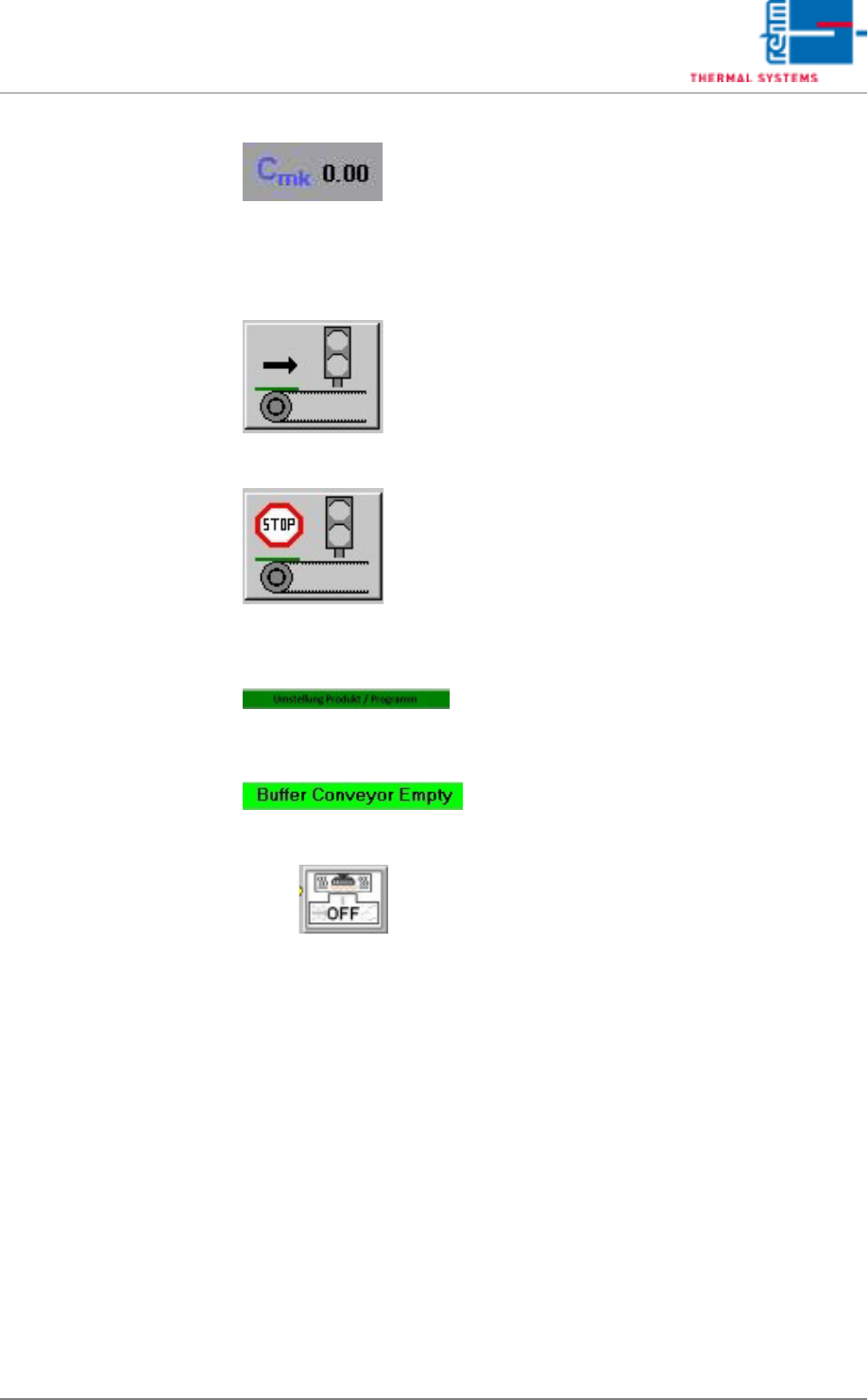
Fig. 5-13 C
mk
Value
The Capability Control System program
(CCS) is launched in the background as
a client/server when Visu2 is started. It
archives all relevant data from the C
mk
calculation. The C
mk
value is calculated
for each zone, and the smallest value is
transferred to Visu2 as a variable.
Fig. 5-14 Enable Interface at Inlet
If no enabling signal is transmitted to the
upstream module by the interface at the
inlet, no PCBs can be advanced into the
system. The interface can nevertheless
be enabled with this button.
Fig. 5-15 Disable Interface at Inlet
If an enabling signal is transmitted to the
upstream module by the interface at the
inlet, PCBs can be advanced into the
system assuming it is ready for opera-
tion. The enabling signal is suppressed
when this button is activated. This button
takes precedence over the “Enable Inter-
face” button.
Fig. 5-16 Product/Program
Changeover
This display becomes active when a pro-
gram changeover is supposed to take
place, but the system is loaded.
Fig. 5-17 Buffer Conveyor Empty
„Buffer transport empty“ / „Buffer outlet
stopped or full“ (Fifo)
Fig. 5-18 BSR-Back Side Reflow
BSR Back Side Reflow / undercooling –
Specific heating zones are cooled. This
is switched on /off by the button.
Page 90 VISION XP+ VAC
5 Software
5.3 The Menu System
Operating Instructions
Version 1.5
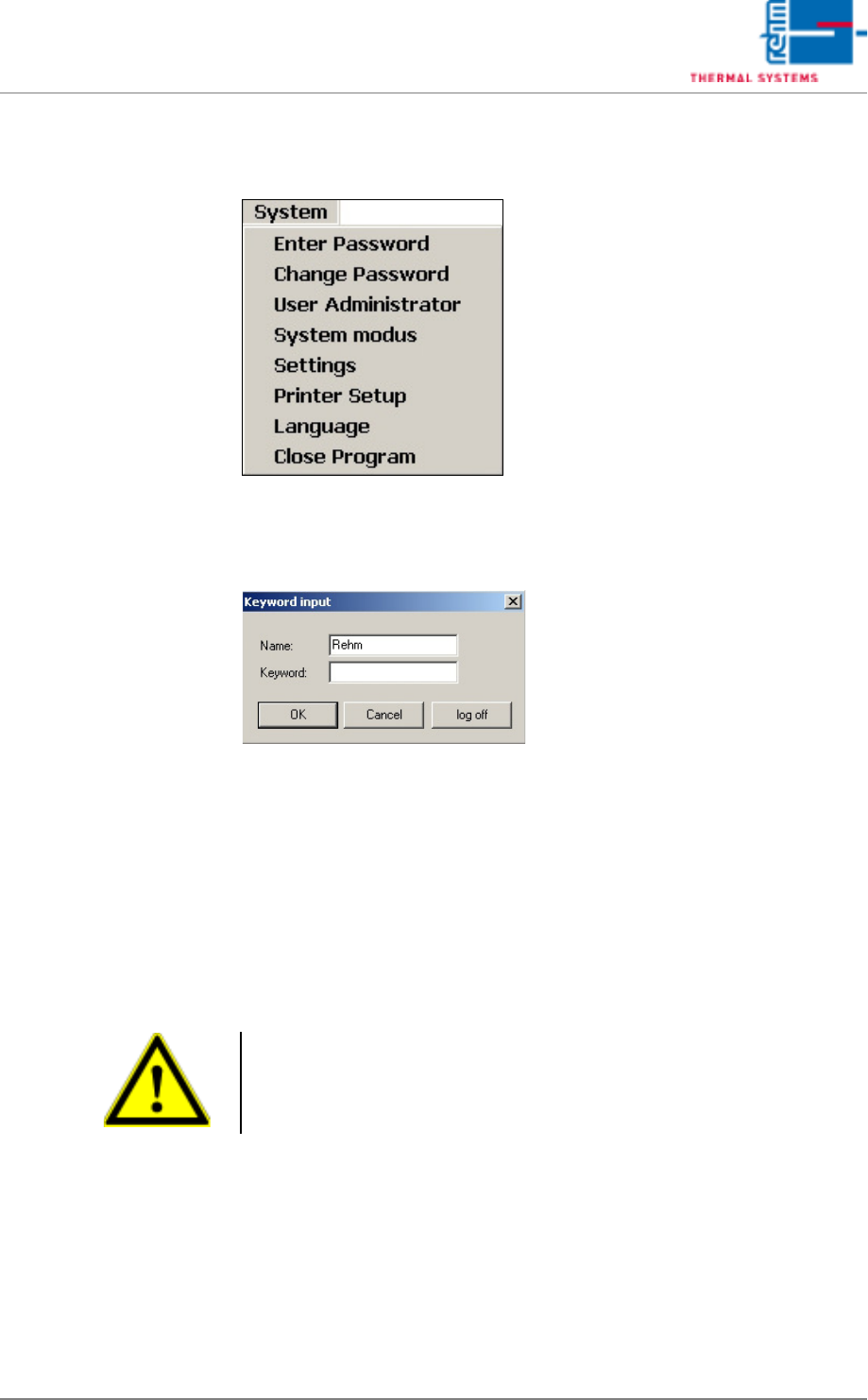
5.3 The Menu System
5.3.1 Password Entry
Fig. 5-19 Password Entry
The respective employee can log on to the system’s user interface by filling
in the Name and Password fields, and acknowledging his entry with the OK
button.
The operator can log back off by clicking the Logoff button. The user inter-
face is then disabled.
No more work can be carried out until a valid Name and Password are once
again entered.
Note!
Correct notation, including upper and lower case letters, must be adhered
to when entering Name and Password.