OperationInstruction_Vsision XP.pdf - 第176页
Page 168 V ISION XP+ V AC 6 Rehm Recorder 6.4 File mode Operating Instructions V ersion 1.5 6.4 File mode 6.4.1 Select file Clicking t he " File mode " tile in the start m enu takes the u ser to the selectio n …
VISION XP+ VAC Page 167
6 Rehm Recorder
6.3 Chart
Operating Instructions
Version 1.5
6.3.6 Calculate gradient
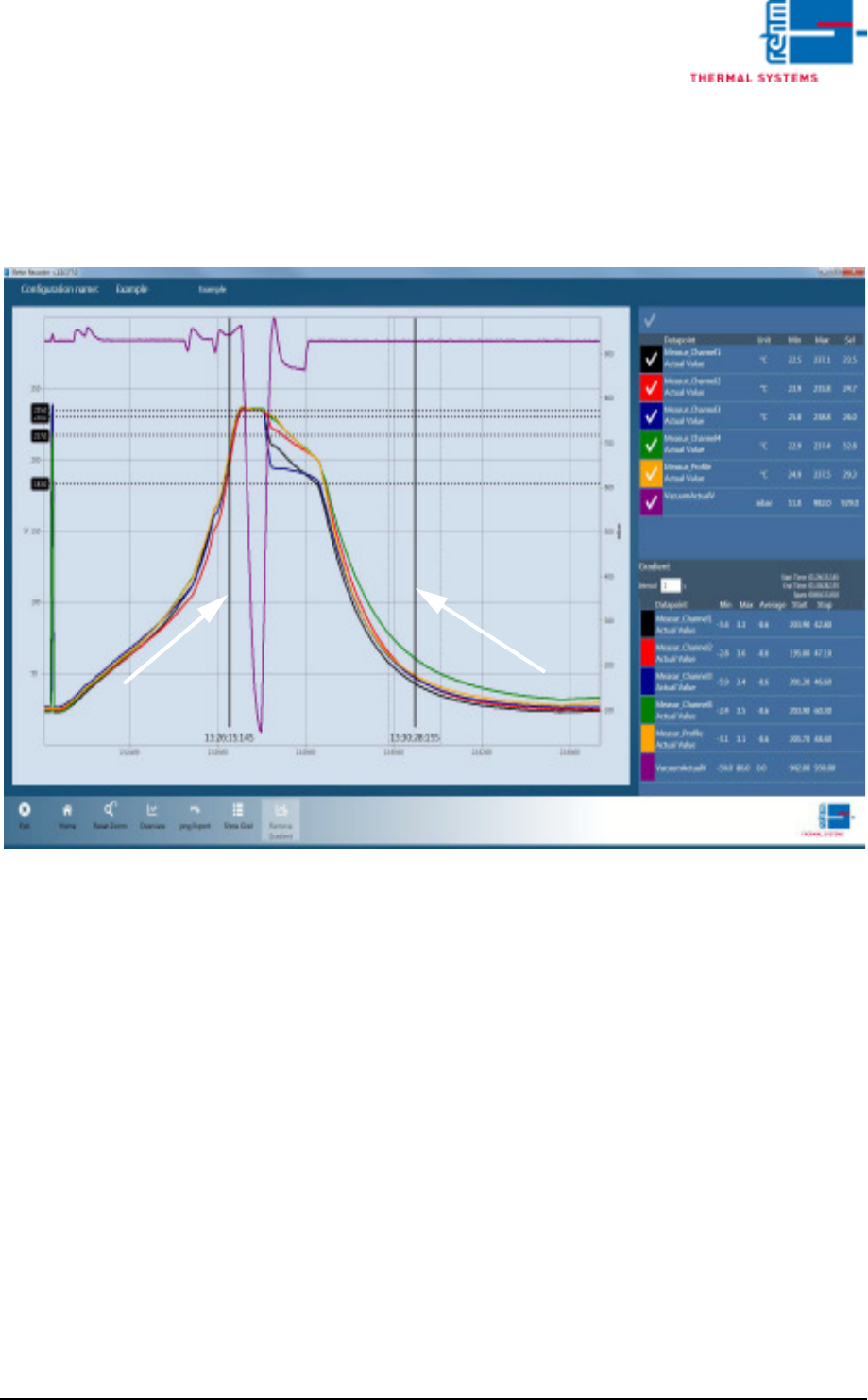
When recording has been paused, clicking the "Add Gradient" button en-
ables a gradient to be plotted.
Fig. 6-20 Calculate gradient
For this, two black bars are shown that can be moved to the correct position
on the chart with the mouse.
The values calculated are then shown in the legend under "Gradient". An
"interval" (in seconds) during which the gradient is calculated can be set in
addition.
6.3.7 Close chart legend
Re-clicking the right arrow (">") in the legend collapses the legend.
Page 168 VISION XP+ VAC
6 Rehm Recorder
6.4 File mode
Operating Instructions
Version 1.5
6.4 File mode
6.4.1 Select file
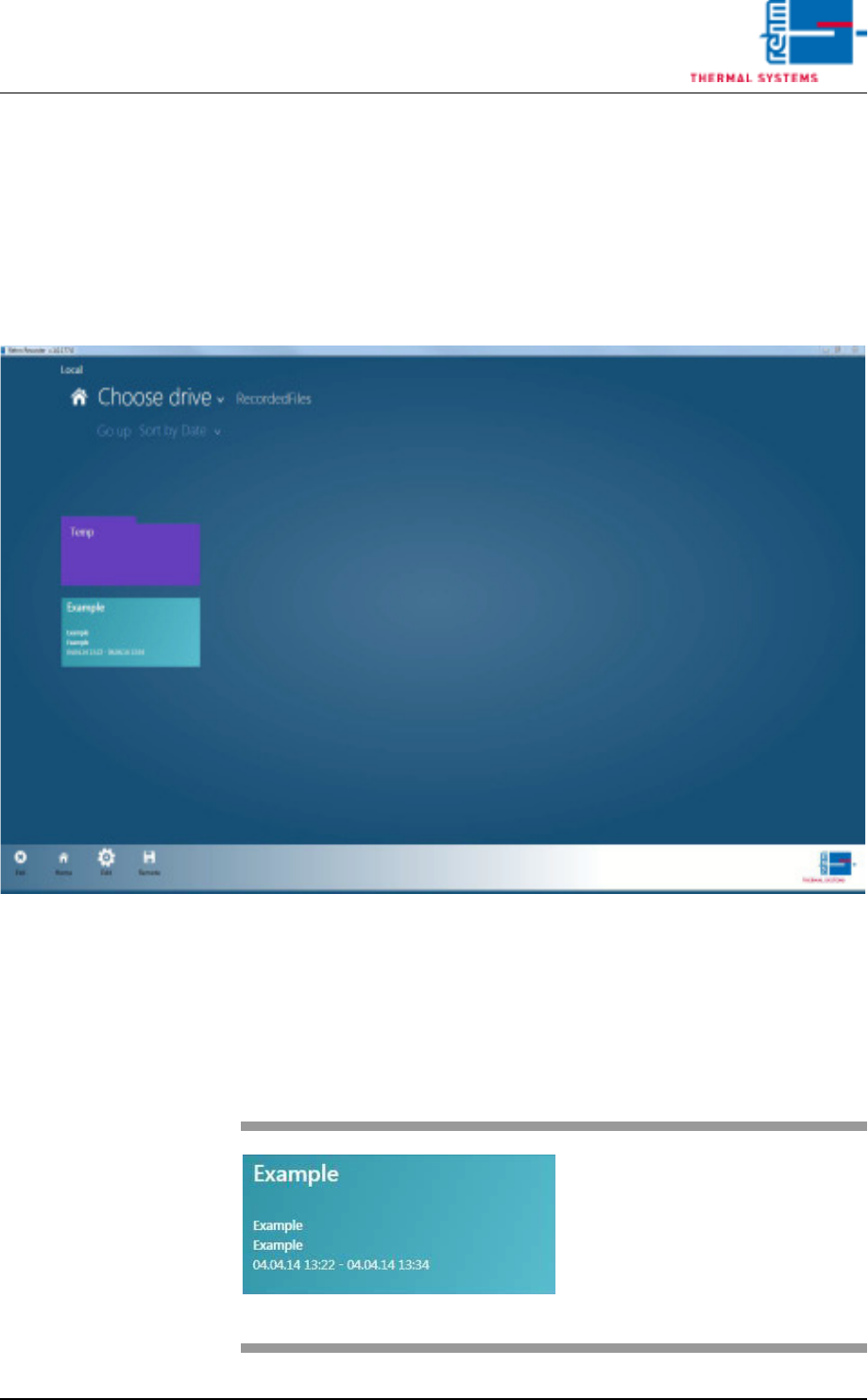
Clicking the "File mode" tile in the start menu takes the user to the selection
of records already recorded.
Fig. 6-21 Select file
Move this view by keeping the left mouse button pressed whilst moving left,
or by swiping over the screen from right to left with your finger.
6.4.2 Record
Fig. 6-22 Record
Clicking one of the turquoise-co-
loured tiles loads the record select-
ed in the chart.
VISION XP+ VAC Page 169
6 Rehm Recorder
6.4 File mode
Operating Instructions
Version 1.5
The path selected by default is the storage path defined in the configuration
for all data saved, in subfolder "RecordedFiles".
6.4.3 Folder
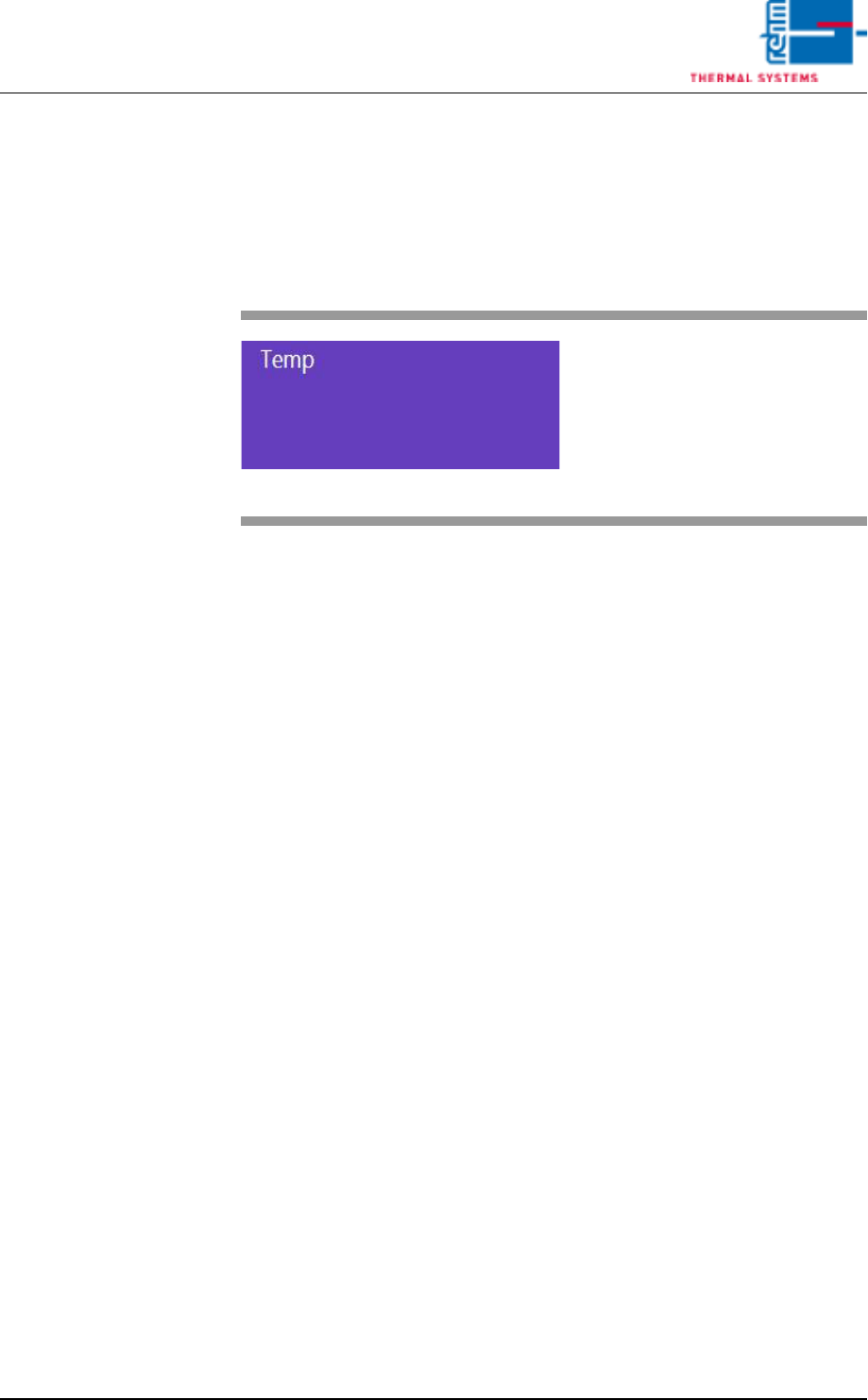
Fig. 6-23 Folder
Clicking a violet-coloured folder
opens it and displays the data
stored there.