CP-7-series Verification System Instruction manual(2.0E).pdf - 第115页
14. Registering Data at Fujitrax V erifier Edition 2.0 104 CP-7-series V erification System Instruction Manual 14. Registering Data at Fujitrax V erifier 14.1 Overview When the scanner is used, part data and feeder data …
13. Offline Changeovers
Edition 2.0 103 CP-7-series Verification System Instruction Manual
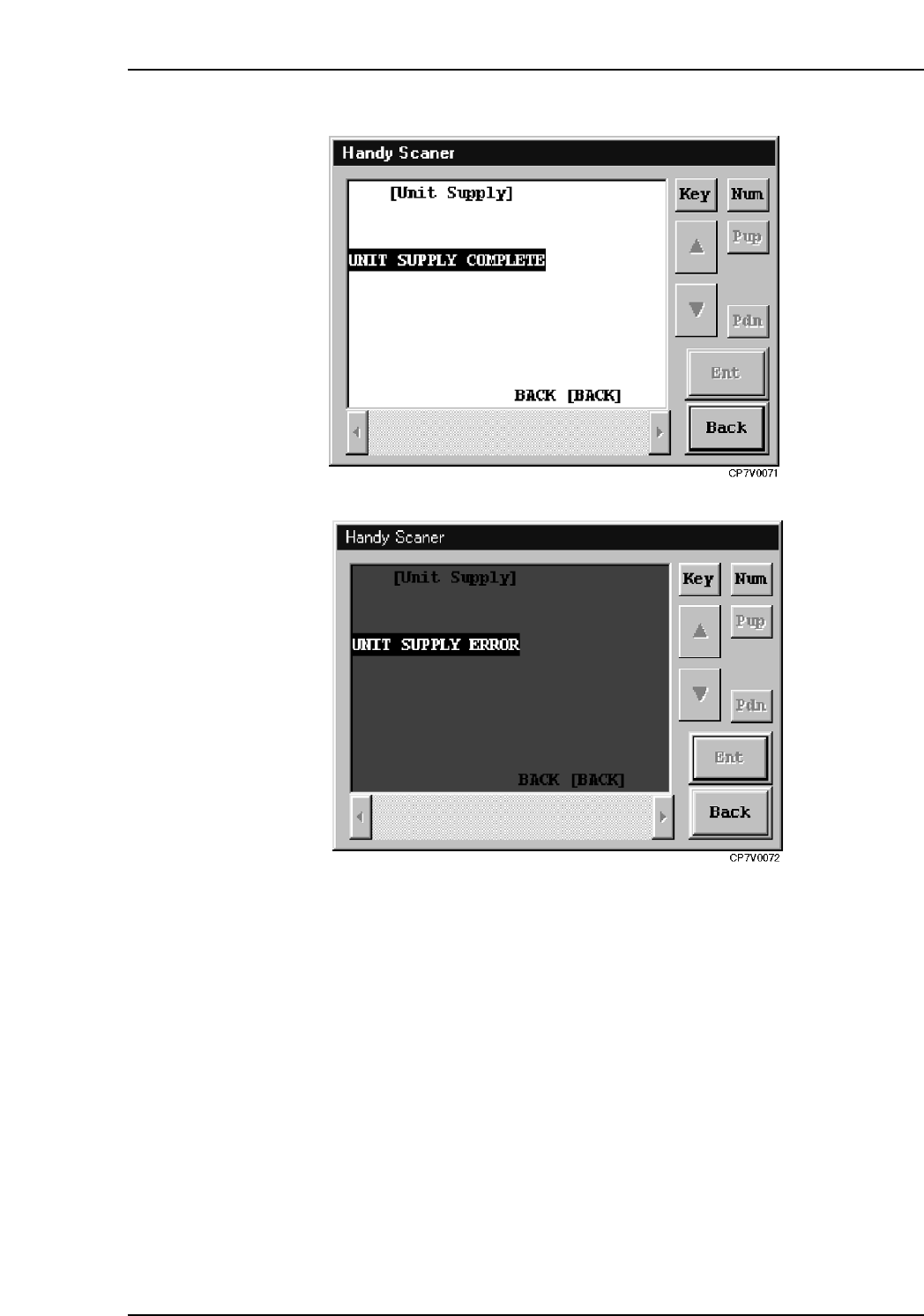
Handy Scanner’s Unit Verification Complete Screen
Handy Scanner’s Unit Verification Error Scren
8. At the [Pallet Change] screen, replace (rewrite) the pallets which have been used up to
this point with the new pallets which have been verified.
13.4 Changeovers in FULL AUTO Mode
The procedure for changeovers in the FULLAUTO mode is identical to that in the normal
verification mode.
14. Registering Data at Fujitrax Verifier
Edition 2.0 104 CP-7-series Verification System Instruction Manual
14. Registering Data at Fujitrax Verifier
14.1 Overview
When the scanner is used, part data and feeder data can be registered at Fujitrax Verifier on
the machine.
Although the ID information (combination information) is registered at Fujitrax Verifier by the
normal verification mode operation, the scanner can be used to perform this registration
without having to perform the normal verification mode operation.
Note: When using the PDT-3100, part data and feeder data cannot be registered at Fujitrax Verifier on
the machine.
14.2 Data Registration Start
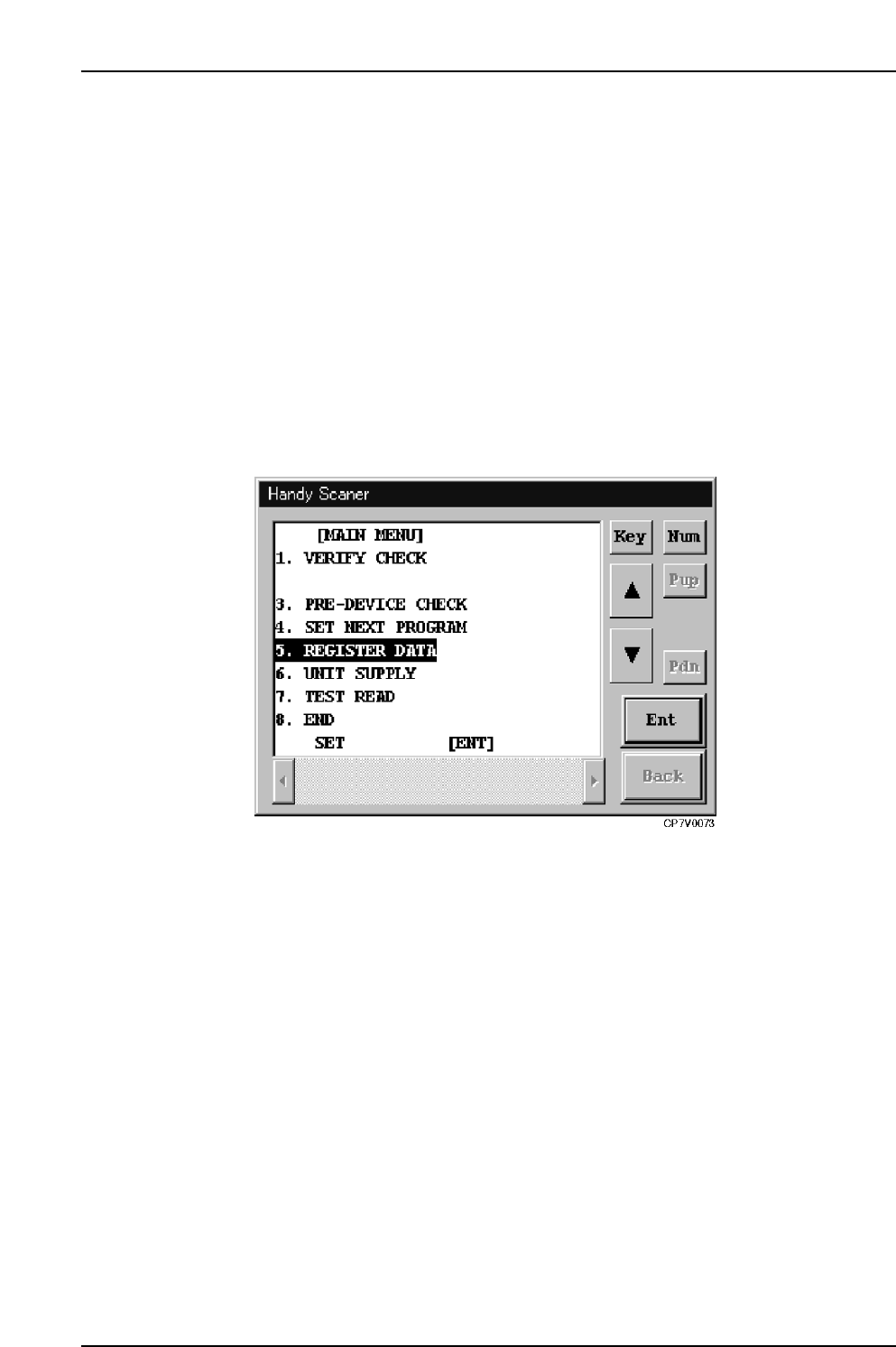
To register data at the Fujitrax Verifier, read the “5” barcode with the [Main Menu] displayed
in the Handy Scanner dialog box.
Handy Scanner’s Main Menu
14. Registering Data at Fujitrax Verifier
Edition 2.0 105 CP-7-series Verification System Instruction Manual
14.3 ID Data Registration
The procedure for registering ID information (combination information) at Fujitrax Verifier
without performing a normal verification mode operation is explained below.
14.3.1 ID Data Registration Start
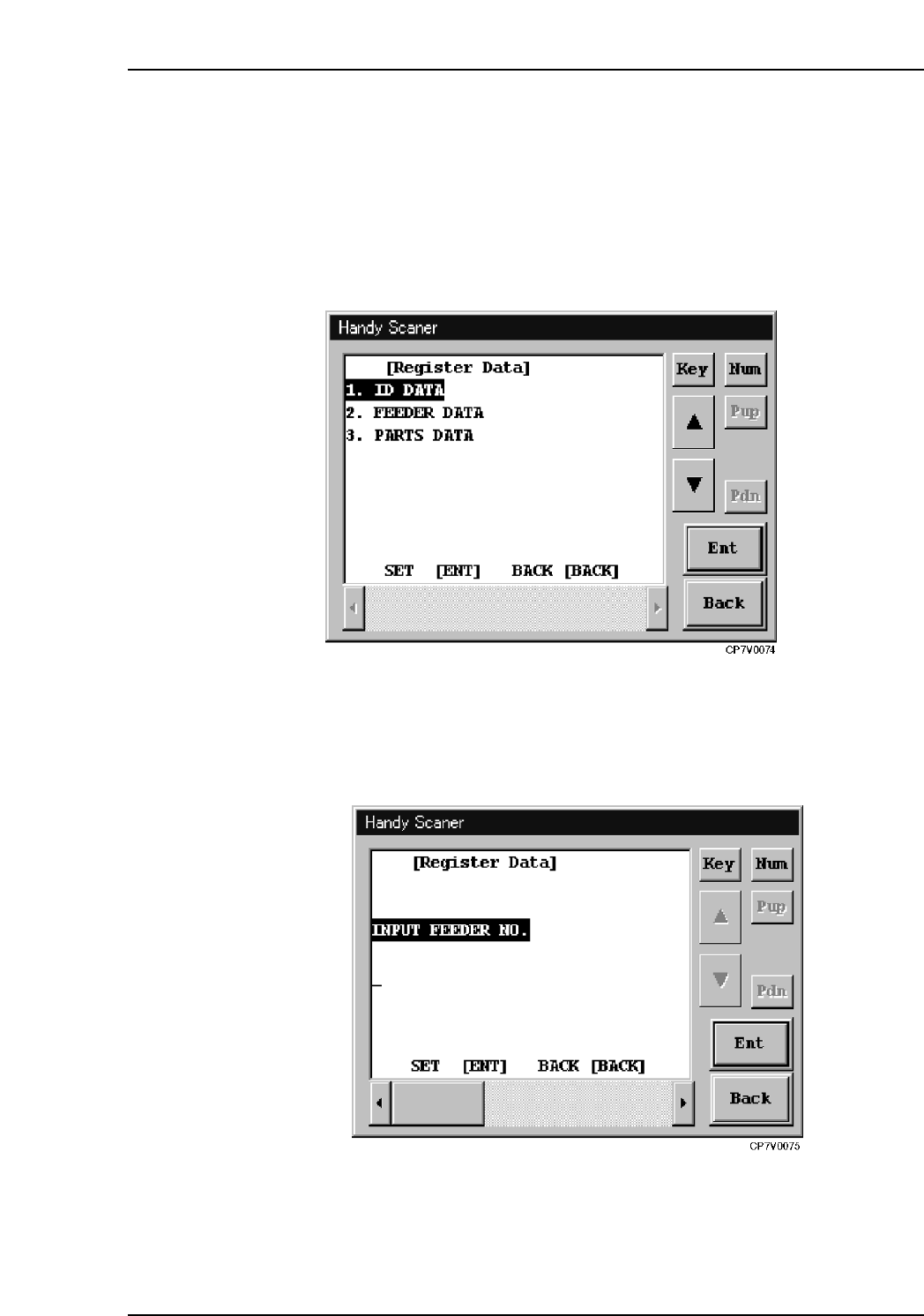
To register ID information (combination information), read the “1” barcode with the
Handy Scanner dialog box shown below displayed.
Handy Scanner’s Registration Data Selection Screen
14.3.2 FIDL Registration
After the above step is completed, the “Input Feeder No.” screen shown below displays.
Enter the FIDL information here.
Handy Scanner’s [Input Feeder No.] Screen