CP-7-series Verification System Instruction manual(2.0E).pdf - 第23页
4. Adjustments Edition 2.0 12 CP-7-series V erification System Instruction Manual 2. Adjustment Procedure For Barcode Reader (1) Select the “Barcode r eader” Setting Begin by moving Stage 1 to its standby position. At th…
4. Adjustments
Edition 2.0 11 CP-7-series Verification System Instruction Manual
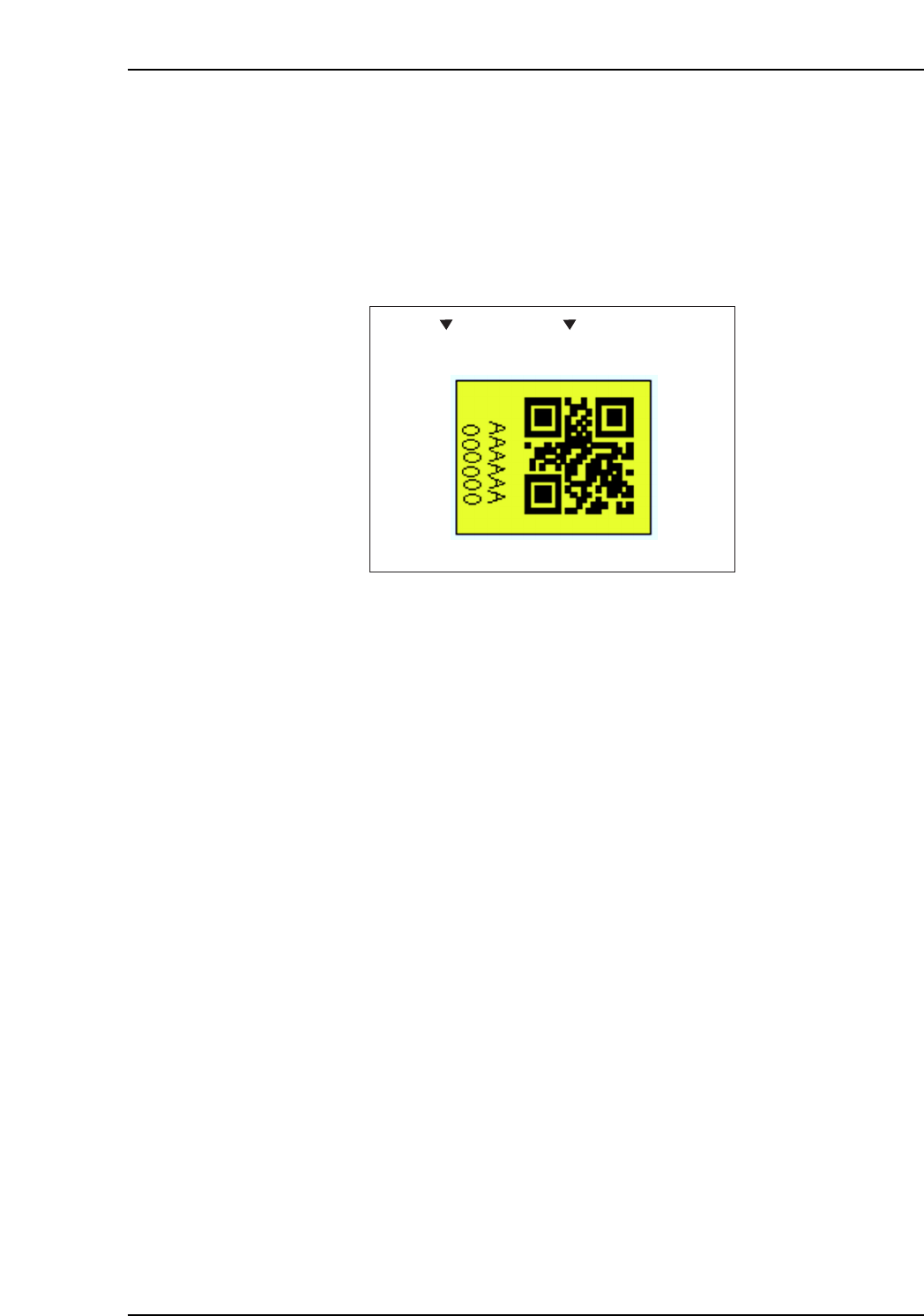
(10) Remove the jig, then place feeders with 2D codes at the first and last slots of each stage
(slot Nos. 1 and 30, or 1 and 40 on the CP-742ME, 1 and 70 on the CP-742E). With the
feeders set in position, select [Maintenance] - [Maintenance for Each Machine]
- [Feeder Check Reader Test] - [Feeder ID Reading], verifying that the IDs are read
correctly.
If reading occurs correctly, the green LEDs light at the slots where the feeders are set,
and “OK” displays at the upper right of the rear monitor, as shown in the figure below.
When 2D code reading does not occur correctly:
1. Check to see if the feeder’s label is peeled off, or is in the wrong position.
2. Move the error feeder to the pick-up position, display the “Through” mode screen (using
the same command as in Step 7 above), then check to see if the 2D code image is clearly
focused.
3. Adjust the camera position, and verify that the calibration data (D-axis pick-up position) is
correct.
Search area
OK
CP7V0090E
Scent 0
Measurement
4. Adjustments
Edition 2.0 12 CP-7-series Verification System Instruction Manual
2. Adjustment Procedure For Barcode Reader
(1) Select the “Barcode reader” Setting
Begin by moving Stage 1 to its standby position.
At the machine’s touch-screen, select [Maintenance] - [Configuration]
- [Machine Function Settings] - [Part Administration System] - [Use FujiTrax Verifier],
then select [Fujitrax Verifier Settings], and select [Barcode reader] at the “Feeder ID
reading system” item.
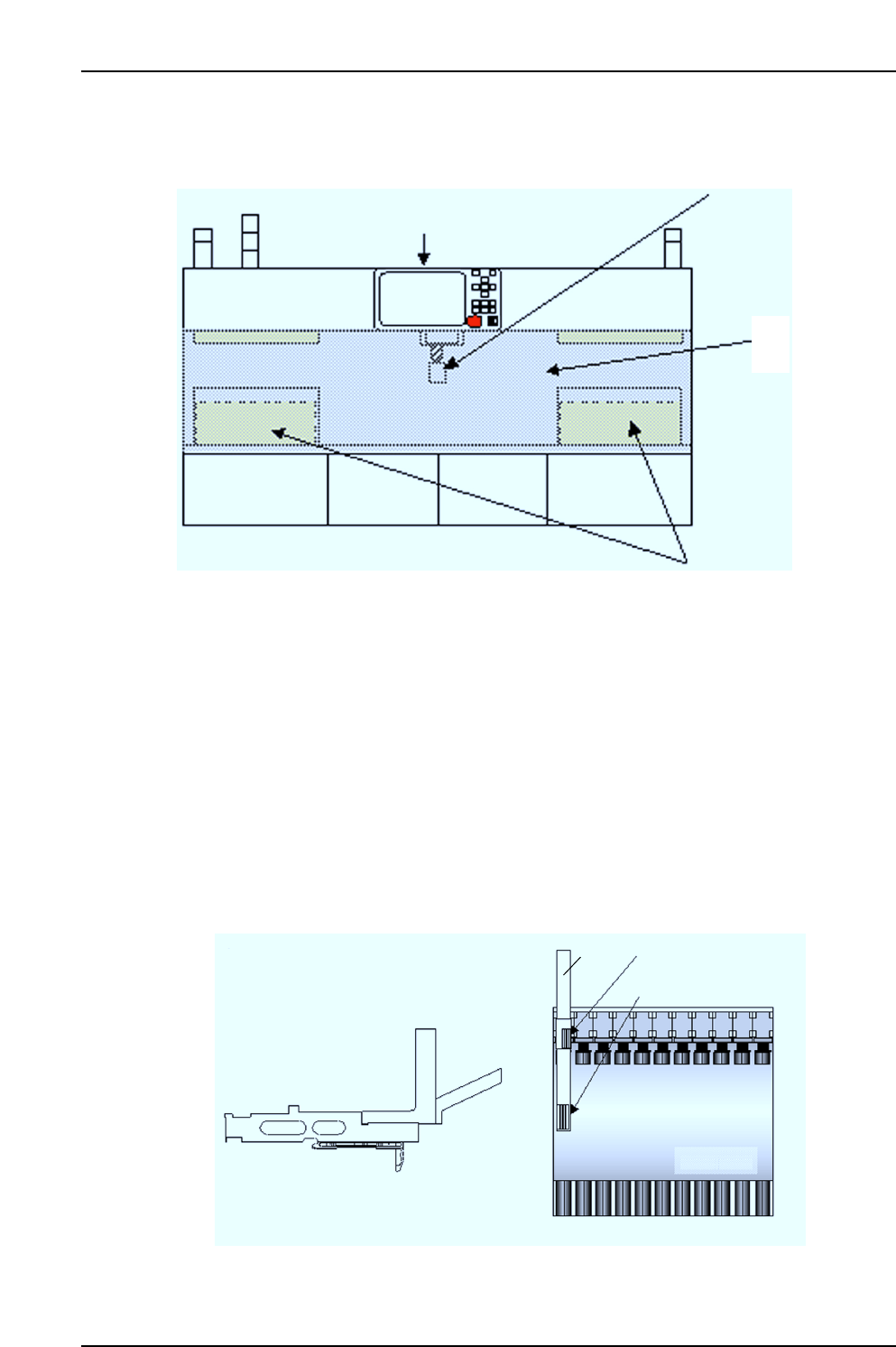
(2) Mount the barcode reader position adjustment jig.
Set the barcode reader positioning jig in slot 1 of Stage 1, then select [Maintenance]
- [Maintenance for Each Machine] - [Feeder Check Reader Test] - [Feeder ID Reading] at
the control panel.
Z9726DCPJ1702
Z9726DCPJ1712
Z9528DHPJ2680
DCPJ0340
AWCC4602
Set jig in slot 1 of Stage 1
Jig
Stage 1
Positioning label 1
Positioning label 2
CP7V0091E
Feeder ID barcode reader position
adjustment jig components
Rear operation monitor
Barcode reader
mounting position
Device pallets
CP7V0093E
Acrylic cover
4. Adjustments
Edition 2.0 13 CP-7-series Verification System Instruction Manual
(3) Barcode reader’s laser beam adjustment
a. At the machine’s touch-screen, use the [Stage No.] and [Slot No.] commands to
specify Stage 1, Slot 1, then use the [D-Axis Position] command to move the jig to
the pickup position.
Next, select the [Laser On] command. If the laser beam is on, the “LASER ON”
LED lights on the top face of the barcode reader.
WARNING
To verify the “laser on” status, check the “LASER ON”
LED on the barcode reader’s top face. Never look directly
at the laser beam which is being emitted.
If the laser beam is directed at a reflective surface, use
care to prevent the beam from being reflected directly into
the eyes.
CAUTION
The machine’s rear center cover must be opened in order
to perform adjustments. Be sure that an emergency stop
status is established on the machine before opening the
cover. To ensure safe operation, press the [Emergency
Stop] button before beginning the procedure. The Laser
beam ON/OFF commands are enabled during an
emergency stop status.
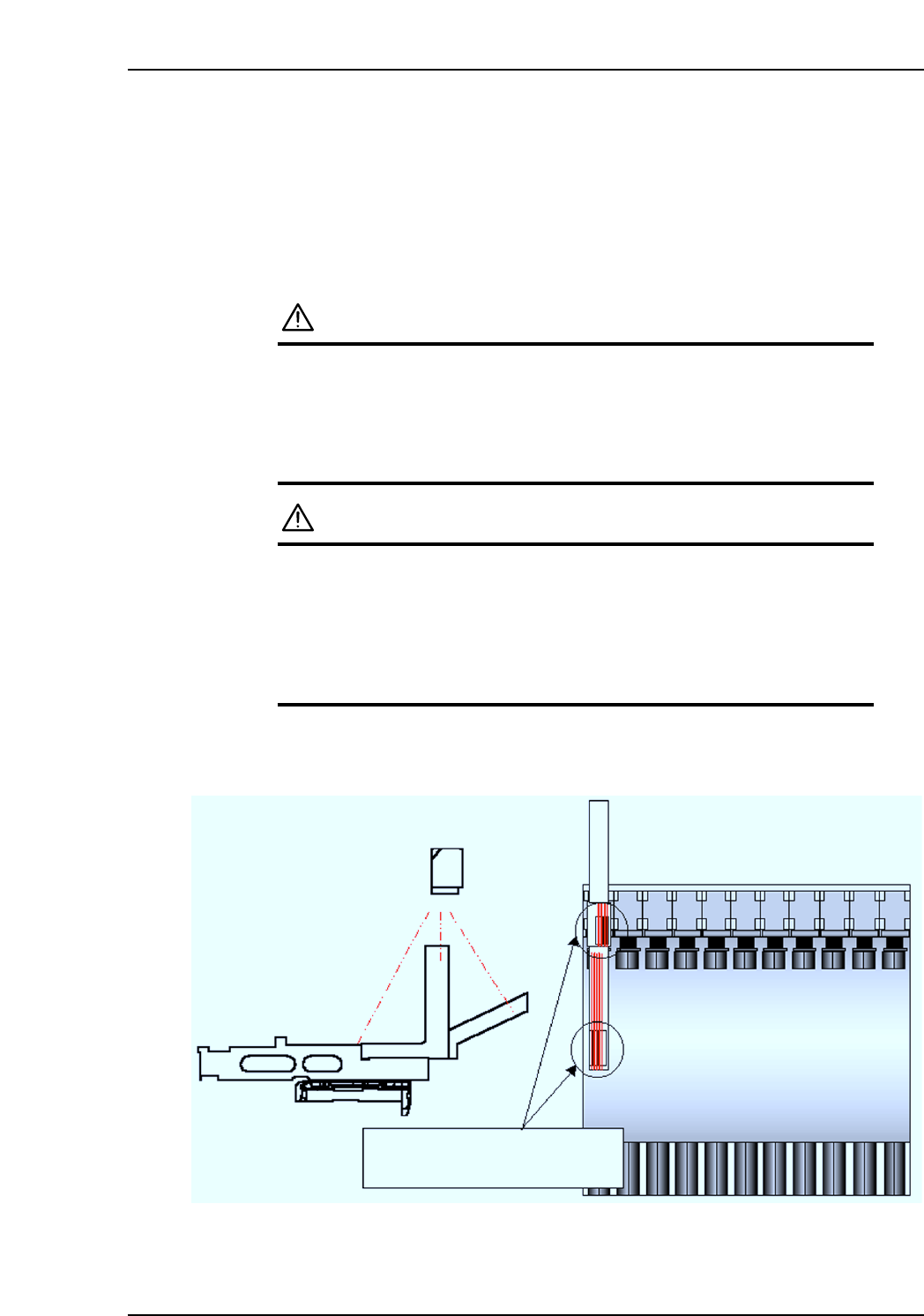
b. Adjust the barcode reader position so that the center of the jig’s positioning label is
aligned with the center of the laser beam. Position adjustment is possible in the X-
and Q-directions.
Adjust the barcode reader position
so that the laser beam is at the
label center.
CP7V0092E