CP-7-series Verification System Instruction manual(2.0E).pdf - 第25页
4. Adjustments Edition 2.0 14 CP-7-series V erification System Instruction Manual [Q-Direction Adjustment] There ar e 2 positioning labels, and the barcode r eader ’s tilt angle (Q) is set by adjusting the barcode r eade…
4. Adjustments
Edition 2.0 13 CP-7-series Verification System Instruction Manual
(3) Barcode reader’s laser beam adjustment
a. At the machine’s touch-screen, use the [Stage No.] and [Slot No.] commands to
specify Stage 1, Slot 1, then use the [D-Axis Position] command to move the jig to
the pickup position.
Next, select the [Laser On] command. If the laser beam is on, the “LASER ON”
LED lights on the top face of the barcode reader.
WARNING
To verify the “laser on” status, check the “LASER ON”
LED on the barcode reader’s top face. Never look directly
at the laser beam which is being emitted.
If the laser beam is directed at a reflective surface, use
care to prevent the beam from being reflected directly into
the eyes.
CAUTION
The machine’s rear center cover must be opened in order
to perform adjustments. Be sure that an emergency stop
status is established on the machine before opening the
cover. To ensure safe operation, press the [Emergency
Stop] button before beginning the procedure. The Laser
beam ON/OFF commands are enabled during an
emergency stop status.
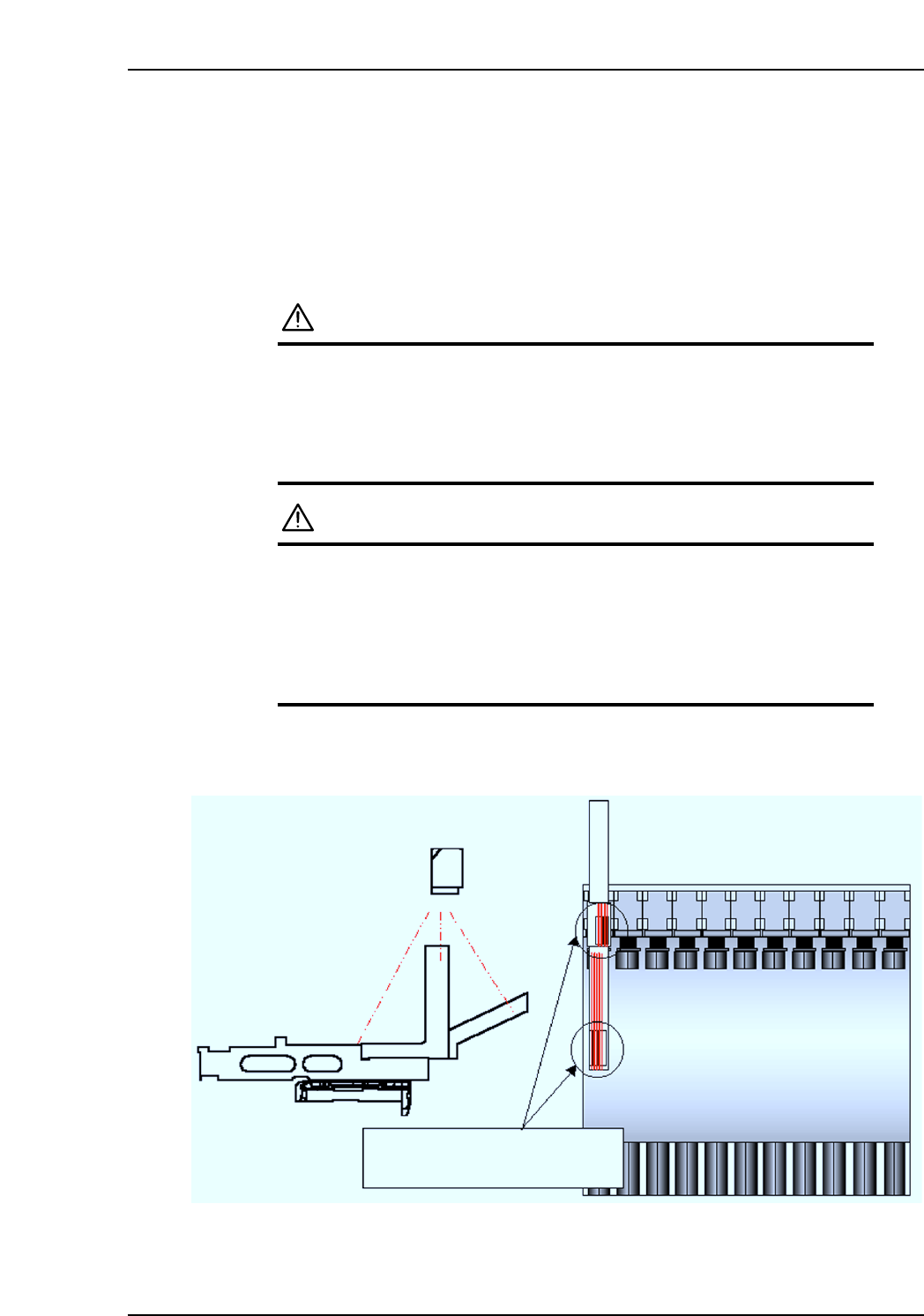
b. Adjust the barcode reader position so that the center of the jig’s positioning label is
aligned with the center of the laser beam. Position adjustment is possible in the X-
and Q-directions.
Adjust the barcode reader position
so that the laser beam is at the
label center.
CP7V0092E
4. Adjustments
Edition 2.0 14 CP-7-series Verification System Instruction Manual
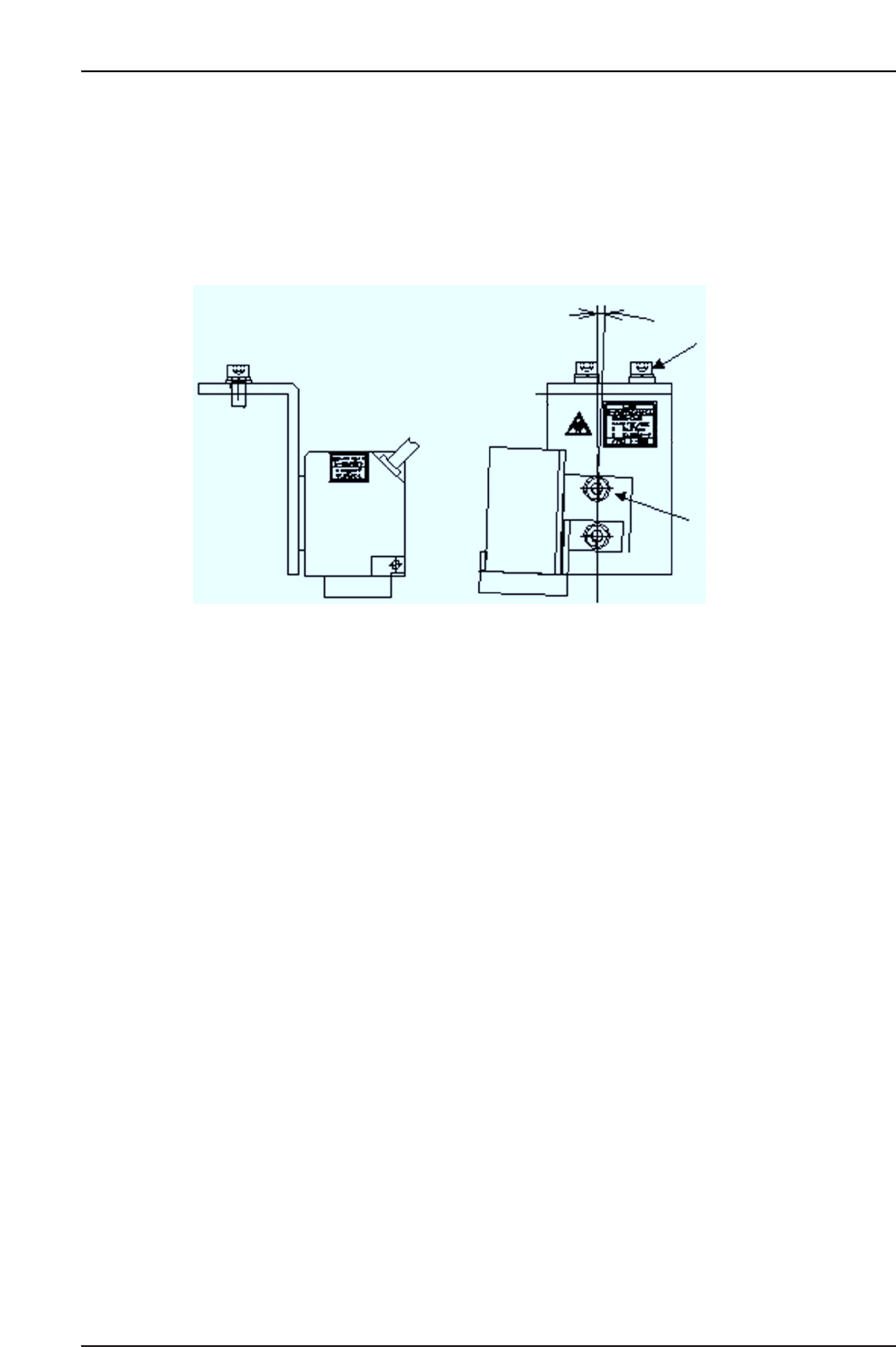
[Q-Direction Adjustment]
There are 2 positioning labels, and the barcode reader’s tilt angle (Q) is set by adjusting
the barcode reader position so that the center of the laser beam is centered between
positioning labels 1 and 2.
Note: When adjusting, use care to avoid over-loosening the barcode reader’s mounting bolts, as
this could cause the reader to come loose and fall, with the laser beam possibly being be
directed into the eyes.
(4) Feeder Barcode Reading Check
Remove the jig, then use two 7-inch feeders and two 13-inch feeders (with barcodes
affixed) to perform the check.
a. Set the 7-inch feeders in Slot 1 of Stage 1, and in the end slot of Stage 2 (Slot 30 on
CP-73, Slot 40 on CP-74M, Slot 70 on CP-74E). Set the 13-inch feeders in the end
slot of Stage 1, and in Slot 1 of Stage 2.
b. Select the [Maintenance] - [Maintenance for Each Machine]
- [Feeder Check Reader Test] - [Feeder ID Reading] commands at the machine’s
touch screen.
At the [Stage No.] and [Slot Settings] items, enter the stage and slot numbers where
the above feeders are set, then perform a test reading ([TEST READ]).
If reading is performed correctly, the barcode content (feeder ID) displays, and OK
displays as the reading result. Repeated reading tests should be performed.
If the reading results are OK, verify that the feeder IDs which were read match the
actual feeder IDs. Repeat this test 5 times, verifying that an OK result is obtained
each time. If 5 consecutive OK results are not obtained, readjust the barcode
reader’s position.
If the reading result is “FAIL”, this indicates that the barcode is either difficult to
read (low reading rate), or that it can’t be read at all. In this case, check the
following items.
X-direction adjusting bolt
Side view Front view
2°
Q-direction adjusting bolt
CP7V0094E
4. Adjustments
Edition 2.0 15 CP-7-series Verification System Instruction Manual
When the barcode is difficult to read (low reading rate):
In this case, the reading result is “FAIL”, but the feeder ID displays. The following
message displays in a dialog box: “Feeder ID reading rate failed to satisfy the
criterion value.”
• Use the jig to re-check and readjust the laser beam position.
• Check for scratched, peeled, soiled, or torn barcode.
• Check to see if the barcode is affixed in the correct position.
• Check for a deformed feeder reel holder.
If the reading rate is still poor after performing the above checks and adjustments,
re-affix the barcode label and check again.
When the barcode can’t be read at all:
In this case, the reading result is “FAIL”, and the feeder ID does not display. The
following message displays in a dialog box: “Feeder ID could not be read.”
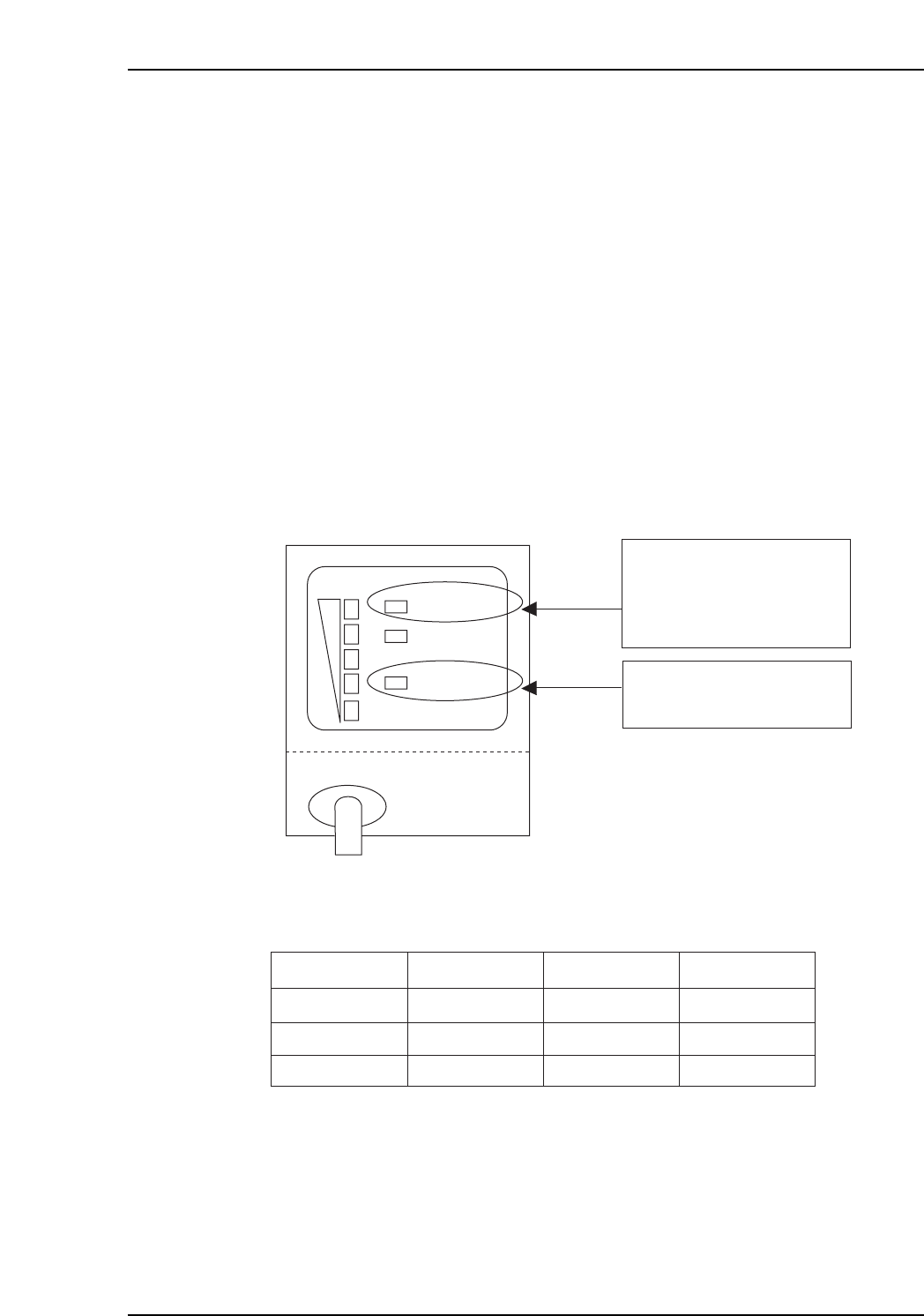
The problem cause can be identified based on the reading result and the barcode
reader’s LED indicator status.
Check to see which LEDs light during the test reading operation.
Use the following table to identify the problem cause.
Corrective Action 1:
The laser beam is being emitted, but the barcode is not being read correctly. The
barcode may be damaged, or there may be a barcode reader setting problem.
• Check to see if the laser beam is striking the barcode.
• Check for scratched, peeled, soiled, or torn barcode.
The barcode is defective if reading is OK when another barcode is used.
• If no problems are found at the above 2 check items, restart the machine.
VT017E
Reading Result
NG
NG
NG
Red
Off
Green
On
Off
On
1
2
3
OK/NG LED LASER ON LED Corrective Action
STB
OK/NG
TIMING
LASER ON LASER ON LED
On when the laser is on.
OK/NG LED
Green:
Red:
OK output
FAIL output
CP7V0095E