CP-7-series Verification System Instruction manual(2.0E).pdf - 第85页
10. Using the DC AUTO Mode Edition 2.0 74 CP-7-series V erification System Instruction Manual 10.4.2.8 Device Comment Comparison • The machine searches the r ecipe to determine what the device comment should be for the r…
10. Using the DC AUTO Mode
Edition 2.0 73 CP-7-series Verification System Instruction Manual
10.4.2.5 DID Reading
• DID data can be read in the following two ways.
I. The DID barcode affixed to the reel can be read to the Handy Terminal.
II. The DID can be entered using the PDT-3100’s alphabetic keys and numeric
key pad.
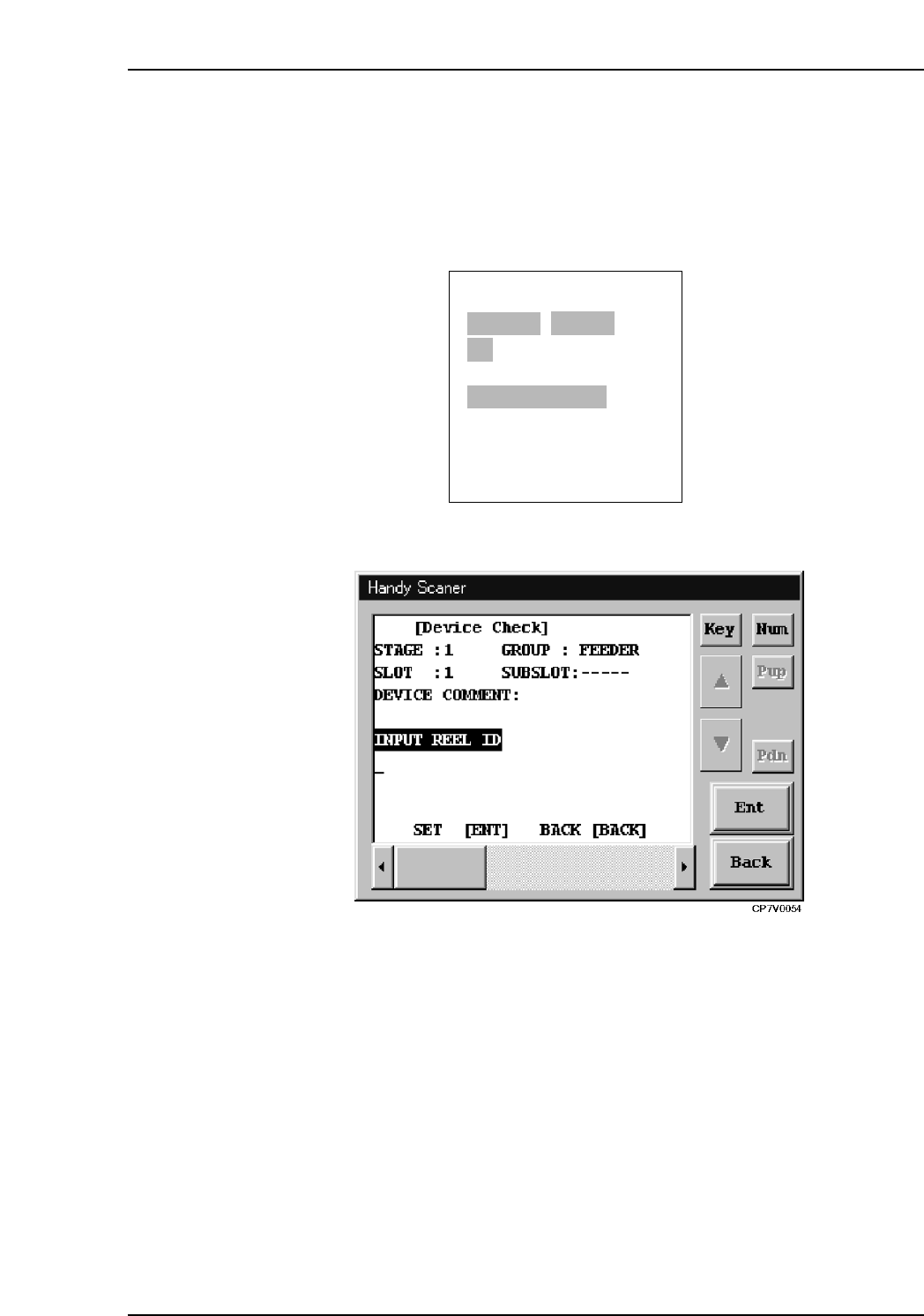
PDT-3100’s DID reading command screen
Handy Scanner’s DID Reading Command Screen
10.4.2.6 Extracting the Device Comment from the DID
• A DID Joint Symbol is used within the DID so that the device comment can be
extracted from the DID.
10.4.2.7 Obtaining the Device Comment from Fujitrax Verifier by Using the DID
• Fujitrax Verifier is queried to identify the device comment in the DID that was
read.
ENTER/QUIT:
[VERIFY CHECK]
CP7V0012a
▲
STAGE1 SLOT ID:1
ST:PARTS END
READ DID LABEL
DID=v
10. Using the DC AUTO Mode
Edition 2.0 74 CP-7-series Verification System Instruction Manual
10.4.2.8 Device Comment Comparison
• The machine searches the recipe to determine what the device comment should be
for the reel in the slot being verified.
• The machine then compares the search result with the delimiter or the device
comment obtained from Fujitrax Verifier.
• If there is a mismatch, the operator is requested to read the DID again.
• When using PDT-3100, if the compared device comments match, the system
proceeds to the verify check results screen.
• If the [ ] key is pressed at the PDT-3100 "Results" screen, or if several seconds are
allowed to elapse, the verification check for the current slot is ended, and a
"Waiting for next verification subject slot selection" status is established.
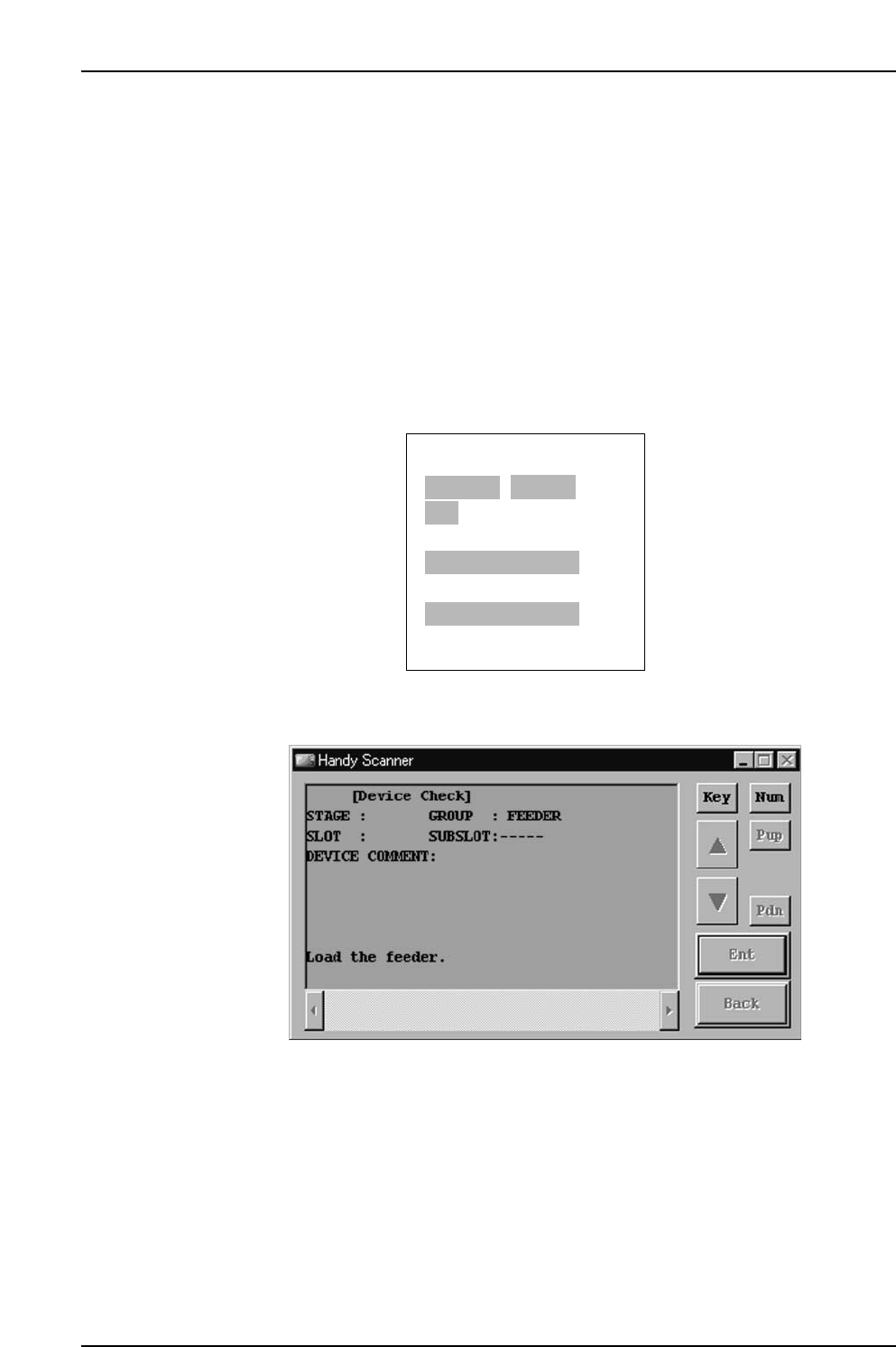
• If the scanner is being used, the system proceeds to the "waiting for feeder loading"
status if the comparison results are a match.
PDT-3100’s Verify Check Results Screen
Handy Scanner's "Waiting for Feeder Loading" Screen
NEXT:
[VERIFY CHECK]
CP7V0009
▲
STAGE1 SLOT ID:1
DID:01234
DEVICE COMMENT:01234
VERIFY CHECK OK
▲

10. Using the DC AUTO Mode
Edition 2.0 75 CP-7-series Verification System Instruction Manual
10.4.2.9 Setting the Feeder
• Set a feeder in the slot to be verified (slot where LED is on).
• The system will not proceed to the next step until a feeder is set in the slot where
the LED is on.
* Note concerning the feeder set timer:
The purpose of this timer function is to prevent the wrong feeder (a feeder other than the one from
which the device comment was read) from being set in the verify subject slot. After the device
comment is read, this function monitors the time which elapses until that feeder is set in the slot.
If a wrong feeder is set in the slot, additional time will have been required to ready that feeder, and
the time which elapses before the wrong feeder is set will therefore be longer than usual. If the
time required to set the feeder is longer than that specified by the feeder set timer, this indicates
that a wrong feeder was set.
If the feeder set timer function is not used, a feeder is simply set in the slot where the LED is on
without regard to the time which elapses, and that device is verified (“Parts Present” displays at
the device check screen).
If the feeder set timer function is used, and if the time which elapses before the feeder is set
exceeds the feeder set timer period, the Verification operation for that slot will end in error even if
the correct feeder was set in the slot (“Unchecked” displays at the device check screen). In this
case, the Verification operation must be performed again.
10.4.2.10 All LEDs On at Stage to be Verified
LEDs for all slots to be verified at the current verify subject stage are on.