CP-7-series Verification System Instruction manual(2.0E).pdf - 第68页
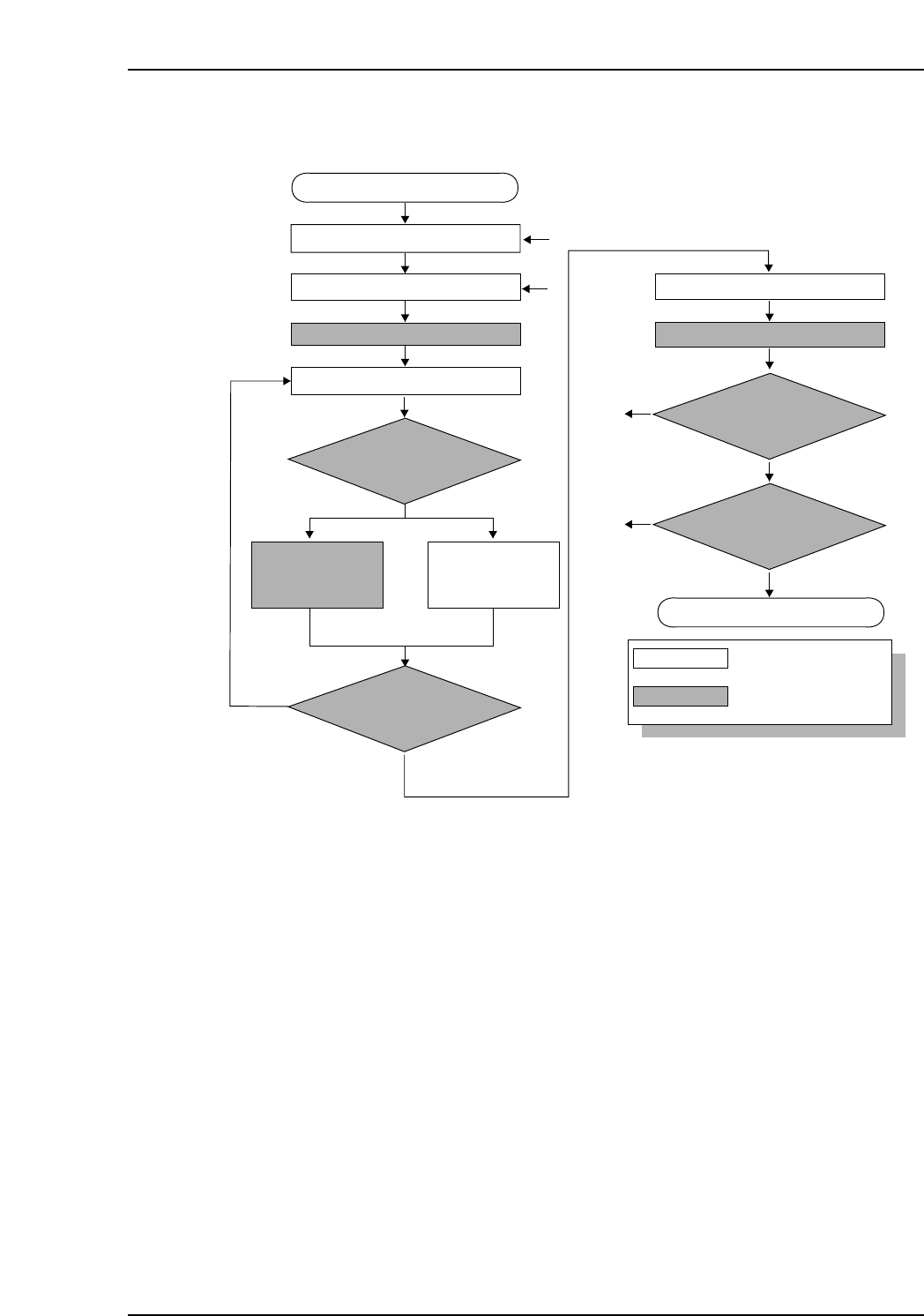
9. Using The Normal V erification Mode Edition 2.0 57 CP-7-series V erification System Instruction Manual 9.6.2 Device Check Flowchart Device check start Stage to be checked is determined Slot to be checked is determined…

9. Using The Normal Verification Mode
Edition 2.0 56 CP-7-series Verification System Instruction Manual
9.6.1.1 Recipe Switching
• The recipe is switched.
9.6.1.2 Device Check
• Device check is performed (see following pages for details).
• An “Unread FIDL” status displays at the device check screen after a device check is
completed for a slot.
• The “Unread FIDL” status changes to a “Parts Present” status following Fujitrax
Verifier verification at slots where feeder ID reading is completed without error.
9.6.1.3 Automatic Operation Start
• Automatic operation begins.
9.6.1.4 Feeder ID Reading
• The camera at ST1 reads the feeder IDs affixed to each feeder.
• Feeder ID reading occurs only at slots where an “Unread FIDL” status exists.
• The “Unread FIDL” status changes to a “Unread HOST” status at slots where
feeder ID reading is completed without error.
9.6.1.5 Check Against Fujitrax Verifier Database
• The feeder/reel combination data read by the Fujitrax Verifier is checked against
the feeder/reel combination data in the Fujitrax Verifier database to see if it
matches.
• “Remaining parts count” information for each reel is downloaded from Fujitrax
Verifier.
9.6.1.6 Production Start
• Production is started automatically.
9.6.1.7 Part Supply
• Parts are supplied.
9. Using The Normal Verification Mode
Edition 2.0 57 CP-7-series Verification System Instruction Manual
9.6.2 Device Check Flowchart
Device check start
Stage to be checked is determined
Slot to be checked is determined
Mismtch
No
No
No
To [1]
To [2]
Match
DID reading
ID which was acquired
is compared with recipe’s
device comment
Is a device
comment delimiter being used
in the DID?
: Operator tasks
: Machine processing
LED on at slot to be verified
Device comment is
extracted from the
DID.
Device comment
reading
Feeder is set
LED on at stage to be verified
Unshaded box
Shaded box
[1]
[2]
Yes
Yes
Yes
Device check completed
All device checks completed
at this stage?
Device checks completed
at both sides?
9. Using The Normal Verification Mode
Edition 2.0 58 CP-7-series Verification System Instruction Manual
9.6.2.1 Device Check Start
• A device check can be started in the following three ways.
I. By selecting [Device Check] at the machine control panel.
II. At the PDT-3100 [Main Menu], select [1. Verify Check], then press [Enter].
PDT-3100’s Main Menu
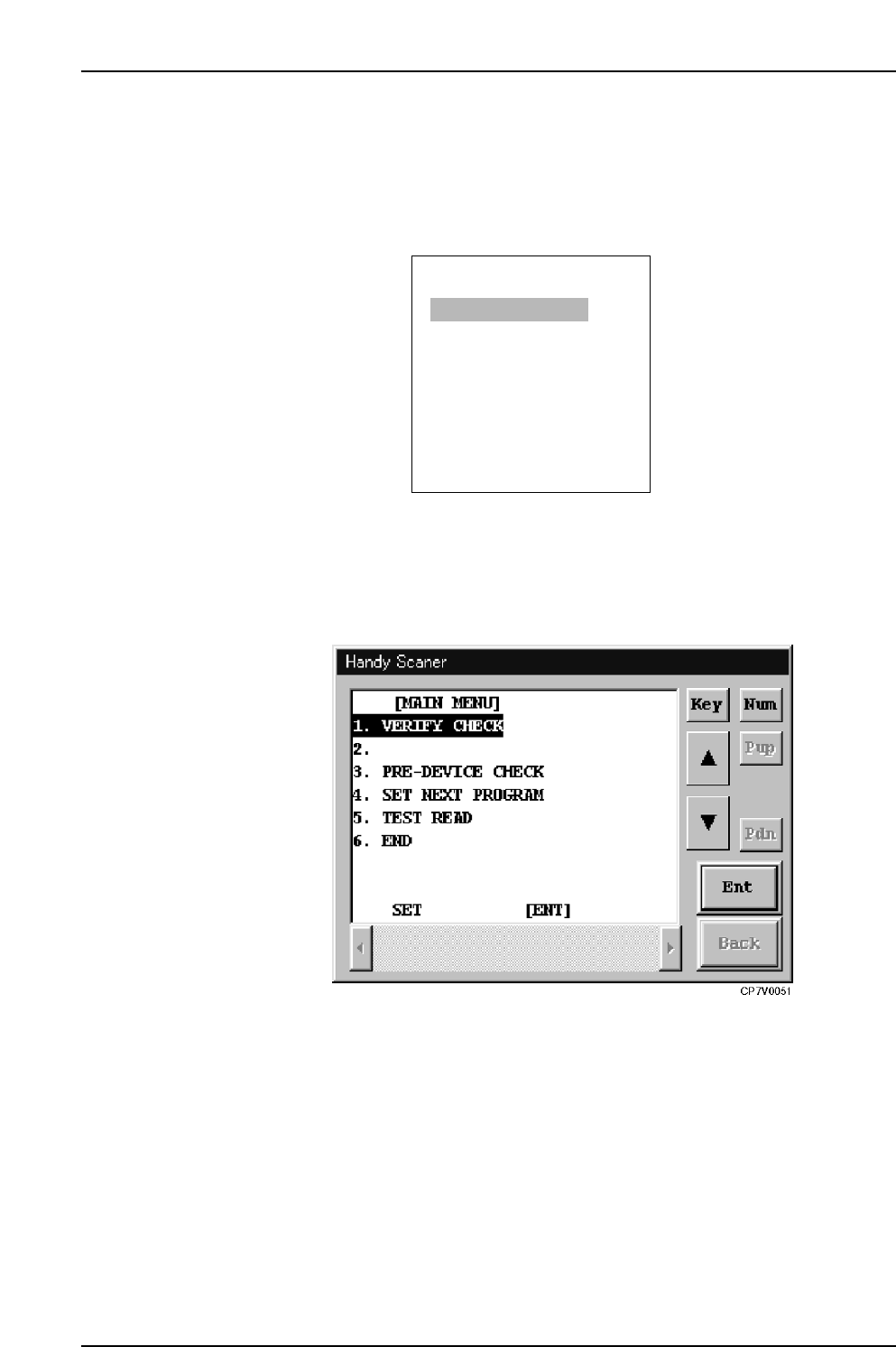
III. With the main menu displayed at the Handy Scanner dialog box, read the "1"
barcode, and select "1. VERIFY CHECK".
Handy Scanner’s Main Menu
ENTER
[MAIN MENU]
1. VERIFY CHECK
2. PRE VERIFY CHECK
3. SET VERIFY RECIPE
4. PALLET SUPPLY
5. TEST READ
SELECT NO.=v
▼▲
CP7V0005